


Please Consider Donating us
We are helping millions of Beginners and Professionals to learn new programming technologies.
Please consider donating us:



How to show sum of columns in the footer of the GridView with jQuery

When working with a GridView in ASP.NET Web Forms, you may often need to show the sum of all the columns in the GridView footer. While this can be achieved using lengthy C# code in the .aspx.cs file, there is a much simpler approach.
With just a few lines of jQuery, you can quickly calculate and display column totals without writing complex server-side code.
In this tutorial, I will show you some of the simplest ways to calculate and display column sums in the GridView footer using jQuery. The examples are easy to implement and can help you reduce unnecessary C# code.
GridView’s Column Sum
My GridView shows the product data report and has 5 columns which are:
- 1. Id
- 2. Name
- 3. Quantity
- 4. Price
- 5. Total
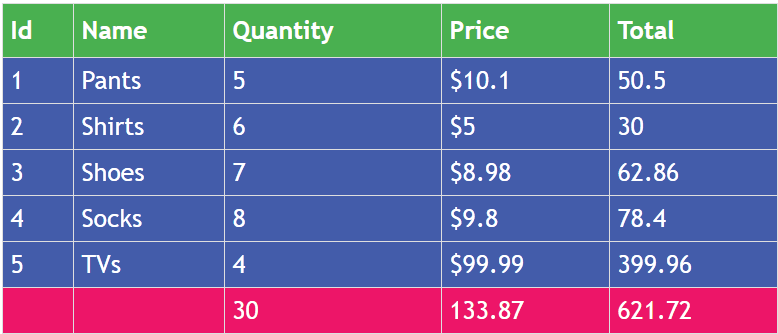
Out of these columns, the Id, Name, Quantity, and Price values are bound from the database or assigned in the .aspx.cs page. The fifth column, Total, displays the total price for each product by multiplying the Quantity by the Price (Product * Price) for that particular row in the GridView.
The GridView will also have a footer which will show 3 values:
- 1. Sum of all Quantity column values.
- 2. Sum of all Price column values.
- 3. Sum of all Total column values.
<asp:GridView ID="gridView" runat="server" AutoGenerateColumns="false" ShowFooter="true" FooterStyle-BackColor="#ff0066">
    <Columns>
        <asp:BoundField DataField="Id" HeaderText="Id" />
        <asp:TemplateField HeaderText="Name">
            <ItemTemplate>
                <asp:Label ID="nameLabel" runat="server" Text='<%#Bind("Name") %>'></asp:Label>
            </ItemTemplate>
        </asp:TemplateField>
        <asp:TemplateField HeaderText="Quantity">
            <ItemTemplate>
                <asp:Label ID="quantityLabel" runat="server" Text='<%# Bind("Quantity") %>' CssClass="quantityCSS"></asp:Label>
            </ItemTemplate>
            <FooterTemplate>
                <span class="quantitySpan"></span>
            </FooterTemplate>
        </asp:TemplateField>
        <asp:TemplateField HeaderText="Price">
            <ItemTemplate>
                $<asp:Label ID="priceLabel" runat="server" Text='<%# Bind("Price") %>' CssClass="priceCSS"></asp:Label>
            </ItemTemplate>
            <FooterTemplate>
                <span class="priceSpan"></span>
            </FooterTemplate>
        </asp:TemplateField>
        <asp:TemplateField HeaderText="Total">
            <ItemTemplate>
                <asp:Label ID="totalLabel" runat="server" CssClass="totalCSS"></asp:Label>
            </ItemTemplate>
            <FooterTemplate>
                <span class="totalSpan"></span>
            </FooterTemplate>
        </asp:TemplateField>
    </Columns>
</asp:GridView>
Notice the ShowFooter=”true” properly which will show the footer in the GridView. Also see the 3 columns given in the FooterTemplate of the GridView like:
<FooterTemplate>
    <span class="quantitySpan"></span>
</FooterTemplate>
…
<FooterTemplate>
    <span class="priceSpan"></span>
</FooterTemplate>
…
<FooterTemplate>
    <span class="totalSpan"></span>
</FooterTemplate>
Add the below code to your .aspx.cs page:
protected void Page_Load(object sender, EventArgs e)
{
    if (!IsPostBack)
        BindGridView();
}

public void BindGridView()
{
    DataTable dataTable = new DataTable();
    DataColumn[] dataColumn = new DataColumn[]
    {
            new DataColumn("Id"),
            new DataColumn("Name"),
            new DataColumn("Quantity"),
            new DataColumn("Price")
    };

    dataTable.Columns.AddRange(dataColumn);
    dataTable.Rows.Add(new object[] { 1, "Pants", 5, 10.10 });
    dataTable.Rows.Add(new object[] { 2, "Shirts", 6, 5 });
    dataTable.Rows.Add(new object[] { 3, "Shoes", 7, 8.98 });
    dataTable.Rows.Add(new object[] { 4, "Socks", 8, 9.80 });
    dataTable.Rows.Add(new object[] { 5, "TVs", 4, 99.99 });

    gridView.DataSource = dataTable;
    gridView.DataBind();
}
Notice that I have used a DataTable object to bind the GridView with some dummy data.
Now, if you run your page in the browser the GridView will look like:
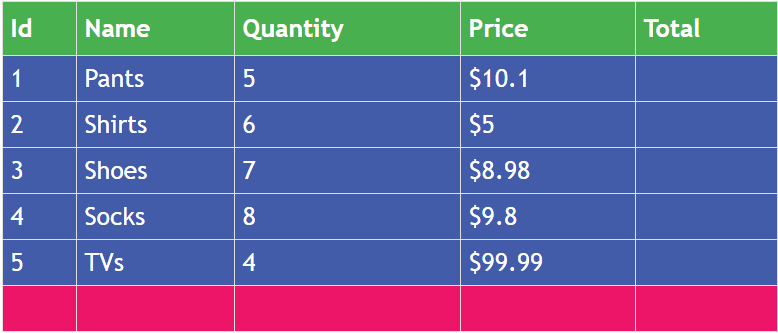
Let me use jQuery to show the sum of columns in the GridView.
Showing Sum of Quantities columns in the footer
Firstly, I add jQuery and document.ready() method in your webpage.
<script src="https://code.jquery.com/jquery-3.2.1.min.js"></script>

<script type="text/javascript">
    $(document).ready(function () {
        var quantityTotal = 0;
        $.each($(".quantityCSS"), function (index, value) {
            quantityTotal += parseInt($(value).text());
        });
        $(".quantitySpan").text(quantityTotal);
    });
</script>
I have used jQuery .each method to loop through all the ‘Quantity’ columns of the GridView. These columns have the CSS class called quantityCSS.
I have defined a variable to store the sum:
var quantityTotal = 0;To this variable, I am adding the sum like:
quantityTotal += parseInt($(value).text());Finally, I display the sum of all values in the Quantity column in the GridView footer. The footer cell contains a span element with the CSS class quantitySpan, where the calculated total is displayed.
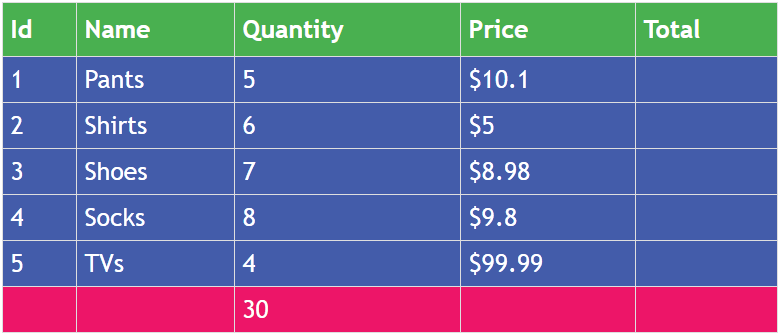
$(".quantitySpan").text(quantityTotal);Now reload the page in your browser. You will see that the sum of the Quantity column, which is 30, is displayed in the GridView footer, as shown in the image below.
Showing Sum of Price columns in the footer
Next, add the following jQuery code inside the document.ready method:
var priceTotal = 0;

$.each($(".priceCSS"), function (index, value) {
    priceTotal += parseFloat($(value).text());
});

$(".priceSpan").text(priceTotal);
In this code, I loop through all the Price column values in the GridView, which have priceCSS as their CSS class. I then add each value to a variable called priceTotal to calculate the total price.
Finally, showing this sum inside the footer column which has a CSS class called priceSpan.
Notice that the values of the Price columns are in decimals therefore I have used parseFloat() function to convert them to float values before adding them to the priceTotal variable.
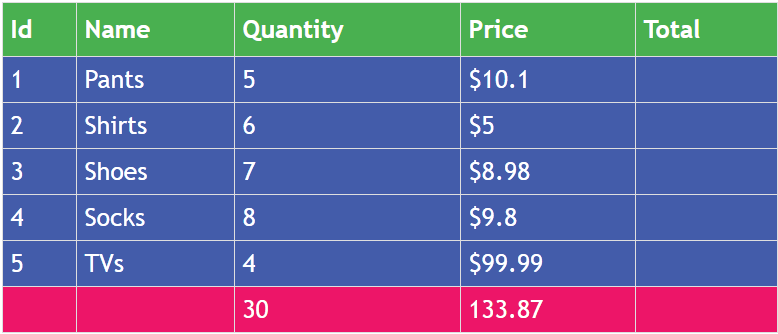
Now, reload the page in the browser and you will see the total of all the Price columns in the footer of the GridView like shown by this image below:
Showing Multiplication of Price * Quantity in the Total column
The total column will show the multiplication of Price * Quantity of each row. Therefore to do this, add the below jquery code inside the document.ready method:
$.each($(".totalCSS"), function (index, value) {
    var q = $(this).parents("tr").find(".quantityCSS").text();
    var p = $(this).parents("tr").find(".priceCSS").text();
    $(this).text(p * q);
});
The total column has a CSS class called totalCSS. So, with the .each() method of jQuery, I am looping through them.
Next, inside the .each() method, I am finding the values of Quantity and Price columns of each row of the GridView.
var q = $(this).parents("tr").find(".quantityCSS").text();
var p = $(this).parents("tr").find(".priceCSS").text();
I am using the parents() method to find the current ‘tr’ element, and then with the find() method, I am able to get the Quantity and Price columns.
Not to mention that with the text() method, I get the values of these columns.
On the final code line – $(this).text(p * q), which shows the multiplication value in the current ‘total’ column.
In this way, each Total column is calculated by multiplying the corresponding Price and Quantity values for each row of the GridView.
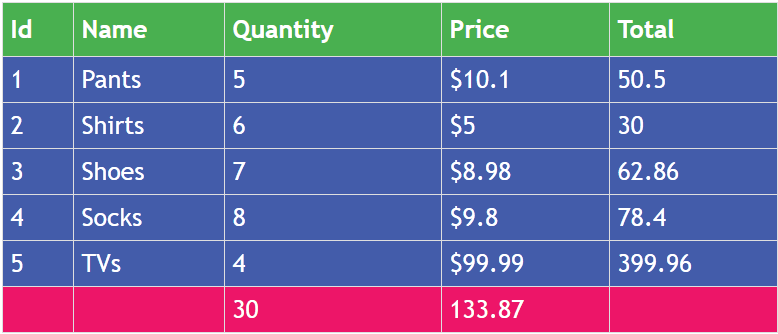
Reload the web page to see the ‘Total’ columns now have the multiplication values, check the below image:
Showing Sum of Total columns in the footer
To show the sum of Total columns in the footer of the GridView, add the below code to the document.ready method:
var totals =0
$.each($(".totalCSS"), function (index, value) {
    totals += parseFloat($(value).text());
});
$(".totalSpan").text(totals);
Here, I am looping through all the Total columns and adding their values in a variable called ‘totals’. This variable’s value is finally shown inside the footer column.
Reload the web page and you will now see the footer now shows the sum of all the values in the ‘Total’ columns, see below image:
Refer the link to DOWNLOAD the Codes:
I hope you enjoyed this tutorial and now have a better understanding of how useful jQuery can be when working with GridView in ASP.NET Web Forms. Many tasks that may seem complex can be handled quickly and efficiently with just a few lines of jQuery, helping you write cleaner and simpler GridView implementations.
SHARE THIS ARTICLE


Related Tutorials:



ABOUT THE AUTHOR
I hope you enjoyed reading this tutorial. If it helped you then consider buying a cup of coffee for me. This will help me in writing more such good tutorials for the readers. Thank you.

HELLO EVERYONE
 Welcome to YogiHosting - A Programming Tutorial Website. It is used by millions of people around the world to learn and explore about ASP.NET Core, Blazor, jQuery, JavaScript, Docker, Kubernetes and other topics.
SUBSCRIBE TO NEWSLETTER
Enter your email address to subscribe to this blog and receive notifications of new posts by email.
Join 90K other subscribers