


How to Use Bootstrap to Create Responsive Design
New to Bootstrap? You’re in the right place. This tutorial walks you through everything, starting with the very basics. If you know some HTML and CSS, you’re ready. By the end, you’ll have the skills to design polished, responsive websites that look great on every screen.
In this tutorial I will use Bootstrap 5.3 in a web page to make it responsive. You can also check this tutorial – What is Bootstrap, to learn about the offerings of this framework in depths.
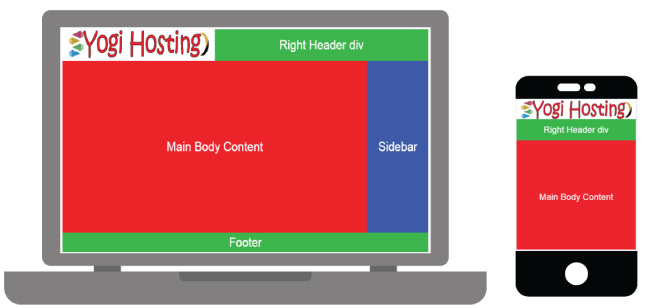
The layout of our HTML Web Page has three main parts:
- 1. Header – which contains the logo image on the left and a div on the right.
- 2. Body – has two parts, Main Content div on the left and a Sidebar div on the right.
- 3. Footer – containing site’s copyright information.
The image below illustrates this layout when viewed in larger screens – like that of laptops and computers:
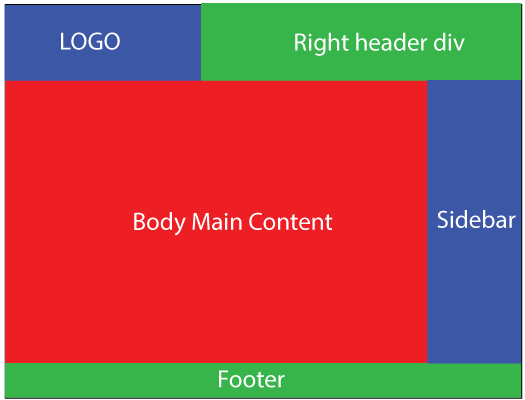
This layout isn’t responsive. It looks fine on larger screens like laptops and desktops, but on smartphones (iPhones, Galaxy devices, and the like) and tablets, it doesn’t fit.
Visitors have to scroll sideways just to see the full page. The text and images shrink to a tiny size, so readers have to pinch and zoom to make anything out. That’s a frustrating experience, and most people will simply leave.
To fix this, I’ll use Bootstrap to split the wider sections of the layout into smaller blocks. When the screen gets narrower, those blocks stack and drop down to the next row instead of getting squeezed or cut off.
The result is a page with no horizontal scrolling and text that stays large enough to read, no matter what device it’s viewed on.
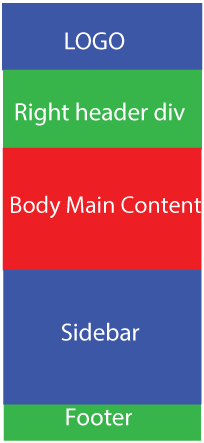
In smaller screen sizes this layout should look like this:
☺ Now I will show how to use Bootstrap.
How to Use Bootstrap 5 in the Web Page
In order to use Bootstrap in our web page you first need to add the reference to necessary Meta tags and Bootstrap’s CSS/JS files. The below steps explain how to do this:
- After the page title, first include the viewport meta.
- Then reference the bootstrap.css file followed by your website style sheet.
- In the end, before </body> tag, add reference to bootstrap.bundle.js file.
This is how the HTML of our web page looks:
<!doctype html>
<html lang="en">
  <head>
    <meta charset="utf-8">
    <meta name="viewport" content="width=device-width, initial-scale=1">
    <title>Bootstrap Demo</title>
    <link href="https://cdn.jsdelivr.net/npm/bootstrap@5.3.8/dist/css/bootstrap.min.css" rel="stylesheet" integrity="sha384-sRIl4kxILFvY47J16cr9ZwB07vP4J8+LH7qKQnuqkuIAvNWLzeN8tE5YBujZqJLB" crossorigin="anonymous">
  </head>
  <body>
    <h1>Hello, Bootstrap!</h1>
    <script src="https://cdn.jsdelivr.net/npm/bootstrap@5.3.8/dist/js/bootstrap.bundle.min.js" integrity="sha384-FKyoEForCGlyvwx9Hj09JcYn3nv7wiPVlz7YYwJrWVcXK/BmnVDxM+D2scQbITxI" crossorigin="anonymous"></script>
  </body>
</html>
The Bootstrap CSS and JS files are referenced them from CDN. You can also download the bootstrap package in the website folder and reference these files from there also.
Understanding Bootstrap Grid
The Bootstrap Grid system is used to create Responsive Layouts using rows and columns. Each row is divided into 12 equal units. Rows (.row) are placed inside a .container (fixed width) or .container-fluid (full width).
Column widths can be defined for different screen sizes (phones, tablets, desktops or larger screen) using any of the following 5 class prefixes:
| Extra small devices Phones (<576px) | Small devices Tablets (≥576px) | Medium devices Laptops (≥768px) | Large devices Desktops (≥992px) | Extra Large devices Large Desktops (≥1200px) | |
|---|---|---|---|---|---|
| Max Container Width | None (auto) | 540px | 720px | 960px | 1140px |
| Class prefix | .col-* | .col-sm-* | .col-md-* | .col-lg-* | .col-xl-* |
Replace the * with a number from 1 to 12. This number sets how many of the 12 units the column spans, which determines its width.
The sm, md, lg, and xl prefixes correspond to screen-width breakpoints (see the table above for the exact values).
These prefixes are what make the grid responsive. They control the screen size at which columns sit side by side in a row, and the point below which they stack vertically.
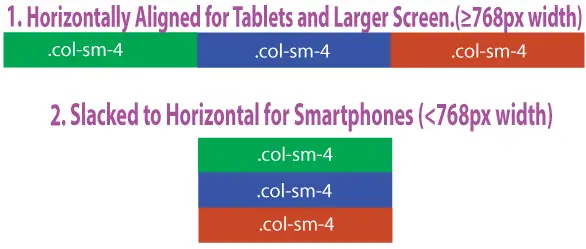
Take for example, if you want to place 3 floated columns in a row for tablets (≥768px width) then use:
<div class="row">
    <div class="col-md-4">
    </div>
    <div class="col-md-4">
    </div>
    <div class="col-md-4">
    </div>
</div>
Or I can also use:
<div class="row">
    <div class="col-md-8">
    </div>
    <div class="col-md-2">
    </div>
    <div class="col-md-2">
    </div>
</div>
You may have noticed that I have changed the value of “*”.
There can be many such combinations because the count of the number for “*” is 12 (Bootstrap Grid allows only 12 columns in a row).
- .col-md-2, .col-md-2, .col-md-8
- .col-md-6, .col-md-2, .col-md-4
- .col-md-5, .col-md-5, .col-md-2
More the number for the “*” more will be the column width. Example .col-md-4 will be twice large in width as .col-md-2.
- These three columns will sit side by side in a single row on tablet-sized screens and larger (≥768px). On smaller screens (<768px), they will stack vertically, one below the other.
- Let’s take the example of smartphones (use .col-* type class). In the below HTML the columns will be slacked for smartphones but for tablets and larger screen they will remain floated.
<div class="row">
    <div class="col-8">
    </div>
    <div class="col-2">
    </div>
    <div class="col-2">
    </div>
</div>
By mixing Multiple Bootstrap Grid Classes, you can create even more powerful layouts. Example – see the below HTML:
<div class="row">
    <div class="col-sm-8 col-lg-6"></div>
    <div class="col-sm-4 col-lg-6"></div>
</div>
The above 2 columns will be slacked horizontally only for screen sizes less than 576px. For larger screens they will remain floated.
With the Bootstrap Grid knowledge let us build the responsive design in HTML.
Using Bootstrap to Create Header Responsive
Let’s start with the creation of header. You may remember our header has a logo on the left and a div on the right side.
So, inside the body tag start with a .container div. Then inside this container div put a row with 2 columns. The HTML will look like this:
<div class="container">
    <div class="row">
        <div class="col-md-5">
            <img src="Images/logo.png" class="img-fluid"/>
        </div>
        <div class="col-md-7">
            Right Header Div
        </div>
    </div>
</div>
Explanation: The responsive layout in Bootstrap should start with .container (fixed-width) or .container-fluid (full-width) div. Inside it I placed a .row class div that contains 2 columns div – .col-md-5 and .col-md-7 (this div larger than the logo div).
These 2 columns divs will remain horizontally on the row (i.e. float: left;) for tablets screens and larger (≥768px width). For smaller than 768px width screens (like that of all smartphones), they will be slacked to horizontal (i.e. float: none;).
You will also note I have put img-fluid class for the logo image. This class makes the image responsive (will scale nicely for screen sizes that are smaller than the image width).
Using Bootstrap to Create Body Responsive
The body has 2 divs which are the Main Body Content and the Sidebar. To add these 2 divs I can create a new row (just after header row ends) and place these 2 divs inside it.
The HTML is given below:
<div class="container">
    <!--Header Row -->
    <div class="row">
        <div class="col-md-8">
            Main Body Content
        </div>
        <div class="col-md-4">
            Sidebar
        </div>
    </div>
</div>
Explanation: The HTML is quite easy to understand. After the end of header row I have put a new row for the body divs. Inside this row I placed the 2 divs for the 2 columns.
These 2 columns will remain floated for tablets and larger screen. For smartphones they will slack horizontally.
The Main Body Content div being twice the size of Sidebar div.
Using Bootstrap to Create Footer Responsive
Now only the footer is left. Just like what I did for the header and body, the HTML of the footer will be:
<div class="container">
    <!--Header Row -->
    <!--Body Row -->
    <div class="row">
        <div class="textCenter col-md-12">
            Footer
        </div>
    </div>
</div>
Explanation: The footer row contains just a single column so I made a full width column (.col-md-12).
The work of the .textCenter class is to align the text at the center. You have to define this class in our website custom CSS.
.textCenter {
    text-align: center;
}
That’s the end of the coding part. As I have successfully used Bootstrap to convert all portions of the web page to responsive ones.
If you open the web page in laptop and iPhone, you will find the look similar to the image below:
Checking How Bootstrap Performs in Our Web Page
To check how Bootstrap Performs in our web page you can take the help of Chrome DevTools. It can be opened by right clicking on the web page in chrome browser and then select Inspect.
The DevTools window will open at the bottom of your Chrome browser. Now click on the Toggle device toolbar icon.
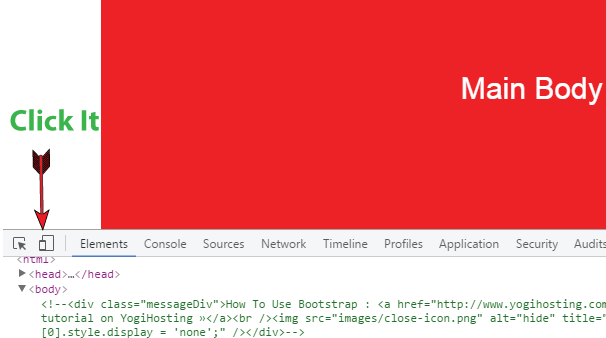
From here you can check how the web page will look in difference devices.
This is how we can Use Bootstrap to create any sort of Responsive Design. This is only a starting tutorial but it will provide you a good understanding of Bootstrap framework.
You can avoid Bootstrap framework and create a responsive design by using CSS Media Queries. Check the article CSS Media Queries for Responsive Web Design which covers this topic.
Have any question on Bootstrap? Why not ask it on the comment section below.
SHARE THIS ARTICLE


Related Tutorials:



ABOUT THE AUTHOR
I hope you enjoyed reading this tutorial. If it helped you then consider buying a cup of coffee for me. This will help me in writing more such good tutorials for the readers. Thank you.
Please Consider Donating us
We are helping millions of Beginners and Professionals to learn new programming technologies.
Please consider donating us:




HELLO EVERYONE
 Welcome to YogiHosting - A Programming Tutorial Website. It is used by millions of people around the world to learn and explore about ASP.NET Core, Blazor, jQuery, JavaScript, Docker, Kubernetes and other topics.
SUBSCRIBE TO NEWSLETTER
Enter your email address to subscribe to this blog and receive notifications of new posts by email.
Join 90K other subscribers