


Multiple Solutions to solve WordPress White Screen of Death
If your WordPress site suddenly shows only a blank white page, you’re dealing with the White Screen of Death (WSOD). It’s one of the most common WordPress errors, and it usually appears when a faulty plugin or theme, a PHP error, or a memory limit issue stops the site from loading properly.
WordPress login page is also White
The White Screen of Death can also lock you out of your WordPress admin, since the login page goes blank too. The most common cause is an incompatible or faulty plugin. To fix it, deactivate all plugins directly from the WordPress database, then reactivate them one at a time to find the culprit and remove it.
Solving White Screen of Death by Deactivating all the Plugins From the Database
Since you cannot log in to your WordPress Dashboard (because the login page is also a White Page), therefore you need to deactivate the plugins from the database.
The steps for performing the deactivation of plugins from database are outlined below:
STEP 1 – Determine the Database Name
Find the file wp-config.php which is kept in your website root folder. To access the website root folder use an ‘FTP client software like filezilla’. In the ‘wp-config.php’ file search the line similar to – define('DB_NAME', 'yourdatabase123');.
It gives the database name within the second single quotes. Like here, I have the database name yourdatabase123.
STEP 2 – Opening Database with phpMyAdmin
Next, go to the phpMyAdmin section. It will show all databases in your account. From the left-hand navigation menu, search your database and click on the plus sign in front on it.
STEP 3 – Finding and Removing the Plugin text from the Database to Deactivate Them
Click on wp_options table.
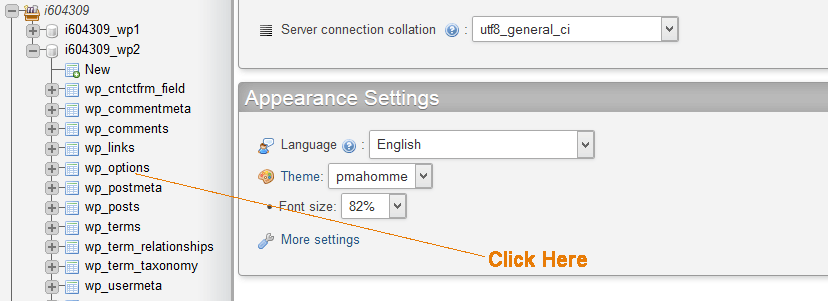
Then find ‘active_plugins’, under the column called ‘option _name’, and then click edit link given on its left side. This is explained by the below image:

It will open for editing, you will find something like:
a:2:{i:0;s:36:"contact-form-plugin/contact_form.php";i:1;s:23:"ml-slider/ml-slider.php";}Delete it completely, then click on the ‘Go’ button to save it.
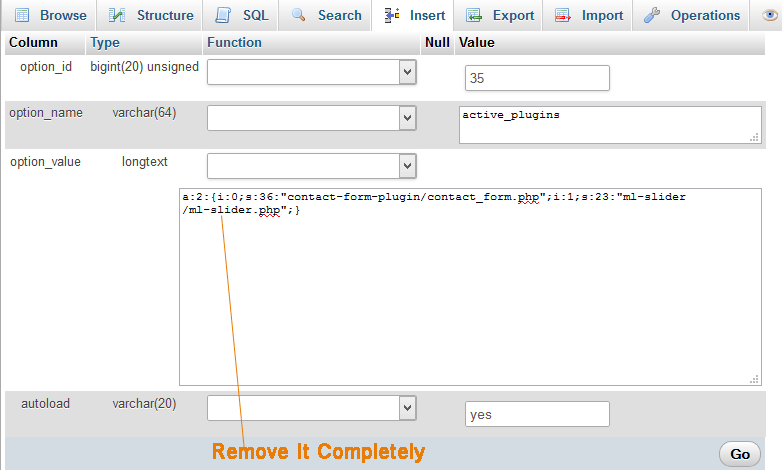
Once it is saved then all your plugins are automatically deactivated from your WordPress site. You can now refresh the website in your browser and you will see the website is back online.
Finding the Faulty Plugin
Once all the plugins are deactivated you can log into the WordPress. Go to your plugins area in the dashboard and start activating plugins one by one until you find the White Screen of Death back again.
This happens because the last plugin which you activated is the faulty one. Now you know this is the faulty plugin so once again deactivate all the plugins from the database and then activate all of them except this bad plugin which is the cause of the White Screen of Death.
Deactivating a faulty Theme
Sometimes the White Screen of Death is cause by activating a faulty Theme. In that case the solution is to deactivate this faulty theme. You can do it from the dashboard itself.
If you are unable to access the dashboard then simply change the name of the theme folder in the WordPress directory. All themes are kept in the themes folder whose location is – wp-content > themes.
You can use either any ‘FTP client like FileZilla’ or ‘File Manager’ of the web hosting to change the theme folder name.
This solves your WordPress White Screen problem and everything starts working like before.
SHARE THIS ARTICLE


Related Tutorials:





ABOUT THE AUTHOR
I hope you enjoyed reading this tutorial. If it helped you then consider buying a cup of coffee for me. This will help me in writing more such good tutorials for the readers. Thank you.
Please Consider Donating us
We are helping millions of Beginners and Professionals to learn new programming technologies.
Please consider donating us:




HELLO EVERYONE
 Welcome to YogiHosting - A Programming Tutorial Website. It is used by millions of people around the world to learn and explore about ASP.NET Core, Blazor, jQuery, JavaScript, Docker, Kubernetes and other topics.
SUBSCRIBE TO NEWSLETTER
Enter your email address to subscribe to this blog and receive notifications of new posts by email.
Join 90K other subscribers