


How to Install Bootstrap Package in ASP.NET Core Application in Visual Studio
Visual Studio provides several ways to install and manage client-side libraries such as Bootstrap and jQuery in ASP.NET Core applications. These libraries help you build responsive, interactive, and visually appealing web applications without writing every feature from scratch.
In this tutorial, you will learn about two client-side package management tools:
- LibMan (LibraryManager)
- Bower
You will understand how they work, how to install client-side libraries using these tools, and how to configure the downloaded files in your ASP.NET Core project. Follow the step-by-step examples to learn how to add these libraries to your application and start using them in your web pages.
I will also give you an example of this installation process. So make sure to read this tutorial on one go.
What is LibMan
Library Manager (LibMan) is a client-side library management tool in Visual Studio that lets you add and manage frontend libraries such as Bootstrap, jQuery, and Font Awesome in ASP.NET Core applications.
LibMan downloads the selected library files from supported providers, such as the official CDN or the cdnjs library repository, and places them in your project’s specified folder, typically under wwwroot/lib. You can then reference these files in your HTML pages or the shared _Layout.cshtml file.
For example, you can use LibMan to install Bootstrap without manually downloading its files or configuring npm.
Key benefits of LibMan:
- Simplifies installing client-side libraries in Visual Studio.
- Lets you select a specific library version.
- Downloads only the library files you need. – Stores the files locally in your project, allowing you to serve them from wwwroot.
Unlike npm, which supports a broader JavaScript package-management and build ecosystem, LibMan focuses specifically on acquiring client-side library files.
How to Install Bootstrap in ASP.NET Core Using LibMan
When you are using Visual Studio 2026 then LibMan is a perfect choice to Install Bootstrap Package in your application. Just follow these quick steps:
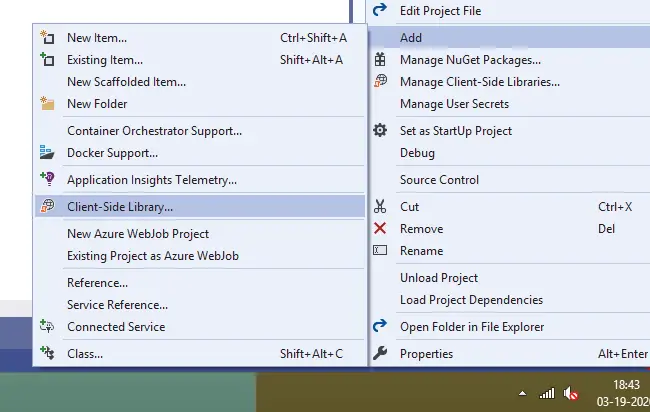
- Step #1: In your ‘Solution Explorer’ window, right click on the Project Name and then select Add > Client-Side Library. It will open ‘Add Client-Side Library’ window.

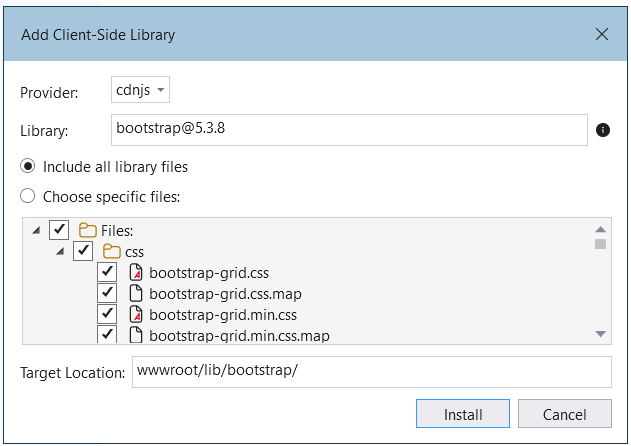
- Step #2: Next, in the Add Client-Side Library window leave the default provider which is “cdnjs” in this case.
- Step #3: In the Library text box, enter the name of the client-side library you want to install. Visual Studio IntelliSense displays matching libraries as you type. For example, type bootstrap and select Bootstrap from the suggestions. LibMan will automatically select the latest available version. If you prefer a specific release, you can enter the version manually. In this example, I am installing **Bootstrap 5.3.8** in the ASP.NET Core project.
- Step #4: There are two radio buttons “Include All library files” and “Choose Specific files“. The Include All library files option will download all files while Choose Specific files option allows you to select files which you needs to be included. Select “All library files” option unless you have specific requirements.
- Step #5: In the Target Location text box you can specify the folder location where you want the library files to be installed. By default Bootstrap will be installed in the default location which is wwwroot/lib/bootstrap/. Finally click the Install button which will download and install the Bootstrap package on your application.
- 1. Cleaning Client-Side Libraries
- 2. Restoring Client-Side Libraries
- 3. Update Client-Side Libraries
- 4. Uninstall Client-Side Libraries
- 1. Open the libman.json file and then click on the client-side library which you want to uninstall or update.
- 2. You will see a light yellow bulb icon appearing on the left side. Click on this icon to get the options for – whether to update or uninstall that specific client-side library. I have shown this in the below image.
Once bootstrap is installed you will find libman.json file added to your application’s root folder. Open it, it’s code is given below:
{
  "version": "3.0",
  "defaultProvider": "cdnjs",
  "libraries": [
    {
      "library": "bootstrap@5.3.8",
      "destination": "wwwroot/lib/bootstrap/"
    }
  ]
}
What is libman.json file in ASP.NET Core
The libman.json file is the Library Manager manifest file which contains the all the libraries (ie. packages) along with their destinations that are installed in the application.
Note that you will find the Bootstrap reference in it.
You can do a number of tasks with the libman.json file, these are:
Cleaning & Restoring Client-Side Libraries
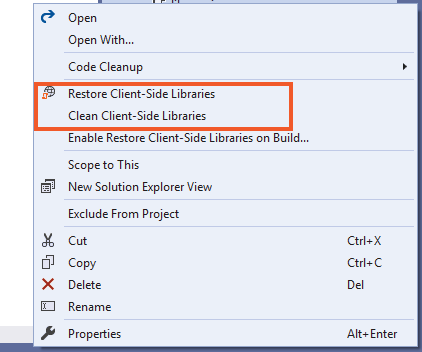
Cleaning & Restoring Client-Side Libraries can be done quite easily by right clicking on the libman.json file, and it will show up these 2 options. Simply select the needed option to perform the task.
I have shown this in the image below:
Update & Uninstall Client-Side Libraries
The steps to update or uninstall a Client-Side Library are similar. You need to follow the below steps.
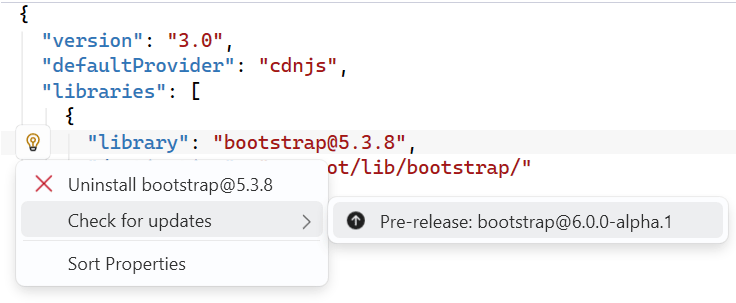
Note: You can also update or uninstall a client-side library by editing its entry in the libman.json file. To update the library, change its version number. To uninstall it, remove its entry. Save the file to apply the changes.
How to Install Bootstrap in ASP.NET Core Using Bower
Note: Bower is a deprecated client-side package manager and is not recommended for new ASP.NET Core projects. This section is intended for developers maintaining older applications, particularly those created with older versions of Visual Studio.
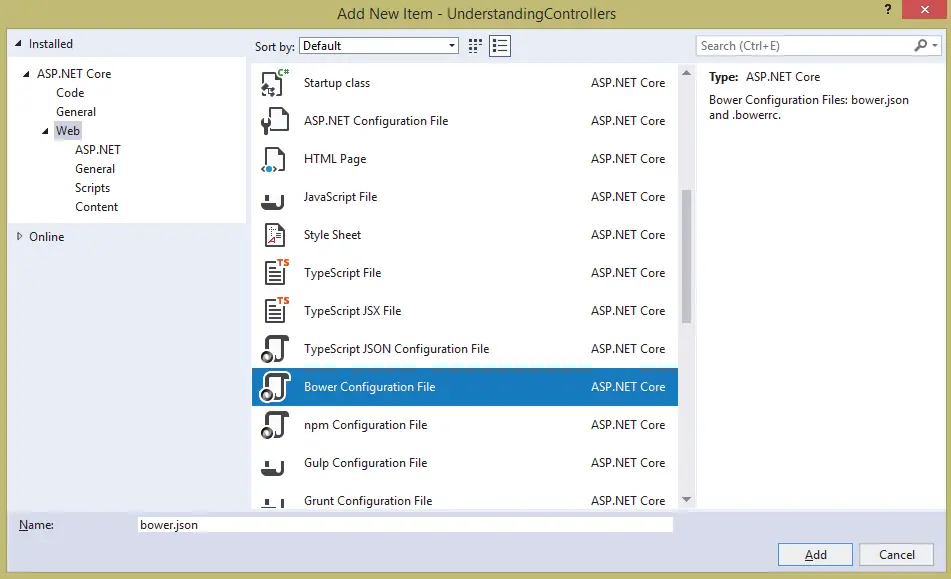
To install Bootstrap using Bower, you first need to add a Bower Configuration File (bower.json) to your project. In Visual Studio, right-click the project in Solution Explorer and select Add ➤ New Item.
In the Add New Item dialog box, navigate to Installed ➤ ASP.NET Core ➤ Web in the left pane. Select Bower Configuration File in the middle pane, then click Add, as shown in the following image.
The bower.json file will be added and will open for editing in Visual Studio.
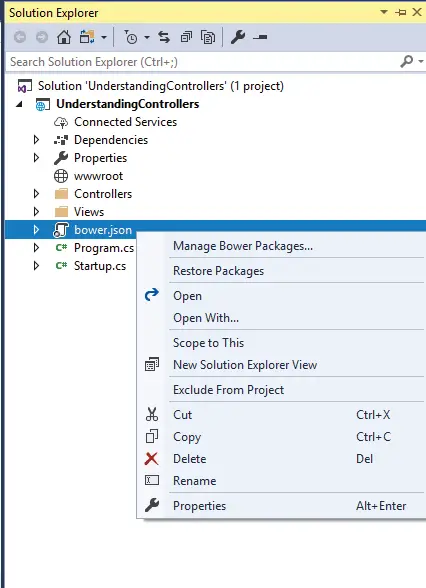
Right click the ‘bower.json’ file in solution explorer and select Manage Bower Packages. See the below image for this:
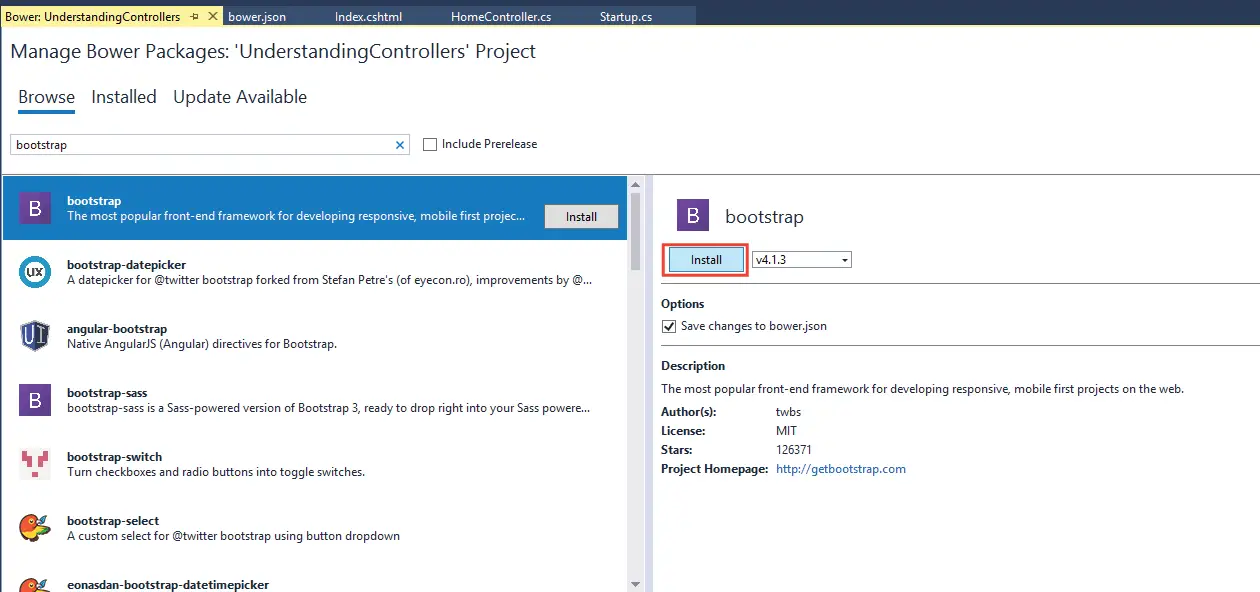
The Manage Bower Packages window will open. Select the Browse tab and enter bootstrap in the search box to find the Bootstrap package.
When Bootstrap appears in the search results, select it. In the right-hand panel, choose the required version and click the Install button to add Bootstrap to your project.
The following image illustrates this process.
In a few seconds time Bootstrap package will be downloaded and ready to be used in your project.
If you open the bower.json file, you will find the bootstrap entry is added inside the dependencies section:
{
  "name": "asp.net",
  "private": true,
  "dependencies": {
    "bootstrap": "v4.4.1"
  }
}
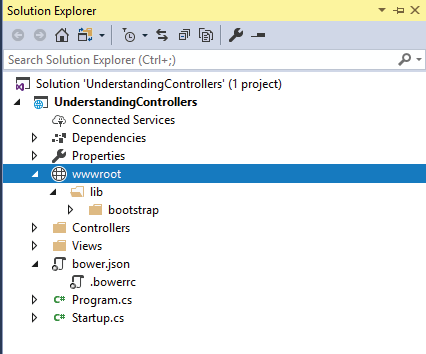
Note that installing client side libraries can also be done manually by first downloading them from their respective websites and placing their downloaded files in your website’s wwwrooot folder.
Before using Boostrap for designing layouts you need to add the link to the bootstrap css in the _Layout.cshtml file of your app.
<link rel="stylesheet" href="~/lib/bootstrap/dist/css/bootstrap.min.css" />
I hope you liked this tutorial on boostrap installation in asp.net core. Kindly share it with your friends. Thank you.
SHARE THIS ARTICLE


Related Tutorials:




ABOUT THE AUTHOR
I hope you enjoyed reading this tutorial. If it helped you then consider buying a cup of coffee for me. This will help me in writing more such good tutorials for the readers. Thank you.

Comments
Leave a Reply
HELLO EVERYONE
 Welcome to YogiHosting - A Programming Tutorial Website. It is used by millions of people around the world to learn and explore about ASP.NET Core, Blazor, jQuery, JavaScript, Docker, Kubernetes and other topics.
SUBSCRIBE TO NEWSLETTER
Enter your email address to subscribe to this blog and receive notifications of new posts by email.
Join 90K other subscribers
Dear sir/Madam:
please am using visual studio 2008 how can I add bootstrap to my Asp.net application?
thank you for your kind co-operation
Yours sincerely;
Emmanuel.
Hello Emmanuel,
You can add bootstrap by downloading the package from the bootstrap official website. Then copy and paste the package’s folder in your website wwwroot folder. Then in your view you just provide the link to bootstrap CSS and JS files. Check this article – How to Use Bootstrap to Create Responsive Design.