


Complete Guide to Minimal API Response
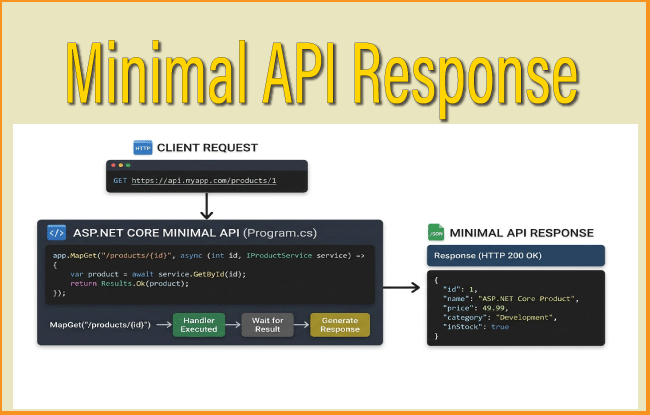
In ASP.NET Core Minimal APIs, a response represents the data returned by an endpoint to the client after processing an HTTP request. Minimal APIs provide several built-in response types through the Results class, making it easy to return contents such as JSON, plain text, files, streams, redirects, status codes, or custom responses without the overhead of MVC controllers. For example, Results.Ok() returns a successful HTTP 200 response with data, Results.NotFound() returns a 404 status code, and Results.Stream() streams data directly to the client. These response helpers produce implementations of IResult, allowing developers to create concise, readable, and efficient APIs while ensuring the correct HTTP status codes, headers, and content types are sent to the client.
string return values
The following endpoints return a Hello world text. The 200 status code is returned with text/plain Content-Type header.
app.MapGet("/hello", () => "Hello World");
app.MapGet("/hello", () => Results.Text("Hello World"));
JSON response
The below 2 endpoints return a json with value Hello World. The 200 status code is returned with application/json Content-Type header.
app.MapGet("/hello", () => new { Message = "Hello World" });
app.MapGet("/hello", () => Results.Json(new { Message = "Hello World" }));
Custom Status Code
The endpoint returns a 405 status code.
app.MapGet("/405", () => Results.StatusCode(405));Internal Server Error
The endpoint returns a 500 status code.
app.MapGet("/500", () => Results.InternalServerError("Something went wrong!"));Adding and Modifying Headers
Use the HttpResponse object to add or modify response headers:
app.MapGet("/", (HttpContext context) => {
    // Add a custom header
    context.Response.Headers["X-App-Custom-Header"] = "CustomValue";

    // Modify a header called CacheControl
    context.Response.Headers.CacheControl = $"public,max-age=3600";

    return "Hello World";
});
Redirect
app.MapGet("/old-path", () => Results.Redirect("/new-path"));File
app.MapGet("/download", () => Results.File("somefile.text"));Page Contents
Stream Response in Minimal API
Instead of downloading the entire response into a string or byte array, we can return a Stream connected to the response body. Using a stream is beneficial because:
- it avoids loading the entire file into memory.
- it’s efficient for large files.
- data can begin flowing to the client immediately.
For example, if the remote server returns:
[
  {
    "name": "Pikachu",
    "type": "Electric"
  }
]
the stream contains those bytes as they arrive.
Check the below code where stream is the response from a minimal api endpoint.
var builder = WebApplication.CreateBuilder(args);
var app = builder.Build();

var proxyClient = new HttpClient();
app.MapGet("/product", async () =>
{
    var stream = await proxyClient.GetStreamAsync("http://flipkart.com/products/saleproducts.json");
    // Proxy the response as JSON
    return Results.Stream(stream, "application/json");
});

app.Run();
In the above code, the last line returns a stream – return Results.Stream(stream, "application/json");.
Results.Stream() creates an HTTP response whose body is the provided stream.
The second parameter:
"application/json"sets the response’s Content-Type header.
HTTP/1.1 200 OK
Content-Type: application/json
And this is followed by the JSON from the remote server.
When the browser request:
GET http://localhost:5000/productThe sequence is:
Client
   │
   │ GET /product
   ▼
Your ASP.NET API
   │
   │ GET http://flipkart.com/products/saleproducts.json
   ▼
Flipkart Server
   │
   │ JSON Stream
   ▼
Your API
   │
   │ Streams bytes directly
   ▼
Client
The minimal api does not parse or modify the JSON—it simply forwards it.
Without streaming, we might write:
var json = await proxyClient.GetStringAsync("http://flipkart.com/products/saleproducts.json");
return Results.Content(json, "application/json");
This approach:
- downloads the entire JSON into memory,
- creates a large string,
- then sends it to the client.
With Results.Stream:
var stream = await proxyClient.GetStreamAsync(...);
return Results.Stream(stream, "application/json");
The data is forwarded as it is read from the upstream server, making it more memory-efficient, especially for large responses.
Stream a video from Minimal API
Serving large video files can be done by Results.Stream. The below given code streams a video stored in an Azure Blob Storage container to the client.
using Azure.Storage.Blobs;

var builder = WebApplication.CreateBuilder(args);

// Register BlobServiceClient
builder.Services.AddSingleton(_ =>
    new BlobServiceClient(builder.Configuration.GetConnectionString("AzureBlobStorage")));

var app = builder.Build();

app.MapGet("/video/{fileName}", async (string fileName, BlobServiceClient blobServiceClient) =>
{
    // Get the blob container
    var containerClient = blobServiceClient.GetBlobContainerClient("videos");

    // Get the requested blob
    var blobClient = containerClient.GetBlobClient(fileName);

    // Check whether the blob exists
    if (!await blobClient.ExistsAsync())
    {
        return Results.NotFound("Video not found.");
    }

    // Open the blob as a stream
    var stream = await blobClient.OpenReadAsync();

    // Stream the video to the client
    return Results.Stream(
        stream,
        contentType: "video/mp4",
        fileDownloadName: fileName);
});

app.Run();
- A BlobServiceClient is registered with dependency injection.
- The endpoint accepts the video file name as a route parameter.
- The API connects to the videos container in Azure Blob Storage.
- It checks whether the requested blob exists.
- If the blob exists, OpenReadAsync() opens a stream to the blob.
- Results.Stream() streams the video directly to the client without loading the entire file into memory.
- The response uses the video/mp4 content type so browsers and media players can recognize and play the video.
Returning ProblemDetails response from Minimal API
ProblemDetails is a standardized way for a Web API to return error information to clients. It is based on the IETF standard RFC 7807 (now updated by RFC 9457) and is built into ASP.NET Core.
Instead of returning inconsistent error responses like:
{
  "error": "Something went wrong"
}
You return a structured response like:
{
  "type": "https://example.com/errors/not-found",
  "title": "Resource not found",
  "status": 404,
  "detail": "The product with ID 10 does not exist.",
  "instance": "/api/products/10"
}
Properties of ProblemDetails:
| Property | Description |
|---|---|
| type | A URI identifying the type of problem. Can point to documentation. |
| title | A short, human-readable summary of the error. |
| status | The HTTP status code (e.g., 400, 404, 500). |
| detail | A detailed explanation of the specific error. |
| instance | The URI of the request that caused the error. |
| extensions | A dictionary for custom fields (e.g., error code, trace ID). |
IProblemDetailsService is the service responsible for creating and writing ProblemDetails responses in ASP.NET Core. In the Program.cs class, register the Problem Details service with ASP.NET Core’s dependency injection container. It enables your application to produce standardized RFC 9457/RFC 7807 error responses (ProblemDetails) for exceptions and HTTP error status codes.
var builder = WebApplication.CreateBuilder(args);

builder.Services.AddProblemDetails();

var app = builder.Build();

app.UseExceptionHandler();
app.UseStatusCodePages();

app.MapGet("/employee/{id:int}", (int id) => id <= 0 ? Results.BadRequest() : Results.Ok(new Employee(id)));

app.Run();
What does AddProblemDetails() do? – It tells ASP.NET Core: “When an error occurs, generate a standardized ProblemDetails response instead of a plain text or HTML error page.”
Without AddProblemDetails() – Suppose an exception occurs by the below code.
app.MapGet("/", () =>
{
    throw new Exception("Database connection failed");
});
The response will be in plain text:
An error occurred while processing your request.(or an HTML error page (depending on the environment and middleware).)
With AddProblemDetails() – The same exception can produce a JSON response like:
{
  "type": "https://tools.ietf.org/html/rfc9110#section-15.6.1",
  "title": "An error occurred while processing your request.",
  "status": 500
}
This format is consistent and easier for API clients to consume.
[HttpGet("{id}")]
public IActionResult GetProduct(int id)
{
    var product = repository.Get(id);

    if (product == null)
    {
        return Problem(
            title: "Product not found",
            detail: $"No product exists with ID {id}.",
            statusCode: StatusCodes.Status404NotFound);
    }

    return Ok(product);
}
The response:
{
  "type": "https://tools.ietf.org/html/rfc9110#section-15.5.5",
  "title": "Product not found",
  "status": 404,
  "detail": "No product exists with ID 5."
}You can create one manually:
var problem = new ProblemDetails
{
    Title = "Insufficient Balance",
    Detail = "Your account balance is too low.",
    Status = StatusCodes.Status400BadRequest,
    Type = "https://example.com/errors/insufficient-balance",
    Instance = HttpContext.Request.Path
};

problem.Extensions["errorCode"] = "BAL001";
problem.Extensions["traceId"] = HttpContext.TraceIdentifier;

return BadRequest(problem);
The response:
{
  "type": "https://example.com/errors/insufficient-balance",
  "title": "Insufficient Balance",
  "status": 400,
  "detail": "Your account balance is too low.",
  "instance": "/api/payments",
  "errorCode": "BAL001",
  "traceId": "00-abc123..."
}We can also return ProblemDetails response with a custom extension. ProblemDetails has an Extensions property, which is a dictionary for adding custom information. Here we’re creating a collection of key-value pairs.
app.MapGet("/customerror", () =>
{
    var ext = new List<KeyValuePair<string, object?>> { new("test", "value") };
    return TypedResults.Problem("This is an error with extensions", extensions: ext);
});
This endpoint defines a GET route at /customerror that returns an RFC 7807 error response.
How it works:
- app.MapGet(“/customerror”, …) registers a GET endpoint that responds to requests made to /problem.
- A collection of extension properties is created containing a single key-value pair:
- Key: “test”
- Value: “value”
- TypedResults.Problem() creates a Problem Details response, which is the standard format for communicating HTTP API errors. The first argument (“This is an error with extensions”) populates the detail property of the response.
- The extensions parameter adds custom fields to the Problem Details payload. These properties appear alongside the standard fields (type, title, status, detail, and instance) and can be used to include additional error information.
A response from this endpoint resembles the following:
{
    "type": "about:blank",
    "title": "An error occurred.",
    "status": 500,
    "detail": "This is an error with extensions",
    "test": "value"
}
Using the extensions property is useful when clients need additional context, such as correlation IDs, error codes, validation metadata, or other application-specific information, while still conforming to the Problem Details specification.
Customize validation error responses using IProblemDetailsService
IProblemDetailsService is the service responsible for creating and writing ProblemDetails responses in ASP.NET Core. When we call:
builder.Services.AddProblemDetails();ASP.NET Core registers an implementation of IProblemDetailsService in the dependency injection (DI) container.
Why does it exist? Instead of every middleware or endpoint manually creating a ProblemDetails object, they can delegate the work to IProblemDetailsService. This keeps error handling centralized and consistent.
Think of it like this:
Exception occurs
        │
        ▼
UseExceptionHandler middleware
        │
        ▼
IProblemDetailsService
        │
        ▼
Creates ProblemDetails
        │
        ▼
Writes JSON responseSuppose you have custom middleware. Instead of doing this:
app.Use(async (context, next) =>
{
    try
    {
        await next();
    }
    catch
    {
        context.Response.StatusCode = 500;

        await context.Response.WriteAsJsonAsync(new ProblemDetails
        {
            Title = "Unexpected Error",
            Status = 500
        });
    }
});
You can use IProblemDetailsService.
app.Use(async (context, next) =>
{
    var problemService =
        context.RequestServices.GetRequiredService<IProblemDetailsService>();

    try
    {
        await next();
    }
    catch
    {
        await problemService.TryWriteAsync(new ProblemDetailsContext
        {
            HttpContext = context,
            ProblemDetails = new ProblemDetails
            {
                Title = "Unexpected Error",
                Status = 500
            }
        });
    }
});
Now the response is generated using the same service used throughout the application.
ProblemDetailsContext : TryWriteAsync() accepts a ProblemDetailsContext.
new ProblemDetailsContext
{
    HttpContext = context,
    ProblemDetails = new ProblemDetails
    {
        Title = "Invalid Request",
        Detail = "The supplied data is incorrect.",
        Status = 400
    }
}
The context contains:
- HttpContext
- ProblemDetails
- Exception (optional)
- Additional metadata
Returning File response from Minimal API
In Minimal APIs, the most commonly used approach for returning a file is TypedResults.File. It accepts either a byte[] or a Stream and returns a FileContentHttpResult or FileStreamHttpResult, respectively.
The endpoint defines a Minimal API route that generates a PDF in memory and returns it as a downloadable file.
app.MapGet("/pdfdownload", () =>
{
    // TypedResults.File with a byte[] returns a FileContentHttpResult
    byte[] pdf = GenerateReport();
    return TypedResults.File(pdf, "application/pdf", "work.pdf");
});
Here’s what each part does:
- app.MapGet(“/pdfdownload”, …) registers a GET endpoint at /pdfdownload. When a client sends a GET request to this URL, the lambda expression is executed.
- byte[] pdf = GenerateReport() calls a method that generates the PDF content and returns it as a byte[]. The entire PDF is stored in memory before it is sent to the client.
- TypedResults.File(…) creates a file response from the byte array. Since the input is a byte[], it returns a FileContentHttpResult.
The TypedResults.File method takes three arguments:
- pdf – The file content as a byte[].
- “application/pdf” – The MIME type (Content-Type) of the response, which tells the client that the file is a PDF document.
- “work.pdf” – The suggested filename for the downloaded file. ASP.NET Core includes this value in the Content-Disposition response header so that browsers typically download the file using this name.
When a client requests /pdfdownload, the server generates the PDF, sets the appropriate HTTP headers, and sends the file to the client. Most web browsers will prompt the user to download the file (or open it with a PDF viewer), using work.pdf as the default filename.
This endpoint creates a stream in memory and returns it as a file to the client.
app.MapGet("/filedownload", () =>
{
    // TypedResults.File with a Stream returns a FileStreamHttpResult
    Stream stream = new MemoryStream("Hello, World!"u8.ToArray());
    return TypedResults.File(stream, "application/octet-stream");
});
Here’s how it works:
- app.MapGet(“/download”, …) registers a GET endpoint at /download. The lambda expression runs whenever a client sends a GET request to this URL.
- Stream stream = new MemoryStream(“Hello, World!”u8.ToArray()) creates a MemoryStream containing the text “Hello, World!”.
- “Hello, World!” is a UTF-8 string literal that produces a ReadOnlySpan
containing the UTF-8 encoded bytes of the string. .ToArray() converts the span into a byte[]. - new MemoryStream(…) wraps the byte array in a stream so it can be read and sent to the client.
- TypedResults.File(stream, “application/octet-stream”) creates a file response from the stream. Because the input is a Stream, it returns a FileStreamHttpResult.
The TypedResults.File method takes two arguments:
- stream – The stream containing the file data.
- “application/octet-stream” – The MIME type of the response. This generic binary content type tells the client that the response contains arbitrary binary data.
Unlike the previous example, this overload does not specify a download filename. As a result, ASP.NET Core doesn’t include a Content-Disposition header with a filename, so the browser determines how to handle the response. Some browsers may display the content, while others may download it with a generated filename.
The Content-Disposition header is an HTTP response header that tells the client (such as a web browser) how the returned content should be handled. It is commonly used to indicate whether a file should be displayed inline or downloaded, and to provide a default filename.
Syntax:
Content-Disposition: disposition-type; filename="filename.ext"The two most common disposition types are:
- inline – Display the content in the browser if possible.
- attachment – Prompt the user to download the file.
Example 1: Download a file
HTTP/1.1 200 OK
Content-Type: application/pdf
Content-Disposition: attachment; filename="work.pdf"
Example 2: Display a file in the browser
HTTP/1.1 200 OK
Content-Type: application/pdf
Content-Disposition: inline; filename="work.pdf"
When we write:
return TypedResults.File(pdf, "application/pdf", "work.pdf");ASP.NET Core automatically sets a Content-Disposition header similar to:
Content-Disposition: attachment; filename="work.pdf"This tells the browser to download the file and use work.pdf as the default filename.
If you omit the filename:
return TypedResults.File(stream, "application/octet-stream");ASP.NET Core doesn’t set a Content-Disposition header with a filename. The browser then decides how to handle the response based on the content type and its own behavior.
OpenAPI support for File Response
File result types do not automatically add response metadata to the generated OpenAPI document. To ensure the response is accurately described in the OpenAPI specification, you must explicitly provide the required response metadata.
For this we use Produces
We now have added the Produces
app.MapGet("/pdfdownload", () =>
{
    // TypedResults.File with a byte[] returns a FileContentHttpResult
    byte[] pdf = GenerateReport();
    return TypedResults.File(pdf, "application/pdf", "work.pdf");
})
.Produces(StatusCodes.Status200OK, contentType: "application/pdf");
The .Produces method adds response metadata to the generated OpenAPI document. In this example:
- StatusCodes.Status200OK specifies that the endpoint returns an HTTP 200 OK response.
- contentType: “application/pdf” indicates that the response body is a PDF document.
This metadata allows OpenAPI tools such as Swagger UI to correctly document the endpoint as returning a PDF file.
The generated response section in the OpenAPI document is similar to:
responses:
  "200":
    description: OK
    content:
      application/pdf: {}
Without the .Produces call, the endpoint still returns the PDF correctly at runtime, but the generated OpenAPI document lacks the response metadata needed to accurately describe the file response.
In the same way we have used Produces method for the above second example.
app.MapGet("/filedownload", () =>
{
    // TypedResults.File with a Stream returns a FileStreamHttpResult
    Stream stream = new MemoryStream("Hello, World!"u8.ToArray());
    return TypedResults.File(stream, "application/octet-stream");
})
.Produces<Stream>(contentType: MediaTypeNames.Application.Octet);
For text content, such as CSV or plain text, use contentType: “text/plain”:
app.MapGet("/download/message", () =>
{
    string content = "Hello, World!";

    byte[] bytes = Encoding.UTF8.GetBytes(content);

    // TypedResults.File with byte[] returns FileContentHttpResult
    return TypedResults.File(
        bytes,
        "text/plain",
        "message.txt");
})
.Produces(StatusCodes.Status200OK, contentType: "text/plain");
For CSV or plain text where the response body is a text value, use string as the TResponse for this case and contentType: “text/csv”:
app.MapGet("/users/csv", () =>
{
    string csv = """
                 Id,Name,Email
                 1,John,john@example.com
                 2,Jane,jane@example.com
                 """;

    return csv;
})
.Produces<string>(StatusCodes.Status200OK, contentType: "text/csv");
File Responses for Conditional Requests and Cache Validation
File responses can support HTTP conditional requests to improve caching efficiency. By including cache validation headers such as “ETag” and “Last-Modified”, the server allows clients to determine whether a cached copy of a file is still valid.
When a client makes a request, it can include conditional headers such as If-None-Match (using an ETag) or If-Modified-Since (using a Last-Modified timestamp). The server can use these values to check whether the file has changed.
If the file has not changed, the server returns 304 Not Modified, allowing the client to use its cached copy without downloading the file again. If the file has changed, the server returns 200 OK with the updated file content and updated cache metadata.
In ASP.NET Core Minimal APIs, file results can include ETag and Last-Modified values to provide cache validation information. However, the application must implement the conditional request logic to compare incoming request headers and decide whether to return 304 Not Modified.
Check the below example:
app.MapGet("/shoesale", (
    [FromHeader(Name = "If-None-Match")] string? ifNoneMatch,
    [FromHeader(Name = "If-Modified-Since")] string? ifModifiedSince) =>
{
    byte[] data = File.ReadAllBytes("Products/SaleShoes.json");
    var lastModified = File.GetLastWriteTimeUtc("Products/SaleShoes.json");
    var etag = new EntityTagHeaderValue($"\"{Convert.ToHexString(SHA256.HashData(data))}\"");

    return TypedResults.File(
        data,
        contentType: MediaTypeNames.Application.Json,
        lastModified: lastModified,
        entityTag: etag);
})
.Produces<object>(StatusCodes.Status200OK)
.Produces(StatusCodes.Status304NotModified);
To enable cache validation, a file response from minimal api can include metadata such as:
- ETag: A unique identifier representing a specific version of the resource.
- Last-Modified: The date and time when the resource was last changed.
Clients can send conditional request headers based on this metadata:
- If-None-Match: Contains the previously received ETag value.
- If-Modified-Since: Contains the previously received Last-Modified timestamp.
The server compares the values provided by the client with the current resource metadata:
- If the resource has not changed, the server returns 304 Not Modified without sending the file content. The client uses its cached copy.
- If the resource has changed, the server returns 200 OK with the updated file content and cache validation metadata.
The parameters read request headers sent by the client.
[FromHeader(Name = "If-None-Match")] string? ifNoneMatch,
[FromHeader(Name = "If-Modified-Since")] string? ifModifiedSince)
Reading the JSON file:
byte[] data = File.ReadAllBytes("Products/SaleShoes.json");Getting the last modified time:
var lastModified = File.GetLastWriteTimeUtc("Products/SaleShoes.json");Creating an ETag:
var etag = new EntityTagHeaderValue(
    $"\"{Convert.ToHexString(SHA256.HashData(data))}\"");
If SaleShoes.json changes, the hash changes, so the ETag changes.
Returning the file:
return TypedResults.File(
    data,
    contentType: MediaTypeNames.Application.Json,
    lastModified: lastModified,
    entityTag: etag);
The response contains the json file along with Last-Modified and ETag values:
HTTP/1.1 200 OK
Content-Type: application/json
Last-Modified: Sat, 11 Jul 2026 10:30:00 GMT
ETag: "A1B2C3D4E5"
The client can store these values for future requests.
OpenAPI metadata:
.Produces<object>(StatusCodes.Status200OK)
.Produces(StatusCodes.Status304NotModified);The client uses If-None-Match to ask the server:
"I already have the version of this resource identified by this ETag. Send it again only if it has changed."If the resource hasn’t changed, the server responds with 304 Not Modified instead of sending the resource again.
Step 1: Client requests a resource:
GET /shoesale HTTP/1.1The server responds with the JSON file and an ETag:
HTTP/1.1 200 OK
Content-Type: application/json
ETag: "A1B2C3D4"

[
  {
    "name": "Running Shoe",
    "price": 50
  }
]
The client stores: The response body and ETag value. Below is an ETag value:
"A1B2C3D4"Step 2: Client requests the resource again:
GET /shoesale HTTP/1.1
If-None-Match: "A1B2C3D4"
The client is saying:
"I already have version A1B2C3D4. Send me the file only if the current version is different."Step 3: Server compares the ETag:
The server calculates the current ETag for the file.
Case 1: The file has not changed
Current ETag:
"A1B2C3D4"Client sent:
"A1B2C3D4"They match, so the server responds:
HTTP/1.1 304 Not ModifiedNo response body is sent. The client continues using its cached copy.
Case 2: The file has changed:
Suppose the file was updated.
The server calculates a new ETag:
"F9E8D7C6"Now Client sends:
"A1B2C3D4"Server calculates:
"F9E8D7C6"The ETags do not match, so the server returns:
HTTP/1.1 200 OK
Content-Type: application/json
ETag: "F9E8D7C6"

[
  {
    "name": "Running Shoe",
    "price": 45
  }
]
The client updates its cache with the new file and ETag.
The client is essentially saying:
"Send me this resource only if it has been modified after this date."If the resource has not changed, the server responds with 304 Not Modified and does not send the resource body again.
1. First request
A client requests a file:
GET /shoesale HTTP/1.1The server returns the file and includes a Last-Modified header:
HTTP/1.1 200 OK
Content-Type: application/json
Last-Modified: Sat, 11 Jul 2026 10:30:00 GMT

[
  {
    "name": "Running Shoe",
    "price": 50
  }
]
The Last-Modified header tells the client:
"This file was last changed at this time."The client stores:
- The response body
- The Last-Modified date
2. Client makes a later request
When the client needs the file again, it sends:
GET /shoesale HTTP/1.1
If-Modified-Since: Sat, 11 Jul 2026 10:30:00 GMT
The client is saying:
"I already have a copy from 10:30. Has it changed since then?"3. Server checks the modification date
var lastModified = File.GetLastWriteTimeUtc("Products/SaleShoes.json");Case 1: File has not changed
Client sends:
If-Modified-Since: 10:30Server file:
Last-Modified: 10:30The file is unchanged, so the server responds:
HTTP/1.1 304 Not ModifiedNo file content is sent. The client uses its cached copy.
Case 2: File has changed
Client sends:
If-Modified-Since: 10:30Server file:
Last-Modified: 11:15The file is newer, so the server responds:
HTTP/1.1 200 OK
Content-Type: application/json
Last-Modified: Sat, 11 Jul 2026 11:15:00 GMT

[
  {
    "name": "Running Shoe",
    "price": 45
  }
]
The client receives the updated file.
File Response for range requests
In ASP.NET Core Minimal APIs, “File result support for range requests” refers to the ability of file-returning endpoints to handle the HTTP Range header automatically. This allows clients to download or stream only a portion of a file instead of the entire file.
This is particularly useful for:
- 🎥 Video and audio streaming
- 📥 Resuming interrupted downloads
- 📄 Reading parts of large files
- 🚀 Reducing bandwidth usage
Without range request support
Suppose you have a Minimal API endpoint:
app.MapGet("/download", () =>
{
    return Results.File(
        "Files/report.pdf",
        "application/pdf");
});
If a client requests:
GET /download HTTP/1.1
Range: bytes=0-999
the server ignores the Range header and returns the entire file is sent.
HTTP/1.1 200 OK
Content-Length: 5000000
Here the entire 5 MB file is sent.
With range request support
ASP.NET Core lets you enable range processing by setting enableRangeProcessing to true.
app.MapGet("/download", () =>
{
    return Results.File(
        path: "Files/report.pdf",
        contentType: "application/pdf",
        enableRangeProcessing: true);
});
Now, if the client requests:
GET /download HTTP/1.1
Range: bytes=0-999
ASP.NET Core automatically:
- Parses the Range header.
- Validates the requested byte range.
- Reads only that portion of the file.
- Returns the correct HTTP response.
The response becomes:
HTTP/1.1 206 Partial Content
Accept-Ranges: bytes
Content-Range: bytes 0-999/5000000
Content-Length: 1000
Only the first 1000 bytes are sent.
This endpoint exposes a video file through an ASP.NET Core Minimal API and enables HTTP Range Requests, allowing clients (such as browsers or video players) to request only portions of the video.
app.MapGet("/catvideo/{id}", (string id, [FromHeader(Name = "Range")] string? range) =>
{
    var bytes = GetVideo(id);

    return TypedResults.File(
        bytes,
        contentType: "video/mp4",
        fileDownloadName: "cat.mp4",
        enableRangeProcessing: true);
})
.Produces<Stream>(StatusCodes.Status200OK, "video/mp4")
.Produces<Stream>(StatusCodes.Status206PartialContent, "video/mp4")
.Produces(StatusCodes.Status416RangeNotSatisfiable);
Let us understand the code.
1. Mapping the endpoint
app.MapGet("/catvideo/{id}", ...)Creates a GET endpoint.
Example request:
GET /catvideo/123Here:
id = "123"2. Reading the Range header
[FromHeader(Name = "Range")] string? rangeThis tells ASP.NET Core:
Read the HTTP Range header and bind it to the range parameter.For example, if the client sends:
GET /catvideo/123 HTTP/1.1
Range: bytes=1000-5000<p>then</p>range == "bytes=1000-5000"If the client doesn’t send a Range header:
GET /catvideo/123then
range == nullWhy isn’t range used? Notice that the code never references the range variable. That’s because:
TypedResults.File(..., enableRangeProcessing: true)already reads and processes the Range header internally from the HTTP request. The range parameter is therefore optional and is often included only for: logging, debugging, custom validation, or documenting that the endpoint supports range requests.
You could remove it entirely, and range processing would still work.
app.MapGet("/catvideo/{id}",
    (string id,
     [FromHeader(Name = "Range")] string? range,
     ILogger<Program> logger) =>
{
    logger.LogInformation(
        "Video requested. Id: {VideoId}, Range: {Range}",
        id,
        range ?? "<entire file>");

    var bytes = GetVideo(id);

    logger.LogInformation(
        "Serving video '{VideoId}' ({Size} bytes) with range processing {Enabled}.",
        id,
        bytes.Length,
        true);

    return TypedResults.File(
        bytes,
        contentType: "video/mp4",
        fileDownloadName: "cat.mp4",
        enableRangeProcessing: true);
})
.Produces<Stream>(StatusCodes.Status200OK, "video/mp4")
.Produces<Stream>(StatusCodes.Status206PartialContent, "video/mp4")
.Produces(StatusCodes.Status416RangeNotSatisfiable);
3. Loading the video
var bytes = GetVideo(id);Suppose
byte[] bytes = File.ReadAllBytes("cat.mp4");Now bytes contains the entire video in memory. For very large videos, using a Stream is generally preferable to avoid loading the whole file into memory.
4. Returning the file
return TypedResults.File(
    bytes,
    contentType: "video/mp4",
    fileDownloadName: "cat.mp4",
    enableRangeProcessing: true);
Each parameter has a purpose:
bytesThe content to send to the client.
contentType
"video/mp4"Sets the HTTP response header:
Content-Type: video/mp4So browsers know it’s an MP4 video.
fileDownloadName
"cat.mp4"This influences the Content-Disposition header. If the browser downloads the file, it suggests the filename cat.mp4.
enableRangeProcessing
trueThis is the key setting. It tells ASP.NET Core:
- Look for the Range header.
- Validate the requested byte range.
- Send only the requested bytes if the range is valid.
- Return 206 Partial Content.
- Return 416 Range Not Satisfiable for invalid ranges.
- Include Accept-Ranges: bytes in the response.
Without this flag, the framework would ignore the Range header and return the entire file with 200 OK.
5. Example request without a Range header
Client:
GET /catvideo/123Response:
200 OK
Content-Type: video/mp4
Content-Length: 52428800
The full 50 MB video is returned.
6. Example request with a Range header
Client:
GET /catvideo/123
Range: bytes=0-999999
The framework sends only the first 1,000,000 bytes.
Response:
206 Partial Content
Accept-Ranges: bytes
Content-Range: bytes 0-999999/52428800
Content-Length: 1000000
This is how browsers can start playing a video before downloading the entire file.
7. Invalid Range
Suppose the file size is:
50 MBbut the client requests:
Range: bytes=100000000-200000000Those byte positions don’t exist.
ASP.NET Core responds:
416 Range Not Satisfiablealong with a Content-Range header indicating the valid total size.
8. The .Produces() calls
These methods don’t change the runtime behavior of the endpoint. Instead, they describe the possible responses for API metadata and OpenAPI/Swagger generation.
Successful full response
.Produces<Stream>(
    StatusCodes.Status200OK,
    "video/mp4")
Documents that the endpoint can return:
200 OK
Content-Type: video/mp4
when the entire file is sent.
In case of Partial response:
.Produces<Stream>(
    StatusCodes.Status206PartialContent,
    "video/mp4")
Documents that the endpoint may return:
206 Partial Contentwhen it fulfills a valid range request.
In case of Invalid range:
.Produces(
    StatusCodes.Status416RangeNotSatisfiable);
Documents that the endpoint may return:
416 Range Not Satisfiablefor an invalid Range header.
How it all works together
- A client requests /catvideo/123.
- If there is no Range header, ASP.NET Core returns the full video with 200 OK.
- If there is a valid Range header, ASP.NET Core returns only the requested bytes with 206 Partial Content.
- If the range is invalid, it returns 416 Range Not Satisfiable.
- The .Produces() methods advertise these possible responses in the API’s metadata.
This built-in support is what enables smooth seeking in video players and resumable downloads without requiring you to implement byte-range parsing or response handling yourself.
In this tutorial we covered everything related to Responses in Minimal API. Mastering it is an important step toward building high-quality ASP.NET Core applications. Whether you are developing a small project, a RESTful web service, or a large-scale enterprise application, applying the concepts and best practices discussed in this guide will help you create APIs that are performant, scalable, maintainable, and easy for clients to consume. This knowledge forms a strong foundation for developing robust, production-ready web applications using ASP.NET Core Minimal APIs.
SHARE THIS ARTICLE


Related Tutorials:




ABOUT THE AUTHOR
I hope you enjoyed reading this tutorial. If it helped you then consider buying a cup of coffee for me. This will help me in writing more such good tutorials for the readers. Thank you.

HELLO EVERYONE
 Welcome to YogiHosting - A Programming Tutorial Website. It is used by millions of people around the world to learn and explore about ASP.NET Core, Blazor, jQuery, JavaScript, Docker, Kubernetes and other topics.
SUBSCRIBE TO NEWSLETTER
Enter your email address to subscribe to this blog and receive notifications of new posts by email.
Join 90K other subscribers