


ASP.NET Core Microservices Synchronous Communication
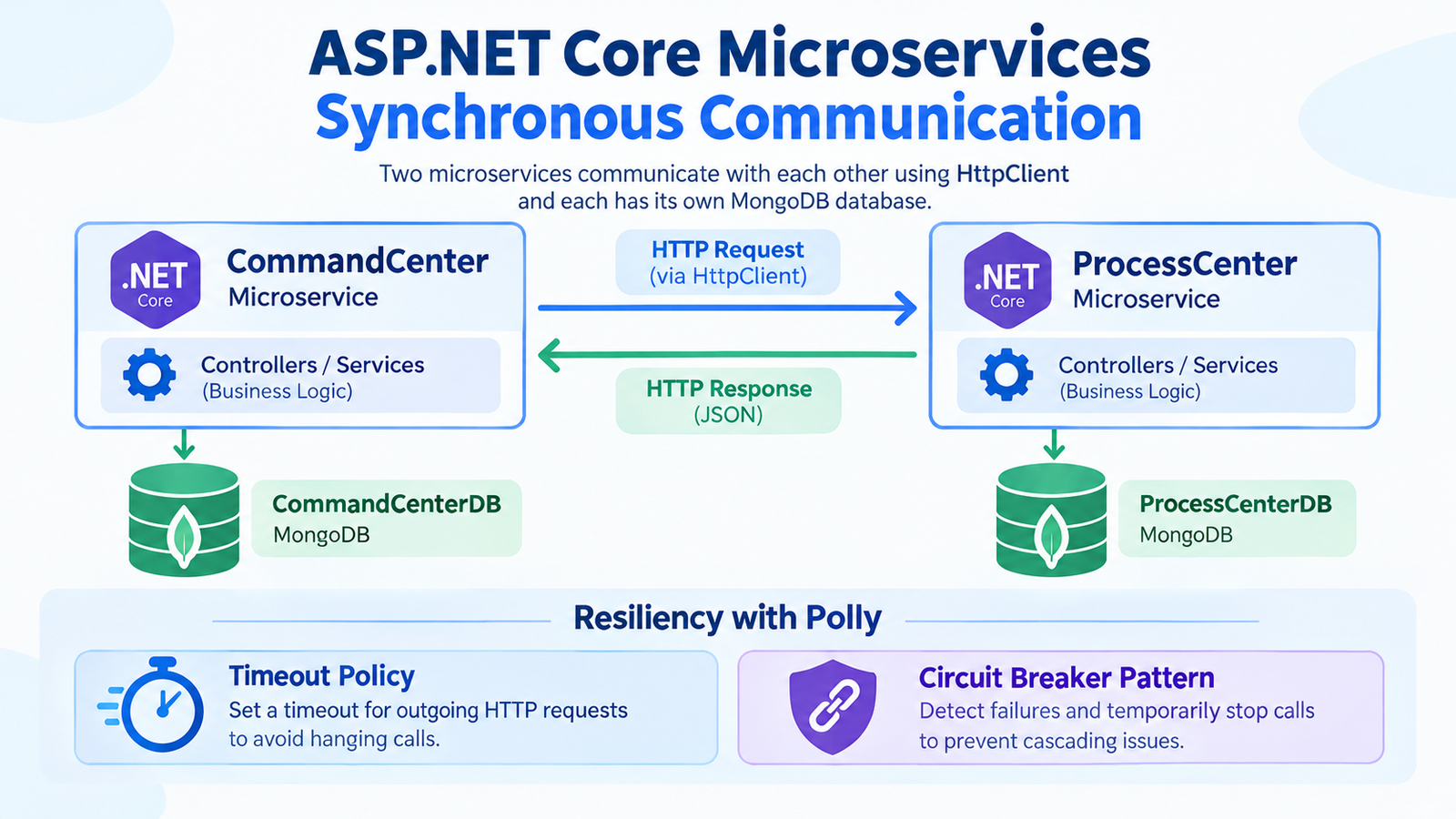
In the previous tutorial, we built the first ASP.NET Core Microservice for our drone pizza delivery application, called CommandCenter. In this tutorial, we will build the second Microservice, called ProcessCenter. This Microservice will handle the delivery of pizza orders by drones and will communicate synchronously with the first Microservice. A MongoDB database will store all of the microservice’s records.
You can find the complete Source Code at my GitHub Repository.
Page Contents
Creating ProcessCenter Microservice in ASP.NET Core
The ProcessCenter Microservice is going to have very similar features to the first microservice, these features are:
- Microservice built in ASP.NET Core Web API project
- User Interface of the Microservice built in Blazor Web App project
- MongoDB database will store the Microservice data
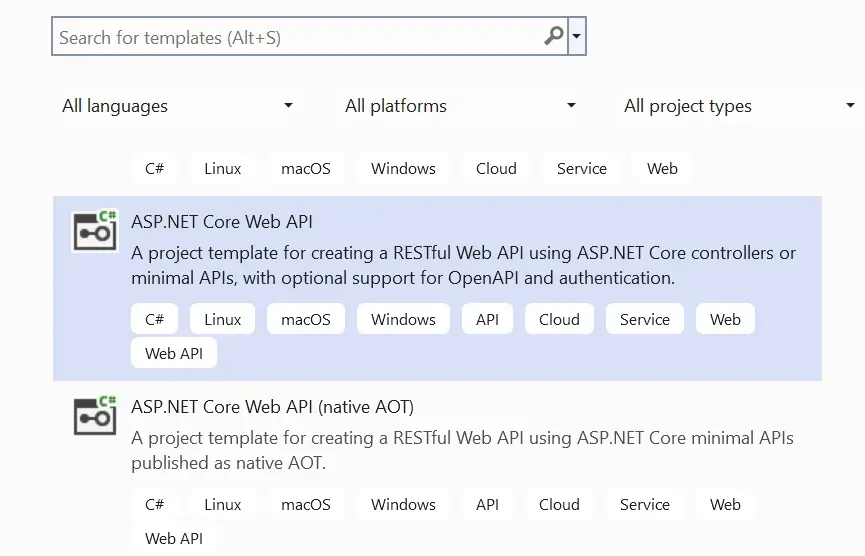
To begin, open Visual Studio and create a new ASP.NET Core Web API project. Name the project as ProcessCenter.
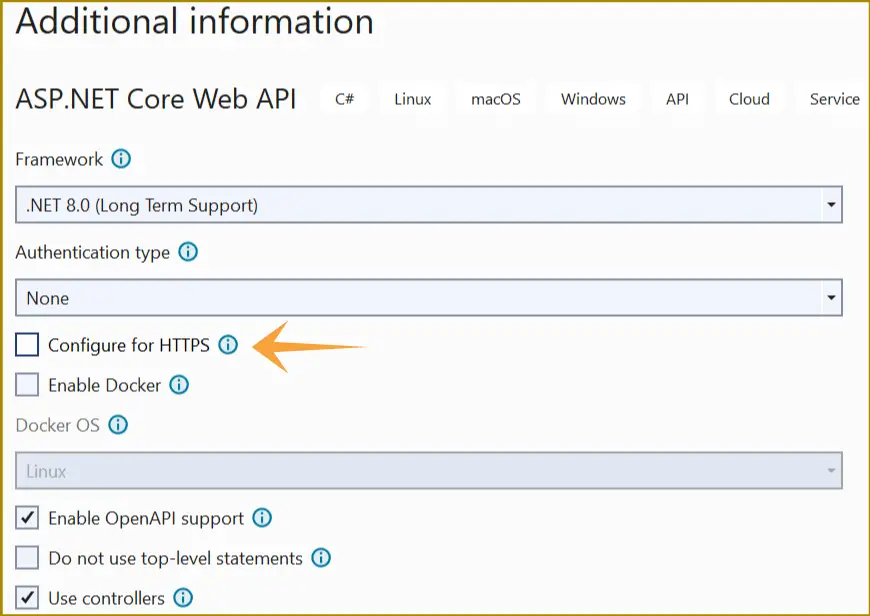
On the next screen keep the option Enable container support “unchecked”. We will add docker container support later on.
Next, click the Create button to create this microservice.
Create a new folder called Entity on the root of the project. To this folder create 3 class files which are:
1. IEntity.cs
namespace ProcessCenter.Entity
{
    public interface IEntity
    {
        Guid Id { get; set; }
    }
}
It is the same which I used in the first microservice.
2. IRepository.cs
using System.Linq.Expressions;

namespace ProcessCenter.Entity
{
    public interface IRepository<T> where T : IEntity
    {
        Task CreateAsync(T entity);
        Task<IReadOnlyCollection<T>> GetAllAsync();
        Task<IReadOnlyCollection<T>> GetAllAsync(Expression<Func<T, bool>> filter);
        Task<T> GetAsync(Guid id);
        Task<T> GetAsync(Expression<Func<T, bool>> filter);
        Task RemoveAsync(Guid id);
        Task UpdateAsync(T entity);
    }
}
IRepository<T> is also the same which we used in the first microservice.
3. Process.cs
namespace ProcessCenter.Entity
{
    public class Process : IEntity
    {
        public Guid Id { get; set; }
        public Guid OrderId { get; set; }
        public Guid DroneId { get; set; }
        public string Status { get; set; }
        public DateTimeOffset AcquiredDate { get; set; }
    }
}
The Process class manages the processing of pizza orders. It has 5 fields:
- Id – the process ID of the order, stored as a GUID.
- OrderId – the order ID fetched from the first microservice.
- DroneId – the ID of the drone that will deliver the order.
- Status – the delivery status of the order. It can have 3 values: Submitted, Processing, and Completed.
- AcquiredDate – the date and time when the order was received by the second microservice.
Create a new folder called Infrastructure on the root folder of the project. Next create a new class called Dtos.cs to it. It’s code is given below:
namespace ProcessCenter.Infrastructure
{
    public class Dtos
    {
        public record GrantOrderDto(Guid DroneId, Guid OrderId, String Status);

        public record ProcessDto(Guid OrderId, string Address, int Quantity, string Status, Guid ProcessId, Guid DroneId, DateTimeOffset AcquiredDate);

        public record OrderDto(Guid Id, string Address, int Quantity);
    }
}
This class has 3 Data Transfer objects aka Dtos. Note that Dtos are only used to pass data between layers and does not contain any business logic. I will be using in the Web API shortly.
I have used record type for the Dtos as they cannot be change later on.
Next, to the same Infrastructure folder, add a new class called Extensions.cs which will create an extension method for the “Process” type, and will be used to convert Process type value to ProcessDto type. Remember “ProcessDto” is the Dto we previously defined.
The code is given below:
using ProcessCenter.Entity;
using static ProcessCenter.Infrastructure.Dtos;

namespace ProcessCenter.Infrastructure
{
    public static class Extensions
    {
        public static ProcessDto AsDto(this Process process, string Address, int Quantity)
        {
            return new ProcessDto(process.OrderId, Address, Quantity, process.Status, process.Id, process.DroneId, process.AcquiredDate);
        }
    }
}
MongoDB Connection String, Configuration, Repository and Settings
Like what we did when creating our first Microservice, these things will remain the same.
In the appsettings.json file, add 2 sections called “ServiceSettings” and “MongoDbSettings” as highlighted below.
{
  "Logging": {
    "LogLevel": {
      "Default": "Information",
      "Microsoft.AspNetCore": "Warning"
    }
  },
  "ServiceSettings": {
    "ServiceName": "Process"
  },
  "MongoDbSettings": {
    "Host": "mongo1",
    "Port": "27016"
  },
  "AllowedHosts": "*"
}
The only difference is that here I have provided ServiceName the value of Process. So for this Microservice a database by the name of Process will be created on MongoDB.
The configuration section in appsettings.json that holds the connection details for the MongoDB database. Host is set to mongo1, which is the service name of the MongoDB container in the docker compose file, so the ProcessCenter Web API can reach the database by that name inside the Docker network. Port is set to 27016, the port on which that MongoDB instance listens. I have used a different port than 27017, since the MongoDB database of the First Microservice is using this port.
The application reads these values at startup (usually by binding the MongoDbSettings section to a settings class) and uses them to build the MongoDB connection string, so the database location can be changed through configuration without touching the code.
Now create the necessary classes that will deal with these MongoDB values. So on this step too the things just remain the same like the first microservice.
Create a new folder called Setting on the root of the project and create 2 classes called MongoDbSettings.cs and ServiceSettings.cs to it.
The code of MongoDbSettings.cs class is:
namespace ProcessCenter.Setting
{
    public class MongoDbSettings
    {
        public string Host { get; init; }
        public string Port { get; init; }

        public string ConnectionString => $"mongodb://{Host}:{Port}";
    }
}
The code of ServiceSettings.cs class is:
namespace ProcessCenter.Setting
{
    public class ServiceSettings
    {
        public string ServiceName { get; init; }
    }
}
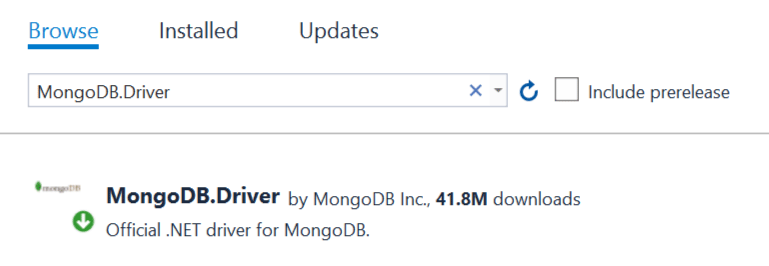
Before we create repository which will directly communicate with the MongoDB database, we will require to have drivers for MongoDB installed in the project. This can be done by adding the MongoDB.Driver package from NuGet.
Now create a new folder called MongoDB in the root of the project and add two classes to it: MongoRepository.cs and Extensions.cs. These are the same classes we used in the first microservice we built previously.
The MongoRepository.cs code:
using MongoDB.Driver;
using ProcessCenter.Entity;
using System.Linq.Expressions;

namespace ProcessCenter.MongoDB
{
    public class MongoRepository<T> : IRepository<T> where T : IEntity
    {
        private readonly IMongoCollection<T> collection;
        private readonly FilterDefinitionBuilder<T> filterBuilder = Builders<T>.Filter;

        public MongoRepository(IMongoDatabase database, string collectionName)
        {
            collection = database.GetCollection<T>(collectionName);
        }

        public async Task<IReadOnlyCollection<T>> GetAllAsync()
        {
            return await collection.Find(filterBuilder.Empty).ToListAsync();
        }

        public async Task<IReadOnlyCollection<T>> GetAllAsync(Expression<Func<T, bool>> filter)
        {
            return await collection.Find(filter).ToListAsync();
        }

        public async Task<T> GetAsync(Guid id)
        {
            FilterDefinition<T> filter = filterBuilder.Eq(e => e.Id, id);
            return await collection.Find(filter).FirstOrDefaultAsync();
        }

        public async Task<T> GetAsync(Expression<Func<T, bool>> filter)
        {
            return await collection.Find(filter).FirstOrDefaultAsync();
        }

        public async Task CreateAsync(T entity)
        {
            if (entity == null)
            {
                throw new ArgumentNullException(nameof(entity));
            }
            await collection.InsertOneAsync(entity);
        }

        public async Task UpdateAsync(T entity)
        {
            if (entity == null)
            {
                throw new ArgumentNullException(nameof(entity));
            }
            FilterDefinition<T> filter = filterBuilder.Eq(e => e.Id, entity.Id);
            await collection.ReplaceOneAsync(filter, entity);
        }

        public async Task RemoveAsync(Guid id)
        {
            FilterDefinition<T> filter = filterBuilder.Eq(e => e.Id, id);
            await collection.DeleteOneAsync(filter);
        }
    }
}
The Extensions.cs code:
using MongoDB.Bson.Serialization.Serializers;
using MongoDB.Bson.Serialization;
using MongoDB.Bson;
using MongoDB.Driver;
using ProcessCenter.Entity;
using ProcessCenter.Setting;

namespace ProcessCenter.MongoDB
{
    public static class Extensions
    {
        public static IServiceCollection AddMongo(this IServiceCollection services)
        {
            BsonSerializer.RegisterSerializer(new GuidSerializer(BsonType.String));
            BsonSerializer.RegisterSerializer(new DateTimeOffsetSerializer(BsonType.String));

            services.AddSingleton(a =>
            {
                var configuration = a.GetService<IConfiguration>();
                var serviceSettings = configuration.GetSection(nameof(ServiceSettings)).Get<ServiceSettings>();
                var mongoDbSettings = configuration.GetSection(nameof(MongoDbSettings)).Get<MongoDbSettings>();
                var mongoClient = new MongoClient(mongoDbSettings.ConnectionString);
                return mongoClient.GetDatabase(serviceSettings.ServiceName);
            });

            return services;
        }

        public static IServiceCollection AddMongoRepository<T>(this IServiceCollection services, string collectionName) where T : IEntity
        {
            services.AddSingleton<IRepository<T>>(a =>
            {
                var database = a.GetService<IMongoDatabase>();
                return new MongoRepository<T>(database, collectionName);
            });
            return services;
        }
    }
}
Now, we will need to register the methods, given on the Extensions.cs class, in the Program.cs class. So add the following code to it.
builder.Services.AddMongo().AddMongoRepository<Process>("processItems");Note that processItems will be the collection name for the MongoDB database.
HttpClient class to communicate with First Microservice
The second microservice needs to communicate with the first microservice, which we can do with the HttpClient class. So, create a new folder called Client in the root of the project and add a new class to it called OrderClient.cs. This class uses the HttpClient class to make Web API requests to the CommandCenter microservice. The code of OrderClient.cs is given below:
using static ProcessCenter.Infrastructure.Dtos;

namespace ProcessCenter.Client
{
    public class OrderClient
    {
        private readonly HttpClient httpClient;
        public OrderClient(HttpClient httpClient)
        {
            this.httpClient = httpClient;
        }

        public async Task<IReadOnlyCollection<OrderDto>> GetOrderAsync()
        {
            var items = await httpClient.GetFromJsonAsync<IReadOnlyCollection<OrderDto>>("/order");
            return items;
        }
    }
}
The call to the first microservice is made inside the GetOrderAsync method. Recall /Order was the route of the web api we created in the first tutorial.
Next, register the OrderClient class on the “Program.cs” and specify the baseaddress of the first microservice.
builder.Services.AddHttpClient<OrderClient>(a =>
{
    a.BaseAddress = new Uri("https://host.docker.internal:8001");
});
https://host.docker.internal:8001 is the address ProcessCenter Microservice uses to reach the CommandCenter Microservice. host.docker.internal is a special DNS name that Docker provides, which resolves to the host machine (your computer) from inside a container. This matters because inside a container, localhost points to the container itself, not to your machine, so you can’t use it to reach another service running on the host. Port 8001 is the port on the host where the CommandCenter is published (for example, through a port mapping in its docker compose file), so the request goes from the ProcessCenter container to the host machine and then to the CommandCenter container listening on that port. AddHttpClient<OrderClient> sets this as the BaseAddress, so any call like GetAsync(“/api/order”) inside OrderClient is automatically sent to https://host.docker.internal:8001/api/order.
Next, I will create the Web API Controller.
Creating Web API Controller
I will now create a Web API controller called ProcessController.cs inside the Controllers folder. It will have methods that will insert data to the MongoDB database and also make asynchronous call to the first microservice to get order details.
So, create ProcessController.cs inside the Controllers folder with the following code.
using Microsoft.AspNetCore.Mvc;
using ProcessCenter.Client;
using ProcessCenter.Entity;
using ProcessCenter.Infrastructure;
using static ProcessCenter.Infrastructure.Dtos;

namespace ProcessCenter.Controllers
{
    [ApiController]
    [Route("process")]
    public class ProcessController : ControllerBase
    {
        private readonly IRepository<Process> repository;
        private readonly OrderClient orderClient;
        public ProcessController(IRepository<Process> repository, OrderClient orderClient)
        {
            this.repository = repository;
            this.orderClient = orderClient;
        }

        [HttpGet]
        public async Task<ActionResult<IEnumerable<ProcessDto>>> GetAsync(Guid droneId)
        {
            if (droneId == Guid.Empty)
            {
                return BadRequest();
            }

            var orders = await orderClient.GetOrderAsync();
            var processEntities = await repository.GetAllAsync(a => a.DroneId == droneId);

            var commonEntities = processEntities.Join(orders, a => a.OrderId, b => b.Id, (a, b) => new { OrderId = b.Id, b.Address, b.Quantity, ProcessId = a.Id, a.DroneId, a.Status, a.AcquiredDate });

            List<ProcessDto> processDtoList = new List<ProcessDto>();

            foreach (var ce in commonEntities)
            {
                Process p = new Process();
                p.Id = ce.ProcessId; p.DroneId = ce.DroneId; p.OrderId = ce.OrderId; p.Status = ce.Status; p.AcquiredDate = ce.AcquiredDate;
                processDtoList.Add(p.AsDto(ce.Address, ce.Quantity));
            }

            return Ok(processDtoList);
        }

        [HttpPost]
        public async Task<ActionResult> PostAsync(GrantOrderDto grantOrderDto)
        {
            var process = await repository.GetAsync(a => a.DroneId == grantOrderDto.DroneId && a.OrderId == grantOrderDto.OrderId);
            if (process == null)
            {
                process = new Process
                {
                    DroneId = grantOrderDto.DroneId,
                    OrderId = grantOrderDto.OrderId,
                    Status = grantOrderDto.Status,
                    AcquiredDate = DateTimeOffset.UtcNow
                };

                await repository.CreateAsync(process);
            }
            else
            {
                process.Status = grantOrderDto.Status;
                await repository.UpdateAsync(process);
            }
            return Ok();
        }
    }
}
It has 2 methods:
- GetAsync() – it fetches the process recrods from it’s local mongodb database and also makes http request to the first microservice to get all the orders. It then combines both these two and returns it as a List of ProcessDto.
- PostAsync() – this method creates a new process record in the mongodb database. This method also updates the process record.
Blazor Web APP: User Interface of Microservice
Let’s create a Blazor Web App that will serve as the User Interface (UI) of the Microservice.
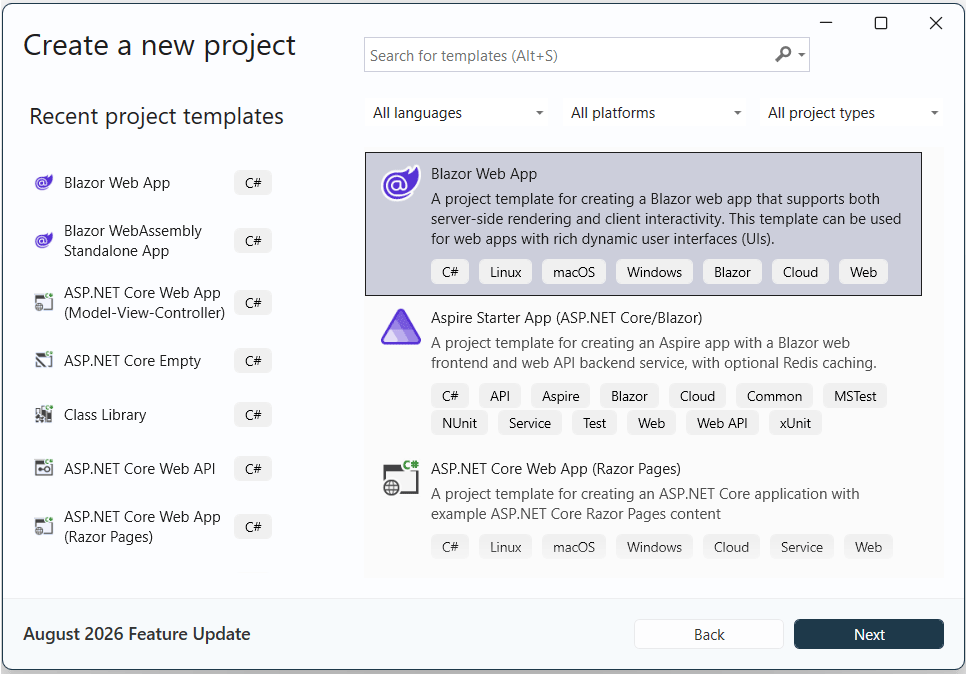
Right-click the solution and add a new Blazor Web App project. Name it PCUI. Then in the Program.cs file of the Blazor Web App add the following code:
builder.Services.AddHttpClient<ProcessClient>(client =>
    client.BaseAddress = new Uri("http://processcenter:8080/"));
This code registers a typed HttpClient for the ProcessClient class and sets its base address to http://processcenter:8080/. Here, “processcenter” is the service name of the ProcessCenter container in the docker compose file, so Docker’s internal DNS resolves it to that container’s IP address when the calling app (for example, the PCUI Blazor app) runs in the same Docker network. Port 8080 is the port the ProcessCenter Web API listens on inside its container, and since this is container-to-container communication, you use the container’s internal port rather than any port published to the host. AddHttpClient<ProcessClient> lets ASP.NET Core inject a pre-configured HttpClient into ProcessClient through dependency injection, so a call like GetAsync(“api/process”) is sent to http://processcenter:8080/api/process. It uses http instead of https, which avoids certificate setup for traffic that stays inside the Docker network.
Next, I create the ProcessClient.cs class.
using static PCUI.Infrastructure.Dtos;

namespace PCUI
{
    public class ProcessClient
    {
        private readonly HttpClient _http;
        public ProcessClient(HttpClient http) => _http = http;

        public async Task<List<ProcessDto>> GetAsync(Guid droneId)
            => await _http.GetFromJsonAsync<List<ProcessDto>>($"process?droneId={droneId}")
               ?? new();

        public async Task<bool> PostAsync(GrantOrderDto dto)
        {
            var response = await _http.PostAsJsonAsync("process", dto);
            return response.IsSuccessStatusCode;
        }
    }
}
ProcessClient is a typed HTTP client that the PCUI Blazor Web App uses to talk to the ProcessCenter API. Its constructor receives a pre-configured HttpClient (with the base address http://processcenter:8080/) through dependency injection and stores it in _http variable. The GetAsync method sends a GET request to process?droneId=… and deserializes the JSON response into a list of ProcessDto, returning an empty list if the result is null so callers never deal with a null. The PostAsync method serializes a GrantOrderDto to JSON, sends it as a POST to process, and returns true if the response has a success status code (2xx) or false otherwise. The using static PCUI.Infrastructure.Dtos; line lets the code refer to ProcessDto and GrantOrderDto directly without prefixing them with the Dtos class name.
Next, create a folder called Infrastructure and inside it add a class called Dtos.cs which contain the DTOs.
namespace PCUI.Infrastructure
{
    public class Dtos
    {
        public record GrantOrderDto(Guid DroneId, Guid OrderId, String Status);

        public record ProcessDto(Guid OrderId, string Address, int Quantity, string Status, Guid ProcessId, Guid DroneId, DateTimeOffset AcquiredDate);

        public record OrderDto(Guid Id, string Address, int Quantity);
    }
}
Finally, I will add a Razor Component called Process.razor inside the Components ➤ Pages folder. It’s code is:
@page "/processes"
@using static PCUI.Infrastructure.Dtos
@rendermode InteractiveServer
@inject ProcessClient Client

<h3>Processes</h3>

<input @bind="droneIdText" placeholder="Drone Id" />
<button @onclick="Load">Load</button>

@if (processes is null) { }
else if (!processes.Any())
{
    <p>No processes found.</p>
}
else
{
    <table class="table">
        <thead><tr><th>Order</th><th>Drone Id</th><th>Address</th><th>Qty</th><th>Status</th><th>Acquired</th></tr></thead>
        <tbody>
            @foreach (var p in processes)
            {
                <tr>
                    <td>@p.OrderId</td>
                    <td>@p.DroneId</td>
                    <td>@p.Address</td>
                    <td>@p.Quantity</td>
                    <td>@p.Status</td>
                    <td>@p.AcquiredDate.LocalDateTime</td>
                </tr>
            }
        </tbody>
    </table>
}

<h4 class="mt-4">Grant order / update status</h4>

<input @bind="postDroneId" placeholder="Drone Id" />
<input @bind="postOrderId" placeholder="Order Id" />
<input @bind="postStatus" placeholder="Status" />
<button @onclick="Save">Save</button>

@if (message != null)
{
    <p>@message</p>
}

@code {
    private string droneIdText = "";
    private List<ProcessDto>? processes;

    private string postDroneId = "";
    private string postOrderId = "";
    private string postStatus = "";
    private string? message;

    private async Task Load()
    {
        if (Guid.TryParse(droneIdText, out var id))
            processes = await Client.GetAsync(id);
    }

    private async Task Save()
    {
        if (!Guid.TryParse(postDroneId, out var droneId) ||
            !Guid.TryParse(postOrderId, out var orderId))
        {
            message = "Drone Id and Order Id must be valid GUIDs.";
            return;
        }

        try
        {
            var ok = await Client.PostAsync(new GrantOrderDto(droneId, orderId, postStatus));
            message = ok ? "Saved." : "The API rejected the request.";

            if (ok)
            {
                droneIdText = postDroneId;
                await Load();   // refresh the table
            }
        }
        catch (HttpRequestException ex)
        {
            message = $"Request failed: {ex.Message}";
        }
    }
}
This is a Blazor page at /processes (running in interactive server mode) that uses the injected ProcessClient to view and update drone processes. The top section has a Drone Id textbox and a Load button: Load parses the text as a GUID and calls Client.GetAsync to fetch that drone’s processes, which are then shown in a table (Order, Drone Id, Address, Qty, Status, Acquired), or a “No processes found.” message if the list is empty. The bottom section, “Grant order / update status”, has textboxes for Drone Id, Order Id and Status plus a Save button: Save validates that both IDs are valid GUIDs, sends a GrantOrderDto to the API through Client.PostAsync, and shows a success or failure message in message. If the save succeeds, it copies the drone ID into the load box and calls Load() again to refresh the table, and an HttpRequestException is caught and displayed as an error message.
I also add a link to the Process.razor on the NavMenu.razor component.
<div class="nav-item px-3">
    <NavLink class="nav-link" href="processes">
        <span class="bi bi-list-nested-nav-menu" aria-hidden="true"></span> Processes
    </NavLink>
</div>
Adding ProcessCenter, PCUI, and MongoDB to Docker Compose
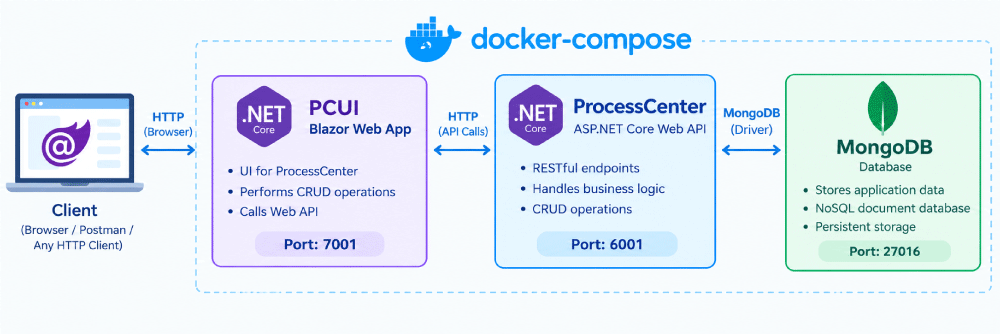
Right now the solution has three parts: the ProcessCenter project, which holds the microservice Web API; the PCUI project, a Blazor Web App that serves as the UI for the microservice; and MongoDB, the database that stores the microservice’s records.
I will add all three parts to Docker Compose, which lets you run the Web API, the UI, and the database with a single command. Compose places all the services on a shared network, so each container can reach the others by service name. This means ProcessCenter can talk to MongoDB, and PCUI can talk to ProcessCenter, without hard-coded IP addresses.
The image below shows the Docker Compose setup of these three parts:
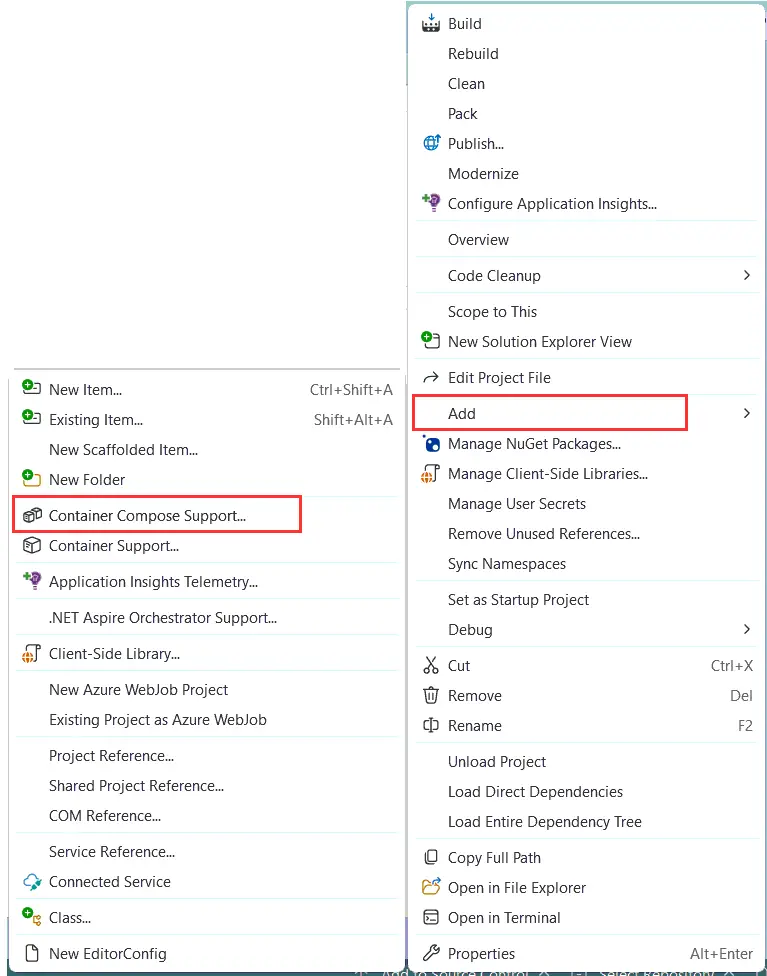
So, right click the ProcessCenter project name in the solution explorer and select Add ➤ Container Compose Support.
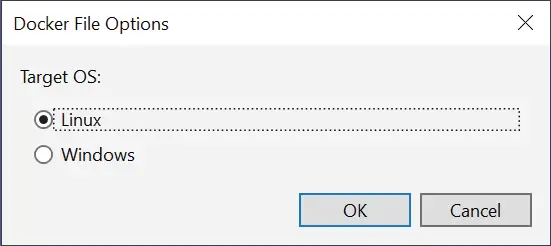
Next, you will see a new Container Scaffolding Options dialog. Here keep all the settings as it is and click OK.
When I click the OK button, Visual Studio creates docker-compose.yml file in a new project called docker-compose. This project is added to the solution. The below image shows this:
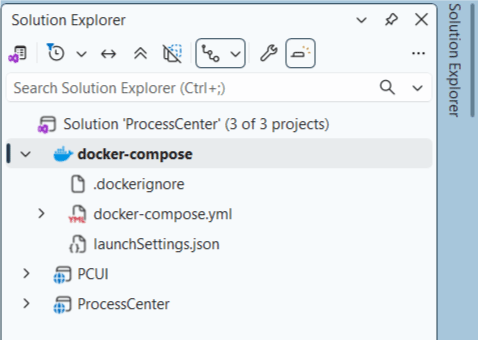
The docker-compose project is shown in boldface font, as it is also made the startup project.
Also check the Visual Studio menu bar on the top where you can see that this newly created project is set as a startup project for the solution.
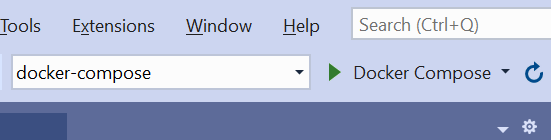
Open the docker-compose.yml, you will have the following code:
services:
  processcenter:
    image: ${DOCKER_REGISTRY-}processcenter
    build:
      context: .
      dockerfile: ProcessCenter/Dockerfile
This code defines a Compose service named processcenter.
Note that Visual Studio also creates a file called docker-compose.override.yml, which extends the services defined in docker-compose.yml. You can see it by clicking the arrow next to the docker-compose.yml file in Visual Studio. In the docker-compose.override.yml file, update the ports section as follows:
ports:
  - "6000:8080"
  - "6001:8081"
This makes the ProcessCenter microservice accessible at https://localhost:6001.
The docker-compose.override.yml file now should look like:
services:
  processcenter:
    environment:
      - ASPNETCORE_ENVIRONMENT=Development
      - ASPNETCORE_HTTP_PORTS=8080
      - ASPNETCORE_HTTPS_PORTS=8081
    ports:
      - "6000:8080"
      - "6001:8081"

    volumes:
      - ${APPDATA}/Microsoft/UserSecrets:/home/app/.microsoft/usersecrets:ro
      - ${APPDATA}/Microsoft/UserSecrets:/root/.microsoft/usersecrets:ro
      - ${APPDATA}/ASP.NET/Https:/home/app/.aspnet/https:ro
      - ${APPDATA}/ASP.NET/Https:/root/.aspnet/https:ro
Next, I will do the same to add Container Orchestrator Support for the second project, PCUI. Right-click the project name in Solution Explorer and select Add ➤ Container Orchestrator Support.
Next, you will see a new Container Scaffolding Options dialog. Here keep all the settings as it and click OK
This adds a new service to the docker-compose.yml file. This service specifies the second container which will run the second project i.e. PCUI.
Open the docker-compose.yml and you can notice the second service i.e. pcui is added to it.
services:
  processcenter:
    image: ${DOCKER_REGISTRY-}processcenter
    build:
      context: .
      dockerfile: ProcessCenter/Dockerfile

  pcui:
    image: ${DOCKER_REGISTRY-}pcui
    build:
      context: .
      dockerfile: PCUI/Dockerfile
I now move to docker-compose.override.yml file and update ports section as shown below. This will allow me to access the PCUI project from the url – https://localhost:7001/.
services:
  processcenter:
    environment:
      - ASPNETCORE_ENVIRONMENT=Development
      - ASPNETCORE_HTTP_PORTS=8080
      - ASPNETCORE_HTTPS_PORTS=8081
    ports:
      - "6000:8080"
      - "6001:8081"

    volumes:
      - ${APPDATA}/Microsoft/UserSecrets:/home/app/.microsoft/usersecrets:ro
      - ${APPDATA}/Microsoft/UserSecrets:/root/.microsoft/usersecrets:ro
      - ${APPDATA}/ASP.NET/Https:/home/app/.aspnet/https:ro
      - ${APPDATA}/ASP.NET/Https:/root/.aspnet/https:ro
  pcui:
    environment:
      - ASPNETCORE_ENVIRONMENT=Development
      - ASPNETCORE_HTTP_PORTS=8080
      - ASPNETCORE_HTTPS_PORTS=8081
    ports:
      - "7000:8080"
      - "7001:8081"
    volumes:
      - ${APPDATA}/Microsoft/UserSecrets:/home/app/.microsoft/usersecrets:ro
      - ${APPDATA}/Microsoft/UserSecrets:/root/.microsoft/usersecrets:ro
      - ${APPDATA}/ASP.NET/Https:/home/app/.aspnet/https:ro
      - ${APPDATA}/ASP.NET/Https:/root/.aspnet/https:ro
The final thing I have to add the MongoDB section to the docker-compose.yml file. The full code is given below.
services:
  processcenter:
    image: ${DOCKER_REGISTRY-}processcenter
    build:
      context: .
      dockerfile: ProcessCenter/Dockerfile

  pcui:
    image: ${DOCKER_REGISTRY-}pcui
    build:
      context: .
      dockerfile: PCUI/Dockerfile

  mongo1:
    image: mongo
    container_name: mongo1
    command: mongod --port 27016
    ports:
      - 27016:27016
    volumes:
      - mongodbdata:/data/db

volumes:
  mongodbdata:
The mongo1 service runs a MongoDB container from the official mongo image and names it mongo1, which is also the hostname other containers (like ProcessCenter) use to reach it. The command: mongod –port 27016 line starts MongoDB on port 27016 instead of the default 27017, matching the Port value in your MongoDbSettings. The ports: 27016:27016 mapping publishes that port to your host machine, so you can also connect with tools like MongoDB Compass at localhost:27016. The volumes entry mounts the named volume mongodbdata (declared at the bottom of the file) onto /data/db, where MongoDB stores its data, so your records survive even if the container is stopped or removed.
Testing Microservices Operations with PCUI (Blazor Web App)
Let us build the images for every service in your docker compose file. So open Command Prompt or PowerShell and navigate to the directory of docker-compose.yml file. Then run the command:
docker-compose buildAfter this I start all the services in your compose file, running them in detached mode (the -d flag). The command to run is:
docker-compose up -dThis command creates three Docker containers, one each for ProcessCenter, PCUI, and MongoDB, and runs them in the background.
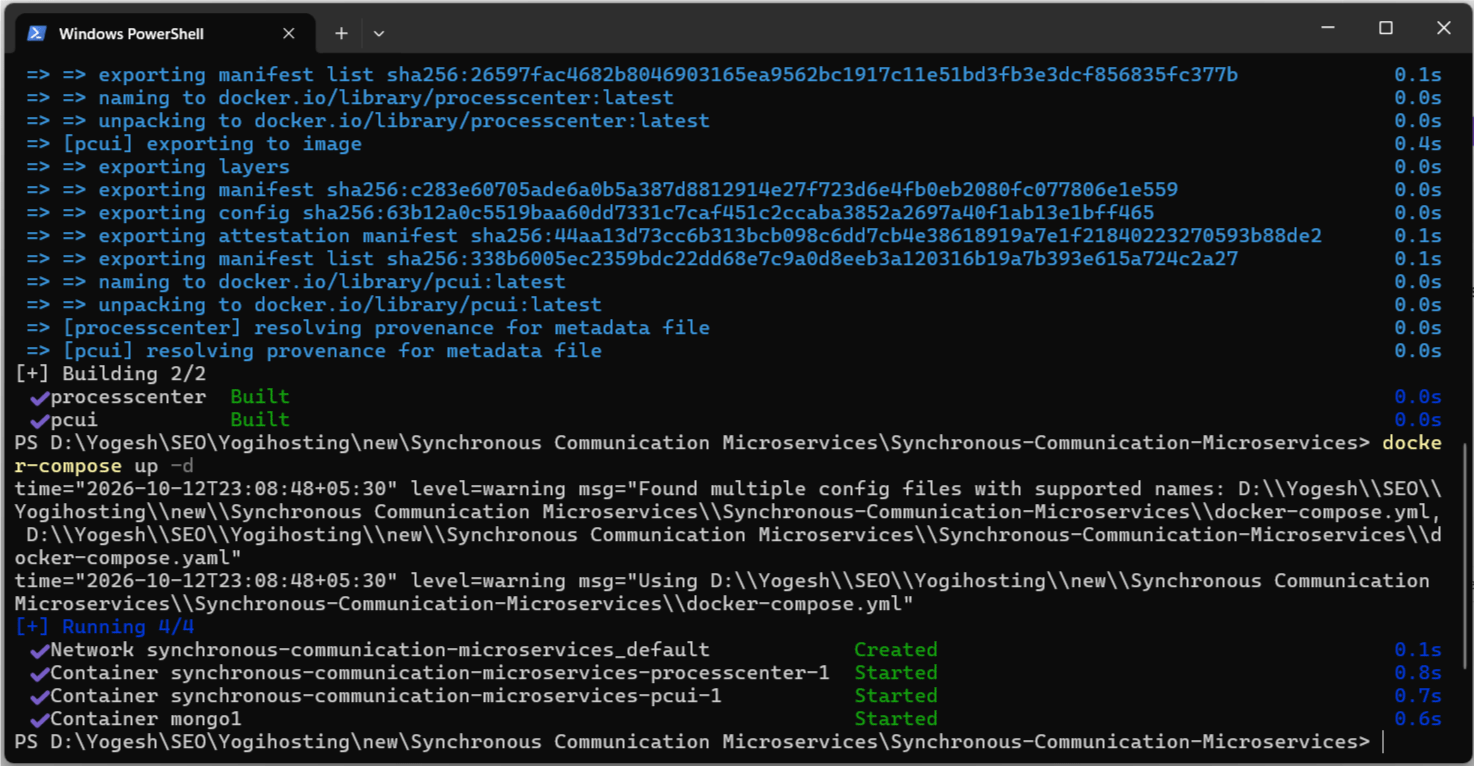
docker-compose up -d.Open the PCUI app on the browser. It’s url being – https://localhost:7001/. Here I create a new pizza order.
Recall, that the pizzaItems MongoDB database of the First Microservice i.e. CommandCenter has 2 pizza records. See below image:
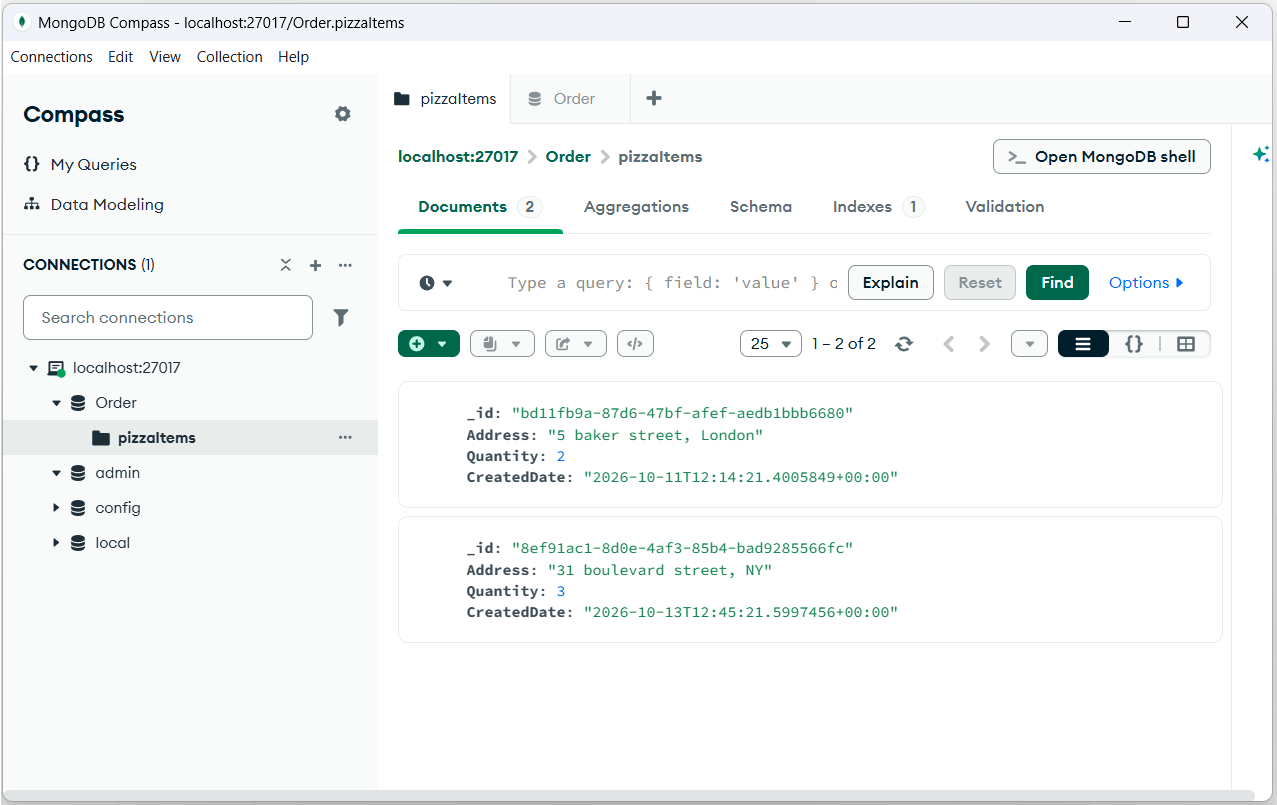
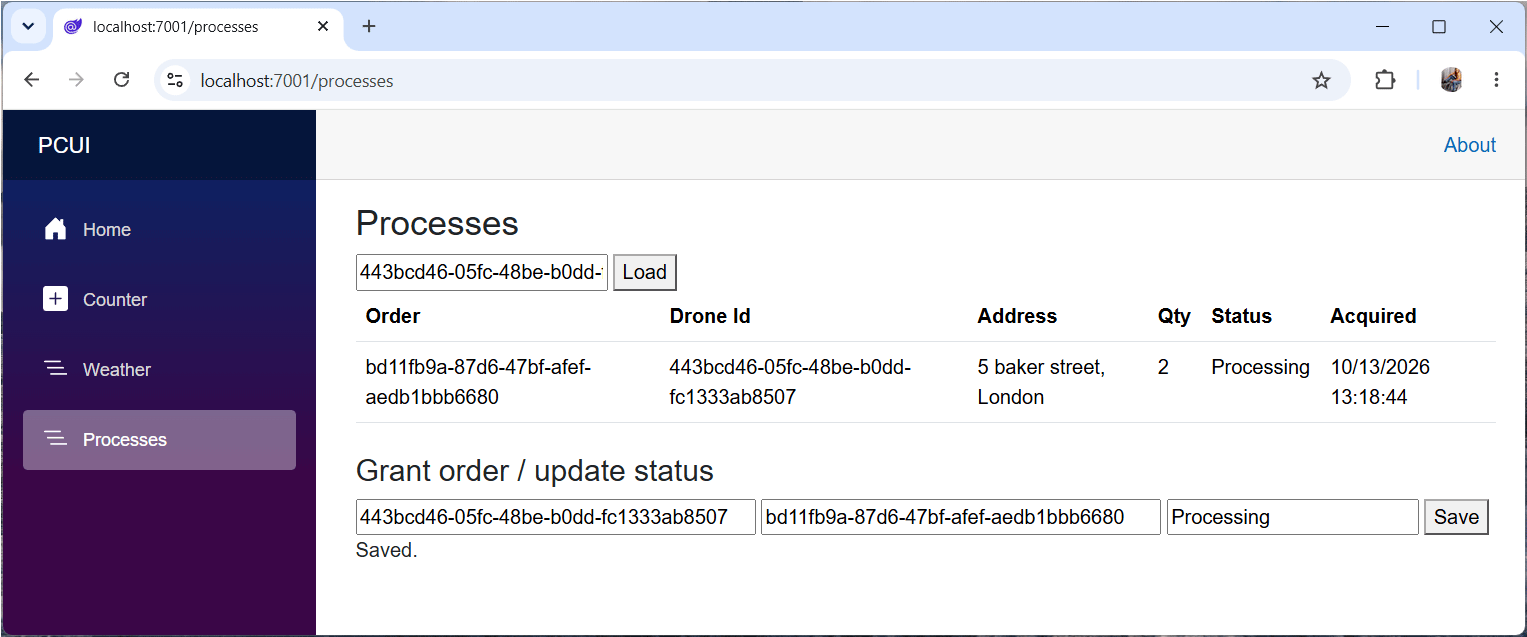
So on the PCUI app, navigate to the Processes link on the left. Then enter:
- Drone Id as 443bcd46-05fc-48be-b0dd-fc1333ab8507. Drone Id is any Guid value you can enter.
- Order Id as bd11fb9a-87d6-47bf-afef-aedb1bbb6680. It is the Order Id of the Pizza Item in the “CommandCenter” microservice.
- Status as Processing
Click the Save button to enter the record on the ProcessCenter Microservice. See below image:
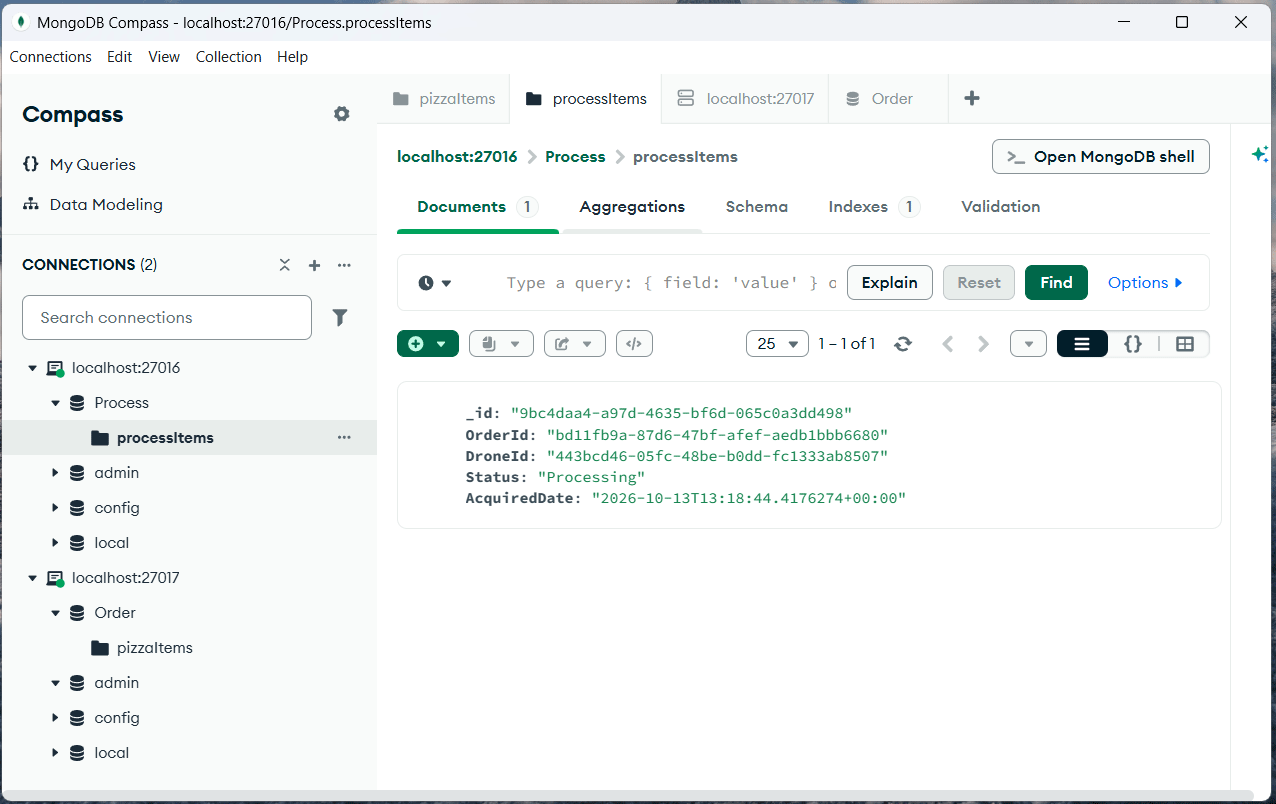
Open Compass and make a new connection to mongodb://localhost:27016. This is the MongoDB of the second microservice i.e. ProcessCenter. Here you can see the “processItems” database is created and the new record is inserted. Check the below image.
In the PCUI app. You can also update a records like change the status to “Completed” from “Processing” or change drone id of a record. For this enter:
- Drone Id as 443bcd46-05fc-48be-b0dd-fc1333ab8507. This is the same drone id of the record.
- Order Id as bd11fb9a-87d6-47bf-afef-aedb1bbb6680. It is the same Order Id of the Pizza Item in the “CommandCenter” microservice.
- Status as Completed
Click the Save button and this will update the “Status” of the record to “Completed”.
I have also given the option to search records that are delivered by a given drone. Here you enter the drone id in the text box and click the “Load” button. This will show all the Pizza orders that are assigned to be delivered by a given drone.
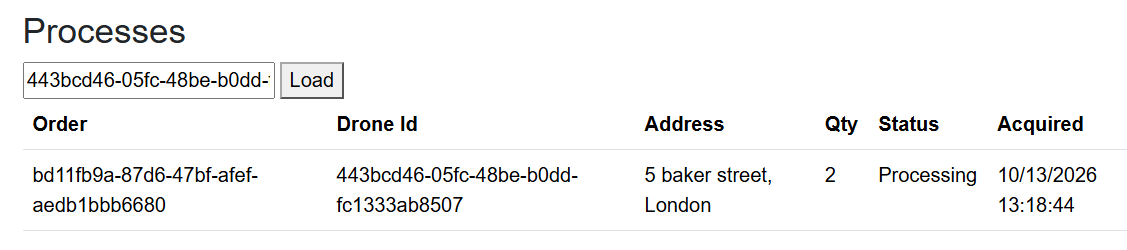
Congrats, this means our ProcessCenter Microservice is working correctly as expected.
Testing ProcessCenter Microservice with Swagger
Open the ProcessCenter app url – https://localhost:6001/swagger/. Here we can add records through POST method and also read records thought GET methods. Lets test each of these methods one by one.
Create records through Swagger
Now I will add a process records by executing the POST method through Swagger. Go to the Post Method and add the json as:
{
  "droneId": "3fa85f64-5717-4562-b3fc-2c963f66afa6",
  "orderId": "8ef91ac1-8d0e-4af3-85b4-bad9285566fc",
  "status": "Completed"
}
Click the Execute button. This will insert a new record to the database. See below image:
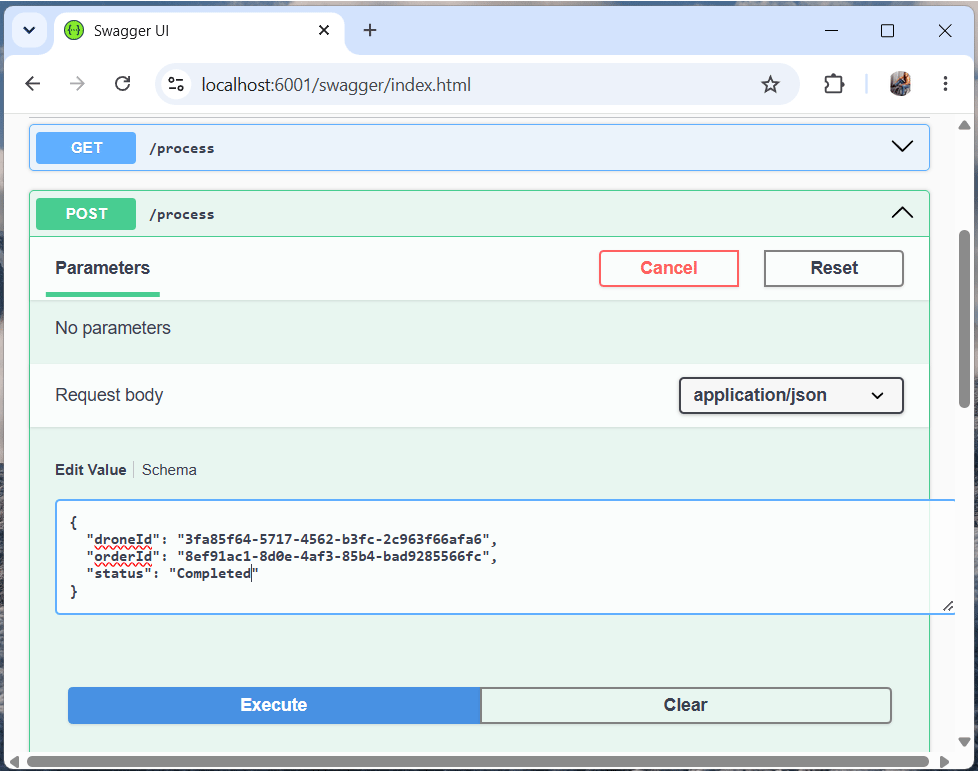
Note that the same POST method updates the Process records too. If a record with a given drone id and order id is already in the database then the record is updated.
You can check on Compass that this new record is inserted. Now we have 2 records.
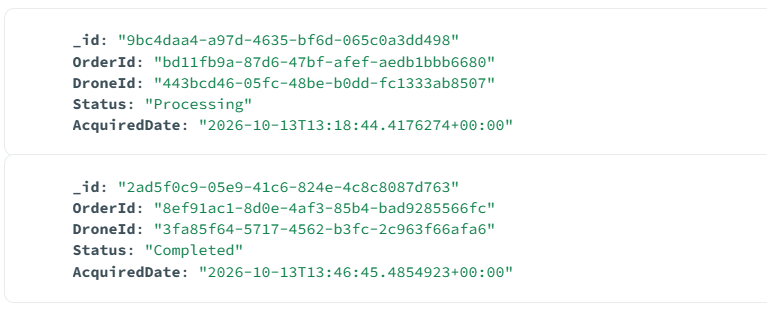
Read records through Swagger
In the same way I can execute the “GET” method on swagger. Note that this method will show the combined order from the first microservice and the second microservice. Here I enter drone id “3fa85f64-5717-4562-b3fc-2c963f66afa6”. The record JSON which is returned is given below, see below image:
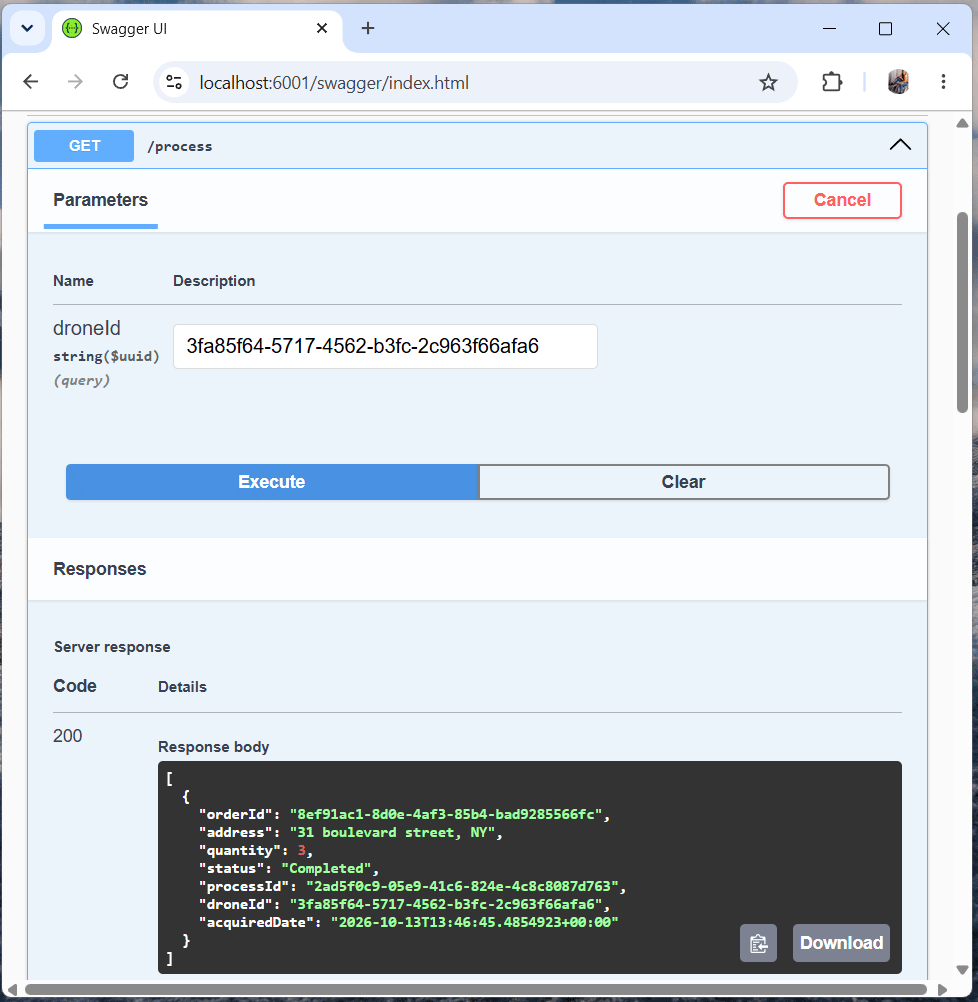
Note that the first 3 field are coming from first microservice while the others are coming from second microservice.
Congrats, we tested the Microservice from Swagger and it is working correctly.
Timeout Policy via Polly
We have two microservices: CommandCenter and ProcessCenter. The GetAsync method in ProcessCenter’s ProcessController calls CommandCenter to retrieve Order records. If CommandCenter is down or faulty, ProcessCenter makes a single call, waits a few seconds for a response, and then fails as well.
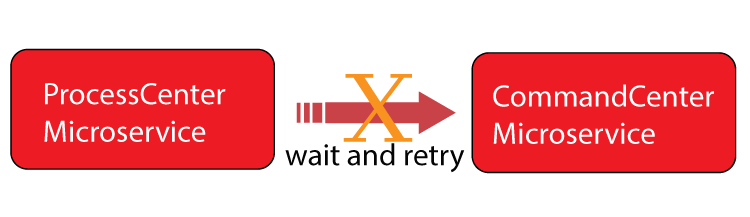
So far, we haven’t added any fault handling to the ProcessCenter microservice. In this section, we will do that using a .NET library called Polly. Polly lets you apply resilience policies such as Retry, Circuit Breaker, Bulkhead Isolation, Timeout, and Fallback.
First, add the Microsoft.Extensions.Http.Polly NuGet package to the ProcessCenter microservice. Then, in the Program.cs class, call the AddTransientHttpErrorPolicy and AddPolicyHandler methods as shown below:
builder.Services.AddHttpClient<OrderClient>(a =>
{
    a.BaseAddress = new Uri("https://host.docker.internal:8001");
})
.ConfigurePrimaryHttpMessageHandler(() => new HttpClientHandler
{
    ServerCertificateCustomValidationCallback =
        HttpClientHandler.DangerousAcceptAnyServerCertificateValidator
})
.AddTransientHttpErrorPolicy(b => b.Or<TimeoutRejectedException>().WaitAndRetryAsync(
    5,
    c => TimeSpan.FromSeconds(Math.Pow(2, c))
))
.AddPolicyHandler(Policy.TimeoutAsync<HttpResponseMessage>(1));
The AddPolicyHandler method is used to create a policy hander to specify how long to wait before a request is considered to be failed. I have specified this time to be 1 second.
AddPolicyHandler(Policy.TimeoutAsync<HttpResponseMessage>(1));The AddTransientHttpErrorPolicy method is used to configure the wait and retry policy. I have specified total of 5 retries and there should be an exponential wait between retries. This exponential retry is in the power of 2.
So, after first retry it will wait for 2 pow 1 = 2 seconds. Similarly, after 3rd retry, it will wait for 2 pow 3 = 8 second’s time.
AddTransientHttpErrorPolicy(b => b.Or<TimeoutRejectedException>().WaitAndRetryAsync(
    5,
    c => TimeSpan.FromSeconds(Math.Pow(2, c))
))
So, Polly makes this approach very helpful as request made to microservice does not fail after just a single retry but instead we can set the number of retries to perform and waiting period between retries, before a request is considered to be failed.
Circuit Breaker Pattern
The Circuit Breaker pattern stops a microservice from repeatedly attempting an operation that is likely to fail. Suppose the CommandCenter microservice is unhealthy and 8 out of 10 requests made to it are failing.
In such a situation, the Circuit Breaker opens the circuit, meaning it blocks all requests to the CommandCenter microservice, so they fail immediately instead of waiting on a response. The circuit stays open for a specified number of seconds, giving CommandCenter time to recover.
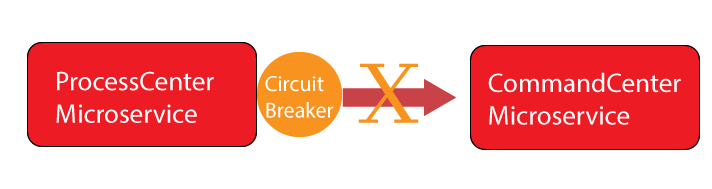
After the specified time has passed, it will close the circuit and this will allow all the request made to the CommandCenter microservice to go on normally. Circuit breaker pattern helps in managing the limited resources of the microservices efficiently.
The Circuit Breaker Pattern is added to the Program class. See the below highlighted code where I have specified to break the circuit after 3 failures and keep it on the circuit open state for 15 seconds time.
builder.Services.AddHttpClient<OrderClient>(a =>
{
    a.BaseAddress = new Uri("https://host.docker.internal:8001");
})
.ConfigurePrimaryHttpMessageHandler(() => new HttpClientHandler
{
    ServerCertificateCustomValidationCallback =
        HttpClientHandler.DangerousAcceptAnyServerCertificateValidator
})
.AddTransientHttpErrorPolicy(b => b.Or<TimeoutRejectedException>().CircuitBreakerAsync(
    3,
    TimeSpan.FromSeconds(15)
))
.AddPolicyHandler(Policy.TimeoutAsync<HttpResponseMessage>(1));
So, after 15 seconds the circuit will be closed once again and request will work normally.
In this tutorial, we created our second microservice, ProcessCenter, and set up communication with the first microservice, CommandCenter, using the HttpClient class. We then made ProcessCenter resilient to failures by using Polly to configure Retry, Timeout, and Circuit Breaker policies, so a faulty CommandCenter no longer causes long waits or cascading failures. In the next tutorial, we will add an API Gateway in front of our microservices.
SHARE THIS ARTICLE


Related Tutorials:



ABOUT THE AUTHOR
I hope you enjoyed reading this tutorial. If it helped you then consider buying a cup of coffee for me. This will help me in writing more such good tutorials for the readers. Thank you.

HELLO EVERYONE
 Welcome to YogiHosting - A Programming Tutorial Website. It is used by millions of people around the world to learn and explore about ASP.NET Core, Blazor, jQuery, JavaScript, Docker, Kubernetes and other topics.
SUBSCRIBE TO NEWSLETTER
Enter your email address to subscribe to this blog and receive notifications of new posts by email.
Join 90K other subscribers