


How to Import Export Excel file in ASP.NET Core
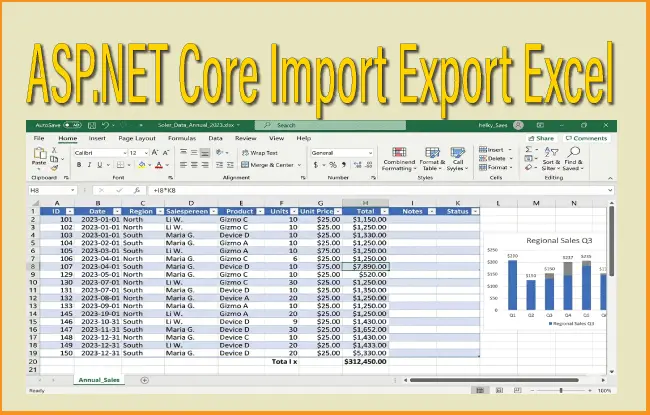
An Excel file is a type of spreadsheet document created using Microsoft Excel, designed to organize, analyze, and store data in a structured format. It consists of worksheets made up of rows and columns, where users can input data, perform calculations using formulas, and create charts or graphs. Excel files are widely used in business, education, and personal tasks because they make it easy to manage data, automate calculations, and visualize information effectively.
ASP.NET CORE – Import Excel file records to SQL Server Database
I have an Excel file containing employee data. The employee fields are Name, Designation, Salary and DOB. The excel file is shown by the below image. You can download this excel file from the GitHub repository itself.
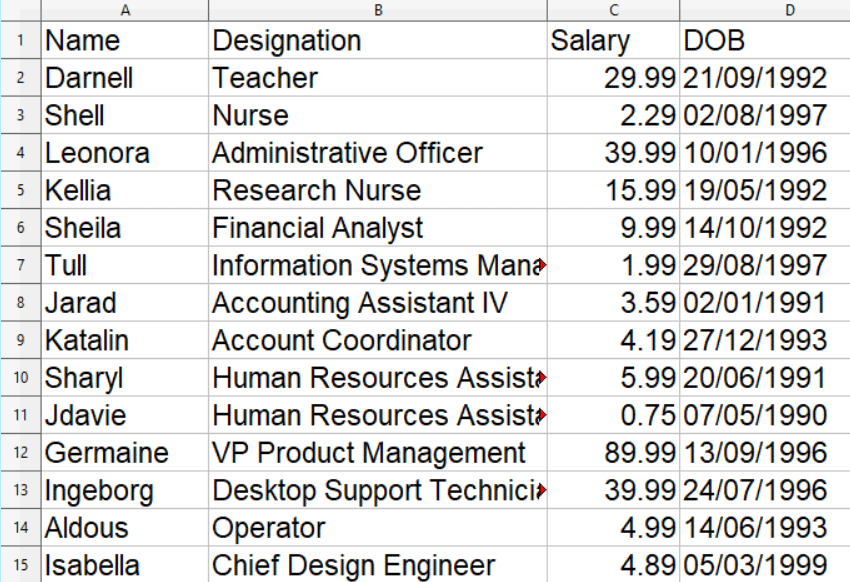
First I have to configure the app for Entity Framework core. I will need it to import the excel’s data to the database. So I create the Employee.cs entity class with the same fields as given in the excel file. These are Name, Designation, Salary and DOB.
public class Employee
{
    public int Id { get; set; }
    public string Name { get; set; }
    public string Designation { get; set; }
    public Double Salary { get; set; }
    public DateTime DOB { get; set; }
}
Installing Entity Framework Core
Next, I install the 3 EF Core packages:
Install-Package Microsoft.EntityFrameworkCore.SqlServer
Install-Package Microsoft.EntityFrameworkCore.Design
Install-Package Microsoft.EntityFrameworkCore.Tools
After that, add DbContext file called CompanyContext.cs to the app with the following code.
public class CompanyContext : DbContext
{
    public CompanyContext(DbContextOptions<CompanyContext> options) : base(options)
    {
    }
    public DbSet<Employee> Employee { get; set; }
}
On the appsettings.json file, add the database connection string like given below.
"ConnectionStrings": {
  "DefaultConnection": "Data Source=(localdb)\\MSSQLLocalDB;Initial Catalog=Company;Integrated Security=True;Connect Timeout=30;Encrypt=False;TrustServerCertificate=False;ApplicationIntent=ReadWrite;MultiSubnetFailover=False"
}
Finally, register the DbContext in the program class as shown below.
builder.Services.AddDbContext<CompanyContext>(options =>
  options.UseSqlServer(builder.Configuration.GetConnectionString("DefaultConnection")));
Now run EF Core Migrations by executing the following commands one by one.
add-migration Migration1
Update-Database
Two methods to Read Excel in ASP.NET Core
In order to import excel file’s data to the database, we have to first read it. There are 2 methods to read an excel file in ASP.NET Core, these are:
- System.Data.OleDb library: it is an old method but works very well in reading all types of excel and csv files.
- DocumentFormat.OpenXml library:it is new library for working with Office Word, Excel, and PowerPoint documents.
Both these libraries are extremely good and maintained by Microsoft so you are not going to face any issues with them. We are going to implement each of these 2 libraries one by one.
Import Excel from System.Data.OleDb
Firstly, install the System.Data.OleDb library package from NuGet.

Run the following NuGet command to install this provider.
Install-Package System.Data.OleDbWith the library installed let’s move to the controller part. Create a new controller called ExcelController.cs. In this controller I will add the code for importing excel file’s data.
Start by injecting “IWebHostEnvironment” and “CompanyContext” on the constructor. IWebHostEnvironment will be needed for reading the “wwwroot” folder and CompanyContext is used for performing EF core operations. Remember that the excel file will first be uploaded to wwwroot/Excel folder and then will be read. Check the below code:
private IWebHostEnvironment hostingEnvironment;
private CompanyContext context;

public ExcelController(IWebHostEnvironment environment, CompanyContext context)
{
    this.context = context;
    hostingEnvironment = environment;
}
After this add action method called “ImportExcel” to the controller. This action method will perform the Import operation. See the code given below.
public IActionResult ImportExcel()
{
    return View();
}

[HttpPost]
public async Task<IActionResult> ImportExcel(IFormFile excelfile)
{
    // By old OleDbConnection way

    string path = Path.Combine(hostingEnvironment.WebRootPath, "Excel/" + excelfile.FileName);
    using (var stream = new FileStream(path, FileMode.Create))
    {
        await excelfile.CopyToAsync(stream);
    }

    string connectionString = string.Empty;
    connectionString = string.Format("Provider=Microsoft.ACE.OLEDB.12.0;Data Source={0};Extended Properties='Excel 12.0 Xml;HDR=YES;'", path);

    using (var conn = new OleDbConnection(connectionString))
    {
        conn.Open();

        string tableName = conn.GetSchema("Tables").Rows[0]["TABLE_NAME"].ToString();

        var query = $"SELECT * FROM [{tableName}]"; // The file name is used in the query
        using (var adapter = new OleDbDataAdapter(query, conn))
        {
            var dataTable = new DataTable();
            adapter.Fill(dataTable);

            List<Employee> records = dataTable.AsEnumerable().Select(row => new Employee
            {
                Name = row.Field<string>("Name"),// Use .Field<T>() for type safety and null handling
                Designation = row.Field<string>("Designation"),
                Salary = row.Field<Double>("Salary"),
                DOB = DateTime.Parse(row.Field<string>("DOB"))
            }).ToList();

            context.AddRange(records);
            context.SaveChanges();
            ViewBag.Result = "Import Successful";
        }
    }

    return View();
}
The action method of type Post receives the excel file uploaded from the view. I then save this file inside the wwwroot/Excel folder by using the IWebHostEnvironment object.
string path = Path.Combine(hostingEnvironment.WebRootPath, "Excel/" + excelfile.FileName);
using (var stream = new FileStream(path, FileMode.Create))
{
    await excelfile.CopyToAsync(stream);
}
Next, with System.Data.OleDb provider the excel file is read.
string connectionString = string.Empty;
connectionString = string.Format("Provider=Microsoft.ACE.OLEDB.12.0;Data Source={0};Extended Properties='Excel 12.0 Xml;HDR=YES;'", path);
The reading is done by the select query:
string tableName = conn.GetSchema("Tables").Rows[0]["TABLE_NAME"].ToString();
var query = $"SELECT * FROM [{tableName}]";
The data returned by the select query is filled to a DataTable using SqlDataAdapter. Once the DataTable is filled, it is enumerated to fill the data in a List of Employees and then finally the EF Core AddRange() method is used to insert the data to the database table. See the below code to understand it’s working.
var query = $"SELECT * FROM [{tableName}]"; // The file name is used in the query
using (var adapter = new OleDbDataAdapter(query, conn))
{
    var dataTable = new DataTable();
    adapter.Fill(dataTable);

    List<Employee> records = dataTable.AsEnumerable().Select(row => new Employee
    {
        Name = row.Field<string>("Name"),// Use .Field<T>() for type safety and null handling
        Designation = row.Field<string>("Designation"),
        Salary = row.Field<Double>("Salary"),
        DOB = DateTime.Parse(row.Field<string>("DOB"))
    }).ToList();

    context.AddRange(records);
    context.SaveChanges();
    ViewBag.Result = "Import Successful";
}
Create a new razor view file called ImportExcel.cshtml with the following code.
@{
    ViewData["Title"] = "Import Excel";
}

<h1 class="bg-info text-white">Import Excel</h1>
<a asp-controller="Home" asp-action="Index" class="btn btn-secondary">Back</a>
<h2 class="bg-success text-white">@ViewBag.Result</h2>
<form method="post" enctype="multipart/form-data">
    <div class="form-group">
        <label>Select Excel File</label>
        <input type="file" name="excelfile" class="form-control" />
    </div>
    <button type="submit" class="btn btn-primary">Import</button>
</form>
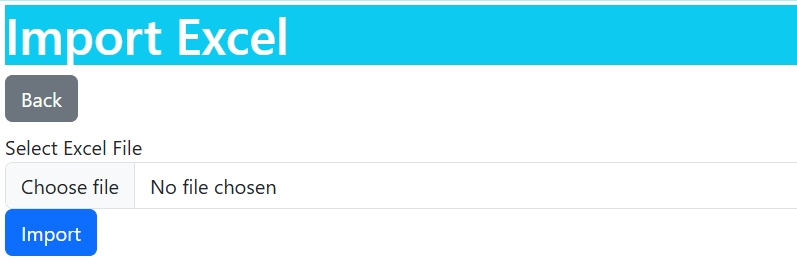
The view will present the form with a file control to upload the excel file. Once uploaded the file’s data is read and inserted to the database. See the below image which shows this form.
Import Excel from DocumentFormat.OpenXml
Now I will use OpenXml library to read excel file and import it’s data to a SQL Database. So first I have to install OpenXml library from NuGet.
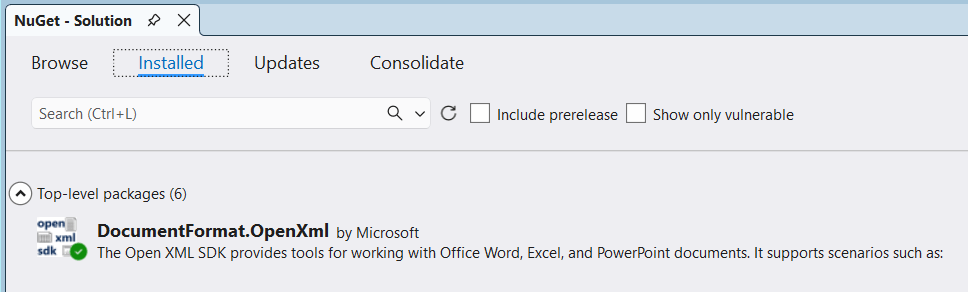
Running the below command can directly install this library to my app.
Install-Package System.Data.OleDbImportant classes and their roles are:
- SpreadsheetDocument: In the Open XML SDK, the SpreadsheetDocument class represents an Excel document package. It is the top-level container used to create, open, and manipulate spreadsheet files (typically .xlsx) programmatically without requiring Microsoft Office to be installed.
- WorkbookPart: it is the central container for an Excel spreadsheet document. It acts as the root for all worksheet-related data, global settings, and shared components.
- WorksheetPart: this class represents the part of a spreadsheet document package that contains all data and characteristics for a single worksheet. It acts as a container for the actual Worksheet element and its related parts.
- OpenXmlReader: it is an abstract base class used to read Office Open XML (OOXML) documents—such as .docx, .xlsx, and .pptx—using a SAX-like (Simple API for XML) approach.
Using these above classes in the code we can read the excel file. So add the ImportExcelOpenXml action method with the following code.
public IActionResult ImportExcelOpenXml()
{
    return View();
}

[HttpPost]
public async Task<IActionResult> ImportExcelOpenXml(IFormFile excelfile)
{
    string path = Path.Combine(hostingEnvironment.WebRootPath, "Excel/" + excelfile.FileName);
    using (var stream = new FileStream(path, FileMode.Create))
    {
        await excelfile.CopyToAsync(stream);
    }

    List<Employee> empList = new List<Employee>();

    using (SpreadsheetDocument spreadsheetDocument = SpreadsheetDocument.Open(path, false))
    {
        WorkbookPart workbookPart = spreadsheetDocument.WorkbookPart ?? spreadsheetDocument.AddWorkbookPart();
        WorksheetPart worksheetPart = workbookPart.WorksheetParts.First();
        OpenXmlReader reader = OpenXmlReader.Create(worksheetPart);

        string[] header = { "Name", "Designation", "Salary", "DOB" };
        Employee emp = new Employee();
        int counter = 1;

        while (reader.Read())
        {
            string current = reader.GetText();
            if ((current != "") && (!header.Any(current.Contains)))
            {
                if (counter % 4 == 1)
                {
                    emp.Name = current;
                }
                else if (counter % 4 == 2)
                {
                    emp.Designation = current;
                }
                else if (counter % 4 == 3)
                {
                    emp.Salary = double.Parse(current);
                }
                else
                {
                    emp.DOB = Convert.ToDateTime(current);
                    empList.Add(emp);
                    emp = new Employee();
                }
                counter++;
            }
        }
    }

    context.AddRange(empList);
    context.SaveChanges();
    ViewBag.Result = "Import Successful";

    return View();
}
The excel file is uploaded to the “wwwroot/Excel” folder by the code:
string path = Path.Combine(hostingEnvironment.WebRootPath, "Excel/" + excelfile.FileName);
using (var stream = new FileStream(path, FileMode.Create))
{
    await excelfile.CopyToAsync(stream);
}
With the SpreadsheetDocument class, the excel file is read from the “wwwroot/Excel” folder.
using (SpreadsheetDocument spreadsheetDocument = SpreadsheetDocument.Open(path, false))
{
}
An OpenXmlReader class is used to read the records in the excel file in cell by cell manner. I also have to use WorkbookPart and WorksheetPart to read the excel’s first sheet before.
WorkbookPart workbookPart = spreadsheetDocument.WorkbookPart ?? spreadsheetDocument.AddWorkbookPart();
WorksheetPart worksheetPart = workbookPart.WorksheetParts.First();
OpenXmlReader reader = OpenXmlReader.Create(worksheetPart);
I use my own custom logic in order to add all the records of the excel file in a list of employee object. To understand this code, see a string array class object – “header” for storing the header names of employee records.
string[] header = { "Name", "Designation", "Salary", "DOB" };And a counter that starts from 1. I then uses them in the while loop, which is reading the cells of the excel one by one, to check if the current cell is not containing any of the header string and also the cell it not empty. This means the cell value is for either the Name, Designation, Salary or DOB field.
I then use counter % 4 to find out if the value is 1 which is for “Name” field, value of 2 for “Designation” field, value of 3 for “Salary” and value of 4 for “DOB” field.
See the below code.
while (reader.Read())
{
    string current = reader.GetText();
    if ((current != "") && (!header.Any(current.Contains)))
    {
        if (counter % 4 == 1)
        {
            emp.Name = current;
        }
        else if (counter % 4 == 2)
        {
            emp.Designation = current;
        }
        else if (counter % 4 == 3)
        {
            emp.Salary = double.Parse(current);
        }
        else
        {
            emp.DOB = Convert.ToDateTime(current);
            empList.Add(emp);
            emp = new Employee();
        }
        counter++;
    }
}
With the List of Employees now containing all the employee records, I am using EF Core AddRange() method to insert this to the database. This way the import work is done.
context.AddRange(empList);
context.SaveChanges();
ViewBag.Result = "Import Successful";
Next, add the razor view file called ImportExcelOpenXml.cshtml which will contain a file upload control for uploading and reading the excel file. The code is given below.
@{
    ViewData["Title"] = "Import Excel";
}

<h1 class="bg-info text-white">Import Excel (by OpenXml)</h1>
<a asp-controller="Home" asp-action="Index" class="btn btn-secondary">Back</a>
<h2 class="bg-success text-white">@ViewBag.Result</h2>
<form method="post" enctype="multipart/form-data">
    <div class="form-group">
        <label>Select Excel File</label>
        <input type="file" name="excelfile" class="form-control" />
    </div>
    <button type="submit" class="btn btn-primary">Import</button>
</form>
Run the app, you will be presented with a file upload control. Select the excel file whose data is to be imported to the database.
ASP.NET CORE – Export Excel file records from SQL Server Database
I will now perform the export of Employee records from the SQL Server database to an Excel file. I will show all the Employees in an HTML Table. This HTML table will have a checkbox against each record, for letting users to select the employees whose data needs to be saved to the excel file. After the employees are selected, the user clicks a button to generate this excel file. The excel file will be downloaded by the browser.
The below image shows this table with checkboxes:
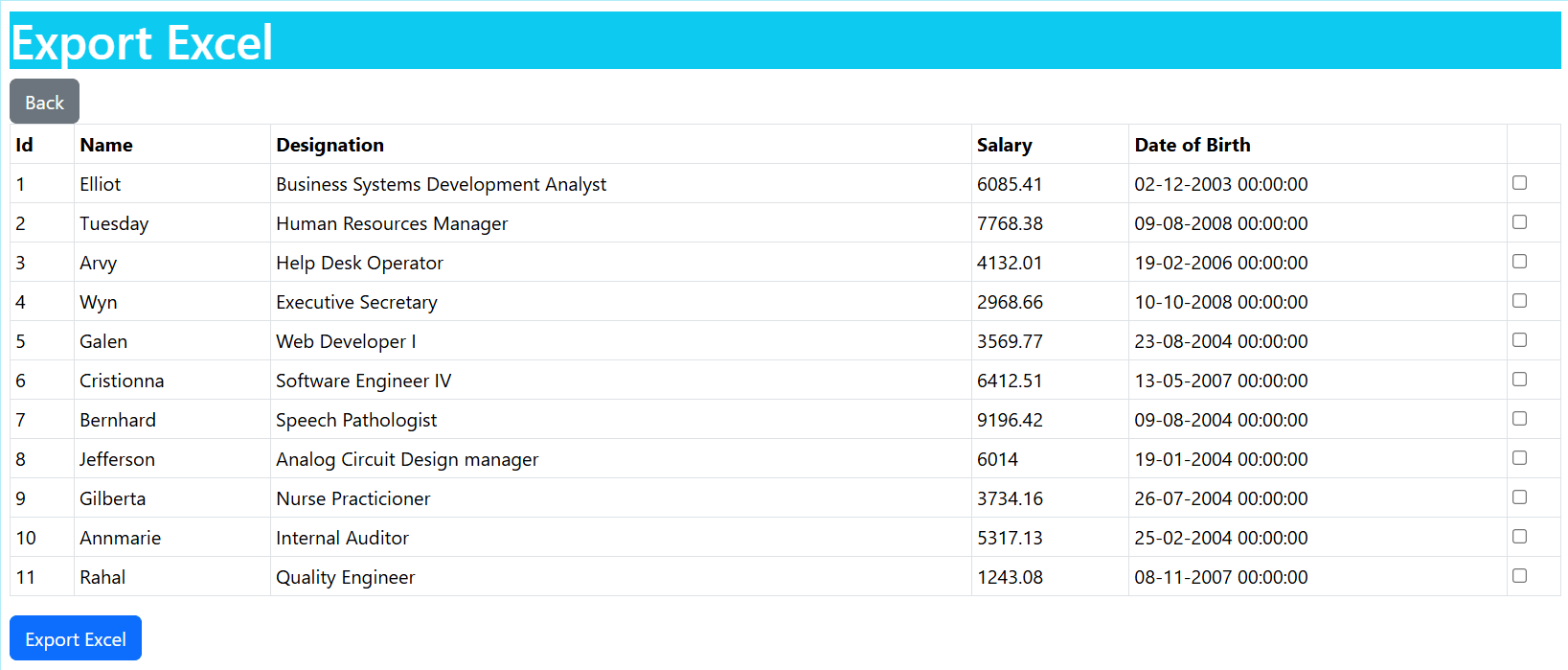
I will have to add a new ViewModel called EmployeeViewModel.cs. This is the same like Employee.cs class except that a new property “IsChecked” is added for the checkboxes. Through these checkboxes, user can select the records that needs to be exported to an excel file.
public class EmployeeViewModel
{
    public int Id { get; set; }
    public string Name { get; set; }
    public string Designation { get; set; }
    public Double Salary { get; set; }
    public DateTime DOB { get; set; }
    public bool IsChecked { get; set; }
}
Add a new action method called “ExportExcel” to the controller. This action method reads the employee records from the database and returns them to the view where they will be displayed in an HTML Table.
public IActionResult ExportExcel()
{
    List<Employee> eList = context.Employee.ToList();

    List<EmployeeViewModel> records = eList.AsEnumerable().Select(row => new EmployeeViewModel
    {
        Id = row.Id,
        Name = row.Name,
        Designation = row.Designation,
        Salary = row.Salary,
        DOB = row.DOB
    }).ToList();

    return View(records);
}
Next, add the razor view ExportExcel.cshtml which shows the employees in a table along with a checkbox to make the selection. The code is given below.
@{
    ViewData["Title"] = "Export Excel";
}
@model List<EmployeeViewModel>

<h1 class="bg-info text-white">Export Excel</h1>

<a asp-controller="Home" asp-action="Index" class="btn btn-secondary">Back</a>

<form method="post">
    <table class="table table-sm table-bordered">
        <tr>
            <th>Id</th>
            <th>Name</th>
            <th>Designation</th>
            <th>Salary</th>
            <th>Date of Birth</th>
            <th></th>
        </tr>

        @for (int i = 0; i < Model.Count; i++)
        {
            <tr>
                <td>
                    <label asp-for="@Model[i].Id">@Model[i].Id</label>
                    <input type="hidden" asp-for="@Model[i].Id" />
                </td>
                <td><label asp-for="@Model[i].Name">@Model[i].Name</label></td>
                <td><label asp-for="@Model[i].Name">@Model[i].Designation</label></td>
                <td><label asp-for="@Model[i].Name">@Model[i].Salary</label></td>
                <td><label asp-for="@Model[i].Name">@Model[i].DOB</label></td>
                <td><input type="checkbox" asp-for="@Model[i].IsChecked" /></td>
            </tr>
        }
    </table>
    <button type="submit" class="btn btn-primary">Export Excel</button>
</form>
In the above code the html table is created to show all the employee records. Also note the checkbox given against each employee to enable user to select the employee records.
<input type="checkbox" asp-for="@Model[i].IsChecked" />A hidden field is also added which will transfer the Ids of employees to the post action method in the controller.
<input type="hidden" asp-for="@Model[i].Id" />Next, add the ExportExcel action of type POST. This action method will perform the export procedure. See the below code.
[HttpPost]
public IActionResult ExportExcel(List<EmployeeViewModel> empList)
{
    var selectedRecords = empList.Where(r => r.IsChecked).Select(r => r.Id).ToList();
    var emp = context.Employee.Where(o => selectedRecords.Contains(o.Id)).ToList();

    string path = Path.Combine(hostingEnvironment.WebRootPath, "Excel/mydata.xlsx");

    using (SpreadsheetDocument spreadsheetDocument = SpreadsheetDocument.Create(path, SpreadsheetDocumentType.Workbook))
    {

        // Add a WorkbookPart to the document.
        WorkbookPart workbookPart = spreadsheetDocument.AddWorkbookPart();
        workbookPart.Workbook = new Workbook();

        // Add a WorksheetPart to the WorkbookPart.
        WorksheetPart worksheetPart = workbookPart.AddNewPart<WorksheetPart>();
        worksheetPart.Worksheet = new Worksheet(new SheetData());

        SheetData sheetData = worksheetPart.Worksheet.GetFirstChild<SheetData>();

        // Add Sheets to the Workbook.
        Sheets sheets = workbookPart.Workbook.AppendChild(new Sheets());

        // Append a new worksheet and associate it with the workbook.
        Sheet sheet = new Sheet() { Id = workbookPart.GetIdOfPart(worksheetPart), SheetId = 1, Name = "mySheet" };
        sheets.Append(sheet);

        // Add Data
        Row row = new Row();
        row.Append(new Cell() { CellValue = new CellValue("Id"), DataType = CellValues.String });
        row.Append(new Cell() { CellValue = new CellValue("Name"), DataType = CellValues.String });
        row.Append(new Cell() { CellValue = new CellValue("Destination"), DataType = CellValues.String });
        row.Append(new Cell() { CellValue = new CellValue("Salary"), DataType = CellValues.String });
        row.Append(new Cell() { CellValue = new CellValue("DOB"), DataType = CellValues.String });
        sheetData.Append(row);

        foreach (var e in emp)
        {
            row = new Row();
            row.Append(new Cell() { CellValue = new CellValue(e.Id), DataType = CellValues.Number });
            row.Append(new Cell() { CellValue = new CellValue(e.Name), DataType = CellValues.String });
            row.Append(new Cell() { CellValue = new CellValue(e.Designation), DataType = CellValues.String });
            row.Append(new Cell() { CellValue = new CellValue(e.Salary), DataType = CellValues.String });
            row.Append(new Cell() { CellValue = new CellValue(e.DOB), DataType = CellValues.Date });
            sheetData.Append(row);
        }

        workbookPart.Workbook.Save();
    }

    var contentType = "application/octet-stream";
    return PhysicalFile(path, contentType, Path.GetFileName(path));
}
To understand the above code, first I am finding the checked employee ids and reading these employee records in a list of employee object by the name “emp”.
var selectedRecords = empList.Where(r => r.IsChecked).Select(r => r.Id).ToList();
var emp = context.Employee.Where(o => selectedRecords.Contains(o.Id)).ToList();
Next, with SpreadsheetDocument class, I am creating an empty excel file which will contain the checked employee records data.
using (SpreadsheetDocument spreadsheetDocument = SpreadsheetDocument.Create(path, SpreadsheetDocumentType.Workbook))
{
}
You will find the WorkbookPart and WorksheetPart that are adding a sheet to the excel file.
WorkbookPart workbookPart = spreadsheetDocument.AddWorkbookPart();
workbookPart.Workbook = new Workbook();

WorksheetPart worksheetPart = workbookPart.AddNewPart<WorksheetPart>();
worksheetPart.Worksheet = new Worksheet(new SheetData());
Next, with the SheetData and Sheet classes the employee data is appended to this new sheet.
SheetData sheetData = worksheetPart.Worksheet.GetFirstChild<SheetData>();
Sheets sheets = workbookPart.Workbook.AppendChild(new Sheets());

Sheet sheet = new Sheet() { Id = workbookPart.GetIdOfPart(worksheetPart), SheetId = 1, Name = "mySheet" };
sheets.Append(sheet);
I now use the “Row” class to add the Employee headers which are Id, Name, Destination, Salary, and DOB. And then looping through all the records that are there in the list of employee objects, and adding them to the row. The row is appended to the sheet with the sheetData.Append(row) method.
Row row = new Row();
 row.Append(new Cell() { CellValue = new CellValue("Id"), DataType = CellValues.String });
 row.Append(new Cell() { CellValue = new CellValue("Name"), DataType = CellValues.String });
 row.Append(new Cell() { CellValue = new CellValue("Destination"), DataType = CellValues.String });
 row.Append(new Cell() { CellValue = new CellValue("Salary"), DataType = CellValues.String });
 row.Append(new Cell() { CellValue = new CellValue("DOB"), DataType = CellValues.String });
 sheetData.Append(row);

 foreach (var e in emp)
 {
     row = new Row();
     row.Append(new Cell() { CellValue = new CellValue(e.Id), DataType = CellValues.Number });
     row.Append(new Cell() { CellValue = new CellValue(e.Name), DataType = CellValues.String });
     row.Append(new Cell() { CellValue = new CellValue(e.Designation), DataType = CellValues.String });
     row.Append(new Cell() { CellValue = new CellValue(e.Salary), DataType = CellValues.String });
     row.Append(new Cell() { CellValue = new CellValue(e.DOB), DataType = CellValues.Date });
     sheetData.Append(row);
 }
At last the excel file is downloaded with the below code.
var contentType = "application/octet-stream";
return PhysicalFile(path, contentType, Path.GetFileName(path));
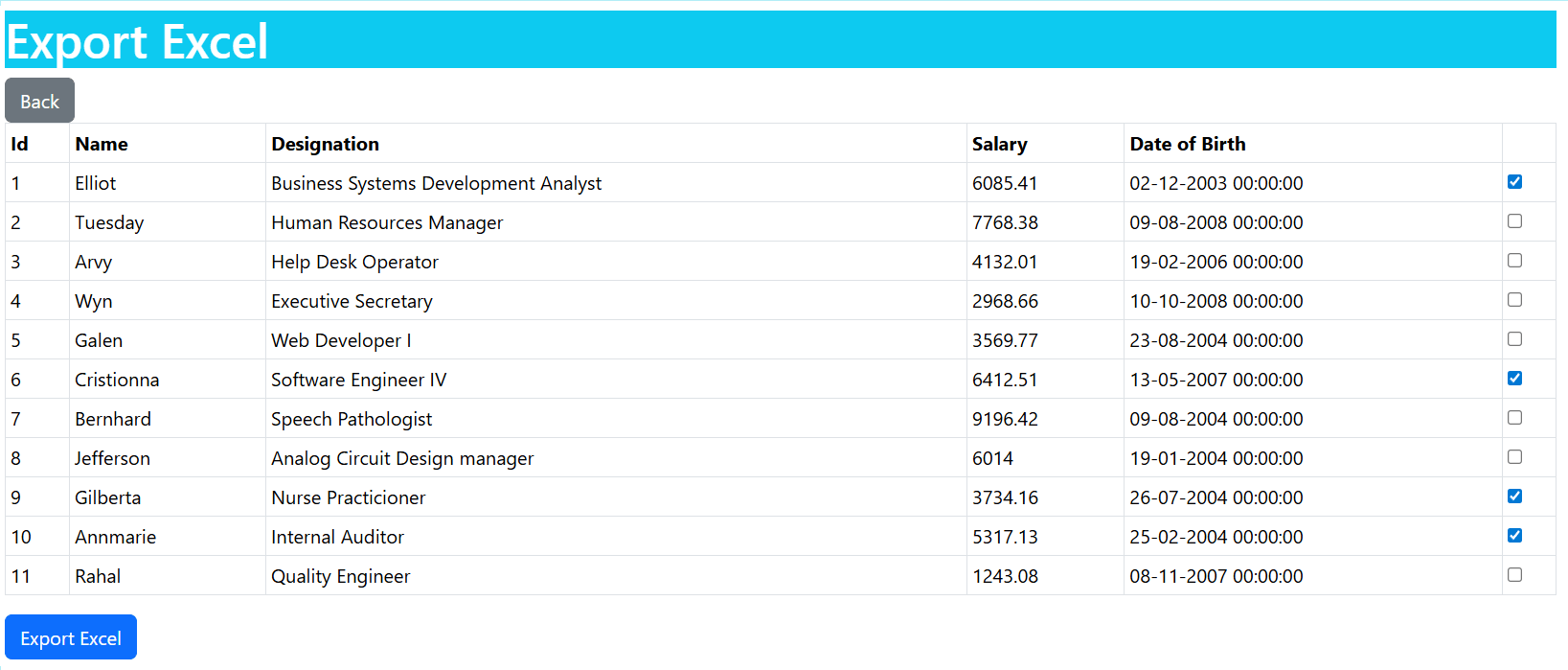
Its now time to run the app and test the feature. I select the records no 1, 6, 8 and 10 and then click the button to generate the excel file. See the below image.
The excel file is generated and is shown below.

In this tutorial I created the full features of Import and Export excel in ASP.NET Core. I explained both the method of OpenXml and System.Data.OleDb to read the excel file. The full source codes of this tutorial is available in my GitHub repository. The link is given at the top.
SHARE THIS ARTICLE


Related Tutorials:




ABOUT THE AUTHOR
I hope you enjoyed reading this tutorial. If it helped you then consider buying a cup of coffee for me. This will help me in writing more such good tutorials for the readers. Thank you.

HELLO EVERYONE
 Welcome to YogiHosting - A Programming Tutorial Website. It is used by millions of people around the world to learn and explore about ASP.NET Core, Blazor, jQuery, JavaScript, Docker, Kubernetes and other topics.
SUBSCRIBE TO NEWSLETTER
Enter your email address to subscribe to this blog and receive notifications of new posts by email.
Join 90K other subscribers