


How to use RabbitMQ with MassTransit for ASP.NET Core Microservices Communication
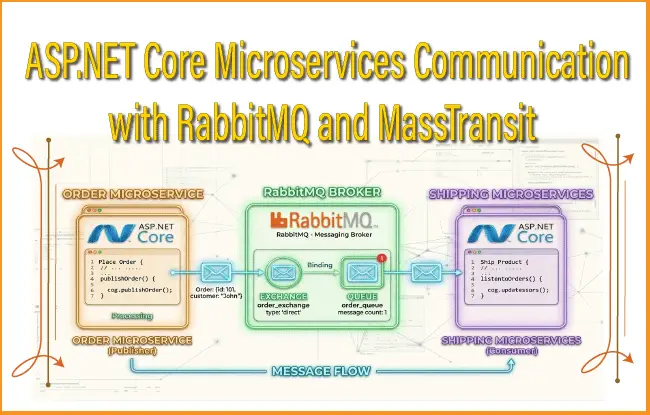
RabbitMQ is a popular message broker used to enable reliable, scalable, and asynchronous communication between different components of an application. In the context of ASP.NET Core, RabbitMQ is commonly integrated to decouple services, improve performance, and handle background processing efficiently.
When building modern web applications with ASP.NET Core, especially in microservices architectures, direct communication between services can lead to tight coupling and reduced flexibility. RabbitMQ helps solve this by acting as an intermediary that manages message queues. Instead of services calling each other directly, they send messages to a queue, which are then consumed by other services when they are ready. This approach enhances fault tolerance and allows systems to scale independently.
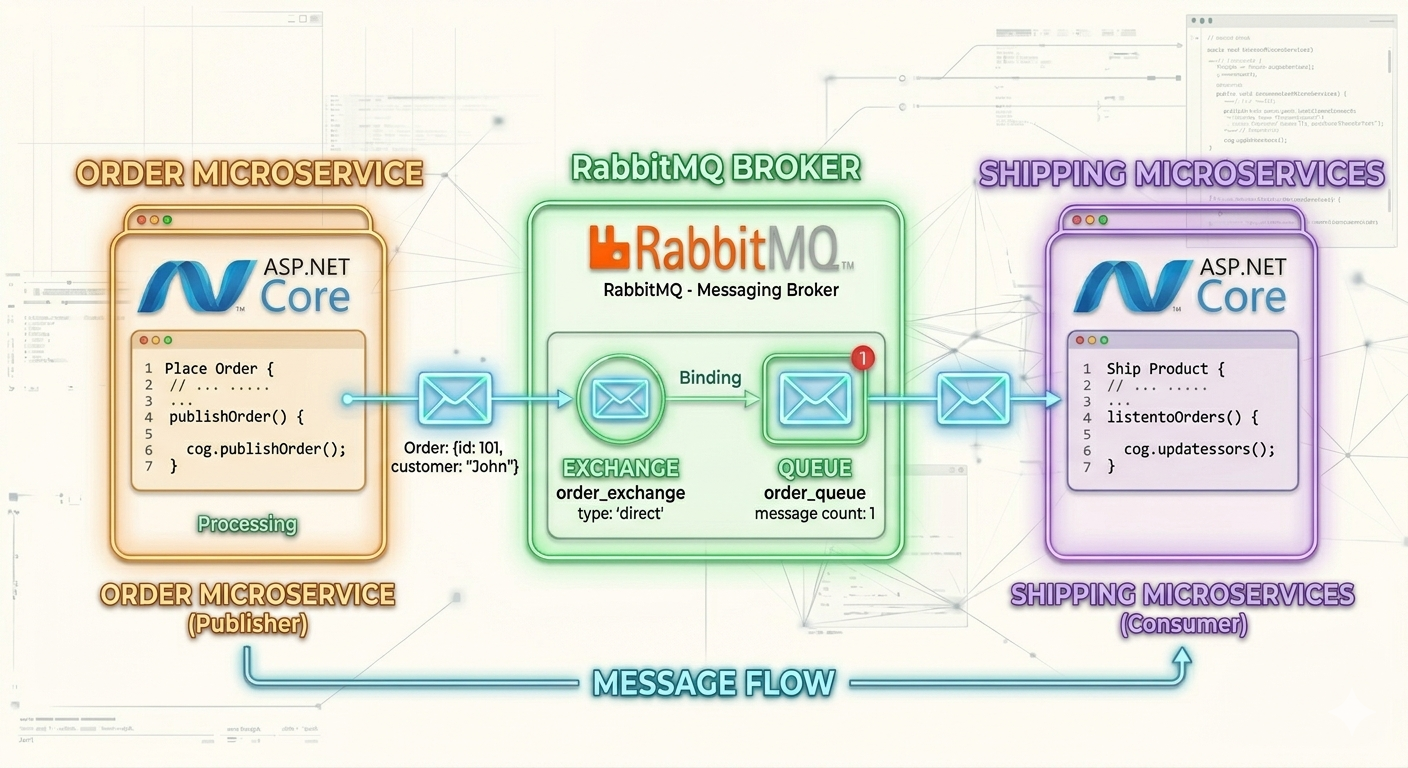
Using RabbitMQ in ASP.NET Core typically involves producing messages (publishers) and consuming them (consumers). For example, an “Order” Microservice (Publisher) takes an order from a customer, and publishes a message to RabbitMQ about this order. RabbitMQ sends this Order message to the “Shipping” Microservice (Consumer), so that the shipping microservice can ship the order to the customer. This asynchronous workflow ensures that the whole app remains responsive while heavy tasks are handled separately.
ASP.NET Core Microservices example with RabbitMQ
In this .NET example we will use RabbitMQ as a message broker for Microservices communication. There will be 2 Microservices build on ASP.NET Core these are:
- Order Microservice (Publisher)- that will take the customer order and produce the message regarding the order for RabbitMQ. RabbitMQ will send this order message to the Shipping Mircoservice.
- Shipping Microservice (Consumer) – will get the Order message from RabbitMQ regarding the Order message, and will ship the product to the customer.
We have explained the whose process in the below image.
Installing RabbiMQ
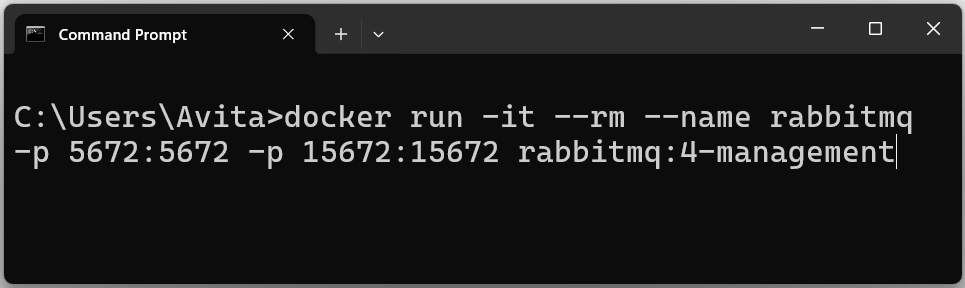
We will install RabbitMQ through Docker. This is a very fast process. We just run the following command on command prompt or Powershell.
docker run -it --rm --name rabbitmq -p 5672:5672 -p 15672:15672 rabbitmq:4-managementCheck the below image which shows this command.
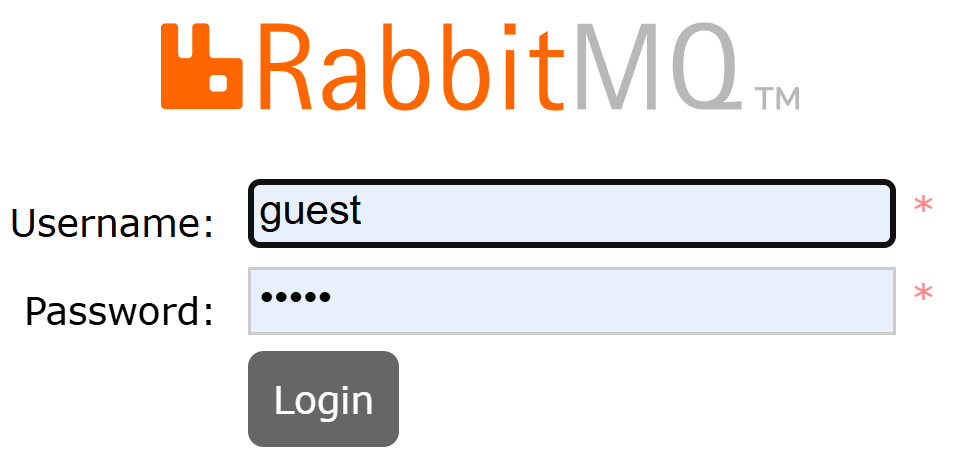
In 1 to 2 minutes RabbitMQ image will be downloaded on our pc and will run from a docker container. Open the RabbitMQ url – http://localhost:15672/ on the browser. Then for both username and password enter “guest” and click the login button.
Once login we will see tabs for – Overview, Connections, Channels, Exchanged, Queues and Streams and Admin. Navigate to any of them shows the specific details.
In RabbitMQ, a channel is a lightweight virtual connection that runs on top of a real connection. It’s the main way your application actually interacts with RabbitMQ to send and receive messages.
A connection is a fundamental link established between your application (such as an ASP.NET Core MVC) and the RabbitMQ server.
If you navigate to Channels and Connections they will show nothing since we haven’t yes interacted with RabbitMQ with our ASP.NET Core MVC app.
In RabbitMQ, an exchange is the component responsible for receiving messages from producers and deciding how to route them to queues. It acts like a smart message router. An exchange receives messages from a producer (publisher), uses rules (called bindings) to determine where messages go and Sends messages to one or more queues. Note that producers never send messages directly to queues—they always send them to an exchange.
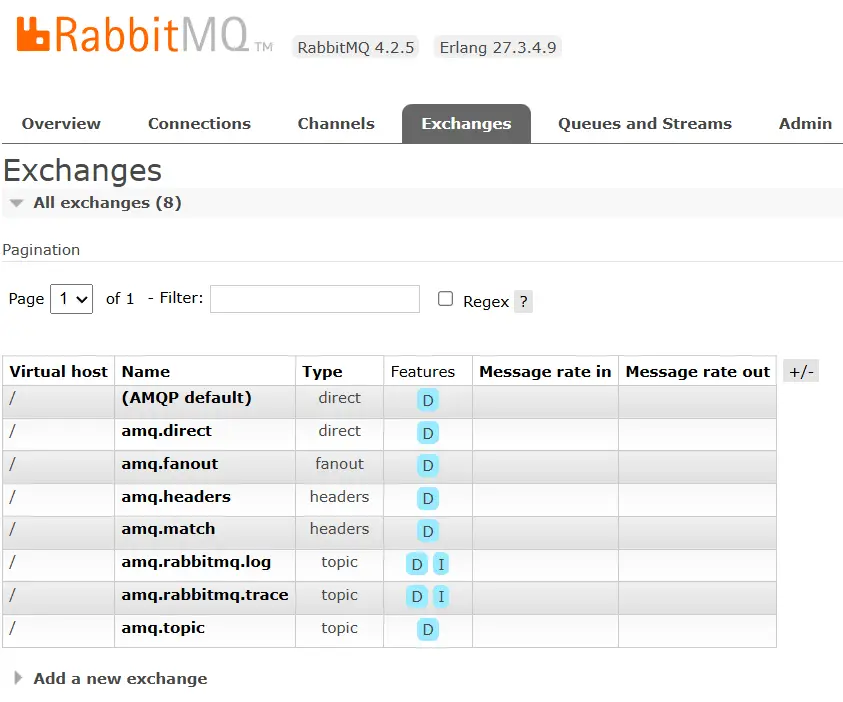
Navigate to “Exchanges” where you will find few exchanges already present, these are:
- Default Exchange : “AMQP default” usually refers to the default exchange that is automatically created by the broker when it starts. It’s part of the AMQP standard.
- Direct Exchange : Routes messages based on an exact match of the routing key.
- Fanout Exchange : Sends messages to all bound queues.
- Topic Exchange : Routes messages using pattern matching.
- Headers Exchange : Routes based on message headers instead of routing key.
Queues and Streams are two different ways of storing and delivering messages. They serve different use cases depending on how you want messages to be processed.
A queue:
- Stores messages until they are consumed.
- Delivers messages to consumers (usually one at a time).
- Removes messages once they are acknowledged.
Streams are a newer feature designed for high-throughput and event streaming scenarios.
A stream:
- Stores messages as a continuous log (like an event history).
- Messages are not deleted after consumption.
- Consumers can read messages multiple times.
On navigating to Queues and Streams tab there won’t be any since we haven’t created a message. We will do it in just a moment.
ASP.NET Core Publisher Microservice
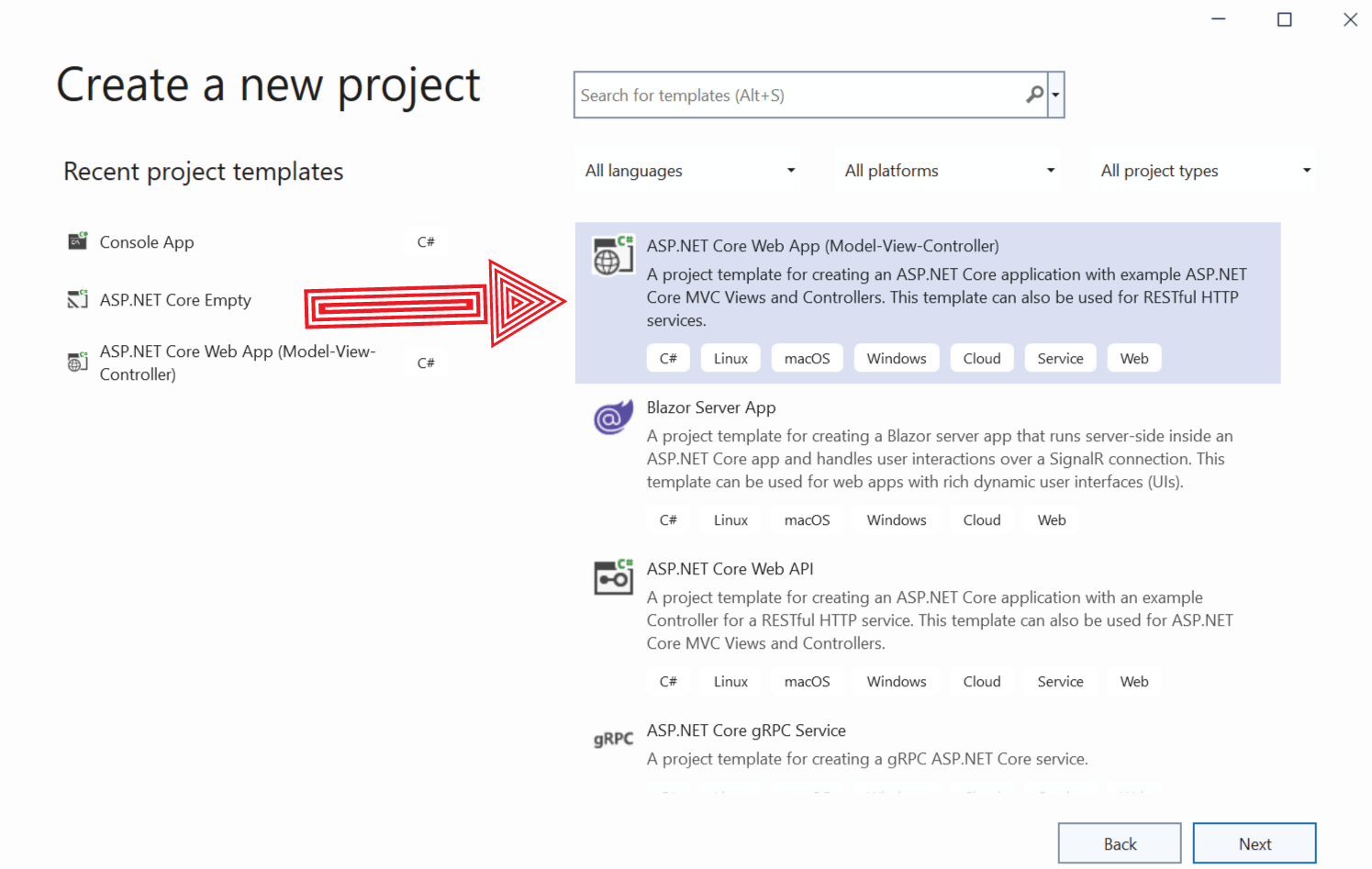
Lets start with creating a Publisher Microservice. In visual studio create a new project by selecting the template called ASP.NET Core Web App (Model-View-Controller). We named this project MTTutorialP, you can name it anything. This microservices acts as a Publisher that can interact with other Consumer microservices via RabbitMQ.
We first add an Order.cs class to the project which is for the orders made by customers. We gave the namespace MTTutorialC.Models for this class. We will use the same class with the same namespace on the Consumer also. This is because RabbitMQ treats messages based on it’s namespaces. if the received and outgoing message are of different namespace (signatures), RabbitMQ would not recognize the Consumer.
namespace MTTutorialC.Models
{
    public class Order
    {
        public int Id { get; set; }
        public string Name { get; set; }
        public int Quantity { get; set; }
    }
}
Installing MassTransit Packages
MassTransit is a free, open-source “distributed application framework” for .NET. At its core, it acts as a service bus—a layer of abstraction that sits on top of message brokers (like RabbitMQ, Azure Service Bus, or Amazon SQS) to make building message-based, loosely coupled applications much easier. Think of it as an “Object-Relational Mapper” (ORM) but for messaging. Just as Entity Framework abstracts the complexities of SQL, MassTransit abstracts the complexities of message brokers. So install the following 2 MassTransit packages to the project from NuGet:
Install-Package MassTransit
Install-Package MassTransit.RabbitMQAfter adding the MassTransit packages, we will have to configure it to work as a Publisher. Navigate to the Program.cs and add the following code that registers MassTransit as a service.
builder.Services.AddMassTransit(x =>
{
    x.UsingRabbitMq();
});
Note that in the above case the MassTransit will use default RabbitMQ username and password which is “guest”. If the username and password are different then you can specify them using the below configurations.
builder.Services.AddMassTransit(x =>
{
    x.UsingRabbitMq((context, cfg) =>
    {
        cfg.Host("localhost", "/", h =>
        {
            h.Username("myusername");
            h.Password("mypassword");
        });
    });
});
Publisher: Send Message to RabbitMQ with MassTransit
Lets post an Order message to RabbitMQ with MassTransit. Open HomeController.cs file and inject ISendEndpointProvider object to the constructors. This object will be provided by the dependency injection.
We then use the ISendEndpointProvider to get the endpoint address and using it we send the order message to RabbitMQ. Check the below code.
public class HomeController : Controller
{
    private readonly ISendEndpointProvider sendEndpointProvider;

    public HomeController(ISendEndpointProvider sendEndpointProvider)
    {
        this.sendEndpointProvider = sendEndpointProvider;
    }

    public async Task<IActionResult> Index()
    {
        var endpoint = await sendEndpointProvider.GetSendEndpoint(new Uri("queue:OrderC"));

        await endpoint.Send(new Order {
            Id = 1,
            Name = "Football",
            Quantity = 10
        });

        return View();
    }
}
Notice the GetSendEndpoint method needs the RabbitMQ queue name which is given as queue:OrderC. Here “OrderC” is the name of the queue. Name of the queue can be anything.
The Order message containing the Order.cs class values of id=1, name=football and quantity=10 is send to RabbitMQ.
Lets test the working by running the project. The Index action of HomeController will execute automatically as it is the default route of the ASP.NET Core MVC project. Next, open RabbitMQ UI on browser and check the Connections and Channels where we will see new entry, this specifies that RabbitMQ has received the message.
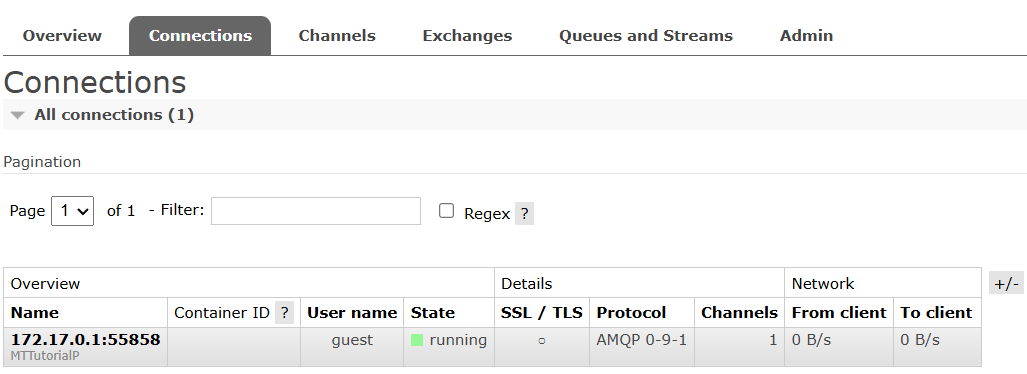
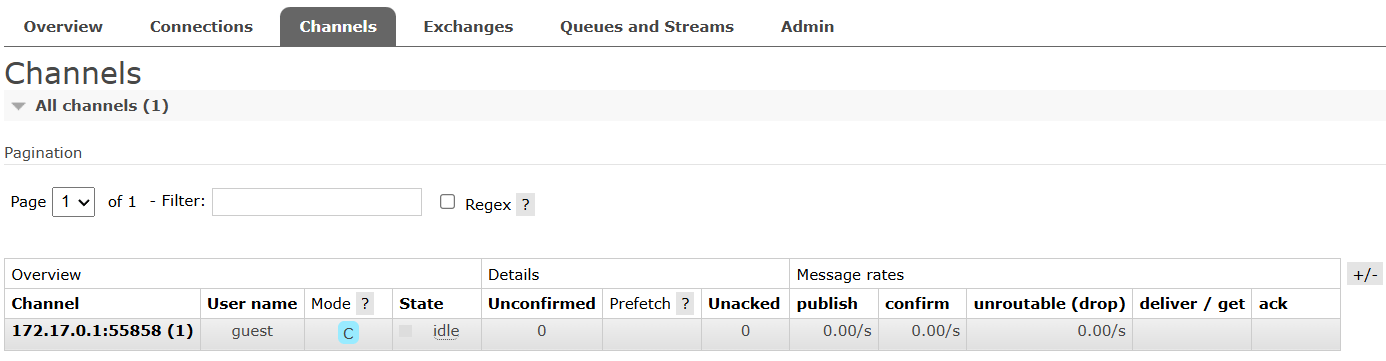
The most important thing is the addition of a new exchange called “OrderC” which we can find on the Exchanges area. Check the below image.
Recall we gave the queue name “OrderC” in the URI of GetSendEndpoint() method.
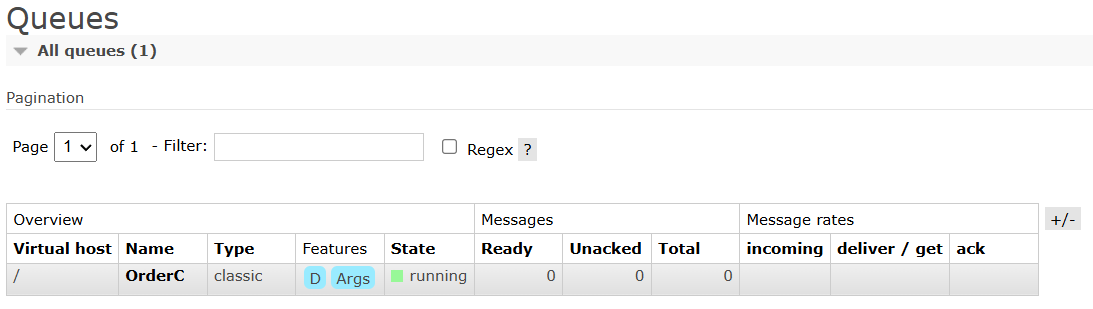
Now go to Queues and Streams where we find a new entry. The message is waiting for a consumer to pick them up for processing. See the state of the message showing 0 for Ready, Unacked and Total which means message is waiting for a consumer. Check the below image:
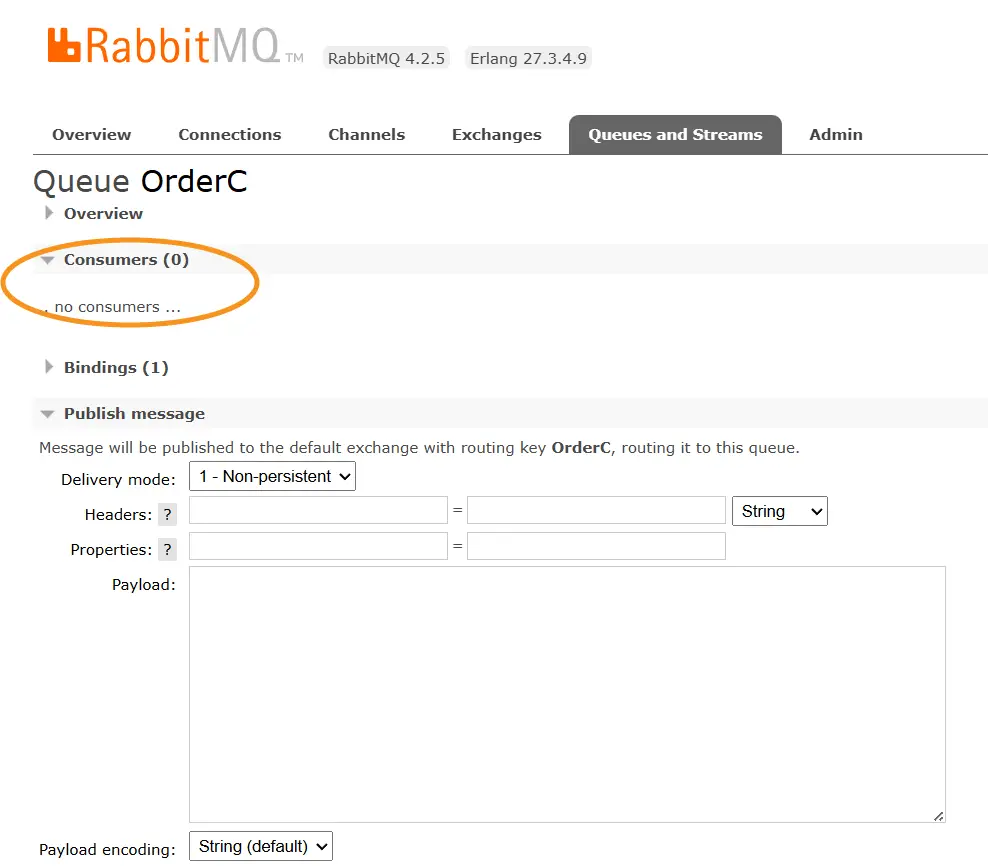
Click on the message to see it details, we can see there are no consumers for the message. Check the below image.
In RabbitMQ, the terms Ready, Unacked, and Total describe the state of messages in a queue:
- Messages that are waiting in the queue
- Not yet delivered to any consumer
- Available to be consumed immediately
- Messages that have been delivered to a consumer
- But the consumer has not yet acknowledged (ACKed) them
- These are “in progress”
- If the consumer crashes or disconnects, RabbitMQ will requeue them
- The sum of Ready + Unacked
- Represents all messages currently in the queue
ASP.NET Core Consumer Microservice
Lets add a Consumer, so right click on the Solution and select add a new project. Select the same old template of ASP.NET Core Web App (Model-View-Controller), and name the project as “MTTutorialC”. Name is not important and you can choose your own name.
This .NET Microservice will be responsible for consuming the incoming messages from RabbitMQ. Do you remember the packages we installed earlier? Install the same one in this project too.
To this project add the Order.cs class that has the name namespace like the Order.cs defined in the publisher project. This is the requirement for RabbitMQ.
namespace MTTutorialC.Models
{
    public class Order
    {
        public int Id { get; set; }
        public string Name { get; set; }
        public int Quantity { get; set; }
    }
}Next, we configure the MassTransit in the program class as shown below.
builder.Services.AddMassTransit(x =>
{
    x.AddConsumer<OrderC>();

    x.UsingRabbitMq((context, cfg) =>
    {
        cfg.ConfigureEndpoints(context);
    });
});
In the above code we added the consumer – x.AddConsumer<OrderC>(). OrderC is the consumer class which will receive the message.
Next, we configured the Endpoints of RabbitMQ for MassTransit using the below code:
x.UsingRabbitMq((context, cfg) =>
{
    cfg.ConfigureEndpoints(context);
});
Consumer: Receive Message from RabbitMQ with MassTransit
To receive messages from RabbitMQ using MassTransit, we need to define a class that will be the consumer for the message. It has to inherit the IConsumer<T> where T is the type of message which is “Order” for our case. The code of this class called OrderC.cs is given below.
namespace MTTutorialC.Models
{
    public class OrderC : IConsumer<Order>
    {
        public async Task Consume(ConsumeContext<Order> context)
        {
            var jsonMessage = JsonConvert.SerializeObject(context.Message);
            Console.WriteLine($"OrderCreated message: {jsonMessage}");
        }
    }
}
The message received is serialized by the Json.NET library which we can install by the below command.
Install-Package Newtonsoft.JsonTesting the Microservices
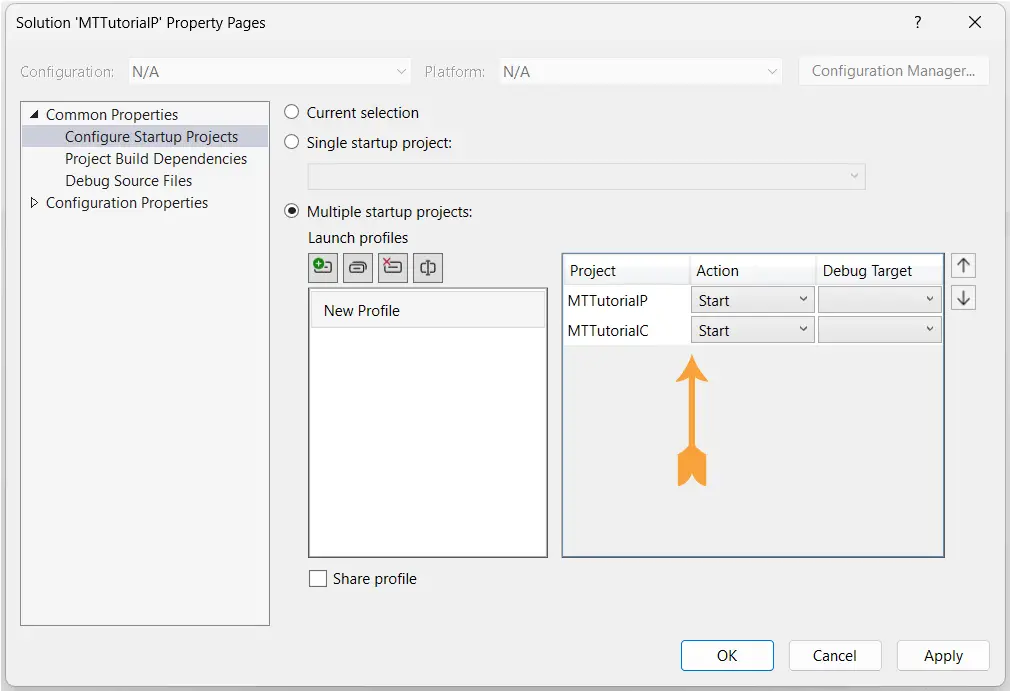
Let’s test our Microservices now. We need both the Microservices running in order to send and receive the messages. To enable Multiple Starup Projects, Right click on the solution and set the action of each project to “Start”. See the below image.
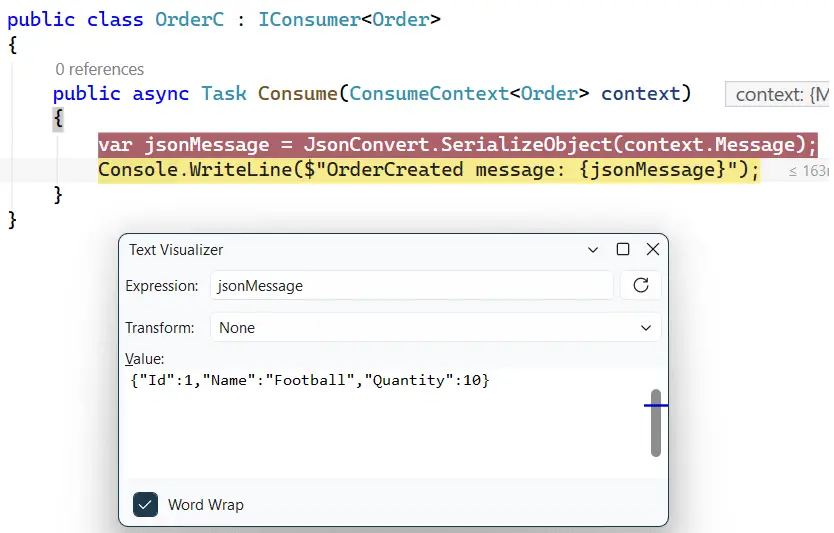
Place a breakpoint on the line “var jsonMessage” in the consumer. Now press the Run button on Visual Studio which will start both the projects.
The breakpoint will hit and we can see the message is received by the consumer. Check the below image.
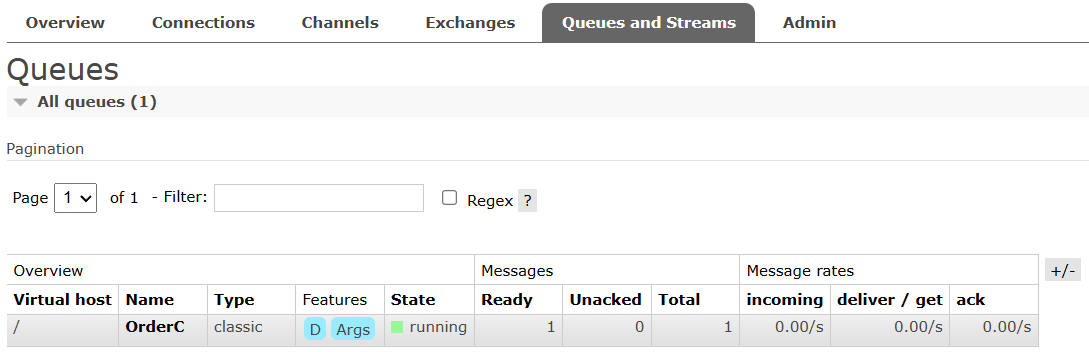
Go to Queues and Streams on the RabbitMQ UI where we will find a new queue is formed. Check the below image.
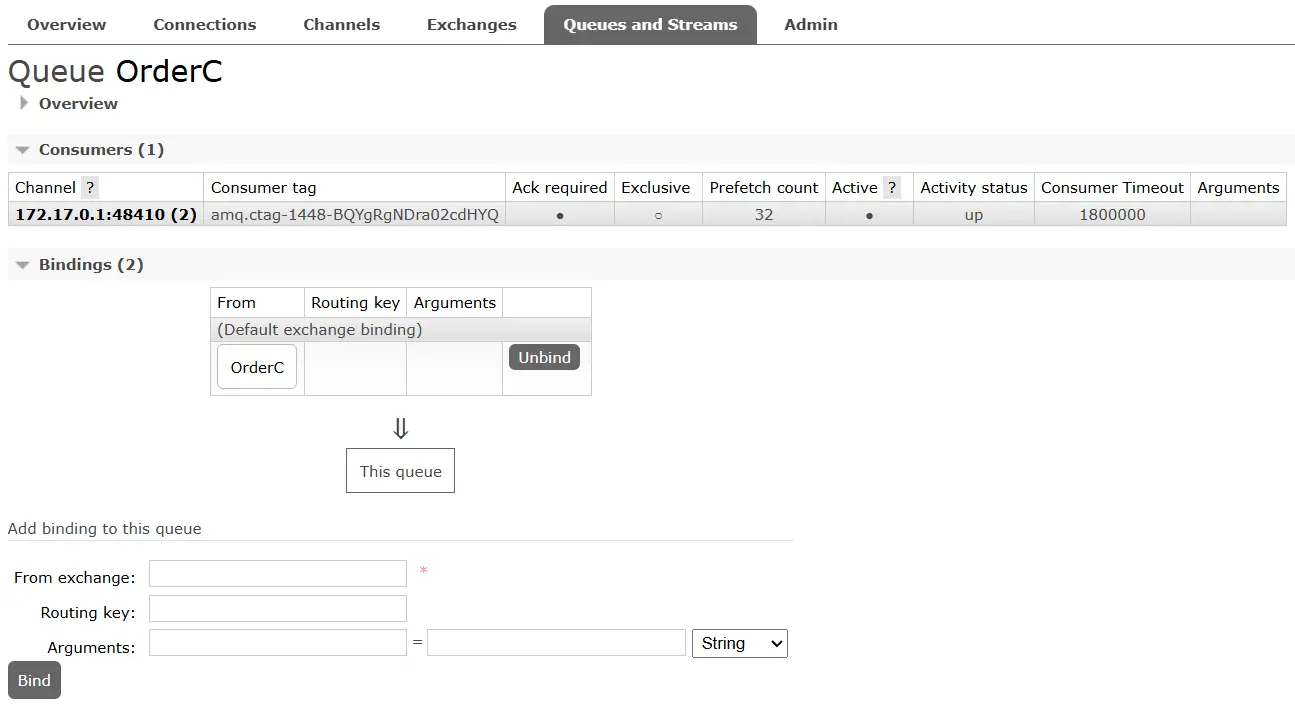
Click the Queue to see it’s details check the consumer binding now present.
Publisher sends message Consumer unavailable
The consumer can be offline due to several reasons like server issues. Even if the consumer is offline, the publisher can still send messages to the RabbitMQ queue. Once the consumer comes back online, it can process any pending messages. That’s essentially the core idea behind message brokering—let’s take a closer look.
Change the startup to run only the Publisher project (and not Consumer). This mimics the scenario where the consumer if offline. If we run the publisher project the message goes to rabbitmq queue.
Now change the setup to run only the Consumer project. Put a breakpoint on the OrderC.cs class Consume method. Run the project in Visual Studio, we will see breakpoint hits telling the message is received from RabbitMQ.
In this article, we explored message brokers, RabbitMQ, its advantages, and how to integrate it with ASP.NET Core using MassTransit. We also built a small prototype application to demonstrate sending data through a RabbitMQ server. You can find the complete source code for this implementation here.
Feel free to share your questions and suggestions in the comments below. If you found this article helpful or learned something new, consider sharing it with your developer community. Happy coding!
SHARE THIS ARTICLE


Related Tutorials:

ABOUT THE AUTHOR
I hope you enjoyed reading this tutorial. If it helped you then consider buying a cup of coffee for me. This will help me in writing more such good tutorials for the readers. Thank you.

HELLO EVERYONE
 Welcome to YogiHosting - A Programming Tutorial Website. It is used by millions of people around the world to learn and explore about ASP.NET Core, Blazor, jQuery, JavaScript, Docker, Kubernetes and other topics.
SUBSCRIBE TO NEWSLETTER
Enter your email address to subscribe to this blog and receive notifications of new posts by email.
Join 90K other subscribers