


Deploy ASP.NET Core Dockerized app to Azure with GitHub Actions CI / CD
In this tutorial we will Deploy an ASP.NET Core Dockerized App to Azure Container Apps using GitHub Actions CI / CD pipeline. The full working of the process is described in the below image:
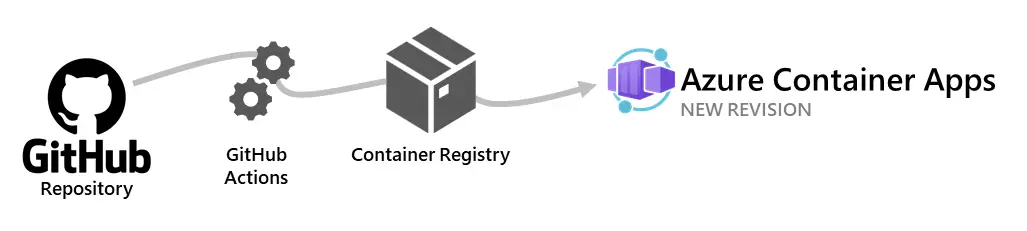
First we will push our ASP.NET Core app to GitHub repository which will trigger the Workflow. The Workflow will basically do 3 tasks:
- Build a Docker Image for the ASP.NET Core from the Dockerfile.
- Push the Docker Image to Azure Container Registry (ACR).
- Deploy the Azure Container Apps with the Docker Image in ACR.

This tutorial is a part of ASP.NET Core apps on Docker series.
- 1. Create first ASP.NET Core App in a Docker Container
- 2. Deploy a Docker based ASP.NET Core app to Azure
- 3. ASP.NET Core APP with HTTPS in Docker
- 4. Multi-Container ASP.NET Core App with Docker Compose
- 5. CRUD Operations in ASP.NET Core and SQL Server with Docker
- 6. Docker Volumes on ASP.NET Core App
- 7. Configuring Nginx as Reverse Proxy and Load Balancer for Dockerized ASP.NET Core apps
- 8. Deploy ASP.NET Core Dockerized app to Azure with GitHub Actions CI / CD
ASP.NET Core App
The .NET app is a Quiz based app which is shown below:

You can get this full app along with the GitHub Workflow from my GitHub Repository.
Create Azure Container Registry
First, we will create an Azure Container Registry which will store the docker image for this app. Later the GitHub Actions CI/CD will push the docker image to this repository. So create a new Azure Container Repository and call it QuizAppACR.
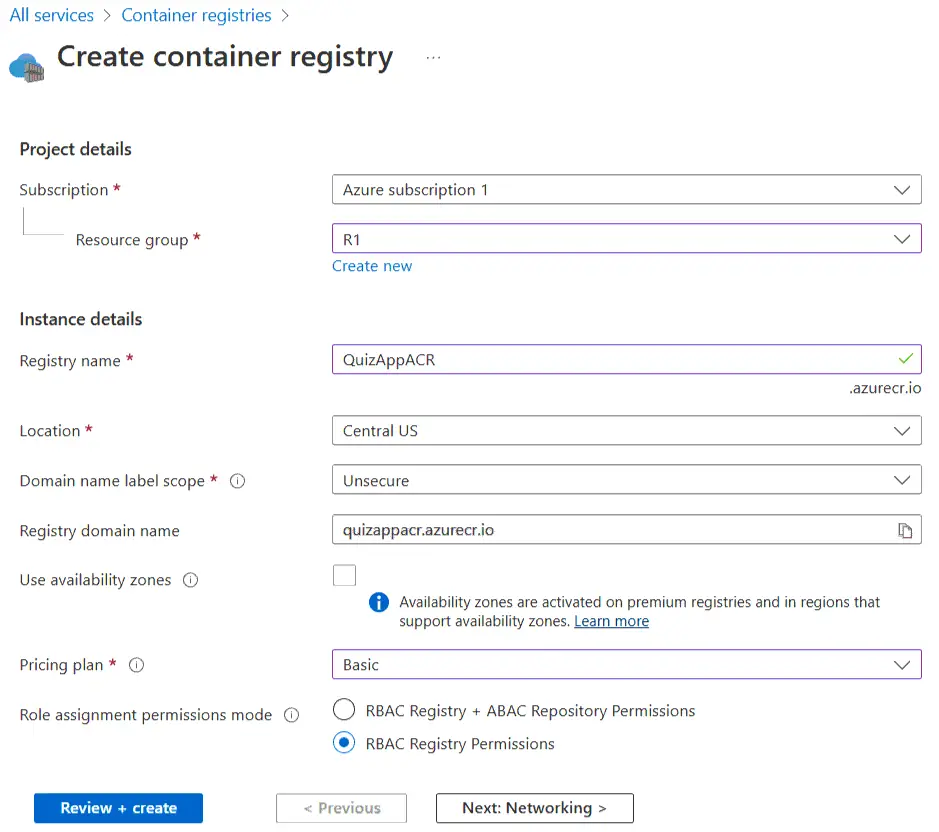
Note that we have used “Role assignment permissions mode” to “RBAC Registry Permissions”. We will create this permission next. Basically this permission is needed for pushing the Docker Image of the APP from GitHub CI / CD pipeline to ACR.
After the registry is created enable the Admin user from “Settings > Access keys”. Check the below screenshot.
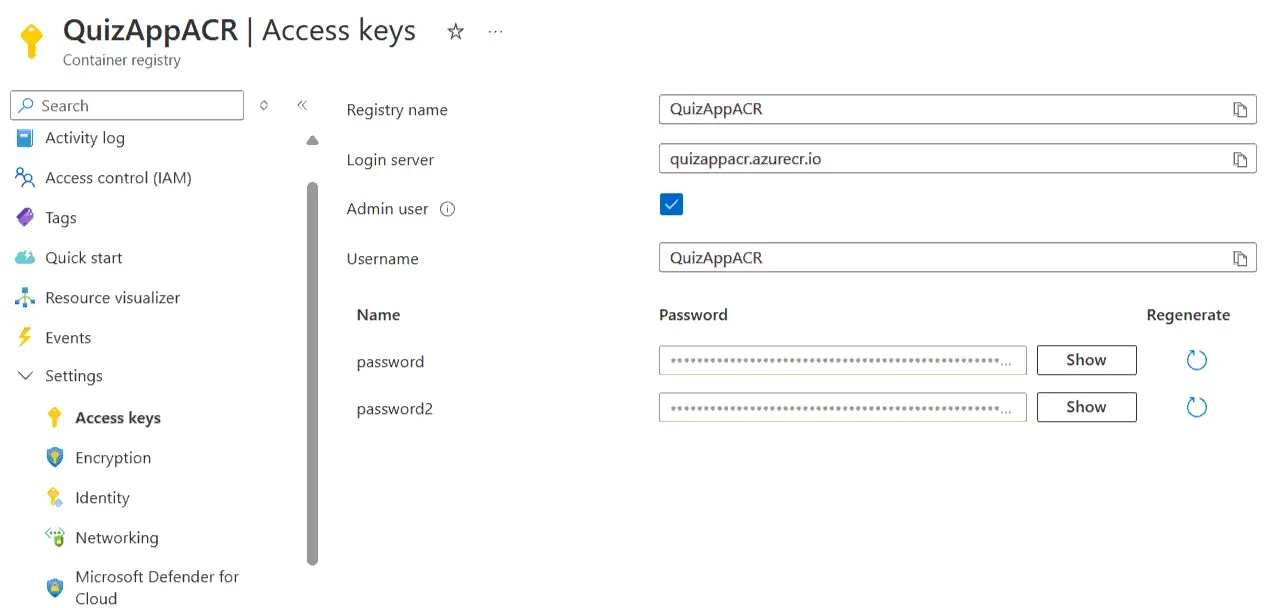
Admin user is needed for using the Image for Container Apps when we create the app from Azure portal.
We now have to Create Credentials for Azure Authentication for GitHub Actions to push Docker Image of the app to Azure Container Registry. We have to run 3 commands on Azure CLI (given below). First login to azure using the Azure CLI command az login on the command prompt or terminal. Note that you have to install Azure CLI on your pc. Check the Download Link.
After login run the below 3 commands one by one on.
az group show --name <resource-group-name> --query id --output tsvChange
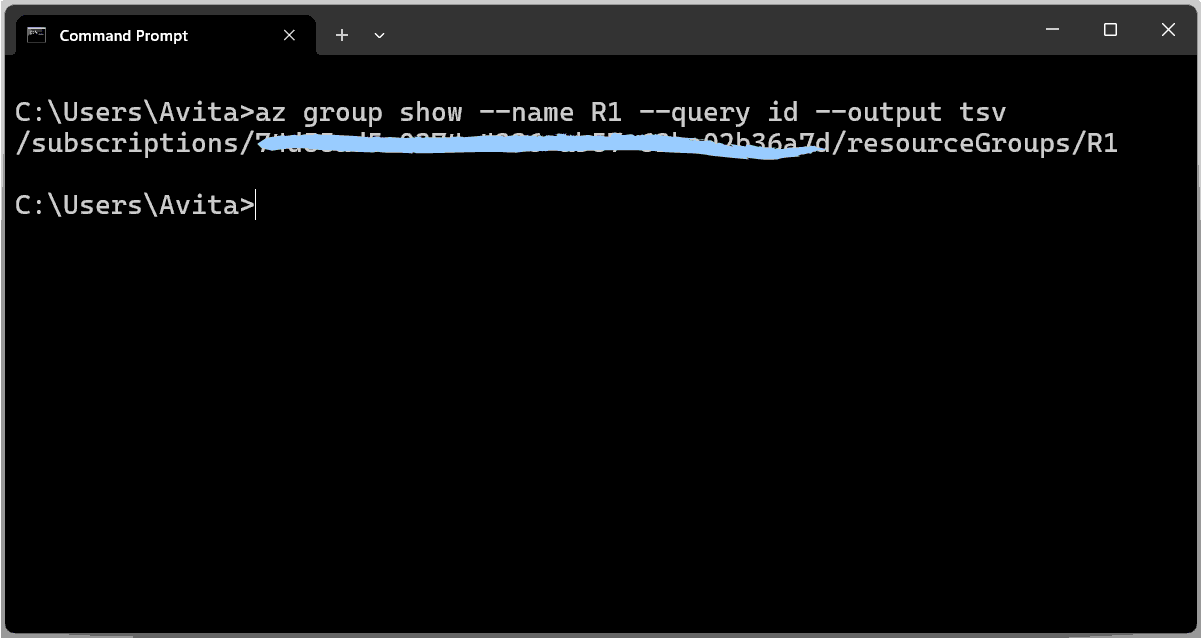
The command will give the resource ID.
/subscriptions/73435ad5-0765-7664-CV56-62hy02436a7d/resourceGroups/R1We will use this resource id in the next command.
The next command is to create the service principal from the below command.
az ad sp create-for-rbac --scope $groupId --role Contributor --sdk-authHere change the $groupId with the resource Id we got in the previous step. In my case my command becomes:
az ad sp create-for-rbac --scope /subscriptions/73435ad5-0765-7664-CV56-62hy02436a7d/resourceGroups/R1 --role Contributor --sdk-authThe command will give a JSON, save the JSON output because it’s used in a later step. Also, take note of the clientSecret and clientId, which you need to update the service principal in the next section.
{
  "clientId": "6334i778-5352-434c-a469-40332d7e63a9",
  "clientSecret": "HdY8Q~jj4EynmuGjgD5c7BCKMCI-U2XbUB2jqcm_",
  "subscriptionId": "73435ad5-0765-7664-CV56-62hy02436a7d",
  "tenantId": "404c4c76-767d-6s89-b7c9-ad800d5433ea",
  "activeDirectoryEndpointUrl": "https://login.microsoftonline.com",
  "resourceManagerEndpointUrl": "https://management.azure.com/",
  "activeDirectoryGraphResourceId": "https://graph.windows.net/",
  "sqlManagementEndpointUrl": "https://management.core.windows.net:8443/",
  "galleryEndpointUrl": "https://gallery.azure.com/",
  "managementEndpointUrl": "https://management.core.windows.net/"
}
Check the below image showing the output of this command.
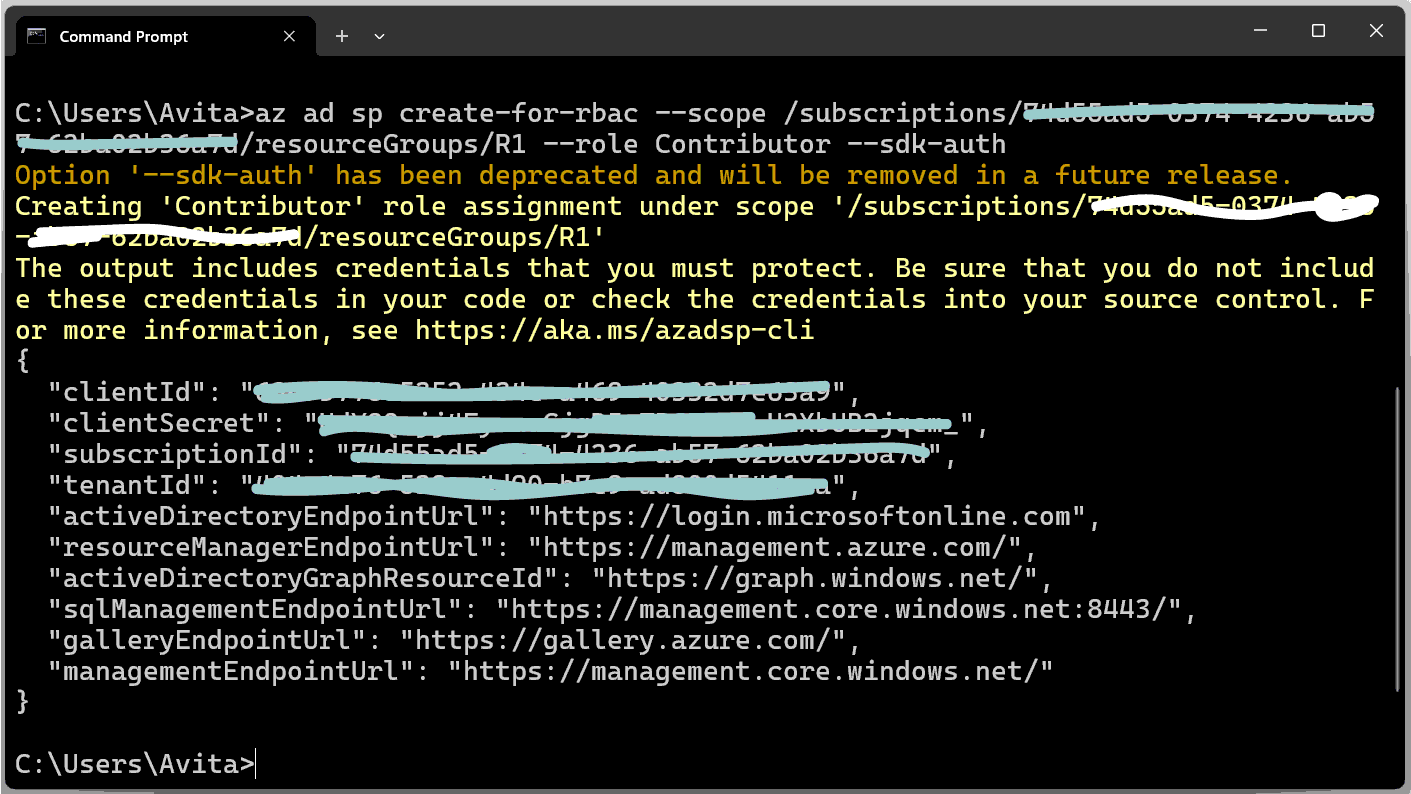
We now get the ACR registry Id from the below command.
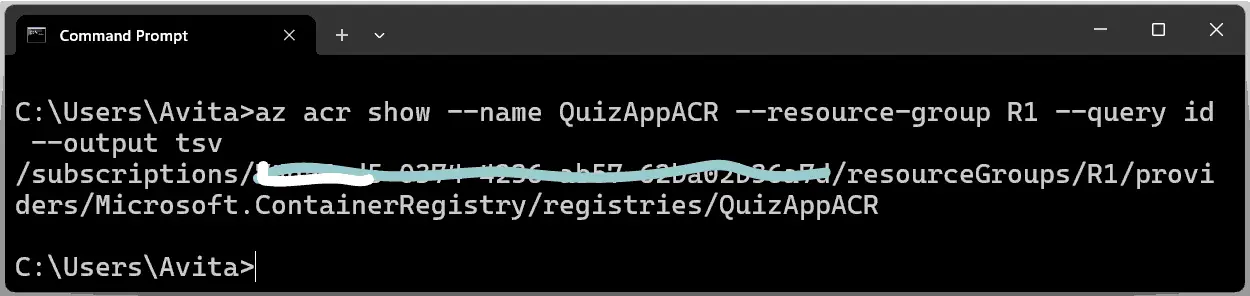
az acr show --name <registry-name> --resource-group <resource-group-name> --query id --output tsvWe change the <registry-name> and <resource-group-name> from our values. This is the updated command in our case.
az acr show --name QuizAppACR --resource-group R1 --query id --output tsvCheck the screenshot below.
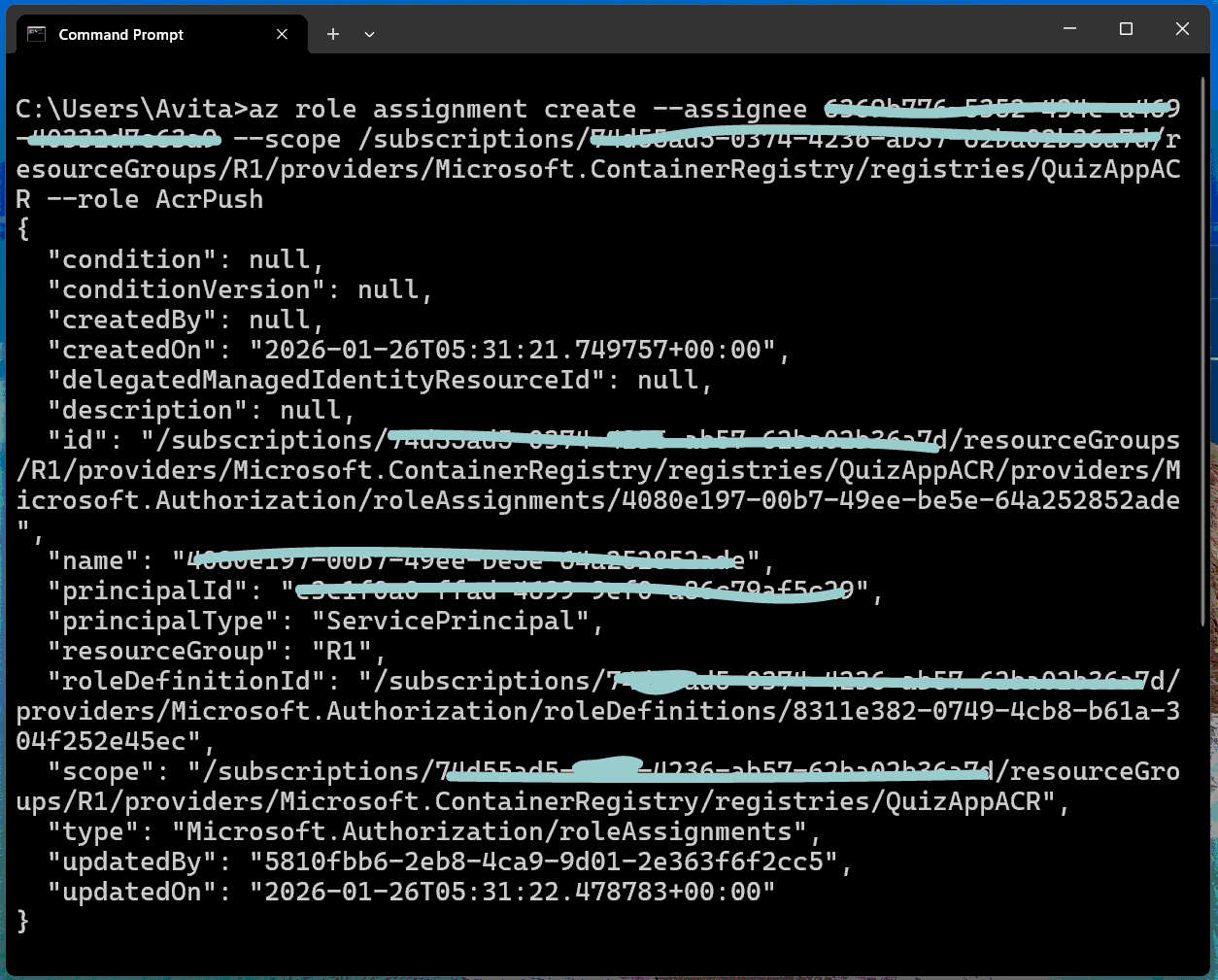
Next, we update for registry authentication. We assign the AcrPush role, which gives push and pull access to the registry. The command is given below.
az role assignment create --assignee <ClientId> --scope $registryId --role AcrPushSubstitute the client ID of your service principal and registryId in the below command.
az role assignment create --assignee 6334i778-5343452-434c-a469-40332d7e63a9 --scope /subscriptions/74d23ad6-5454-4236-ab57-62b342dd2wtrrtd/resourceGroups/R1/providers/Microsoft.ContainerRegistry/registries/QuizAppACR --role AcrPushWe have now created our registry authentication, see the below image.
Create GitHub Actions Workflow
Create a GitHub Workflow file called dotnet.yml inside the .github\workflows folder of the app. Add the following code to this file:
# This workflow will build a .NET project
# For more information see: https://docs.github.com/en/actions/automating-builds-and-tests/building-and-testing-net

name: .NET

on:
  push:
    branches: [ "main" ]
  pull_request:
    branches: [ "main" ]

jobs:
  build:

    runs-on: ubuntu-latest

    steps:
    - uses: actions/checkout@v4
    - name: Setup .NET
      uses: actions/setup-dotnet@v4
      with:
        dotnet-version: 10.0.x
    - name: Restore dependencies
      run: dotnet restore
    - name: Build
      run: dotnet build --no-restore
    - name: Test
      run: dotnet test --no-build --verbosity normal --logger trx --results-directory "TestResults"
    - name: Upload dotnet test results
      uses: actions/upload-artifact@v4
      with:
        name: dotnet-results-${{ matrix.dotnet-version }}
        path: TestResults
        # Use always() to always run this step to publish test results when there are test failures
      if: ${{ always() }}

    - name: Login via Azure CLI
      uses: azure/login@v1
      with:
        creds: ${{ secrets.AZURE_CREDENTIALS }}

    - name: Build and push image'
      uses: azure/docker-login@v1
      with:
        login-server: ${{ secrets.REGISTRY_LOGIN_SERVER }}
        username: ${{ secrets.REGISTRY_USERNAME }}
        password: ${{ secrets.REGISTRY_PASSWORD }}
    - run: |
        docker build -f Quiz/Dockerfile -t ${{ secrets.REGISTRY_LOGIN_SERVER }}/quizca:${{ github.sha }} .
        docker push ${{ secrets.REGISTRY_LOGIN_SERVER }}/quizca:${{ github.sha }}
The Workflow task includes setting a runner machine with .NET 10.0.
- name: Setup .NET
  uses: actions/setup-dotnet@v4
  with:
    dotnet-version: 10.0.x
Next, the tasks like running the project restore, building the project and running the test are done. These are done through dotnet commands – dotnet restore, dotnet build and dotnet test commands.
The next task performs the login to Azure through the JSON output from the service principal creation step. We will add this json to GitHub secret variable called “AZURE_CREDENTIALS”.
- name: Login via Azure CLI
  uses: azure/login@v1
  with:
    creds: ${{ secrets.AZURE_CREDENTIALS }}
The next task performs the building of the docker image and pushing the image to our Azure Container Registry. Here we used 3 GitHub secrets – REGISTRY_LOGIN_SERVER, REGISTRY_USERNAME and REGISTRY_PASSWORD.
| Secret | Value |
|---|---|
| REGISTRY_LOGIN_SERVER | quizappacr.azurecr.io |
| REGISTRY_USERNAME | The client id value received on the JSON which is 6334i778-5352-434c-a469-40332d7e63a9 |
| REGISTRY_PASSWORD | The client secret value received on the JSON which is HdY8Q~jj4EynmuGjgD5c7BCKMCI-U2XbUB2jqcm_ |
The code is give below.
- name: Build and push image'
  uses: azure/docker-login@v1
  with:
    login-server: ${{ secrets.REGISTRY_LOGIN_SERVER }}
    username: ${{ secrets.REGISTRY_USERNAME }}
    password: ${{ secrets.REGISTRY_PASSWORD }}
- run: |
    docker build -f Quiz/Dockerfile -t ${{ secrets.REGISTRY_LOGIN_SERVER }}/quizca:${{ github.sha }} .
    docker push ${{ secrets.REGISTRY_LOGIN_SERVER }}/quizca:${{ github.sha }}
Note the docker build command has -f flag where we have specified the location of Dockerfile. The image name will be quizappacr.azurecr.io/quizca followed by the GitHub sha as image tag.
Create GitHub Repository with Repository Secrets
We now create a GitHub repository with 4 GitHub secrets containing the values given below. Secrets can be added from Settings > Secrets and variables > Actions.
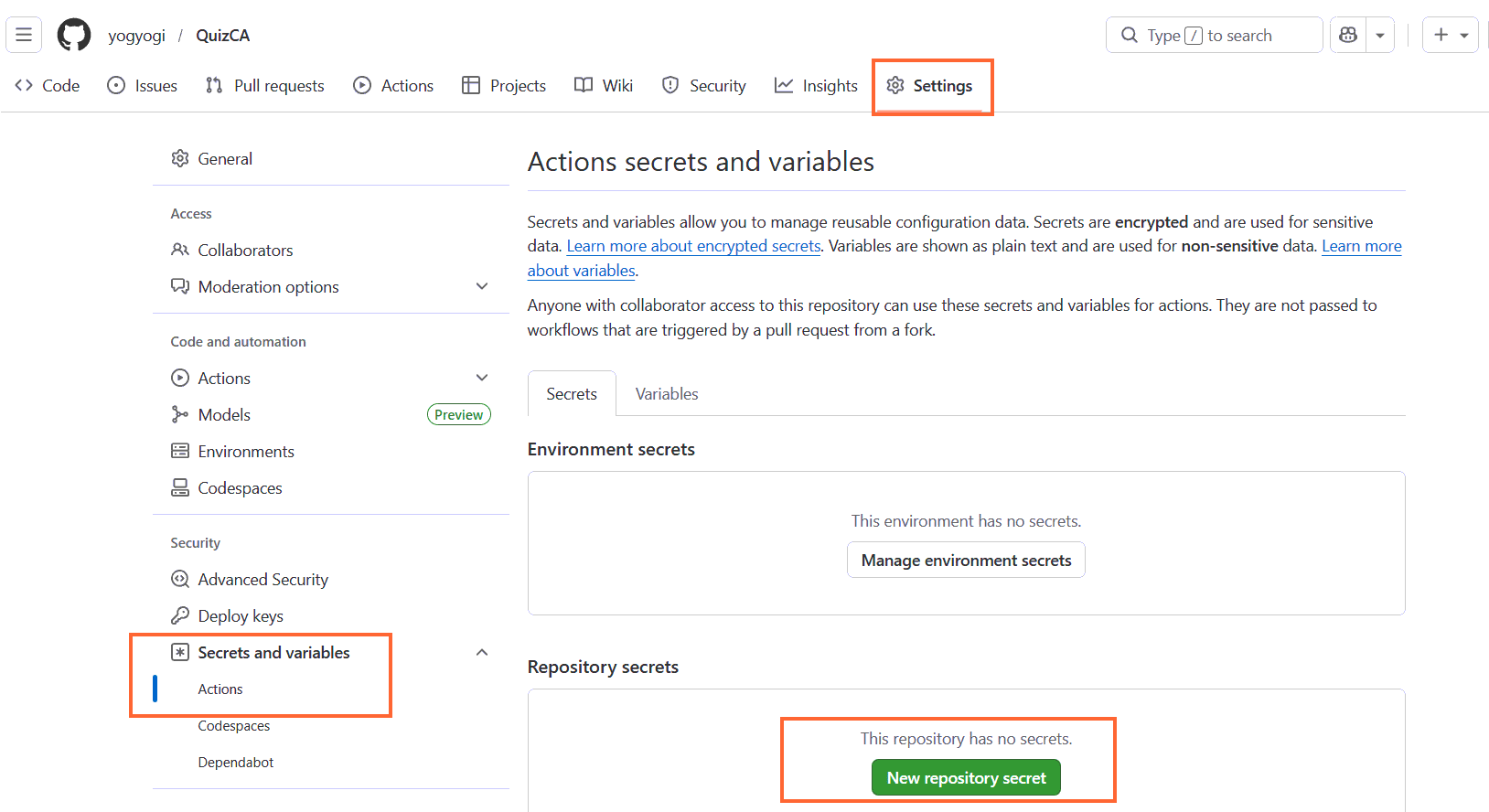
| Secret | Value |
|---|---|
| AZURE_CREDENTIALS | The entire JSON output from the service principal creation step. |
| REGISTRY_LOGIN_SERVER | quizappacr.azurecr.io |
| REGISTRY_USERNAME | The client id value received on the JSON which is 6334i778-5352-434c-a469-40332d7e63a9 |
| REGISTRY_PASSWORD | The client secret value received on the JSON which is HdY8Q~jj4EynmuGjgD5c7BCKMCI-U2XbUB2jqcm_ |
Its time to push the full code of our app to our GitHub repository. You can use git push command or GitHub Desktop to do this work. The Workflow execution will trigger automatically and it finishes successfully. See the below image of the workflow.
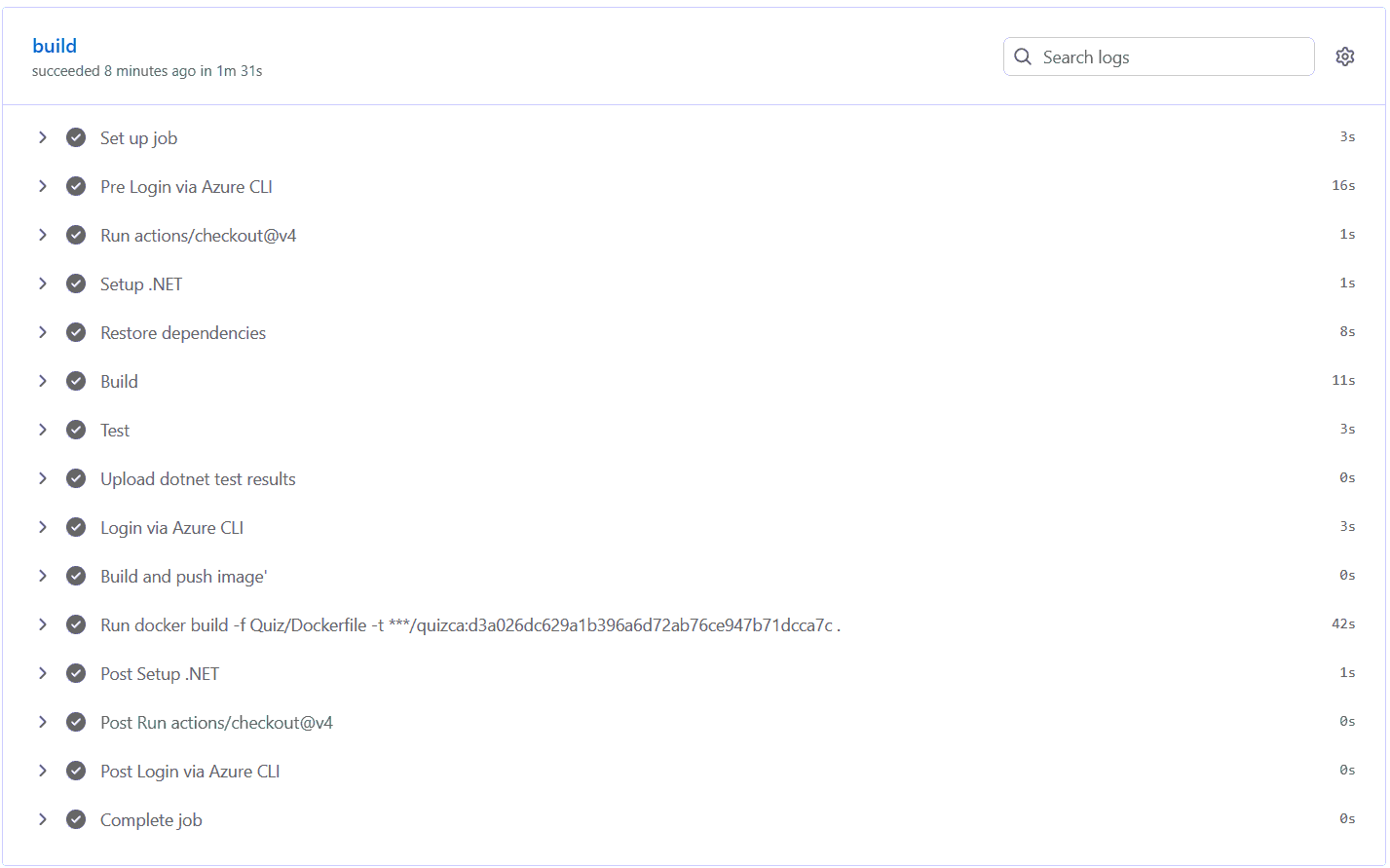
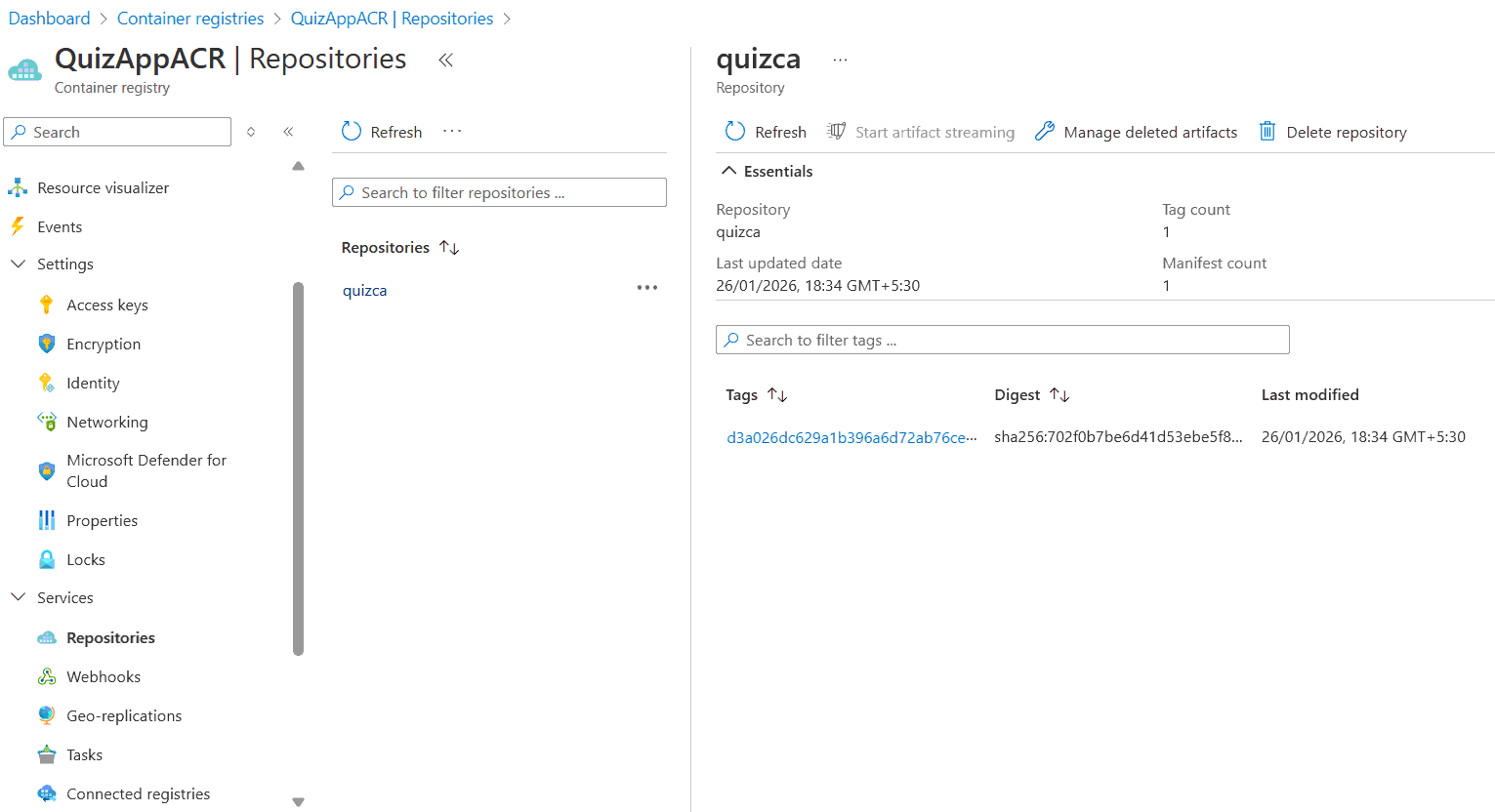
The Workflow builds the docker image in the runner virtual machine and pushes the image to the Azure Container Registry. Open the registry where you will find the image. Check the below image.
Create Azure Container Apps
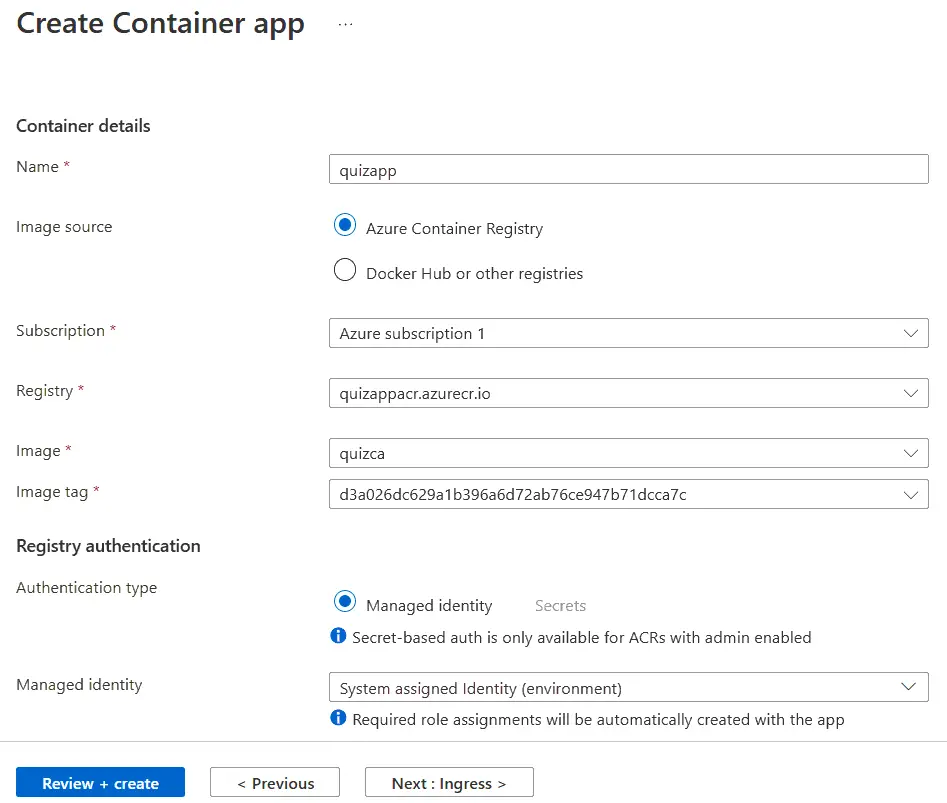
We now create an Azure Container Apps that will use the Docker image from our Azure Container Registry. We named the app “quizapp” and selected “Azure Container Registry” for Image source. Then select the registry, Image and Image Tag which contains the docker image for our app.
For the Authentication type select “Managed identity” and for the “Managed identity” select System assigned Identity (environment). Check the below image where we have shown this thing.
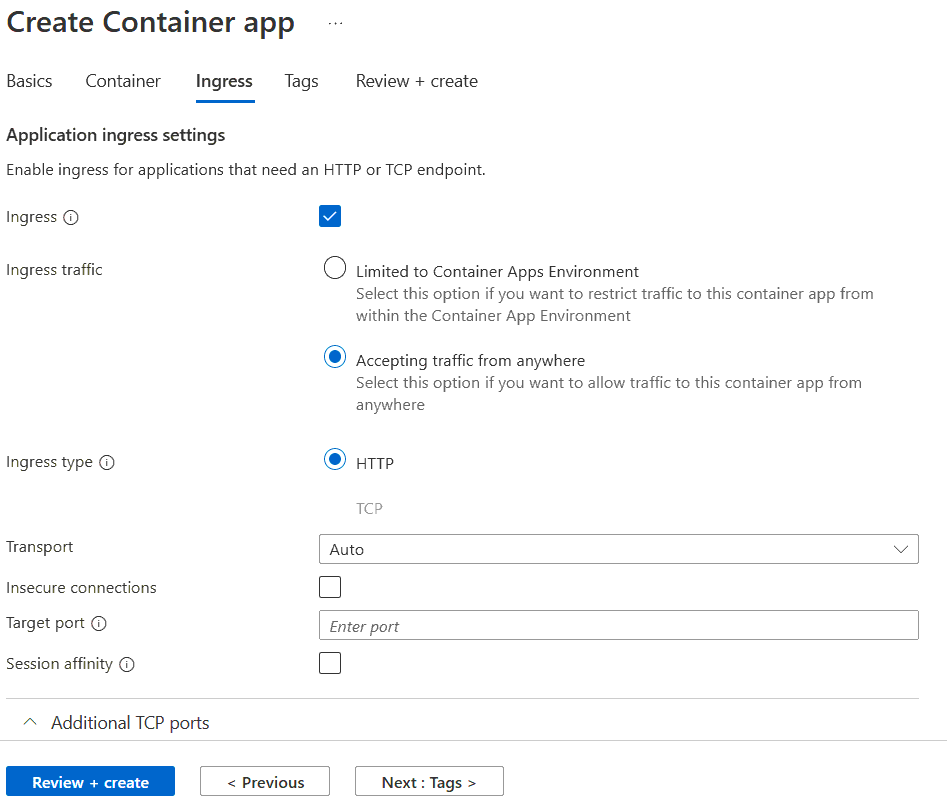
Also check the Ingress check box and select the Ingress traffic value as “Accepting traffic from anywhere”.
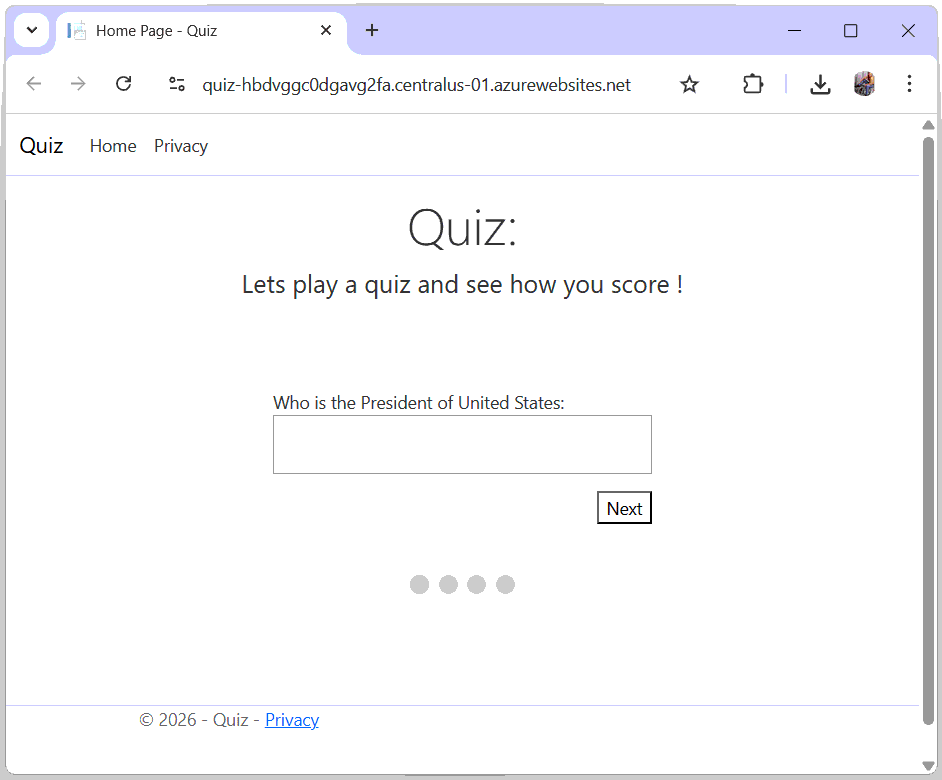
The app is now ready and opening on the browser. See the below image:
You may be wondering that we have not yet applied the CI / CD pipeline on the app’s deployment. Although we have applied CI / CD on the docker image pushing from GitHub to ACR. Don’t worry this is the topic next.
Add GitHub Actions CI / CD for App Deployment to Azure
Add the below task on the Workflow file at the end. This will Deploy the app to Azure Container app with the image in ACR. The acrName is specified as the name of the ACR repository which is QuizAppACR, the containerAppName value is quizapp. Resource Group is given R1 for our case (choose your own resource group). Then on the imageToDeploy, we provide the latest image which is find out with the current github.sha code.
- name: Build and deploy Container App
  uses: azure/container-apps-deploy-action@v1
  with:
    acrName: QuizAppACR
    containerAppName: quizapp
    resourceGroup: R1
    imageToDeploy: ${{ secrets.REGISTRY_LOGIN_SERVER }}/quizca:${{ github.sha }}
We also change the heading on the apps html to include “UPDATED” text. Push the new app file and the workflow file to GitHub once again. This will push the latest updated apps code. Which you can see in the below image.
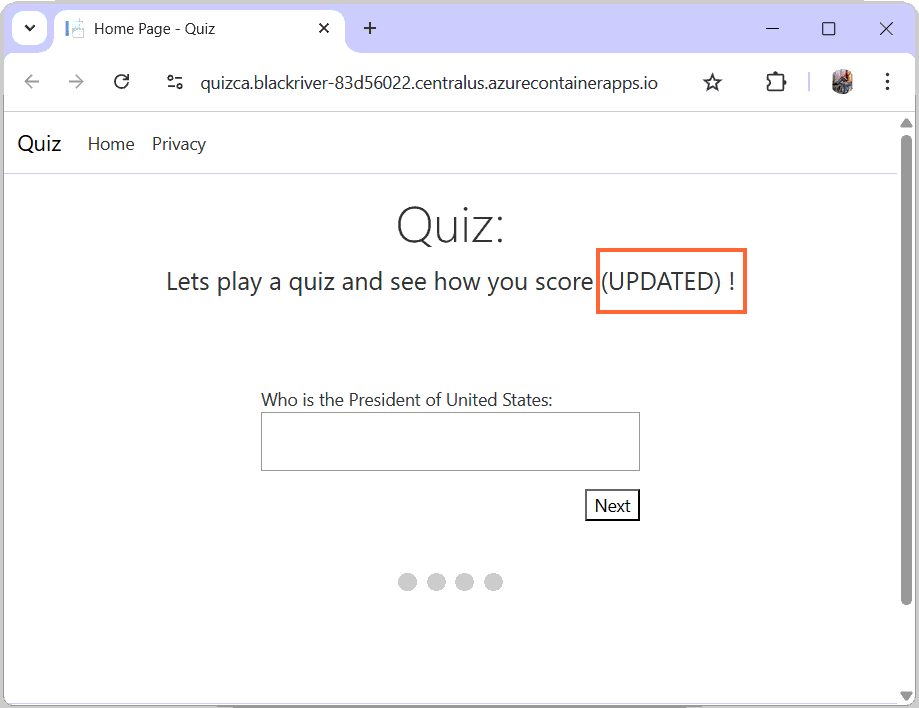
So the confirms our CICD is working and it is now also covering the CI/CD pipeline for the app’s deployment to azure.
This is the full GitHub Workflow file code:
# This workflow will build a .NET project
# For more information see: https://docs.github.com/en/actions/automating-builds-and-tests/building-and-testing-net

name: .NET

on:
  push:
    branches: [ "main" ]
  pull_request:
    branches: [ "main" ]

jobs:
  build:

    runs-on: ubuntu-latest

    steps:
    - uses: actions/checkout@v4
    - name: Setup .NET
      uses: actions/setup-dotnet@v4
      with:
        dotnet-version: 10.0.x
    - name: Restore dependencies
      run: dotnet restore
    - name: Build
      run: dotnet build --no-restore
    - name: Test
      run: dotnet test --no-build --verbosity normal --logger trx --results-directory "TestResults"
    - name: Upload dotnet test results
      uses: actions/upload-artifact@v4
      with:
        name: dotnet-results-${{ matrix.dotnet-version }}
        path: TestResults
        # Use always() to always run this step to publish test results when there are test failures
      if: ${{ always() }}

    - name: Login via Azure CLI
      uses: azure/login@v1
      with:
        creds: ${{ secrets.AZURE_CREDENTIALS }}

    - name: Build and push image'
      uses: azure/docker-login@v1
      with:
        login-server: ${{ secrets.REGISTRY_LOGIN_SERVER }}
        username: ${{ secrets.REGISTRY_USERNAME }}
        password: ${{ secrets.REGISTRY_PASSWORD }}
    - run: |
        docker build -f Quiz/Dockerfile -t ${{ secrets.REGISTRY_LOGIN_SERVER }}/quizca:${{ github.sha }} .
        docker push ${{ secrets.REGISTRY_LOGIN_SERVER }}/quizca:${{ github.sha }}

    - name: Build and deploy Container App
      uses: azure/container-apps-deploy-action@v1
      with:
        acrName: QuizAppACR
        containerAppName: quizapp
        resourceGroup: R1
        imageToDeploy: ${{ secrets.REGISTRY_LOGIN_SERVER }}/quizca:${{ github.sha }}
In this tutorial we covered in full details how to create GitHub Action CI / CD pipeline for ASP.NET Core containerized app. The pipeline builds the docker image of the app in a virtual machine on GitHub Runner. Then pushes the docker image to ACR and deploys this ACR image to the app. I hope you liked this tutorial, if any questions then use the comments section below.
SHARE THIS ARTICLE


Related Tutorials:




ABOUT THE AUTHOR
I hope you enjoyed reading this tutorial. If it helped you then consider buying a cup of coffee for me. This will help me in writing more such good tutorials for the readers. Thank you.

HELLO EVERYONE
 Welcome to YogiHosting - A Programming Tutorial Website. It is used by millions of people around the world to learn and explore about ASP.NET Core, Blazor, jQuery, JavaScript, Docker, Kubernetes and other topics.
SUBSCRIBE TO NEWSLETTER
Enter your email address to subscribe to this blog and receive notifications of new posts by email.
Join 90K other subscribers