


How to perform Health checks in ASP.NET Core

In the world of software development, health checks are automated diagnostic “pulses” that verify whether an application is functioning correctly. Unlike simple uptime monitors, a comprehensive health check doesn’t just ask, “Is the app on?”—it asks, “Is the app actually ready to work?” This involves probing specific endpoints (like /healthz) to validate internal components such as database connectivity, memory usage, and third-party API responsiveness.
Proactive Recovery: Systems like Kubernetes use these checks to identify “zombie” processes that are running but frozen, automatically restarting them to minimize downtime.
Smart Traffic Routing: Load balancers like Nginx use health checks to divert traffic away from struggling servers, ensuring users only hit healthy instances.
Early Detection: They catch issues—like a disconnected database or a full disk—before they escalate into a site-wide outage.
Add Health Checks in ASP.NET Core Apps
In ASP.NET Core app a basic heath check can be added to process requests (liveness) of the app. In the Program class import the namespace called “Microsoft.Extensions.Diagnostics.HealthChecks” then add builder.Services.AddHealthChecks() and app.MapHealthChecks("/healthz") as shown below.
using Microsoft.AspNetCore.Diagnostics.HealthChecks;
var builder = WebApplication.CreateBuilder(args);

builder.Services.AddHealthChecks();

var app = builder.Build();

app.MapHealthChecks("/healthz");

app.Run();
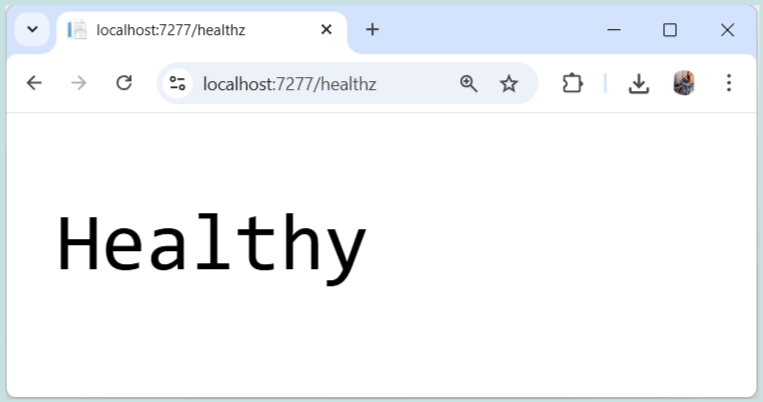
This creates a health check endpoint at /healthz. If we open this endpoint on the browser we will see Healthy text in plain text. See the below image.
Create Custom Health Checks in ASP.NET Core
To implement Health checks, create a class and implement the IHealthCheck interface. The interface method called CheckHealthAsync returns a HealthCheckResult that indicates the health of the app as Healthy, Degraded, or Unhealthy. The result is written as a plaintext response with a configurable status code. Check the below sample:
public class MyappHealthCheck : IHealthCheck
{
    public Task<HealthCheckResult> CheckHealthAsync(
        HealthCheckContext context, CancellationToken cancellationToken = default)
    {
        var isHealthy = true;

        // code to check the app and its necessary services. Set isHealthy variable to false if there is some service not working

        if (isHealthy)
        {
            return Task.FromResult(
                HealthCheckResult.Healthy("My App is Healthy"));
        }

        return Task.FromResult(
            new HealthCheckResult(
                context.Registration.FailureStatus, "My App is Un-Healthy"));
    }
}
If CheckHealthAsync throws an exception during the check, a new HealthCheckResult is returned with a FailureStatus message.
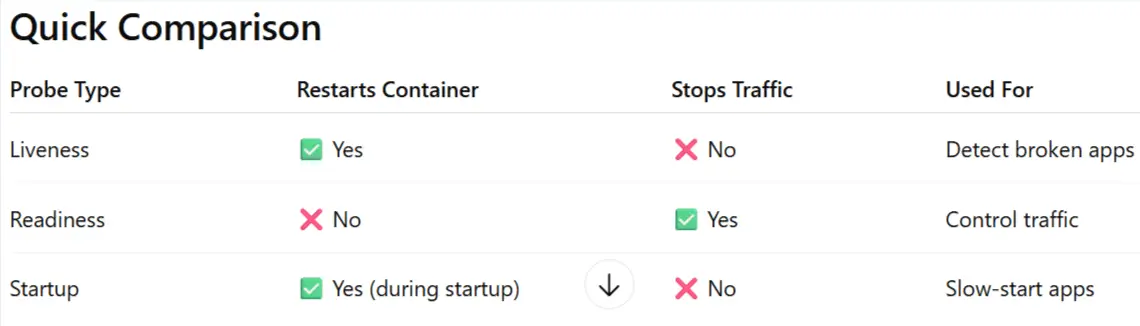
Health check probes are mechanisms used to determine the state of an application running inside a container. They help ensure reliability, automatic recovery, and proper traffic routing. There are 3 types of probes – Liveness Probe, Readiness and Startup. These are explained in the below table.
| Type | Purpose | Action Taken |
|---|---|---|
| Liveness | Checks if the app is alive or in a deadlock. | Restarts the app / container. |
| Readiness | Checks if the app is running normally but isn’t ready to receive requests. | If it fails, removes the app from the load balancer pool. Traffic stops until it becomes ready again. |
| Startup | Checks if slow-starting apps have finished initializing. | Delays liveness/readiness probes to prevent early restarts. |
See the below chart to understand the comparison between these probes.
In order to add these 3 probes – Liveness Probe, Readiness and Startup, to our .NET app. We have to Register these health check probes in the Program.cs and then create health check endpoints for each of these 3 probes. Check the highlighted code below.
using Microsoft.AspNetCore.Diagnostics.HealthChecks;
var builder = WebApplication.CreateBuilder(args);

// Add services to the container.
builder.Services.AddControllersWithViews();

builder.Services.AddHealthChecks()
    .AddCheck<MyHealthCheckStartup>(
        "Startup",
        tags: new[] { "sp_tag" });

builder.Services.AddHealthChecks()
    .AddCheck<MyHealthCheckLiveness>(
        "Liveness",
        tags: new[] { "lp_tag" });

builder.Services.AddHealthChecks()
    .AddCheck<MyHealthCheckReadiness>(
        "Readiness",
        tags: new[] { "rp_tag" });

var app = builder.Build();

// Configure the HTTP request pipeline.
if (!app.Environment.IsDevelopment())
{
    app.UseExceptionHandler("/Home/Error");
    app.UseHsts();
}

app.MapHealthChecks("/healthz/SP", new HealthCheckOptions()
{
    Predicate = (check) => check.Tags.Contains("sp_tag")
});
app.MapHealthChecks("/healthz/LP", new HealthCheckOptions()
{
    Predicate = (check) => check.Tags.Contains("lp_tag")
});
app.MapHealthChecks("/healthz/RP", new HealthCheckOptions()
{
    Predicate = (check) => check.Tags.Contains("rp_tag")
});

app.UseHttpsRedirection();
app.UseRouting();

app.UseAuthorization();

app.MapStaticAssets();

app.MapControllerRoute(
    name: "default",
    pattern: "{controller=Home}/{action=Index}/{id?}")
    .WithStaticAssets();

app.Run();
In the above code we create 3 endpoints for Startup, Liveness and Readiness probes. These endpoints are:
/healthz/SP
/healthz/LP
/healthz/RP
These endpoints are implemented with 3 separate C# classes which are:
- MyHealthCheckStartup.cs
- MyHealthCheckLiveness.cs
- MyHealthCheckReadiness.cs
By default, the Health Checks Middleware runs all registered health checks. To filter health checks for running a subset of health checks, provide a function that returns a boolean to the Predicate option. Here we applied filters to the health checks so that only those tagged with “sp_tag” runs for endpoint “/healthz/SP”, tagged with “lp_tag” runs for “/healthz/LP” and tagged with “rp_tag” runs for “/healthz/RP”. See the below codes:
app.MapHealthChecks("/healthz/SP", new HealthCheckOptions()
{
    Predicate = (check) => check.Tags.Contains("sp_tag")
});

app.MapHealthChecks("/healthz/LP", new HealthCheckOptions()
{
    Predicate = (check) => check.Tags.Contains("lp_tag")
});

app.MapHealthChecks("/healthz/RP", new HealthCheckOptions()
{
    Predicate = (check) => check.Tags.Contains("rp_tag")
});
Next, we add the following 3 classes to our app which implements the 3 probes – Startup, Liveness & Readiness.
Implementation of Startup Probe
An app takes some initial time to start because it does some initial tasks like running DB migrations, warm up caches, load large configurations, initialize background services, compile codes and so on. It is necessary to not send traffic to the app until it has fully started.
In the below class we have implemented the Startup Probe in a class which does the initial work, and only when this work is successfully finished the Healthy HealthCheckResult is returned.
public class MyHealthCheckStartup : IHealthCheck
{
    public Task<HealthCheckResult> CheckHealthAsync(HealthCheckContext context, CancellationToken cancellationToken = default)
    {
        if (StartupWork.DoWork())
        {
            return Task.FromResult(HealthCheckResult.Healthy("The startup task has completed."));
        }

        return Task.FromResult(HealthCheckResult.Unhealthy("That startup task is still running."));
    }
}
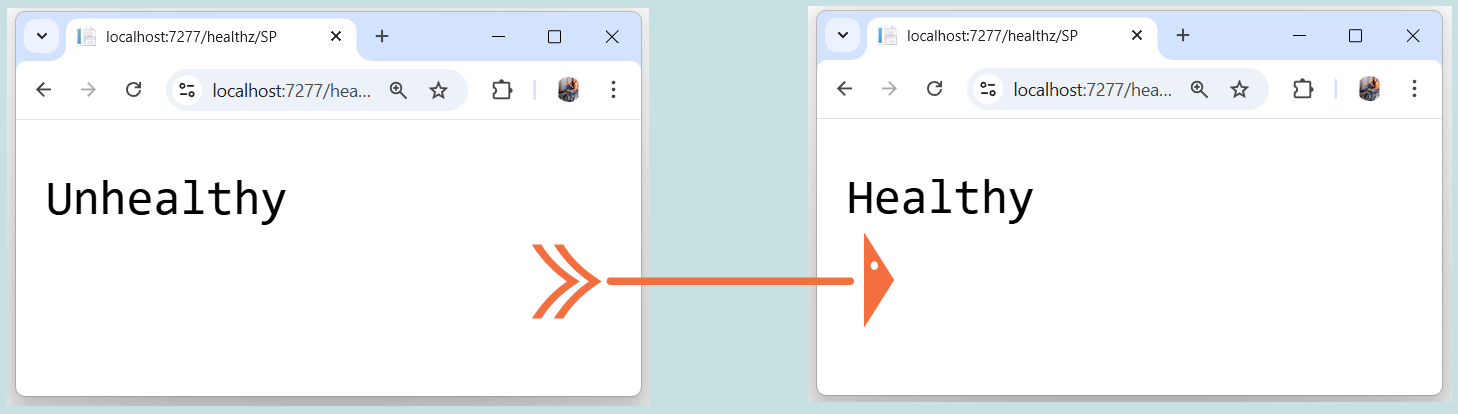
The StartupWork.DoWork() checks the status of the initial work and will get a bool value of true or false telling whether this work has completed or not. The StartupWork.cs class code is given below, it does the checking of the work progress. Although we are demonstrating this by applying a time delay of 10 seconds so that in these 10 seconds the work completes. During these first 10 seconds the startup probe will fail since it returns “Unhealthy” status and after 10 seconds it completes successfully because it will then return “Healthy” status.
In real world app, you have to add your own code which does the complete checks and returns bool value of true when the initial works have finished.
public class StartupWork
{
    private static readonly DateTime _startTime = DateTime.UtcNow;
    public static bool DoWork()
    {
        // here check the status of the initial work
        if ((DateTime.UtcNow - _startTime).TotalSeconds >= 10)
        {
            return true;
        }

        return false;
    }
}
The apps hosted on Kubernetes runs the startup probe first and until it succeeds the Liveness and Readiness probes are disabled.
Once Startup probe succeeds, then only the liveness/readiness probes begin. If the startup probe fails too many times → the container is restarted.
Implementation of Readiness Probe – Example of Database Probe
Readiness probes ensure the application is functional and ready to serve traffic, making them ideal for checking dependency availability. For example we should check whether the database is responding normally or not.
For checking the database function choose a query that returns quickly. Ideal query is – SELECT 1 since it completes quickly in the database. We defined MyHealthCheckReadiness class which performs the Readiness Health Check probe to test the database. The SeELECT 1 query is executed against the database, if successful we return HealthCheckResult.Healthy("The Database is working properly") else in case of failure we return HealthCheckResult.Unhealthy(ex.Message). Check the below code.
public class MyHealthCheckReadiness : IHealthCheck
{
    private readonly string _connectionString;

    public MyHealthCheckReadiness(IConfiguration configuration)
    {
        _connectionString = configuration.GetConnectionString("Database");
    }

    public Task<HealthCheckResult> CheckHealthAsync(
        HealthCheckContext context,
        CancellationToken cancellationToken = default)
    {
        try
        {
            using var sqlConnection = new SqlConnection(_connectionString);

            sqlConnection.OpenAsync(cancellationToken);

            using var command = sqlConnection.CreateCommand();
            command.CommandText = "SELECT 1";

            command.ExecuteScalarAsync(cancellationToken);

            return Task.FromResult(HealthCheckResult.Healthy("The Database is working properly"));
        }
        catch (Exception ex)
        {
            return Task.FromResult(HealthCheckResult.Unhealthy(ex.Message));
        }
    }
}
We can also use an existing Health Check Libraries to perform this SQL Server health check. Include a package reference to the AspNetCore.HealthChecks.SqlServer NuGet package. Then on the program class add the below code.
var conStr = builder.Configuration.GetConnectionString("DefaultConnection");
builder.Services.AddHealthChecks()
    .AddSqlServer(conStr);
If the app is using Entity Framework Core then include a package reference to the Microsoft.Extensions.Diagnostics.HealthChecks.EntityFrameworkCore NuGet package. Next, add the following code to the program class.
builder.Services.AddDbContext<SampleDbContext>(options =>
    options.UseSqlServer(
        builder.Configuration.GetConnectionString("DefaultConnection")));

builder.Services.AddHealthChecks()
    .AddDbContextCheck<SampleDbContext>();
There are Health Check Libraries available for popular programs some examples are given below.
- SQL Server – AspNetCore.HealthChecks.SqlServer
- Postgres – AspNetCore.HealthChecks.Npgsql
- Redis – AspNetCore.HealthChecks.Redis
- RabbitMQ – AspNetCore.HealthChecks.RabbitMQ
- AWS S3 – AspNetCore.HealthChecks.Aws.S3
- SignalR – AspNetCore.HealthChecks.SignalR
The Readiness probe for RabbitMQ is given below.
builder.Services.AddHealthChecks().AddRabbitMQ(rabbitConnectionString)Implementation of Liveness Probe
The Liveness health check probe should only check internal app health. It should figure out if the app is still alive, or is it stuck/broken.
Common problem for the Liveness probe to fail are due to:
- Deadlocks
- Infinite loops
- Crashed background workers
- Memory corruption
- Thread pool exhaustion
Below class does the Liveness probe. You can update this sample based on your specific needs.
public class MyHealthCheckLiveness : IHealthCheck
{
    public Task<HealthCheckResult> CheckHealthAsync(HealthCheckContext context, CancellationToken cancellationToken = default)
    {
        if (LivenessWork.DoWork())
        {
            return Task.FromResult(HealthCheckResult.Healthy("The startup task has completed."));
        }

        return Task.FromResult(HealthCheckResult.Unhealthy("That startup task is still running."));
    }
}
Health Checks in Docker and Kubernetes
Docker can detect if your application inside the container is running properly or not. In the Dockerfile we can add HEALTHCHECK as given below.
FROM mcr.microsoft.com/dotnet/aspnet:10.0
WORKDIR /app
COPY . .
ENTRYPOINT ["dotnet", "MyApp.dll"]

HEALTHCHECK --interval=30s --timeout=5s --retries=3 \
  CMD curl -f http://localhost/health || exit 1
It says run a curl command – Every 30 seconds and wait for 5 seconds to check the app. If it fails 3 times → mark container unhealthy.
The below code is for docker-compose.yml file. Here start_period gives the app time to start before health checks begin.
services:
  myapp:
    image: myapp:latest
    ports:
      - "5000:8080"
    healthcheck:
      test: ["CMD", "curl", "-f", "http://localhost/health"]
      interval: 30s
      timeout: 5s
      retries: 3
      start_period: 20s
To restart unhealthy container use restart policy.
docker run -d --restart=always --name my_container my_imageThe Docker Compose version is:
version: '3'
services:
  myservice:
    image: my-image
    restart: always
In Kubernetes, health checks (probes) are mechanisms that let Kubernetes determine whether your container:
- Has started correctly
- Is ready to receive traffic
- Is still running properly
Kubernetes uses probes to automatically manage container lifecycle and traffic routing, container restarts and so on. We have written a complete article on Kubernetes Liveness Readiness Startup Probes which you will find quite useful.
The Kubernetes yml file that defines the health checks are given below.
apiVersion: apps/v1
kind: Deployment
metadata:
  name: test-dep
  labels:
    app: aspnet-core-app
spec:
  replicas: 1
  selector:
    matchLabels:
      component: web
  template:
    metadata:
      labels:
        component: web
    spec:
      containers:
        - name: csimpleweb
          image: simpleweb
          imagePullPolicy: Never
          ports:
            - containerPort: 8080
          startupProbe:
            httpGet:
              path: /healthz/SP
              port: 80
            failureThreshold: 25
            periodSeconds: 10

          livenessProbe:
            httpGet:
              path: /healthz/LP
              port: 80
            initialDelaySeconds: 2
            periodSeconds: 10
            timeoutSeconds: 5
            failureThreshold: 10

          readinessProbe:
            httpGet:
              path: /healthz/RP
              port: 80
            initialDelaySeconds: 2
            periodSeconds: 10
            timeoutSeconds: 5
            failureThreshold: 10
            successThreshold: 5
Health Check Publisher
a Health Check Publisher is a background component that periodically runs health checks and publishes the results somewhere (logs, metrics system, monitoring tool, etc.). It runs automatically in the background.
The work of the Health Check Publisher is to:
- Push health status to monitoring
- Log unhealthy states automatically
- Send alerts
- Export metrics to Prometheus
- Publish to Azure Application Insights
The Health Check Publisher must implement IHealthCheckPublisher interface of Microsoft.Extensions.Diagnostics.HealthChecks namespace. See the below sample:
using Microsoft.Extensions.Diagnostics.HealthChecks;

public class SampleHealthCheckPublisher : IHealthCheckPublisher
{
    public Task PublishAsync(HealthReport report, CancellationToken cancellationToken)
    {
        if (report.Status == HealthStatus.Healthy)
        {
            // ...
        }
        else
        {
            // ...
        }

        return Task.CompletedTask;
    }
}
We also need to registers the health check publisher as a singleton and configures HealthCheckPublisherOptions:
builder.Services.Configure<HealthCheckPublisherOptions>(options =>
{
    options.Delay = TimeSpan.FromSeconds(20);       // Initial delay
    options.Period = TimeSpan.FromSeconds(100);     // Run every 100s
    options.Predicate = healthCheck => healthCheck.Tags.Contains("sample"); // run a subset of health checks i.e. here tagged with sample
});

builder.Services.AddSingleton<IHealthCheckPublisher, SampleHealthCheckPublisher>();
What You Get in ‘HealthReport’ object – Overall status, Individual check results, Duration, Exception details and Custom data. See the below code.
foreach (var entry in report.Entries)
{
    Console.WriteLine($"{entry.Key} - {entry.Value.Status}");
}
Formatting Health Checks Response
By default, the health check endpoint returns a simple string that represents the overall HealthStatus. To format it in order to see the messages in json which is easy to understand. You can provide a custom ResponseWriter. A ready-made implementation is available in the AspNetCore.HealthChecks.UI.Client library, which returns a more detailed and structured health report.
Install the NuGet package:
Install-Package AspNetCore.HealthChecks.UI.ClientUpdate the call to MapHealthChecks to use the ResponseWriter as shown below.
app.MapHealthChecks(
    "/healthz",
    new HealthCheckOptions
    {
        ResponseWriter = UIResponseWriter.WriteHealthCheckUIResponse
    });
Now the response from the health check endpoint looks like:
{
  "status": "Unhealthy",
  "totalDuration": "00:00:00.987769",
  "entries": {
    "npgsql": {
      "data": {},
      "duration": "00:00:00.2424424",
      "status": "Healthy",
      "tags": []
    },
    "rabbitmq": {
      "data": {},
      "duration": "00:00:00.21412",
      "status": "Healthy",
      "tags": []
    },
    "myapp-sql": {
      "data": {},
      "description": "Unable to connect to the DB.",
      "duration": "00:00:00.2424242",
      "exception": "Unable to connect to the DB.",
      "status": "Unhealthy",
      "tags": []
    }
  }
}Health checks in .NET applications are an essential part of building reliable, production-ready systems. They provide visibility into the state of your application and its dependencies, enabling platforms like Kubernetes, load balancers, and monitoring tools to respond appropriately to failures. In this tutorial we covered everything related to building a health check system for your .NET app. Hope you liked it and if you have any ideas make sure to post them by using the below given comments section.
SHARE THIS ARTICLE


Related Tutorials:




ABOUT THE AUTHOR
I hope you enjoyed reading this tutorial. If it helped you then consider buying a cup of coffee for me. This will help me in writing more such good tutorials for the readers. Thank you.

HELLO EVERYONE
 Welcome to YogiHosting - A Programming Tutorial Website. It is used by millions of people around the world to learn and explore about ASP.NET Core, Blazor, jQuery, JavaScript, Docker, Kubernetes and other topics.
SUBSCRIBE TO NEWSLETTER
Enter your email address to subscribe to this blog and receive notifications of new posts by email.
Join 90K other subscribers