


Deploy ASP.NET Core app to Azure with GitHub Actions CI/CD
GitHub Actions is a continuous integration and continuous delivery (CI/CD) platform that allows to automate build, test, and deployment of our apps. In this tutorial I will deploy an ASP.NET Core app to Azure App Services through GitHub actions CI/CD deployment pipeline.
GitHub Action
GitHub Actions is a CI/CD platform which is integrated into your GitHub repository. This means you can run a CI/CD pipeline right from your GitHub repository. GitHub Actions are organized into Workflows, which are automated process that will run one or more jobs. A common example of a Workflow is to automatically build and deploy your app to Azure whenever the app is pushed to the GitHub repository.
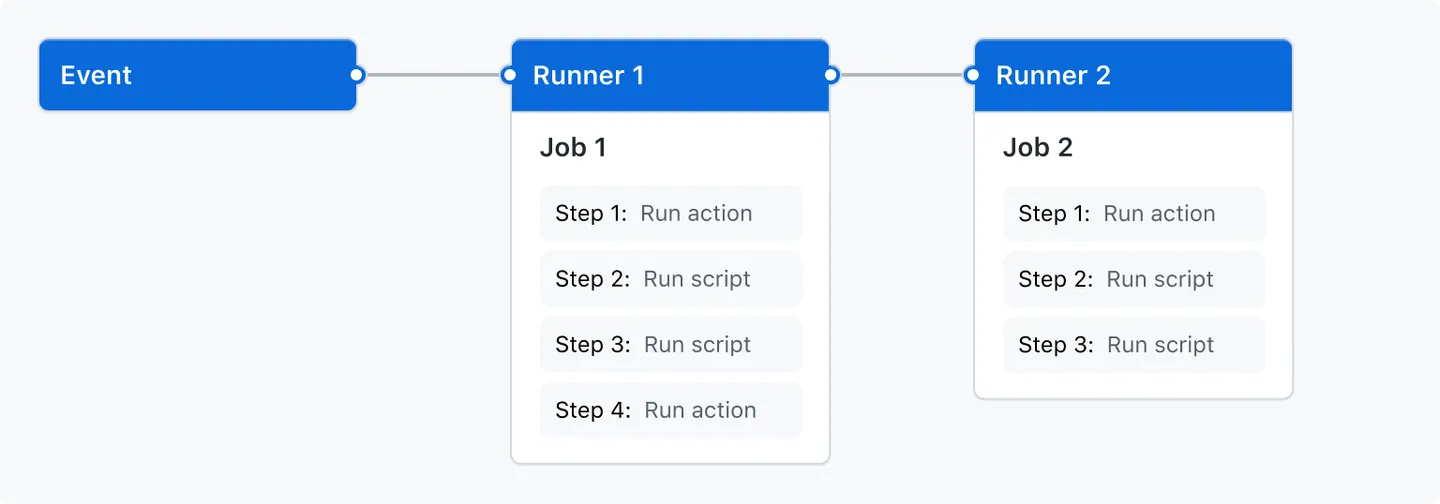
The GitHub Actions kick off based on Events. Events can be anything like a push to the repository or a pull request, and so on.
Runners are the machines that execute jobs defined in a GitHub Actions Workflow. For example, a UBUNTU runner machine can clone your repository locally, install testing software, and then runs the tests.
In the below figure GitHub actions working is explained. An Event kicks the Runners that executes the different Jobs defined in the WorkFlows.
Workflows are defined by a YAML file checked in to the repository. Their location is .github/workflows directory located on the root of the repository.
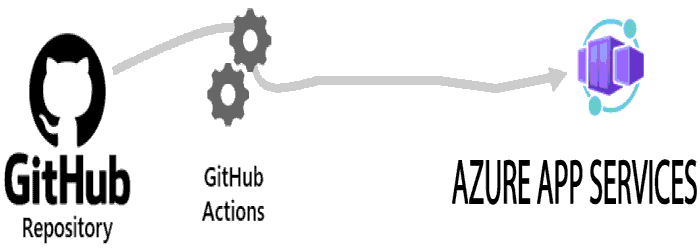
The CICD process is explained in the below figure. We will push the app to the GitHub repository, this will trigger the Workflow. The Workflow will build the app and deploy the app’s published files to Azure App Services.
Example ASP.NET Core app
I have an ASP.NET Core Quiz app which asks the users 4 questions. The questions are shown inside a multi-page form. This is how this app looks.

You can download the full app along with the Workflow from my GitHub repository.
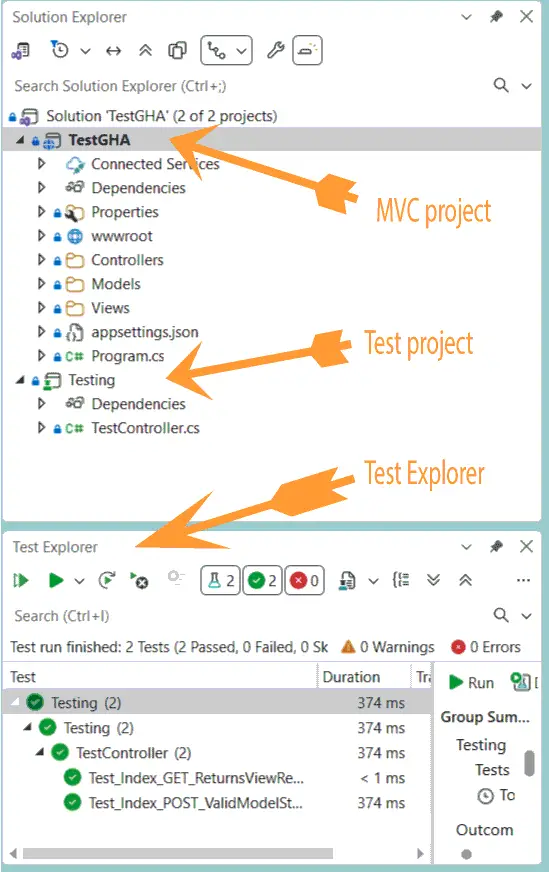
This app contains 2 projects:
- ASP.NET Core MVC project – which contains the quiz.
- Console project – which contains the unit tests.
The below image shows the full app with it’s 2 projects.
I will automate a CI/CD pipeline with GitHub Actions for this app and deploy this app to Azure App Services. Note that there are some unit tests which the Workflow will run on runner machines and will only deploy the app when all the tests pass. GitHub Actions will not deploy the app if any of the test fails.
Create an Azure App Services
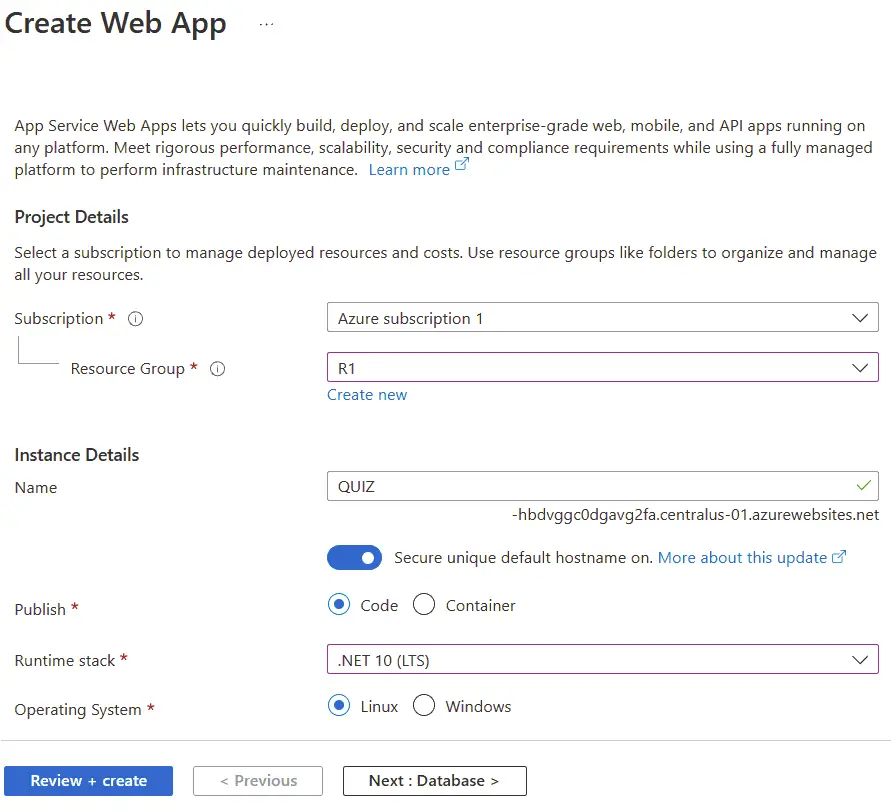
Create a new App Service on the Azure account. Make sure to select the Publish to “Code” and Runtime stack to “.NET 10 (LTS)”. Check the below image.
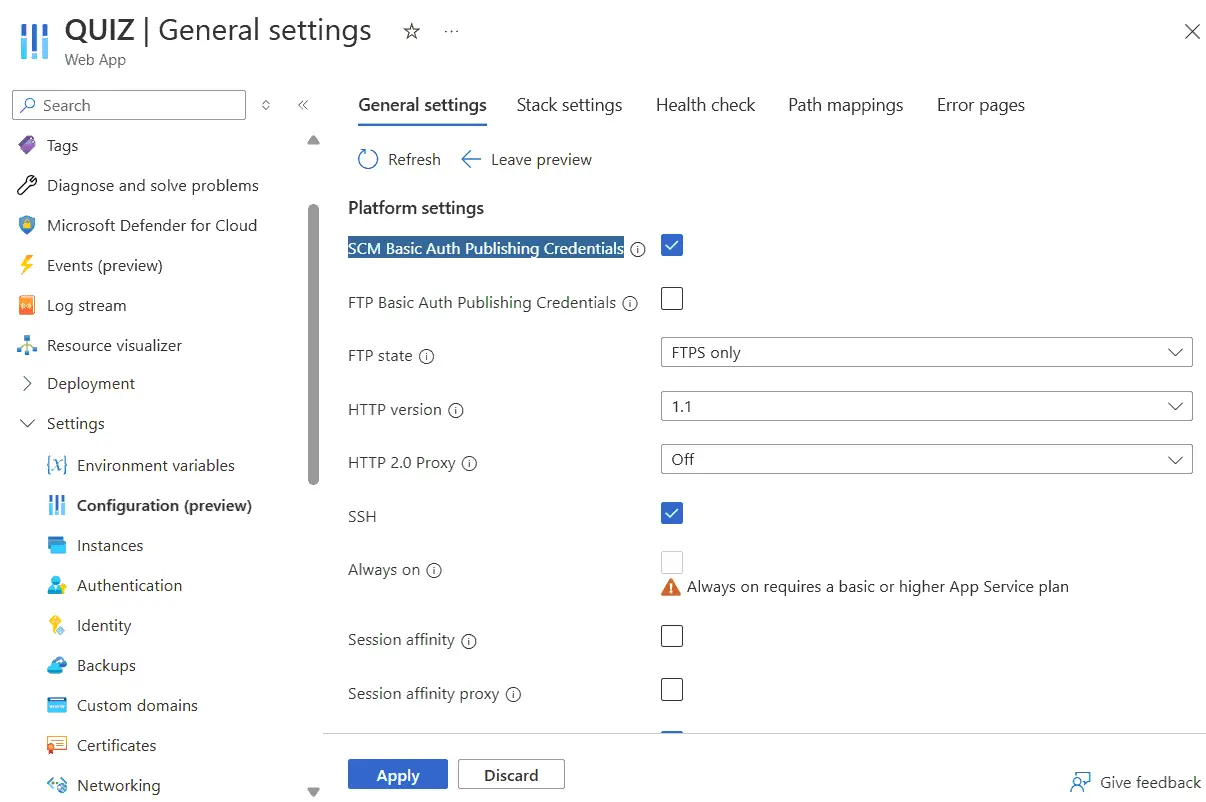
After the app is created, I have to enable Basic Authentication for this app. This is a necessary step needed to Download publish profile. Go to Settings > Configuration inside the app section on Azure and click the “General settings” tab. Here select the option SCM Basic Auth Publishing Credentials and click the apply button. See the below image.
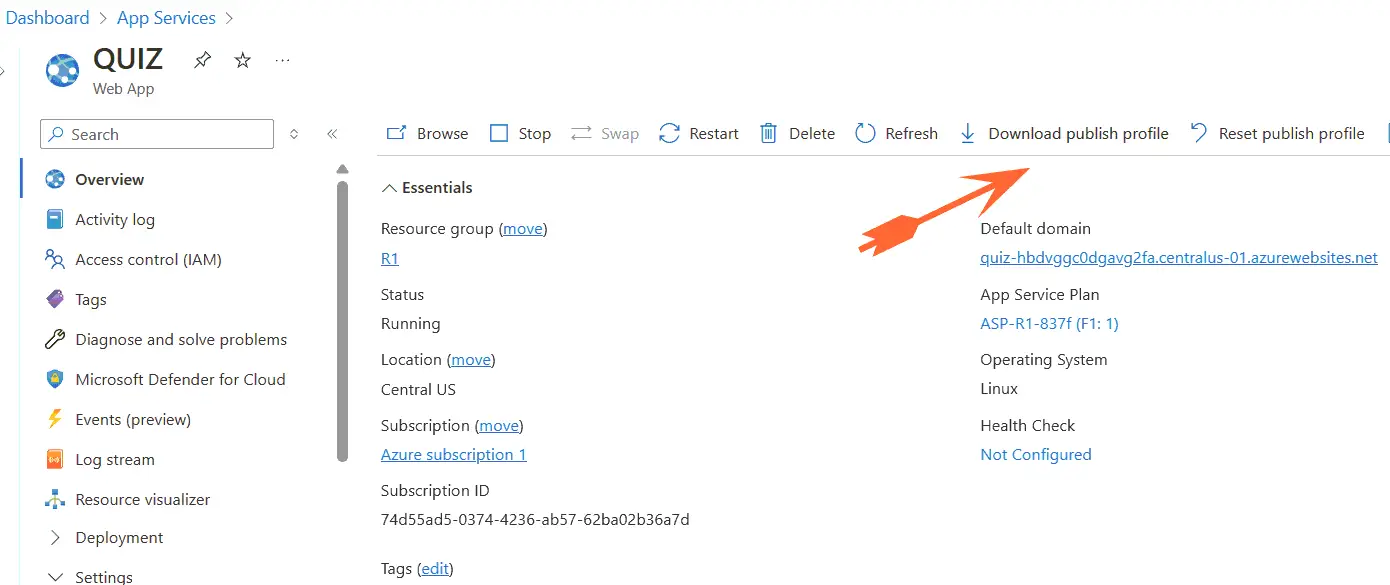
Now go to the app overview page and here you will see “Download publish profile” button at the top. Click it to download this file. It is an XML file containing authentication values which GitHub will use to authenticate itself when deploying the app to azure.
This is all we have to do on Azure, we now move to GitHub.
GitHub Repository and Workflow file
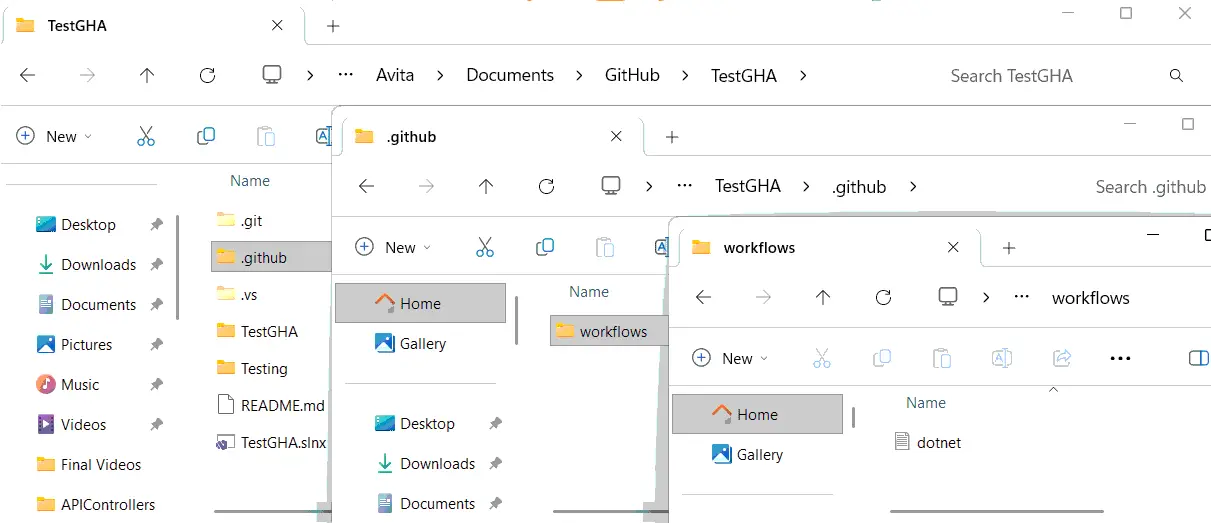
We first have to create a .GitHub folder on the root of the app. Inside this folder create another folder called workflows. Then inside this folder create a new file called dotnet.yml. The file name could be anything but should have an extension .yml or .yaml.
In the below image I have shown the workflows directory.
Let’s now add the Workflow codes to the dotnet.yml file. The full code of this file is given below.
# This workflow will build a .NET app and deploys it to Azure

name: .NET APP

on:
  push:
    branches: [ "main" ]
  pull_request:
    branches: [ "main" ]

env:
  AZURE_WEBAPP_NAME: "QUIZ"

jobs:
  build:

    runs-on: ubuntu-latest

    steps:
    - uses: actions/checkout@v4
    - name: Setup .NET
      uses: actions/setup-dotnet@v4
      with:
        dotnet-version: 10.0.x
    - name: Restore dependencies
      run: dotnet restore
    - name: Build
      run: dotnet build --no-restore
    - name: Test
      run: dotnet test --no-build --verbosity normal --logger trx --results-directory "TestResults"
    - name: Upload dotnet test results
      uses: actions/upload-artifact@v4
      with:
        name: dotnet-results-${{ matrix.dotnet-version }}
        path: TestResults
        # Use always() to always run this step to publish test results when there are test failures
      if: ${{ always() }}
    - name: Publish
      run: dotnet publish ./Quiz/Quiz.csproj --configuration Release --output ./publish
    - name: Deploy
      uses: azure/webapps-deploy@v3
      with:
        app-name: ${{ env.AZURE_WEBAPP_NAME }}
        publish-profile: ${{ secrets.PUBLISH_SECRET }}
        package: ./publish
Lets go through it part by part so that it becomes easy for you to understand it.
# This workflow will build a .NET app and deploys it to Azure

name: .NET APP

on:
  push:
    branches: [ "main" ]
  pull_request:
    branches: [ "main" ]
In the above code we named the workflow name as “.NET APP”. Name can be anything of your choice. Then with on, I define the events which will trigger the workflow. The workflow will run on 2 events which are:
- when a push is made to any main branch.
- when a pull is made to any main branch.
Next, I define the environment variable using the “env” key. The environment variable is “AZURE_WEBAPP_NAME” and it’s value is given as “QUIZ”. We can access this variable using $env.AZURE_WEBAPP_NAME, this will be see later on.
env:
AZURE_WEBAPP_NAME: "QUIZ"A job is a set of steps in a workflow that is executed on the same runner machine. Jobs are defined by “jobs” key. I named this job as “build”, this name can be anything. Next, I define the virtual machine type which will run this job. This is the runner machine which in our case is Ubuntu. Note that the virtual machines are build new every single time.
jobs:
  build:

runs-on: ubuntu-latestA job contains a sequence of tasks called steps. Steps can run commands, setup tasks, or perform some action in your repository. I add the below code:
steps:
- uses: actions/checkout@v4
- name: Setup .NET
  uses: actions/setup-dotnet@v4
  with:
    dotnet-version: 10.0.x
- name: Restore dependencies
  run: dotnet restore
- name: Build
  run: dotnet build --no-restore
Let’s understand what this code does. The first task, which is actions/checkout@v4, says to downloads the code from your repository into the virtual machine (runner) where the workflow is executing.
Next, the second task is defined and given the name “Setup .NET” – name: Setup .NET. Then with the uses key, I define which action to run. This action is to setup dotnet on the runner – uses: actions/setup-dotnet@v4. I also defined the version of dotnet to setup using the with key – dotnet-version: 10.0.x.
The third task restores the dependencies of the ASP.NET Core app. It runs the dotnet restore CLI command that uses NuGet to download and install all the dependencies (packages and tools) required by the app.
The fourth task build the app with dotnet build command. The use of –no-restore flag tells to build a .NET project or solution without automatically performing a NuGet package restore operation first.
We now have 2 tasks that performs the testing of the app and upload the test result on a directory. These tasks are given below.
- name: Test
  run: dotnet test --no-build --verbosity normal --logger trx --results-directory "TestResults"
- name: Upload dotnet test results
  uses: actions/upload-artifact@v4
  with:
    name: dotnet-results-${{ matrix.dotnet-version }}
    path: TestResults
    # Use always() to always run this step to publish test results when there are test failures
  if: ${{ always() }}
The task named Test runs the tests but does not builds the project – dotnet test –no-build, this will make the process fast. It also sets the output level to normal with –verbosity normal. The –logger trx will generate a Visual Studio Test Results file (.trx). This XML-based file contains the test execution results. The .trx file will be created inside the “TestResults” directory, see the parameter – –results-directory “TestResults”. This task’s full code is:
- name: Test
  run: dotnet test --no-build --verbosity normal --logger trx --results-directory "TestResults"
The task named Upload dotnet test results uploads “TestResults” directory (artifacts) from the runner machine making them available to download after the workflow execution is completed. Through this you can download the test results on our pc to debug why a particular test has failed. The expression if: ${{ always() }} is used to ensure that a job or step runs regardless of whether previous steps or jobs in the workflow succeeded, failed, or were canceled. So the upload of the test artifact will always run.
- name: Upload dotnet test results
  uses: actions/upload-artifact@v4
  with:
    name: dotnet-results-${{ matrix.dotnet-version }}
    path: TestResults
    # Use always() to always run this step to publish test results when there are test failures
if: ${{ always() }}The next task publishes the app using dotnet publish command. The configuration is set to Release and output directory is given as “publish”.
- name: Publish
run: dotnet publish ./Quiz/Quiz.csproj --configuration Release --output ./publishThe final task is to deploy the app to Azure App service. Here I set the app-name from the environment variable ${{ env.AZURE_WEBAPP_NAME }}. I also set the publish-profile to ${{ secrets.PUBLISH_SECRET }, this will give GitHub my Azure App Services credentials so that it can deploy the published codes on “publish” folder to Azure. See the next section where I will configure this thing. We also defined the package location of the app as package: ./publish. The code for this task is given below.
- name: Deploy
  uses: azure/webapps-deploy@v3
  with:
    app-name: ${{ env.AZURE_WEBAPP_NAME }}
    publish-profile: ${{ secrets.PUBLISH_SECRET }}
    package: ./publish
GitHub Secret containing Azure Publish Profile
Recall I earlier downloaded the publish profile from Azure. It contains an xml file containing the Azure App Services credentials. I will use this file so that GitHub can use these credentials to deploy the app. So on the GitHub repository, go to “Setting”. Then under Secrets and variables, click on “Actions” and create a new secret. Give the secret any name (I named it “Publish_Secret”) and paste the contents of publish profile file on the “Secret” text box. I have shown this on the below image.
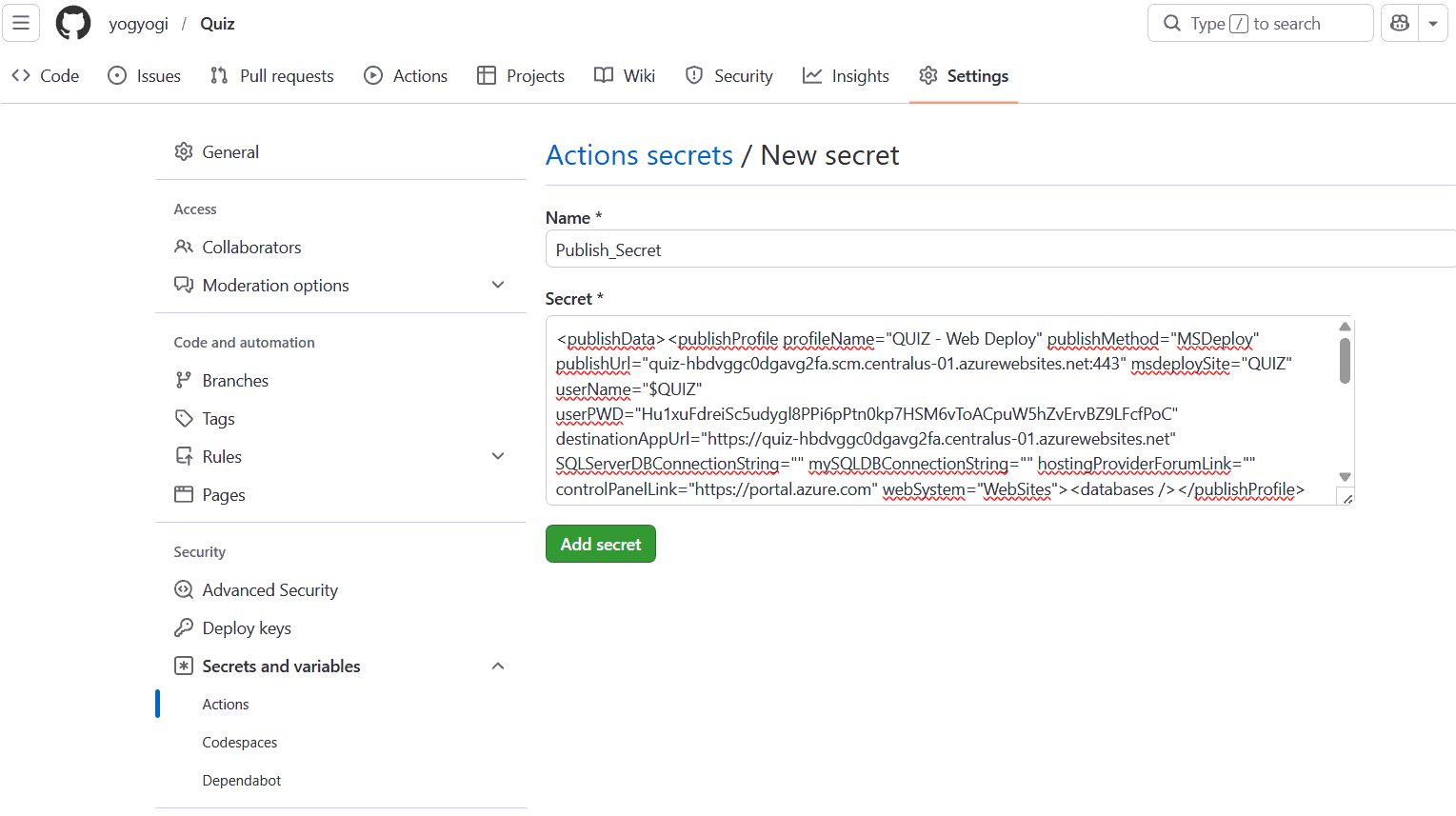
With the secret in place the workflow deploy task will use it through the code line – publish-profile: ${{ secrets.PUBLISH_SECRET }}.
Push the code to GitHub Repository
Let’s push the code of my app to my GitHub repository. Run the following git commands one by one on Command Prompt window.
// initialize git

git init
git add .
git commit -m "FirstCommit"

// push the app to GitHub repository

git remote add origin https://github.com/yogyogi/Quiz.git
git branch -M main
git push -u origin main
After the push is completed, check the Actions tab to see the workflow automatically runs. When all the tasks finishes successfully (including the tests), the app is deployed to azure. See the below image.
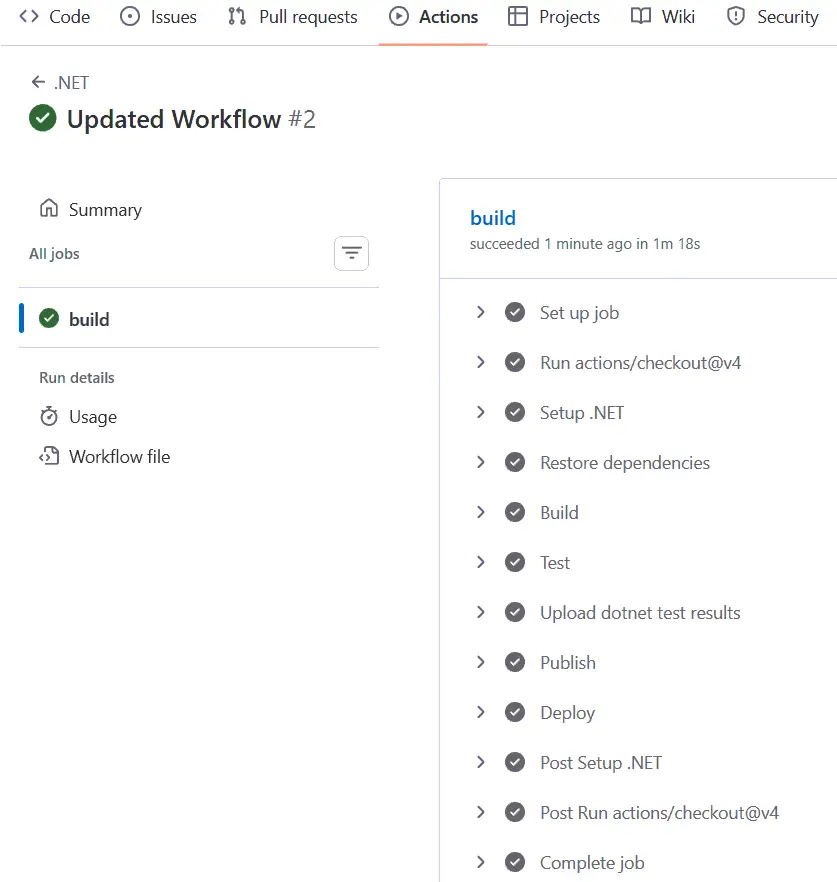
My Workflow executed successfully. Now let’s can open the app’s url (which we get in Azure App Service). The app is now opening on the browser. See below image.

We can also download the artifact containing the test results from the Workflow. The download link will be provided. Check the below image.
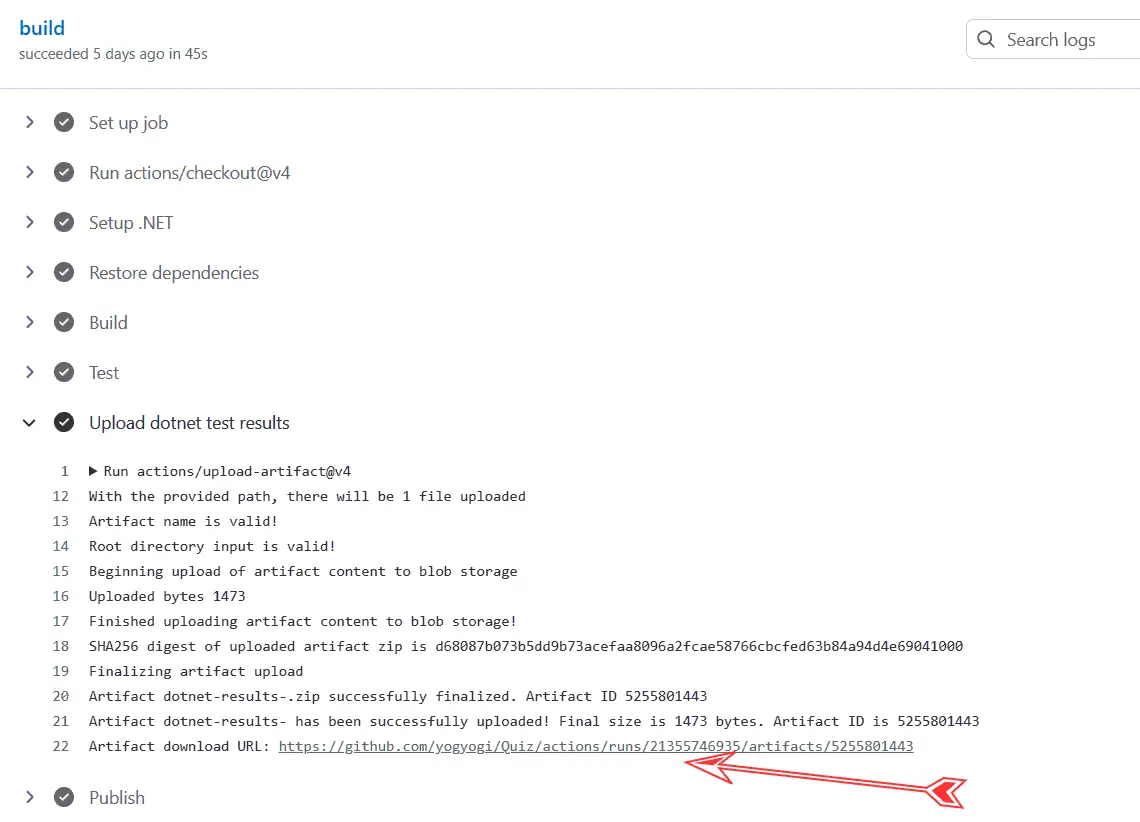
We now added a new test to our app and this test fails. Next, I push the changed to the repository. Again see the workflow whose test task fails since the dotnet test cli command has failed. In this case the new changes to the .NET app are not deployed to Azure by the CI/CD pipeline. See the below image.
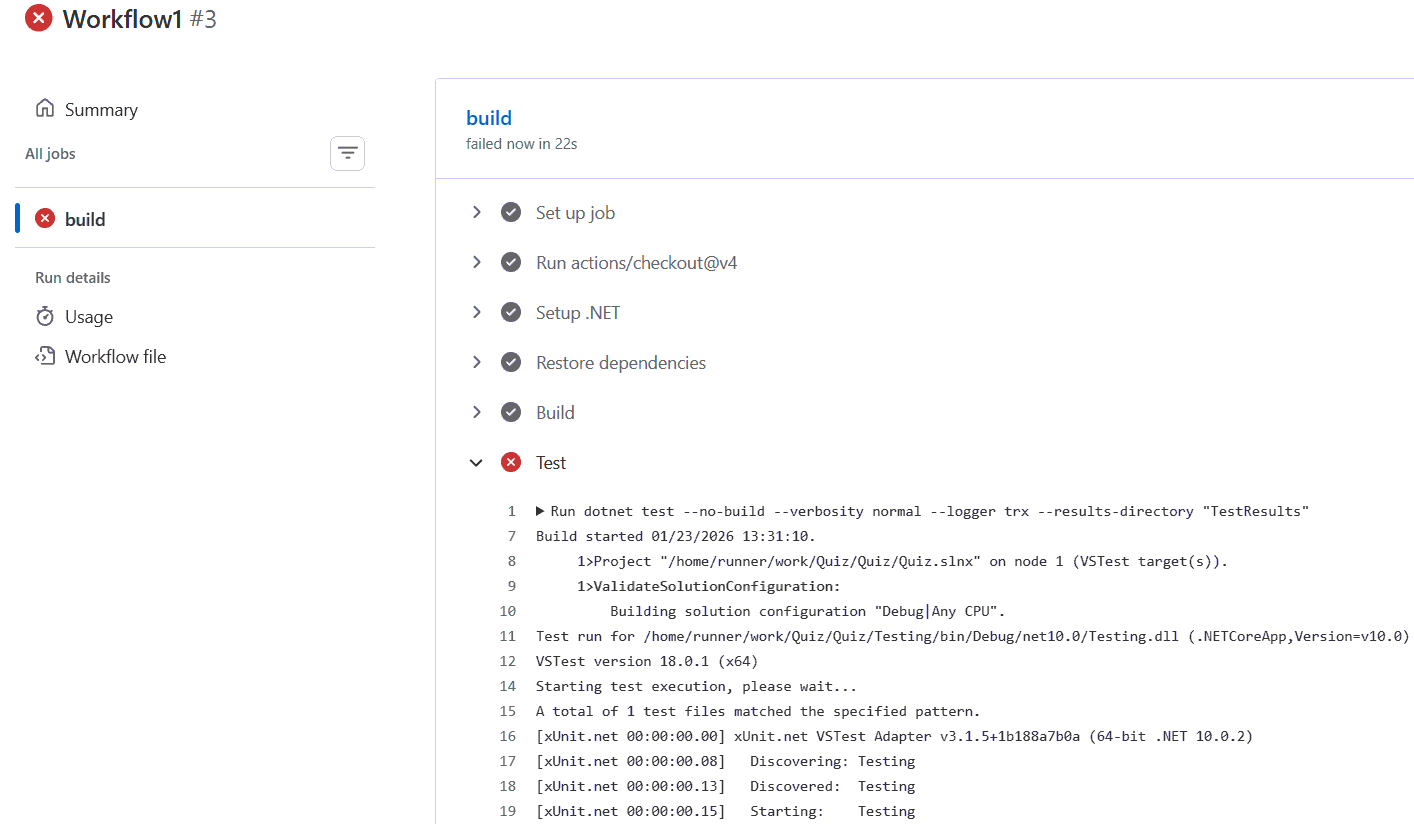
In this tutorial we learned how to create GitHub Actions CI/CD pipeline to deploy an ASP.NET Core app to Azure App Services. We also build the complete Workflow file and understood all the tasks it runs like creating runner, testing, building, publishing and deploying. I hope you liked this tutorial. If you face any difficult in creating your CICD then message me from the below comments section.
SHARE THIS ARTICLE


Related Tutorials:

ABOUT THE AUTHOR
I hope you enjoyed reading this tutorial. If it helped you then consider buying a cup of coffee for me. This will help me in writing more such good tutorials for the readers. Thank you.

HELLO EVERYONE
 Welcome to YogiHosting - A Programming Tutorial Website. It is used by millions of people around the world to learn and explore about ASP.NET Core, Blazor, jQuery, JavaScript, Docker, Kubernetes and other topics.
SUBSCRIBE TO NEWSLETTER
Enter your email address to subscribe to this blog and receive notifications of new posts by email.
Join 90K other subscribers