


How to use Prometheus and Grafana in ASP.NET Core

Prometheus is like a health monitoring system for software systems. It continuously checks metrics and alerts you if something goes wrong. You can then analyze and process them as needed. We can integrate Prometheus in .NET apps and provide metrics through an HTTP endpoint which is /metrics and Prometheus periodically pulls data from those endpoints. You can visualize data in Prometheus itself or use external tools like Grafana. Grafana enables users to query, correlate, and visualize metrics, logs, traces, and other telemetry from many data source including Prometheus. Grafana creates interactive dashboards for these data. In this tutorial we are going to explore both Prometheus and Grafana and learn how to use them in ASP.NET Core.
Install and Configure Prometheus
Download Prometheus for your OS from https://prometheus.io/download/ and extract the contents of the download. I am using Window 11 OS so I have downloaded the windows version and extracted the zip file contents to a folder in my PC. Inside this folder their are 2 important files prometheus.exe which starts prometheus and prometheus.yml which contains the configurations.
Open the prometheus.yml file to find the below lines. It specifies that Prometheus will run from http://localhost:9090 url in the browser.
static_configs:
  - targets: ["localhost:9090"]
   # The label name is added as a label `label_name=<label_value>` to any timeseries scraped from this config.
    labels:
      app: "prometheus"
Next, add the following code lines at the end of this file.
- job_name: 'MyASPNETApp'
  scrape_interval: 5s # Poll every 5 seconds
  static_configs:
    - targets: ["localhost:5284"]  ## Enter the HTTP port number of .NET app
In the above lines job_name is given MyASPNETApp which can be any name of your choice. Then for scrape_interval give 5s, which is the number of seconds at which Prometheus server scrapes metrics from the app. And finally for the targets specify the http url of the app which in my case is localhost:5284. Note that you have to enter HTTP url not HTTPS one. You will find the app’s http url inside launchsettings.json file.
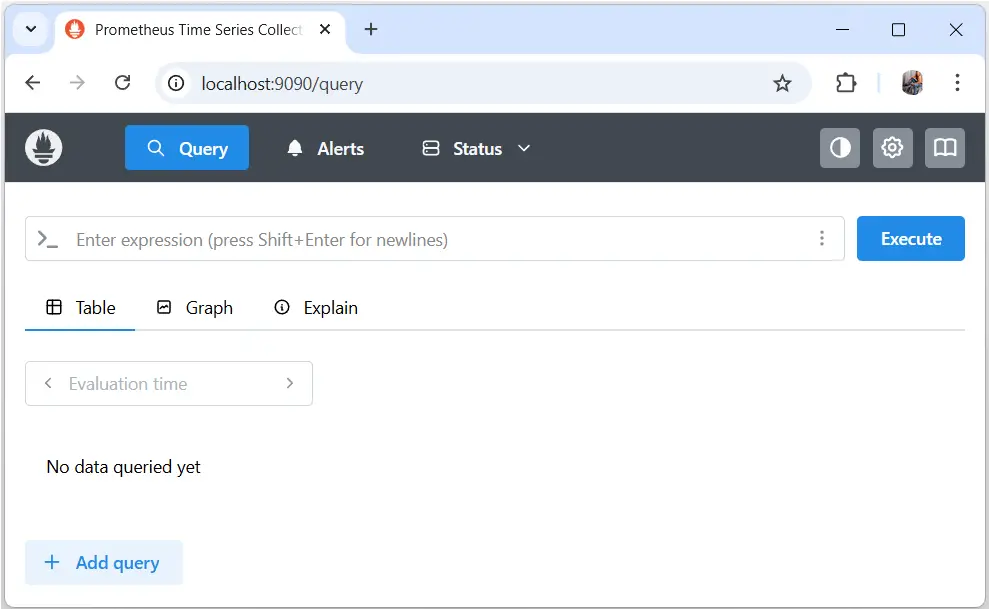
Save this file and now double click on the prometheus.exe file to start Prometheus. A console window will open showing logs of Prometheus, this specifies that Prometheus is now running. Next, open url – http://localhost:9090 on the browser which opens Prometheus, see below screenshot.
We are going to integrate Prometheus in our app.
Integrate Prometheus in ASP.NET Core app
First, reference the OpenTelemetry packages. Use the NuGet Package Manager or command line to add the following NuGet packages.
dotnet add package OpenTelemetry.Exporter.Console
dotnet add package OpenTelemetry.Exporter.OpenTelemetryProtocol
dotnet add package OpenTelemetry.Exporter.Prometheus.AspNetCore --prerelease
dotnet add package OpenTelemetry.Extensions.Hosting
dotnet add package OpenTelemetry.Instrumentation.AspNetCore
dotnet add package OpenTelemetry.Instrumentation.Http
Next, open Program.cs class and configure OpenTelemetry with the Prometheus provider.
var otel = builder.Services.AddOpenTelemetry();

// Configure OpenTelemetry Resources with the application name
otel.ConfigureResource(resource => resource
    .AddService(serviceName: builder.Environment.ApplicationName));

otel.WithMetrics(metrics => metrics
    .AddAspNetCoreInstrumentation()
    .AddMeter("Microsoft.AspNetCore.Hosting")
    .AddMeter("Microsoft.AspNetCore.Server.Kestrel")
    .AddMeter("System.Net.Http")
    .AddMeter("System.Net.NameResolution")
    .AddPrometheusExporter());
Through WithMetrics() method we are adding Metrics for ASP.NET Core. Metrics are numerical measurements about your application’s behavior and performance. They help you monitor how the app is running in production or during testing. Metrics are usually collected continuously and sent to monitoring tools like Prometheus, Grafana, or Azure Monitor.
Metrics provide quantitative data about your application such as:
- Number of requests
- Response time
- Error rates
- CPU or memory usage
- Database query duration
They help answer questions like:
- Is the API slow?
- How many users are hitting the server?
- Are errors increasing?
Finally, add the OpenTelemetry Prometheus Scraping Endpoint middleware. This means the app metrics are going to Prometheus where we can see their details.
// Configure the Prometheus scraping endpoint
app.MapPrometheusScrapingEndpoint();
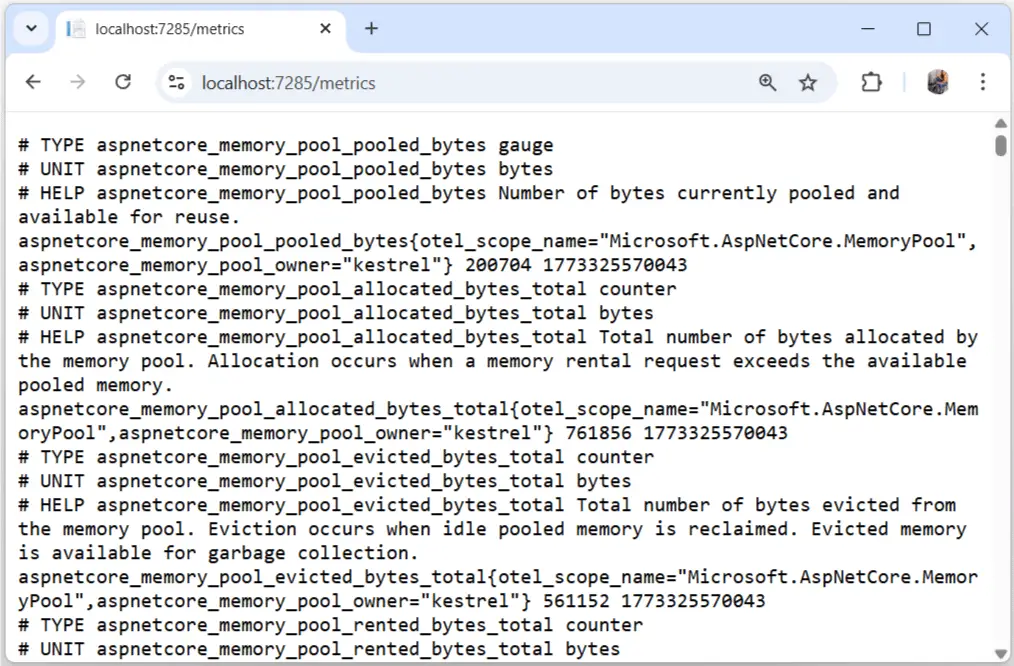
Run the app in visual studio and visit the uri – “/metrics” which in our case is https://localhost:7285/metrics. Here all the metrics are shown, see the below image.
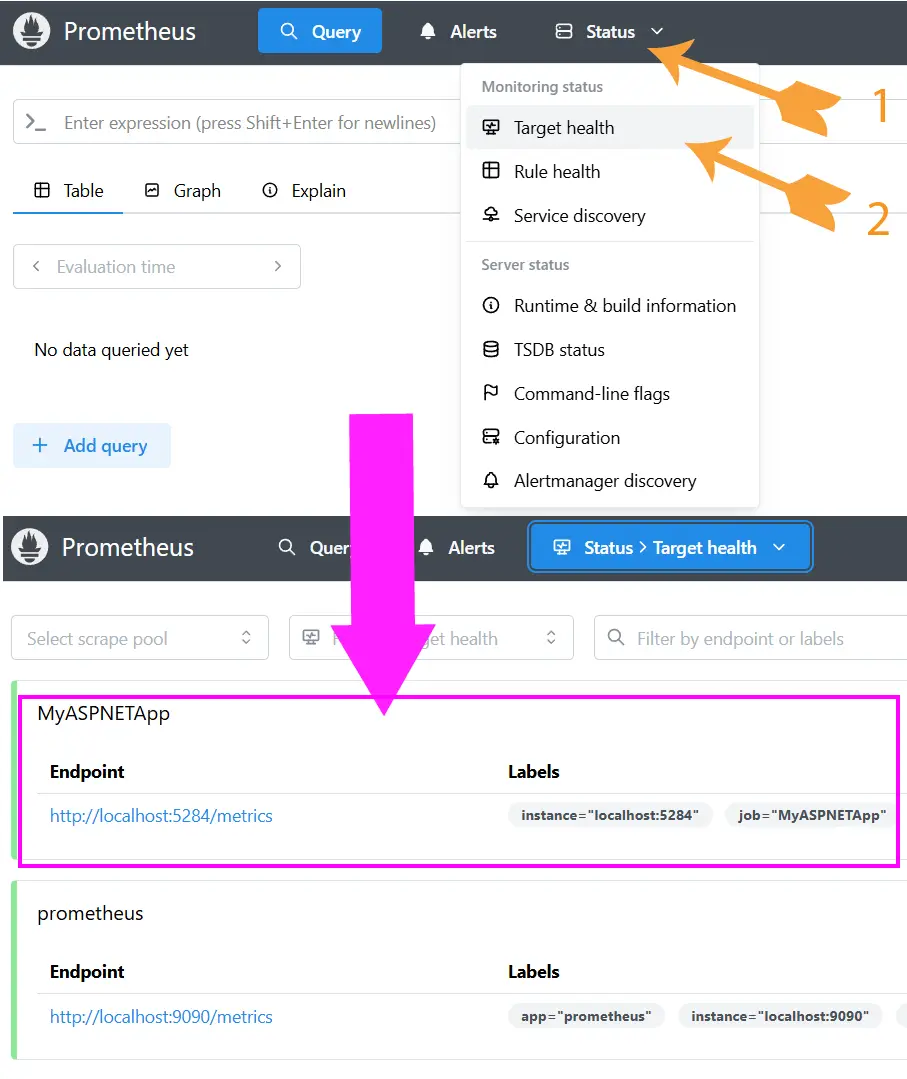
Next, on Prometheus go to Status > Target health where you will see the app’s metrics url listed. This means Prometheus is receiving the apps metrics input correctly. See the below image.
Adding Custom Metrics and export to Prometheus
Lets add a Custom Metrics to the app. Start by adding a new class called AppCustomMeter.cs whose code is given below. The class uses IMeterFactory to create a meter instance.
public class AppCustomMeter
{
    public static string name = "CustomMeter";

    private readonly Counter<int> productCounter;

    public AppCustomMeter(IMeterFactory meterFactory)
    {
        var meter = meterFactory.Create(name);
        productCounter = meter.CreateCounter<int>("Product.Sold");
    }
    public void ProductSold(string productName, int quantity)
    {
        productCounter.Add(quantity, new KeyValuePair<string, object?>("Product.Name", productName));
    }
}
Now on Program.cs register this custom metrics as a singleton.
builder.Services.AddSingleton<AppCustomMeter>();Also add it to the OpenTelemetryBuilder with AddMeter method as shown in highlighted code below.
otel.WithMetrics(metrics => metrics
    .AddAspNetCoreInstrumentation()
    .AddMeter(AppCustomMeter.name)
    .AddMeter("Microsoft.AspNetCore.Hosting")
    .AddMeter("Microsoft.AspNetCore.Server.Kestrel")
    .AddMeter("System.Net.Http")
    .AddMeter("System.Net.NameResolution")
    .AddPrometheusExporter());
Now we can test the metrics in work. On the HomeController file, provide the custom metrics class object through DI.
private AppCustomMeter appCustomMeter;

public HomeController(AppCustomMeter appCustomMeter)
{
    this.appCustomMeter = appCustomMeter;
}
Then call the ProductSold method of the metrics to add 3 football quantity.
public IActionResult Index()
{
    appCustomMeter.ProductSold("Football", 3);

    return View();
}Rerun the app, and check the metrics on Prometheus. Click the 3 dots given on the search text box. This will open a menu, select “Explore metrics”.
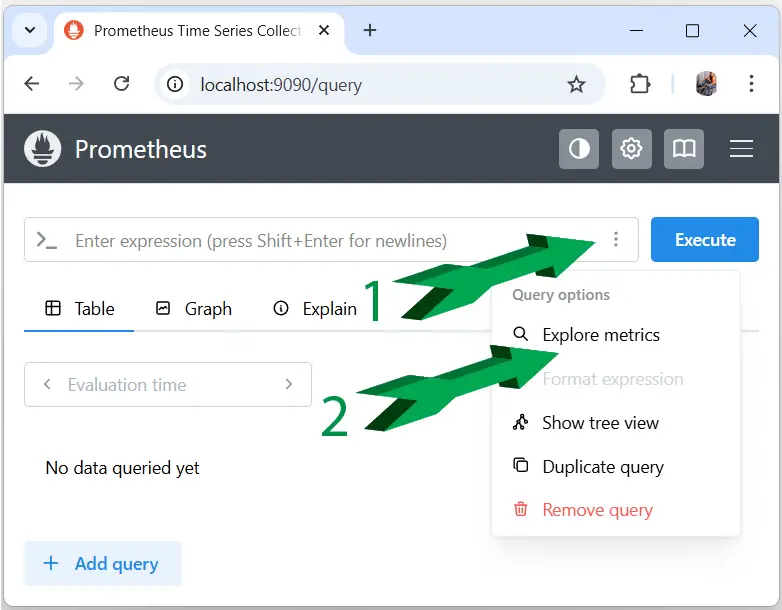
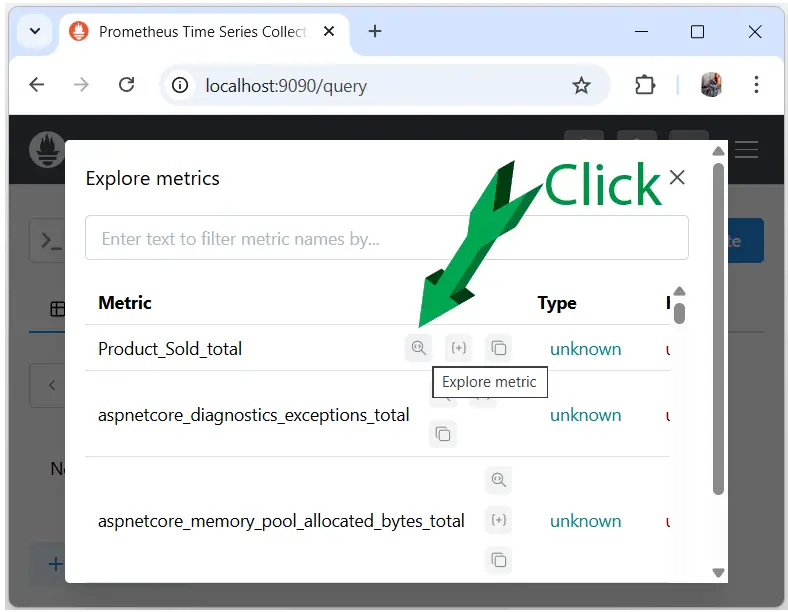
A Dialog opens where you will see “Product_Sold_total”, click the lens icon to explore it.
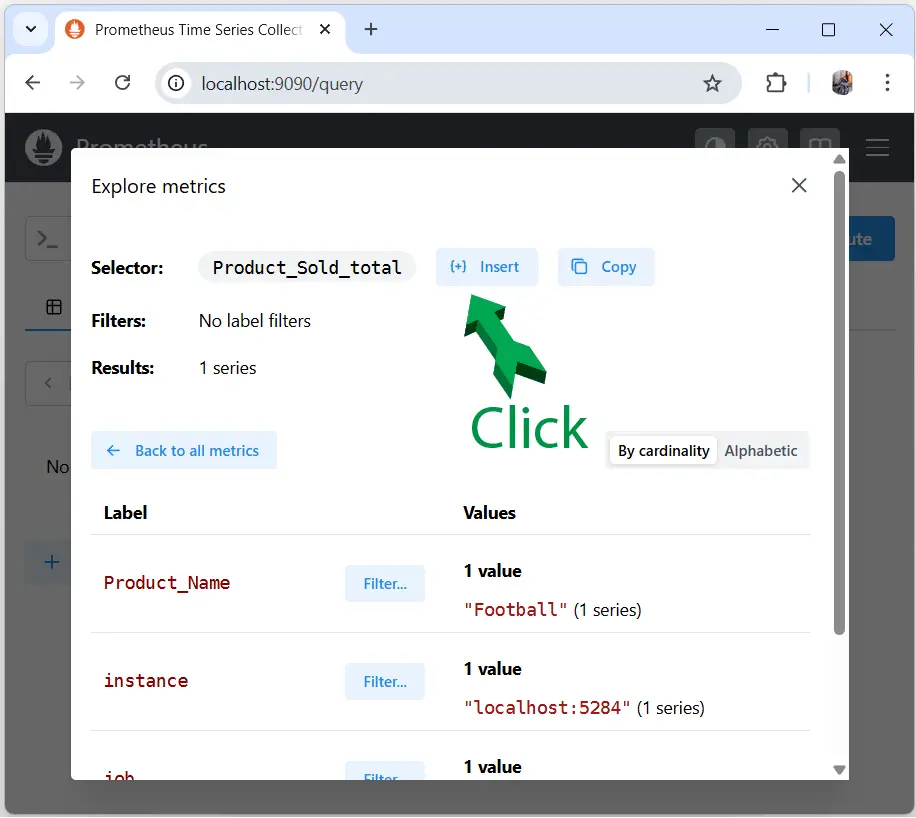
The “Product_Sold_total” metrics details opens up. Here click the Insert button which will add this metrics to the search text box of the previous dialog.
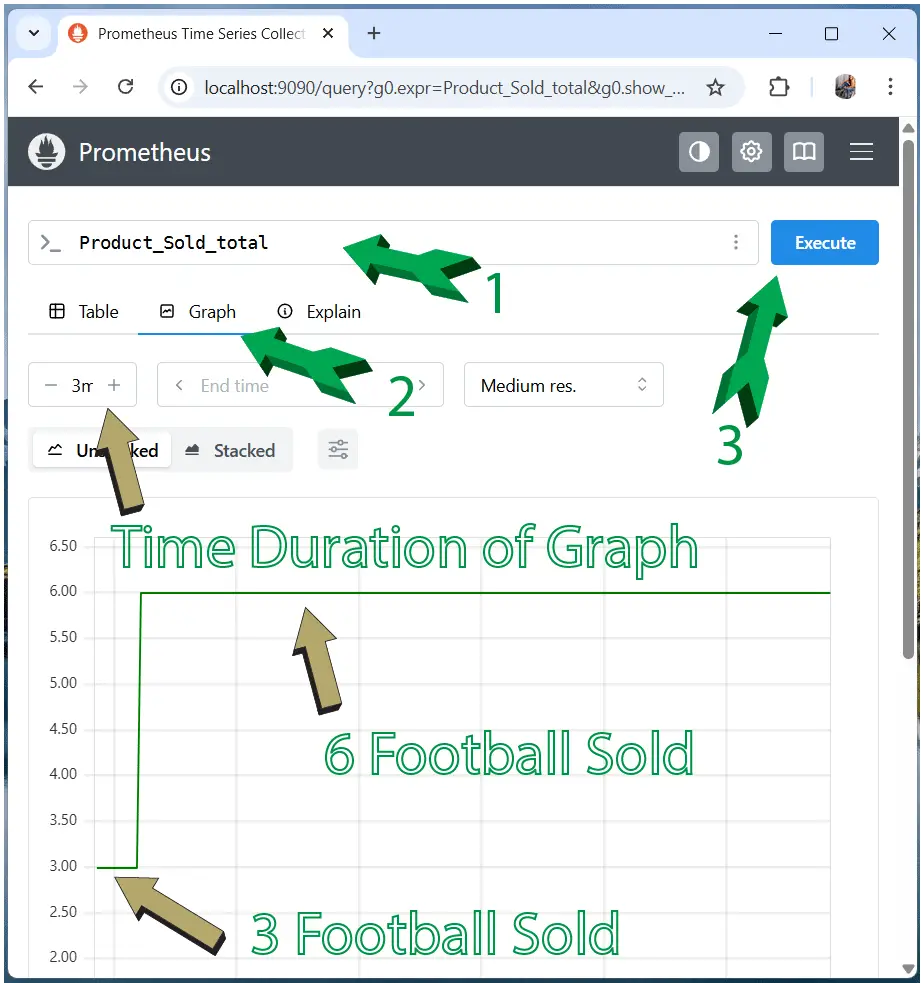
In this page, select the Graph and click the Execute button to see the graph. You can see the graph of the football product sold over time. Check the below image where we have explained this thing.
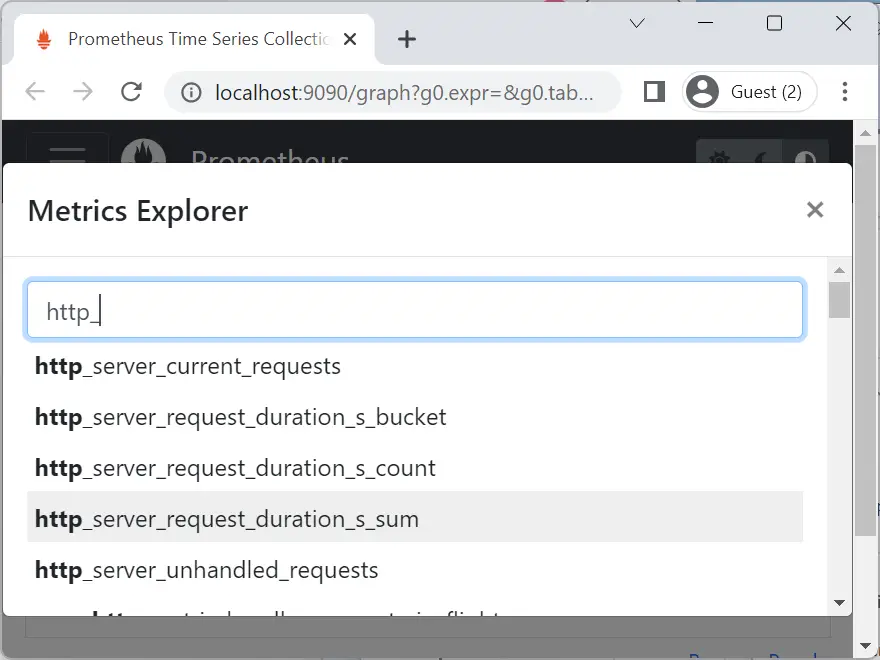
There are large number of metrics to explore. Example put http_ in the search text box to see the available metrics.
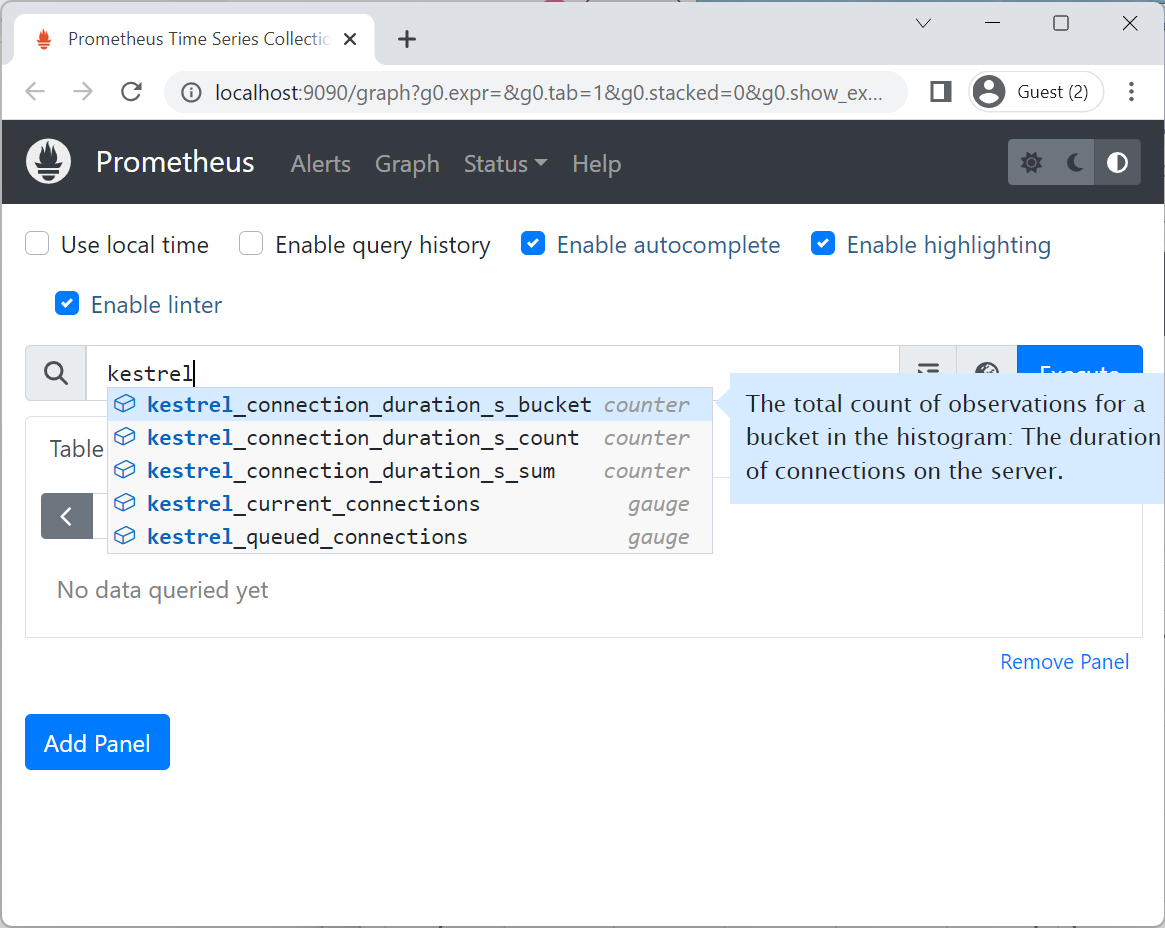
In the same way put kestrel in the search text box to see the kestrel related metrics.
Integrate Grafana in ASP.NET Core app
Download Grafana from https://grafana.com/oss/grafana/ and install it to your pc. On windows you get an installer to install Grafana. After installation open the grafana url – http://localhost:3000. You’ll need to log in; the default username and password are both “admin”.
Now, go to ‘Add new connection’ and search Prometheus for Data Sources then click Prometheus.
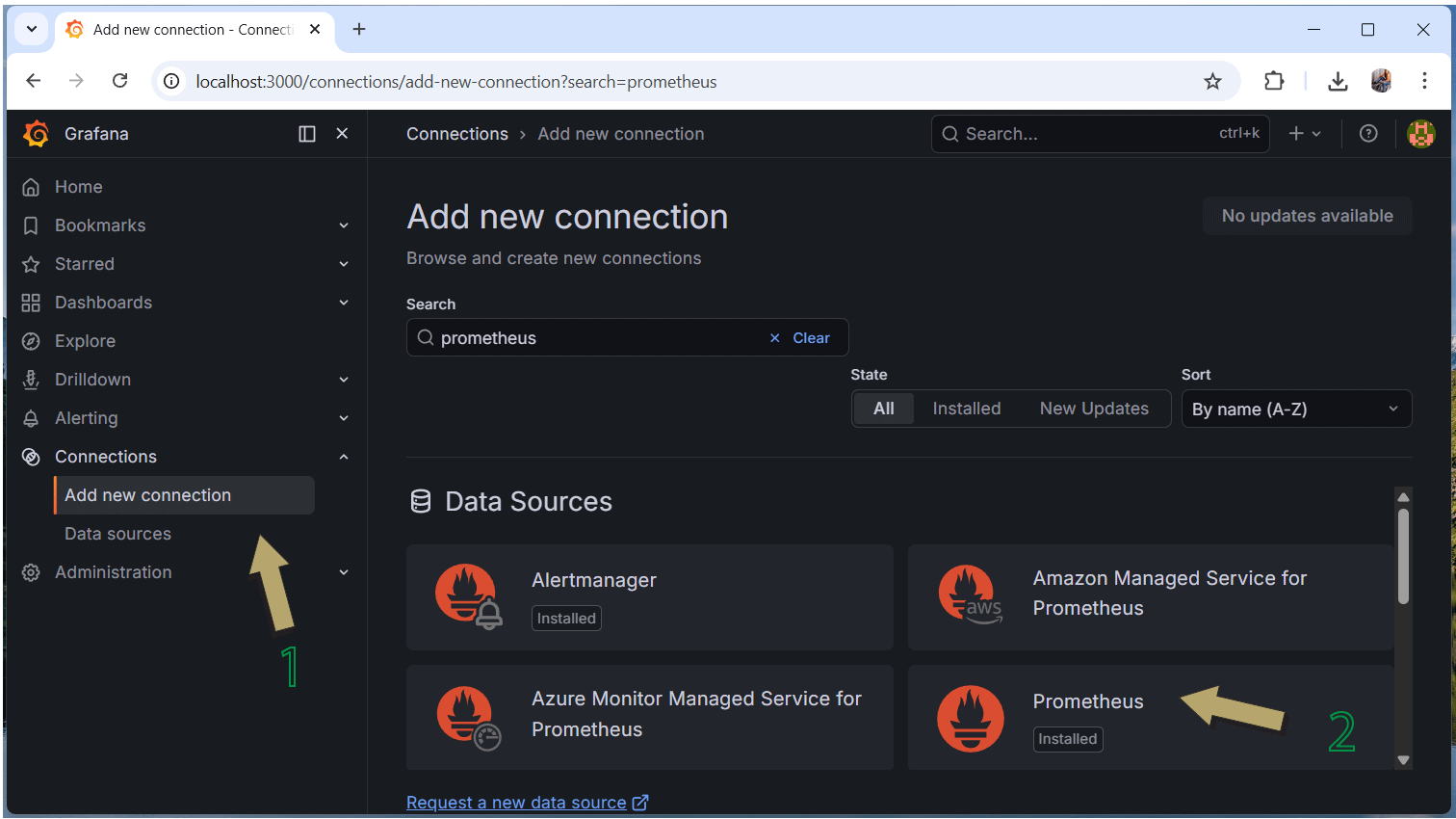
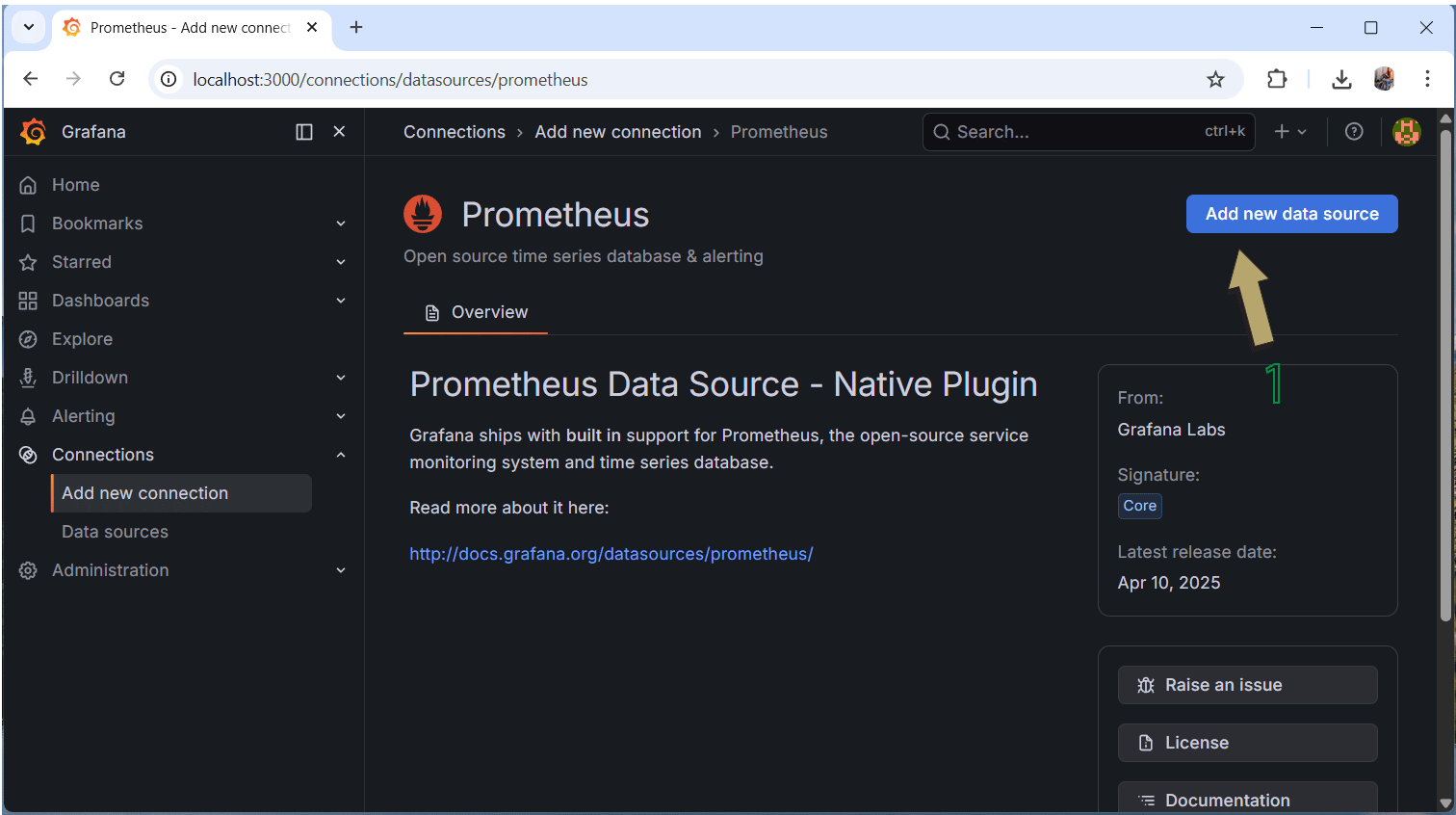
On the prometheus page click the “Add new data source” button. This will add prometheus to grafana.
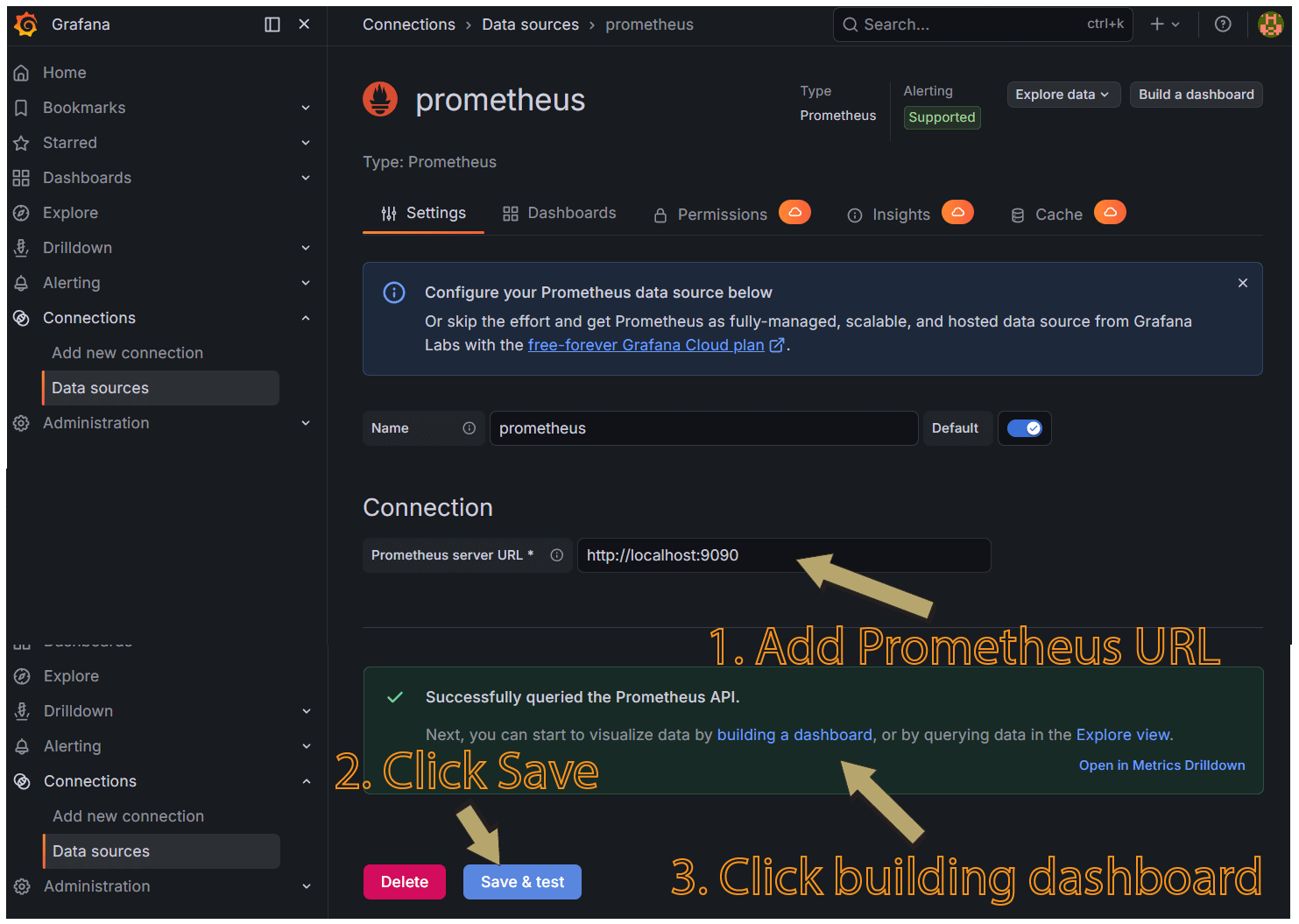
Next, you will be taken to the prometheus configurations page. Here add prometheus server url which is http://localhost:9090. Then click “Save & test” button. This will show successful message along with a link “building a dashboard”. Click this link to start building the dashboard. Check the below image screenshot.
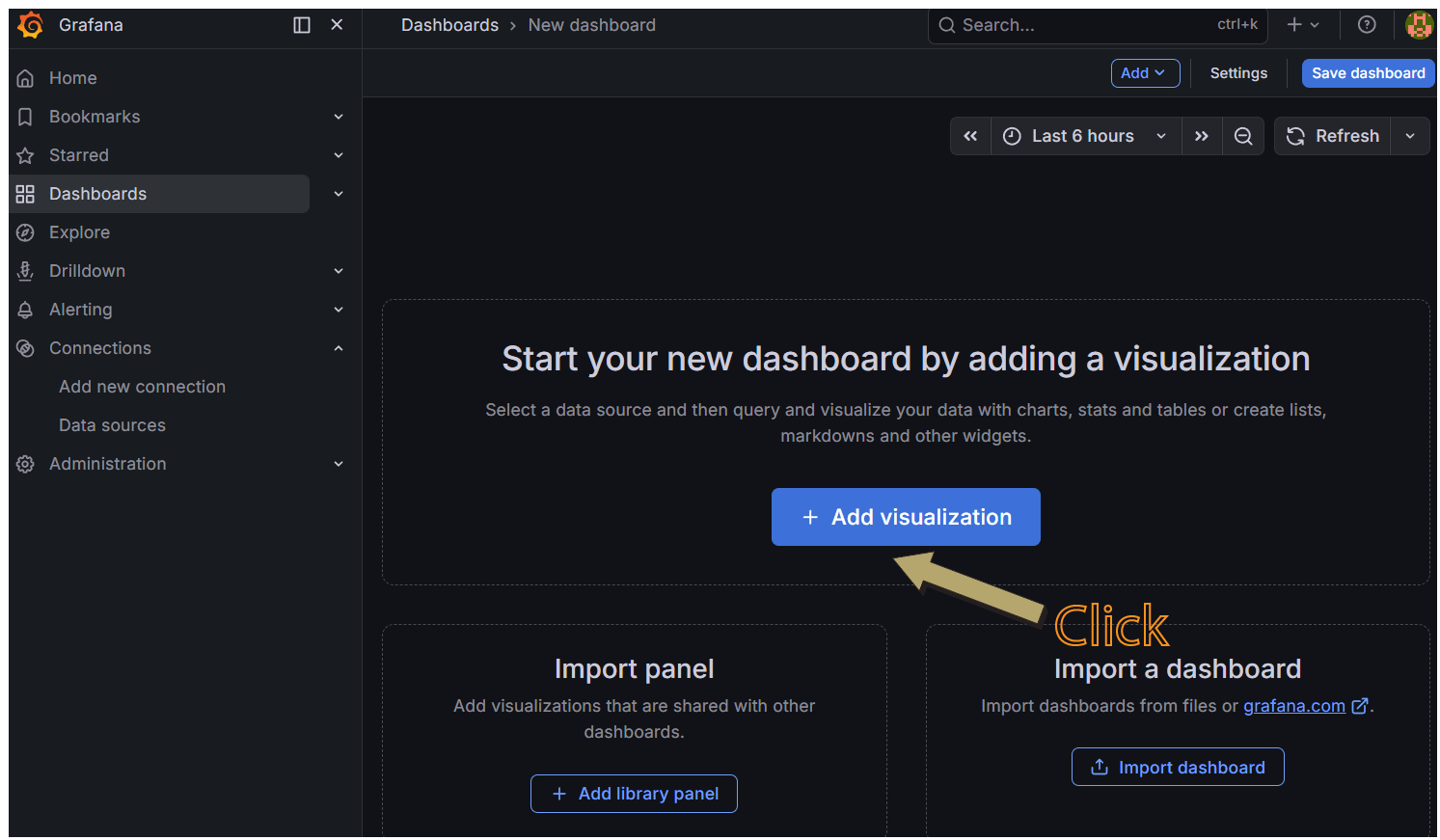
On the next page, click “Add visualization” button.
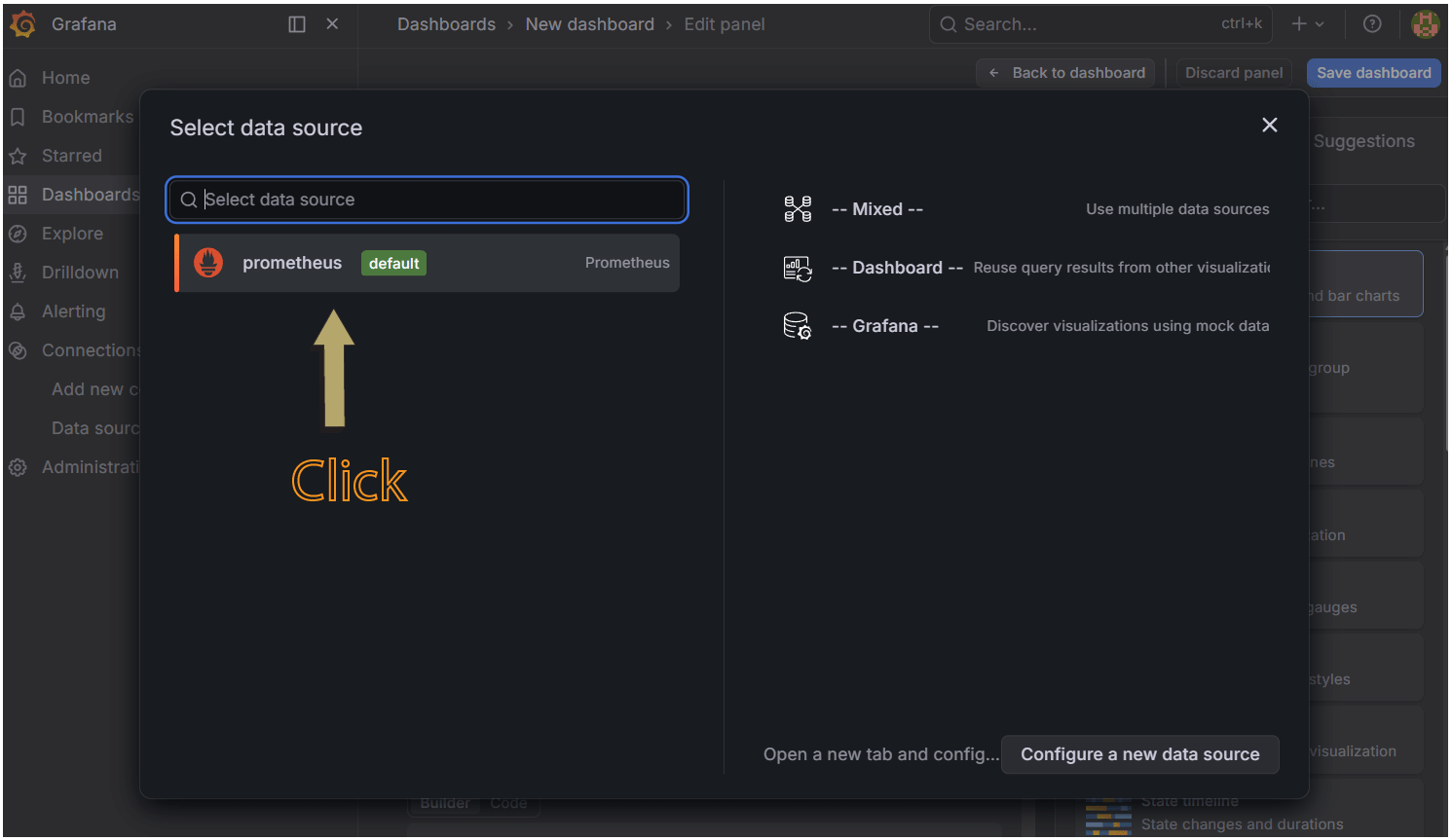
Next, click on “prometheus” for data source.
This will take you to Grafana Dashboard where you can select the metrics – “”Product_Sold_total” and click the “Run queries” button to see the graph of this metrics. Check the below image where we have shown this.
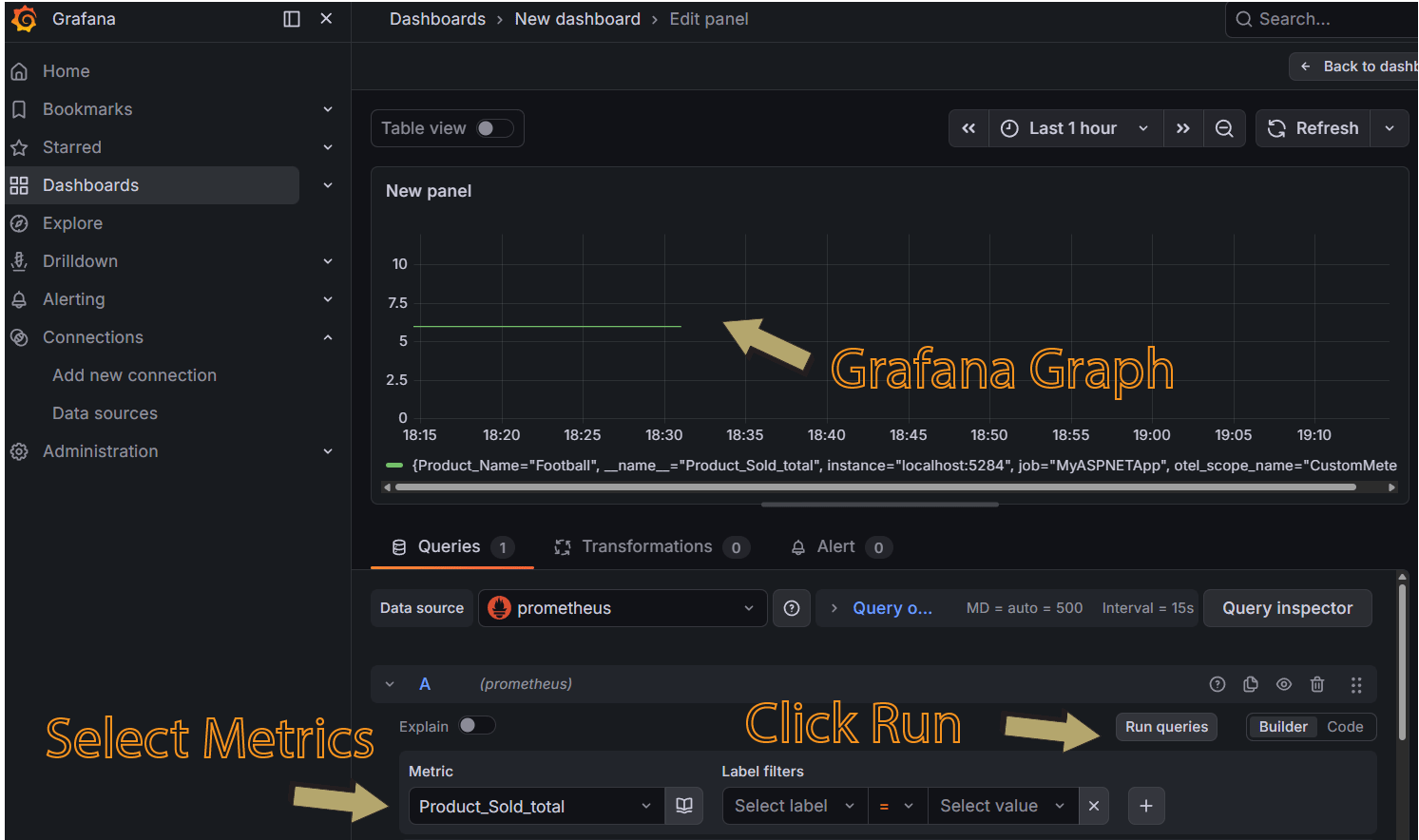
We have successfully integrated Grafana in ASP.NET Core app. We can design sophisticated dashboards that will track any number of metrics. Each metric in .NET can have dimensions, which are key-value pairs that can be used to partition the data.
In this tutorial we learned how to integrate Prometheus and Grafana in ASP.NET Core. We also learned how to create custom metrics and view it’s details in prometheus. At the end we also learned to create dashboards in Grafana where metrics are viewed in graphs. We hope you liked this tutorial, if any question ask them through the comments section below.
SHARE THIS ARTICLE


Related Tutorials:




ABOUT THE AUTHOR
I hope you enjoyed reading this tutorial. If it helped you then consider buying a cup of coffee for me. This will help me in writing more such good tutorials for the readers. Thank you.

HELLO EVERYONE
 Welcome to YogiHosting - A Programming Tutorial Website. It is used by millions of people around the world to learn and explore about ASP.NET Core, Blazor, jQuery, JavaScript, Docker, Kubernetes and other topics.
SUBSCRIBE TO NEWSLETTER
Enter your email address to subscribe to this blog and receive notifications of new posts by email.
Join 90K other subscribers