


How to perform Logging in ASP.NET Core
Logging is an essential part of ASP.NET Core apps which help us to monitor app behavior and diagnose problems. By default the following 4 providers are added whenever we create a .NET app. These are:
- Console – displays logs on console window, helpful in local development phase of the app for monitoring and debugging in real time.
- Debug – writes logs using the System.Diagnostics.Debug class. Used mainly in local development of the app.
- EventSource – this provider writes to a cross-platform event source with the name Microsoft-Extensions-Logging.
- Windows EventLog – this provider writes logs to Windows Event Log.
All the logs created by default logging providers are displayed in console window and Debug output window when debugging. When running the application using the dotnet run command from a terminal, logs are displayed directly in the command shell.
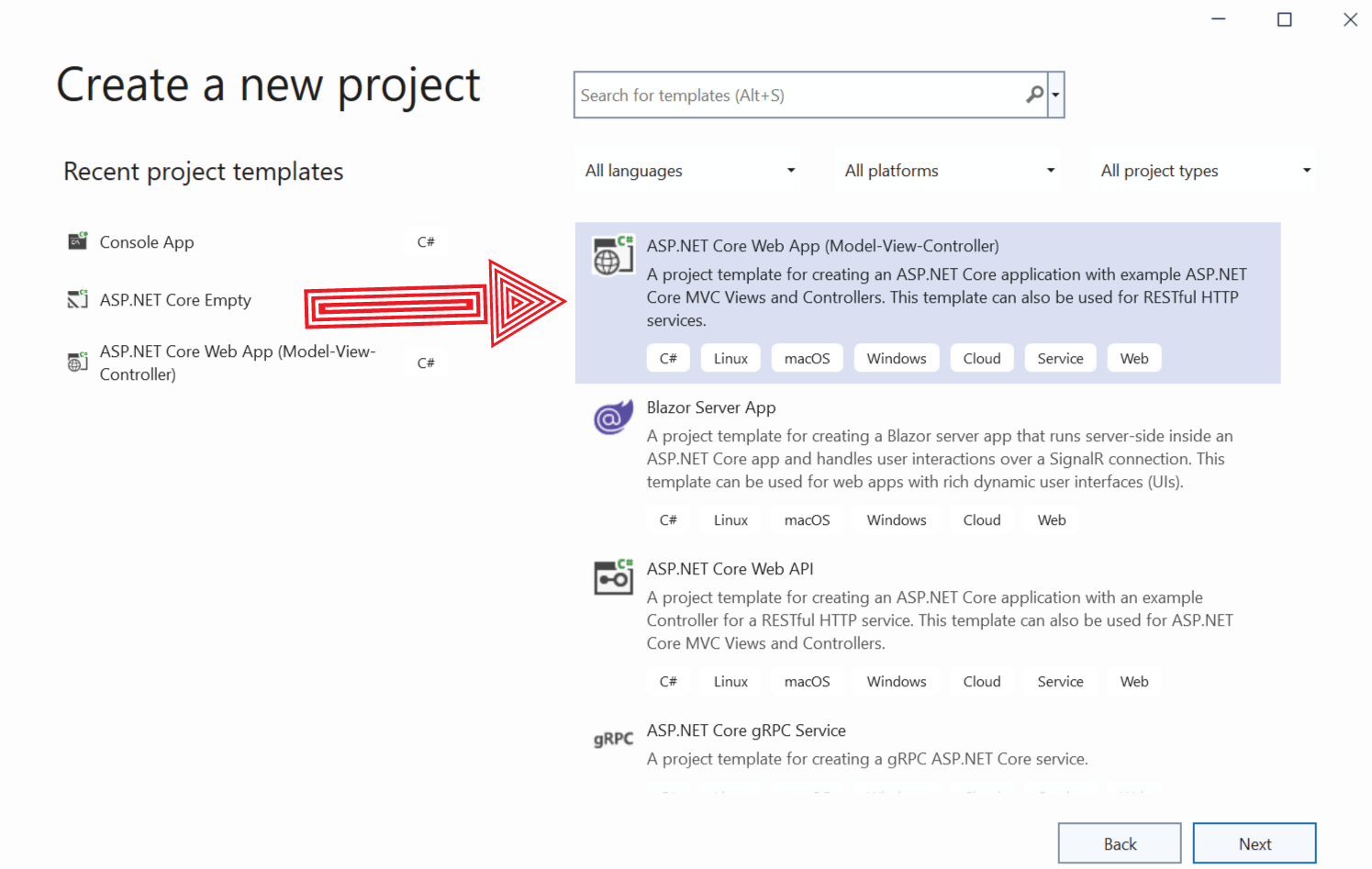
In Visual Studio create a new .NET app by selecting ASP.NET Core Web App (Model-View-Controller) template.
Open the appsettings.development.json to find the default configurations in json format given as follows:
{
  "Logging": {
    "LogLevel": {
      "Default": "Information",
      "Microsoft.AspNetCore": "Warning"
    }
  }
}
It configures logging at Information level for every category and at Warning level for Microsoft.AspNetCore category. We will see more about it later on. If you run the app we can see the logs displayed on the console, see below image:
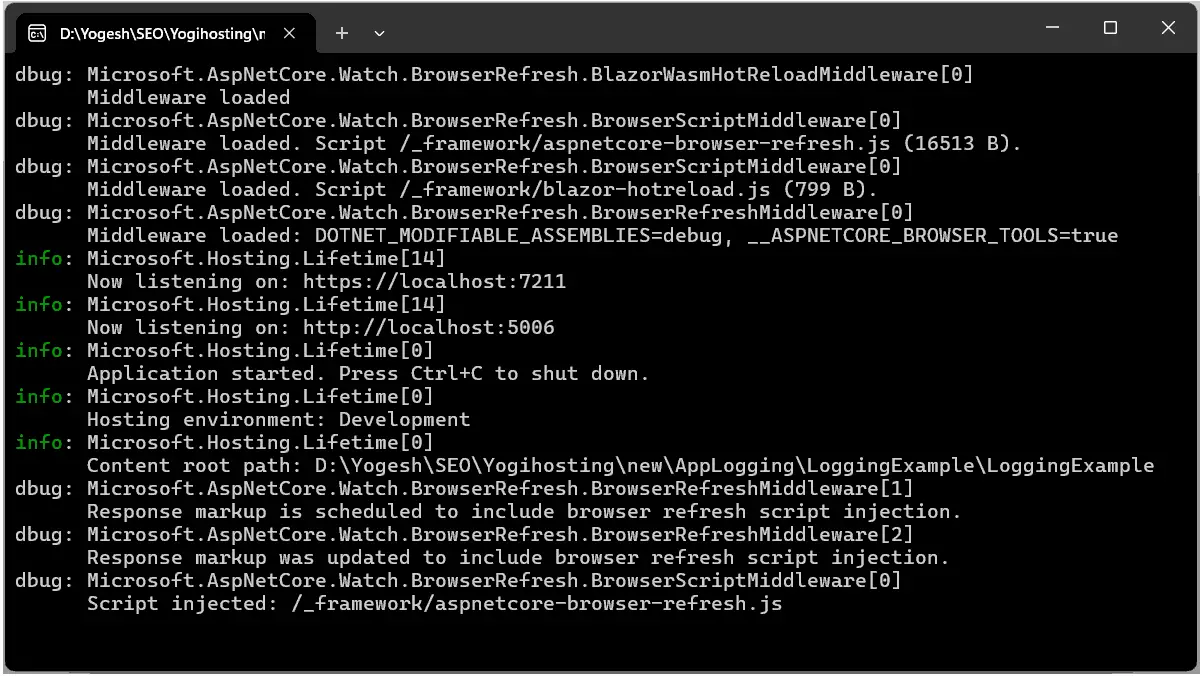
Here dbug (stands for Debug) and info (stands for Information) on the left, these are the log levels. Log level indicates the severity of the logged event. The middle part where we have Microsoft.Hosting.Lifetime is the category and 14 inside the bracket ([14]) is the Event ID. Each log message can specify an Event ID through which filtering on the ID can be done.
In the app we use an ILogger<TCategoryName> object on the constructor of the controller to inject ILogger object from dependency injection (DI). The TCategoryName is the log category which is a string that is associated with each log. It is usually the name of the class where the logs are written. The log category is useful for identifying, sorting, and filtering log messages.
Update the HomeController code, to inject ILogger object through DI and then log at the Information level.
public class HomeController : Controller
{
    private readonly ILogger<HomeController> logger;

    public HomeController(ILogger<HomeController> log)
    {
        logger = log;
    }

    public IActionResult Index()
    {
        logger.LogInformation("Testing logging");
        return View();
    }
}
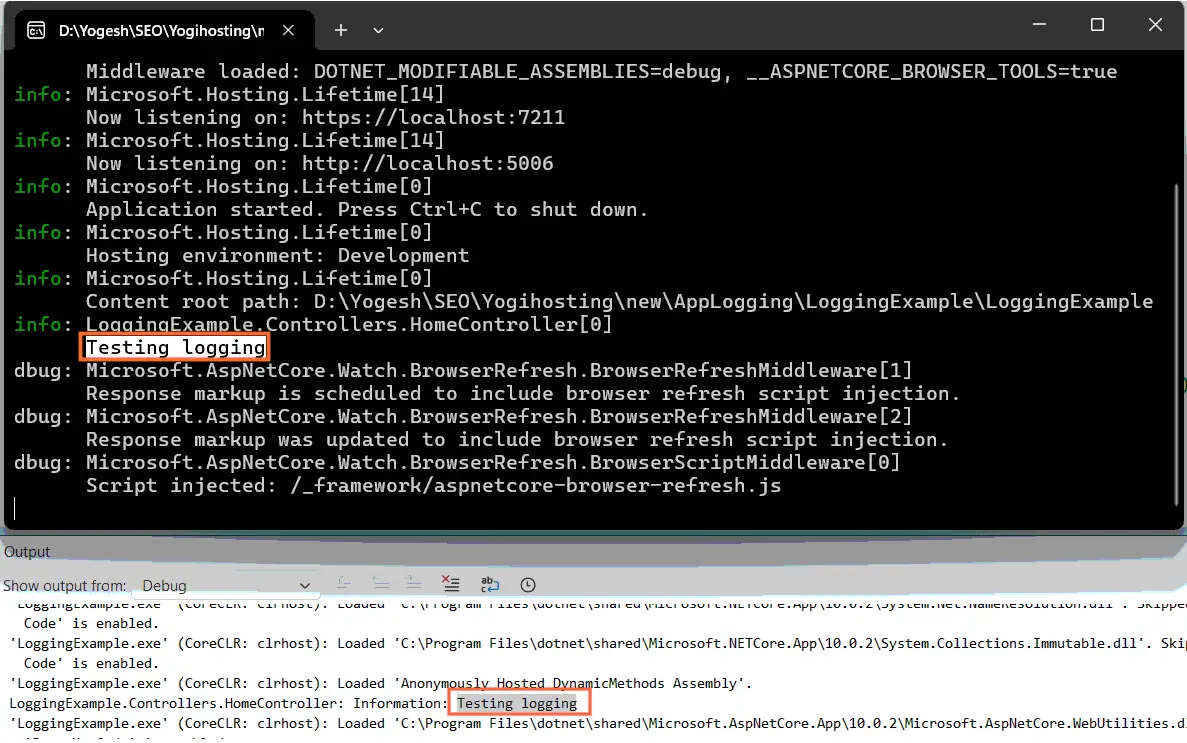
When the Index action executes, you will find the logs as shown below:
info: LoggingExample.Controllers.HomeController[0]
      Testing logging
Here LoggingExample.Controllers.HomeController is the category and 0 inside the bracket ([0]) is the Event ID. Each log message can specify an Event ID through which filtering on the ID can be done.
See the below image where the logs are displayed on the Console window and Debug output window.
In the below code logging for the exception is done in the catch block. Here 400 is an event ID which can be anything of your liking.
try
{
   ...

   throw new Exception("Test exception");
}
catch (Exception ex)
{
    logger.LogWarning(400, ex.Message, DateTime.UtcNow);
}
Configure logging on appsettings.json file
We can provide logging configuration on the appsettings.json file. Note that for production we write the configurations on appsettings.json and for development the configurations goes to appsettings.development.json file.
Open the appsettings.development.json to find the default configurations in json format given as follows:
{
  "Logging": {
    "LogLevel": {
      "Default": "Information",
      "Microsoft.AspNetCore": "Warning"
    }
  }
}
The JSON data is written as name/value pairs. It consists of a field name (in double quotes), followed by a colon, followed by its value. The first field is “Logging” which contains child field inside it. Here it is “LogLevel”. The LogLevel specifies the minimum level to log for the categories i.e. logging is enabled at the specified level and higher (more severe). More about LogLevel in the below section.
See the LogLevel field on the json as given above. It contains 2 category fields – “Default” and “Microsoft.AspNetCore” and their values are given as “Information” and “Warning”. So this means logging is done at “Information” level for the “Default” category (i.e. every category other that Microsoft.AspNetCore), and at “Warning” level for the “Microsoft.AspNetCore” category.
It should also be noted that in the above case no provider is specified so this applies to every providers.
When LogLevel is given under a provider name then the configurations apply for that provider only. These settings overrides the non-provider log settings. Consider the following.
{
  "Logging": {
    "LogLevel": {
      "Default": "Information",
      "Microsoft.AspNetCore": "Warning"
    },
    "EventLog": {
      "LogLevel": {
        "Default": "Warning"
      }
    }
  }
}
Here Windows EventLog provider is added so the configurations overrides the non-provider log settings. This means now for EventLog, logging for Default category will be done at Warning level and for Microsoft.AspNetCore category at Warning level. Note that since EventLog does not have “Microsoft.AspNetCore” category so it is inherited from the non-provider log settings given above.
Log Level
The Log Levels indicate the severity of the log. The LogLevel specifies the minimum level to log for the categories i.e. logging is enabled at the specified level and higher (more severe). These 7 log levels from 0 to 6 are given below.
| Log Level | Value |
|---|---|
| Trace | 0 |
| Debug | 1 |
| Information | 2 |
| Warning | 3 |
| Error | 4 |
| Critical | 5 |
| None | 6 |
Trace – trace contain the most detailed messages which also contain sensitive data that should not be made available on the production. So by default it is disabled. In the development phase of the app, it can be very useful for debugging purposes.
Debug – it is popularly used for debugging and development. Use with caution in production due to the high volume of messages logged.
Information – used for logging general flow of the app.
Warning – used for abnormal or unexpected events that do not cause the app to fail.
Errors – used for unhandled errors and exception that cause the app failure.
Critical – used for severe errors that requires immediate attention. Examples – data loss or out of disk space.
None – specifies not to write messages.
The important methods to log messages are:
logger.Log(LogLevel.Information, 400, "Testing"); // specify the log level as the first parameter followed by the event Id then at the last the message

Logger.LogTrace("Testing"); // log at trace level

Logger.LogDebug("Testing"); // log at debug level

Logger.LogInformation("Testing"); // log information

logger.LogWarning(400, "Test exception at {DT}", DateTime.UtcNow); // log at warning level with event id 400

Logger.LogError("Testing"); // log at error level

Logger.LogCritical("Testing"); // log at critical level
Logging Providers
The Logging Providers help to write logs on a given medium. ASP.NET Core includes the following logging providers by default:
- Console
- Debug
- EventSource
- Windows EventLog
Third party providers are also available and can be installed from NuGet. Some examples includes AzureAppServicesFile, ApplicationInsights, etc.
Logging providers are configured on appsettings.json and appsettings.development.json depending upon the environment.
Open the appsettings.development.json file to find the default configuration containing non-provider section, see below.
{
  "Logging": {
    "LogLevel": {
      "Default": "Information",
      "Microsoft.AspNetCore": "Warning"
    }
  }
}
We can activate other providers by adding their configurations to this file.
Console
The Console provider only displays logs on the console. The logs are not persisted once the app stops. The console logs are useful when running an app locally for monitoring and debugging in real time. On the appsettings.development.json file we can add the console section to configure console logging provider. See below.
{
  "Logging": {
    "LogLevel": {
      "Default": "Information",
      "Microsoft.AspNetCore": "Warning"
    },
    "Console": {
      "LogLevel": {
        "Default": "Warning",
        "Microsoft.AspNetCore.Mvc.Razor.Razor": "Debug",
        "Microsoft.AspNetCore.Mvc.Razor": "Error"
      }
    }
  }
}
The configuration specifies that for Console, every category is set as “Warning” except for categories Microsoft.AspNetCore.Mvc.Razor.Razor at Debug level and Microsoft.AspNetCore.Mvc.Razor at Error level.
When a specific category is listed, the specific category overrides the default value.
If you now look to the console, very few logs are displayed. This is because Warning for Default category is quite high and lower level logs are not written on the console. These are given below.
dbug: Microsoft.AspNetCore.Mvc.Razor.RazorViewEngine[1]
      => SpanId:f0377c2fb682381f, TraceId:debbe69a510e3a5336d79ce744429ac0, ParentId:0000000000000000 => ConnectionId:0HNJ9IFE8CN2C => RequestPath:/ RequestId:0HNJ9IFE8CN2C:00000001 => LoggingExample.Controllers.HomeController.Index (LoggingExample)
      View lookup cache miss for view 'Index' in controller 'Home'.
dbug: Microsoft.AspNetCore.Mvc.Razor.RazorViewEngine[1]
      => SpanId:f0377c2fb682381f, TraceId:debbe69a510e3a5336d79ce744429ac0, ParentId:0000000000000000 => ConnectionId:0HNJ9IFE8CN2C => RequestPath:/ RequestId:0HNJ9IFE8CN2C:00000001 => LoggingExample.Controllers.HomeController.Index (LoggingExample)
      View lookup cache miss for view '_Layout' in controller 'Home'.
Change the “Default”: “Warning” to “Default”: “Trace” for the console provider. Now rerun the app and see on the console. You will find hundreds of log message. See below.
dbug: Microsoft.AspNetCore.Mvc.ModelBinding.ModelBinderFactory[12]
      Registered model binder providers, in the following order: Microsoft.AspNetCore.Mvc.ModelBinding.Binders.BinderTypeModelBinderProvider, Microsoft.AspNetCore.Mvc.ModelBinding.Binders.ServicesModelBinderProvider, Microsoft.AspNetCore.Mvc.ModelBinding.Binders.BodyModelBinderProvider, Microsoft.AspNetCore.Mvc.ModelBinding.Binders.HeaderModelBinderProvider, Microsoft.AspNetCore.Mvc.ModelBinding.Binders.FloatingPointTypeModelBinderProvider, Microsoft.AspNetCore.Mvc.ModelBinding.Binders.EnumTypeModelBinderProvider, Microsoft.AspNetCore.Mvc.ModelBinding.Binders.DateTimeModelBinderProvider, Microsoft.AspNetCore.Mvc.ModelBinding.Binders.SimpleTypeModelBinderProvider, Microsoft.AspNetCore.Mvc.ModelBinding.Binders.TryParseModelBinderProvider, Microsoft.AspNetCore.Mvc.ModelBinding.Binders.CancellationTokenModelBinderProvider, Microsoft.AspNetCore.Mvc.ModelBinding.Binders.ByteArrayModelBinderProvider, Microsoft.AspNetCore.Mvc.ModelBinding.Binders.FormFileModelBinderProvider, Microsoft.AspNetCore.Mvc.ModelBinding.Binders.FormCollectionModelBinderProvider, Microsoft.AspNetCore.Mvc.ModelBinding.Binders.KeyValuePairModelBinderProvider, Microsoft.AspNetCore.Mvc.ModelBinding.Binders.DictionaryModelBinderProvider, Microsoft.AspNetCore.Mvc.ModelBinding.Binders.ArrayModelBinderProvider, Microsoft.AspNetCore.Mvc.ModelBinding.Binders.CollectionModelBinderProvider, Microsoft.AspNetCore.Mvc.ModelBinding.Binders.ComplexObjectModelBinderProvider
dbug: Microsoft.Extensions.Hosting.Internal.Host[1]
      Hosting starting
info: Microsoft.AspNetCore.DataProtection.KeyManagement.XmlKeyManager[63]
      User profile is available. Using 'C:\Users\Avita\AppData\Local\ASP.NET\DataProtection-Keys' as key repository and Windows DPAPI to encrypt keys at rest.
dbug: Microsoft.AspNetCore.DataProtection.Repositories.FileSystemXmlRepository[37]
      Reading data from file 'C:\Users\Avita\AppData\Local\ASP.NET\DataProtection-Keys\key-e075d172-f7d1-4435-895d-14ee7bf094e4.xml'.
dbug: Microsoft.AspNetCore.DataProtection.Repositories.FileSystemXmlRepository[37]
      Reading data from file 'C:\Users\Avita\AppData\Local\ASP.NET\DataProtection-Keys\key-f24b36ed-9ad7-42f7-ba4e-18e72008ecf2.xml'.
dbug: Microsoft.AspNetCore.DataProtection.KeyManagement.XmlKeyManager[18]
      Found key {e075d172-f7d1-4435-895d-14ee7bf094e4}.
dbug: Microsoft.AspNetCore.DataProtection.KeyManagement.XmlKeyManager[18]
      Found key {f24b36ed-9ad7-42f7-ba4e-18e72008ecf2}.
dbug: Microsoft.AspNetCore.DataProtection.KeyManagement.DefaultKeyResolver[13]
      Considering key {e075d172-f7d1-4435-895d-14ee7bf094e4} with expiration date 2026-03-26 11:10:11Z as default key.
dbug: Microsoft.AspNetCore.DataProtection.TypeForwardingActivator[0]
      Forwarded activator type request from Microsoft.AspNetCore.DataProtection.XmlEncryption.DpapiXmlDecryptor, Microsoft.AspNetCore.DataProtection, Version=10.0.0.0, Culture=neutral, PublicKeyToken=adb9793829ddae60 to Microsoft.AspNetCore.DataProtection.XmlEncryption.DpapiXmlDecryptor, Microsoft.AspNetCore.DataProtection, Culture=neutral, PublicKeyToken=adb9793829ddae60
dbug: Microsoft.AspNetCore.DataProtection.XmlEncryption.DpapiXmlDecryptor[51]
      Decrypting secret element using Windows DPAPI.
Certainly this can be useful when you want to dig deep into the app’s debugging process.
Whatever logs we write from any logging methods (examples below), these are all displayed on the console. Provided the log level are equal or higher to that configured on the appsettings file.
logger.Log(LogLevel.Information,400, "Testing");
logger.LogTrace("TestT");
logger.LogDebug("TestD");
logger.LogInformation("Testing logging");
Debug
The Debug provider writes log output by using the System.Diagnostics.Debug class and only when the debugger is attached. We can use System.Diagnostics.Debug.WriteLine() method to write logs with Debug provider. On Linux, the Debug provider log location is one of the following:
/var/log/message
/var/log/syslog
This provider is useful for developers to monitor application flow, identify errors, and check variable states during development phase of the app.
In the below configuration we added the Debug provider block which sets the default category to Debug level.
{
  "Logging": {
    "LogLevel": {
      "Default": "Information",
      "Microsoft.AspNetCore": "Warning"
    },
    "Console": {
      "LogLevel": {
        "Default": "Warning",
        "Microsoft.AspNetCore.Mvc.Razor.Razor": "Debug",
        "Microsoft.AspNetCore.Mvc.Razor": "Error"
      }
    },
    "Debug": {
      "LogLevel": {
        "Default": "Information"
      }
    }
  }
}
The Debug provider configuration will inherit the non-provider category “Microsoft.AspNetCore” value of Warning.
The below code line writes log message with the Debug provider.
System.Diagnostics.Debug.WriteLine("Test Debug Provider", "LoggingExample.Controllers.HomeController");EventSource
The EventSource provider writes to a cross-platform event source with the name Microsoft-Extensions-Logging.
On the appsettings.development.json add the EventSource configurations as shown below.
{
  "Logging": {
    "LogLevel": {
      "Default": "Information"

    },
    "Console": {
      "LogLevel": {
        "Default": "Warning",
        "Microsoft.AspNetCore.Mvc.Razor.Razor": "Debug",
        "Microsoft.AspNetCore.Mvc.Razor": "Error"
      }
    },
    "Debug": {
      "LogLevel": {
        "Default": "Trace"
      }
    },
    "EventSource": {
      "LogLevel": {
        "Default": "Information"
      }
    }
  }
}
This configuration tells ASP.NET Core to write logs that are at Information level with the EventSource provider. We can add more configurations to it but for the sake of simplicity I have kept things simple to understand.
To read the logs written by EventSource provider we use a tool called dotnet-trace. Lets understand how to use it.
dotnet-trace
To install dotnet-trace tool, open a terminal from the directory of the project file and run the below given command:
dotnet tool install --global dotnet-trace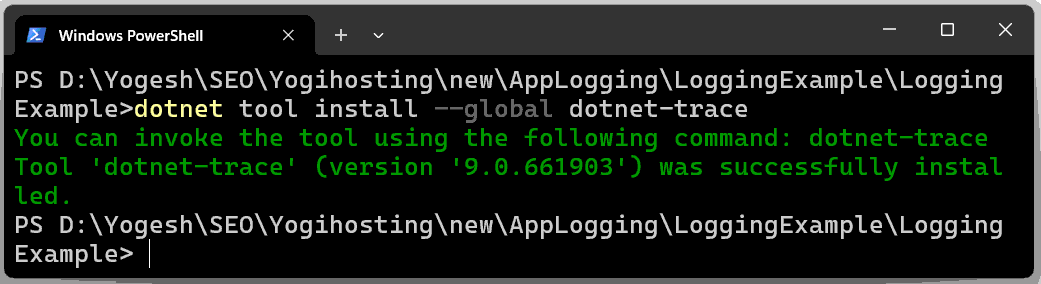
Now to view the logs perform the following tasks:
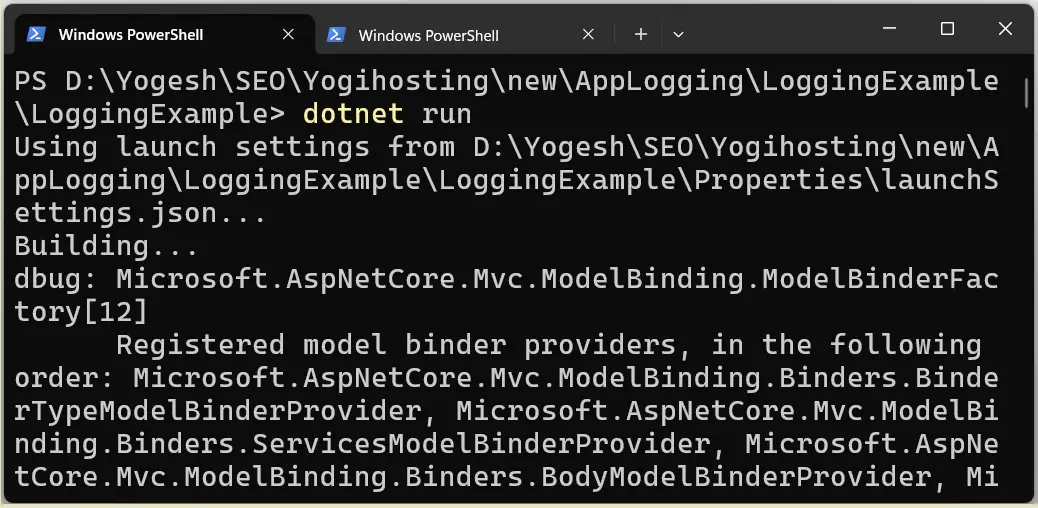
- Run the app from the CLI command – dotnet run. For this open a terminal from the directory of the project file (.csproj) and run the command from there.
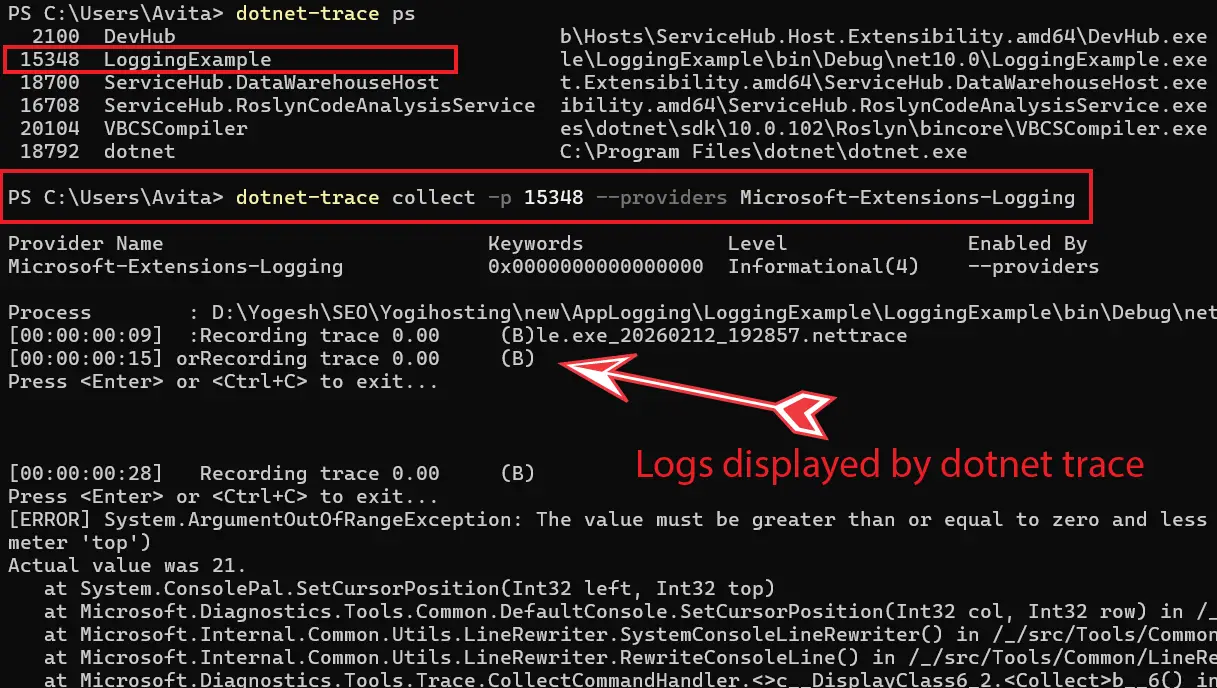
- Find the process identifier (PID) of the .NET app. For this you have to run dotnet-trace ps command. Note that the PID for the process has the same name as the app’s assembly.
- Open another terminal and run the command – dotnet-trace collect -p %PID% –providers Microsoft-Extensions-Logging. Replace %PID% with the PID of the .NET app.
In the below image, I am running the dotnet run command from the terminal.
Once the app is running, from another terminal I run the dotnet-trace ps command which gave me the PID of the .NET app as 15348. I next run the dotnet-trace collect -p 15348 –providers Microsoft-Extensions-Logging command to see the logs. See the below image where I have shown this thing.
The full syntax of dotnet-trace command is given below.
dotnet-trace collect -p {PID} --providers Microsoft-Extensions-Logging:{KEYWORD}:{PROVIDER LEVEL}:FilterSpecs=\"{LOGGER CATEGORY 1}:{CATEGORY LEVEL 1}; {LOGGER CATEGORY 2}:{CATEGORY LEVEL 2}; ...
{LOGGER CATEGORY N}:{CATEGORY LEVEL N}\"
The following table defines the keyword {KEYWORD} placeholder.
| Keyword | Description |
|---|---|
| 1 | Logs meta events |
| 2 | Provides information in a programmatic manner |
| 4 | Provides formatted string version of the information |
| 8 | Provides a JSON representation of the information |
The below table gives the provider levels.
| Provider Level | Description |
|---|---|
| 0 | LogAlways |
| 1 | Critical |
| 2 | Error |
| 3 | Warning |
| 4 | Informational |
| 5 | Verbose |
FilterSpecs is used to filter the logs based on the categories and their log levels. Multiple FilterSpecs entries can be added with the ; semicolon character between them
Examples:
dotnet-trace collect -p %PID% --providers Microsoft-Extensions-Logging:4:2:FilterSpecs=\"Microsoft.AspNetCore.Hosting*:Debug\"
dotnet-trace collect -p %PID%  --providers Microsoft-Extensions-Logging:4:5:\"Microsoft.AspNetCore.Hosting*:Debug; Microsoft.AspNetCore.Mvc*:Information;\"
Windows EventLog
The Windows EventLog provider writes log to the Windows Event Log. Unlike the other providers, the EventLog provider doesn’t inherit the default non-provider settings. If EventLog log configurations aren’t specified, they default to LogLevel.Warning. In order to log lower than LogLevel.Warning, explicitly set them with the log level.
The following example sets the Event Log default log level to LogLevel.Information:
{
  "Logging": {
    "LogLevel": {
      "Default": "Information"

    },
    "Console": {
      "LogLevel": {
        "Default": "Warning",
        "Microsoft.AspNetCore.Mvc.Razor.Razor": "Debug",
        "Microsoft.AspNetCore.Mvc.Razor": "Error"
      }
    },
    "Debug": {
      "LogLevel": {
        "Default": "Trace"
      }
    },
    "EventSource": {
      "LogLevel": {
        "Default": "Information"
      }
    },
    "EventLog": {
      "LogLevel": {
        "Microsoft": "Information"
      }
    }
  }
}
Open Event Viewer on your windows OS to view the logs saved there. Check the below image:
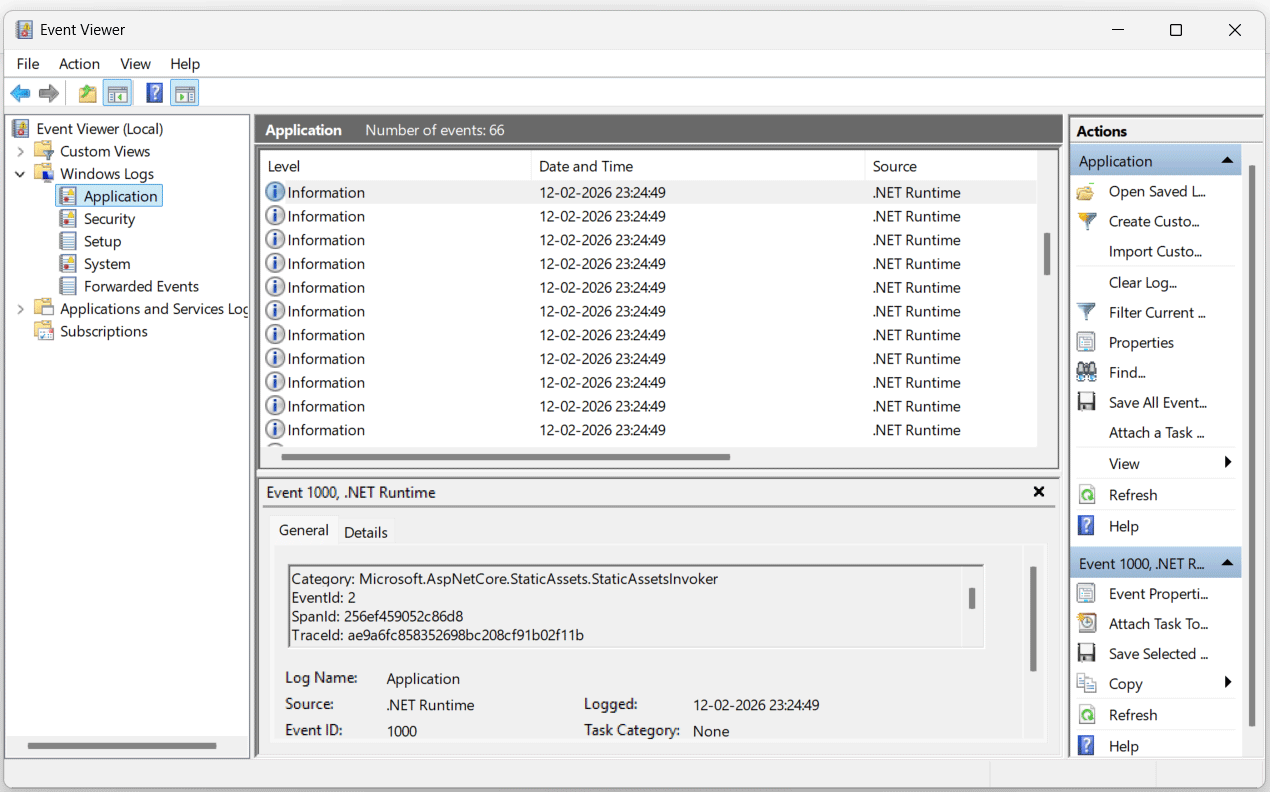
Note that when storing logs on Windows Event Log then makes sure only the high priority logs should be stored since it will unnecessary slow down the app and the server.
Third Party log providers
Various 3rd party providers writes logs to various mediums like Microsoft.Extensions.Logging.AzureAppServices writes logs to text files in an Azure App Service file system and blob storage.
Microsoft.Extensions.Logging.ApplicationInsights provider logs to Azure Application Insights.
Other popular log providers are NLog and Serilog.
In this tutorial we covered logging in ASP.NET Core from complete beginning till advanced levels. It will help you to debug various problems coming on .NET apps.
SHARE THIS ARTICLE


Related Tutorials:



ABOUT THE AUTHOR
I hope you enjoyed reading this tutorial. If it helped you then consider buying a cup of coffee for me. This will help me in writing more such good tutorials for the readers. Thank you.

HELLO EVERYONE
 Welcome to YogiHosting - A Programming Tutorial Website. It is used by millions of people around the world to learn and explore about ASP.NET Core, Blazor, jQuery, JavaScript, Docker, Kubernetes and other topics.
SUBSCRIBE TO NEWSLETTER
Enter your email address to subscribe to this blog and receive notifications of new posts by email.
Join 90K other subscribers