


How to create PDF files in ASP.NET Core with MigraDoc
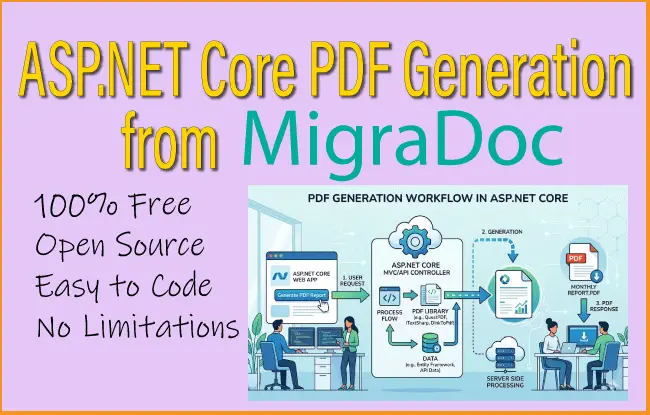
MigraDoc is a popular .NET library used in ASP.NET Core applications to generate structured PDF documents programmatically. It creates rich documents with elements like paragraphs, tables, headers, and images. In an ASP.NET Core project, you typically define a document using Migradoc’s object model, render it with PdfDocumentRenderer, and then return the generated PDF as a file response from a controller. This approach is useful for creating invoices, reports, or dynamic documents on the fly, while keeping layout logic clean and maintainable within your C# code.
The given image explains the full process of PDF generation:
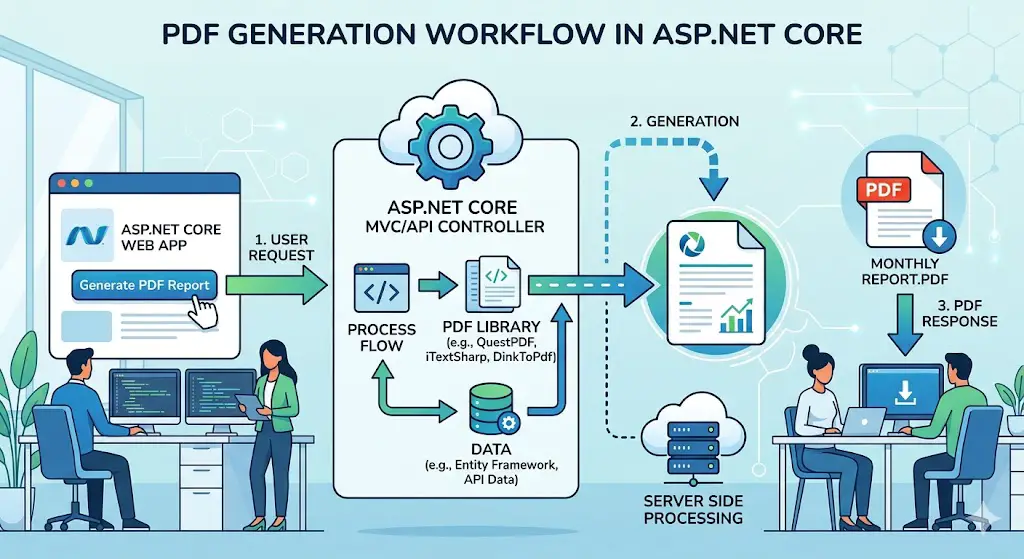
Let’s generate a complete PDF file with MigraDoc in ASP.NET Core version 10.0
MigraDoc Code Structure
The structure of MigraDoc contains 3 parts:
- Document: it is the parent object which contains sections.
- Section: all contents of a document are organized in sections. Sections contains other objects like table and paragraph.
- PdfDocumentRenderer: it takes a Document object, formats it properly (layout, fonts, pages) and outputs a PDF file
The code structure is given below.
var document = new Document();
var section = document.AddSection();

var heading = section.AddParagraph("Test PDF");

var pdfRenderer = new PdfDocumentRenderer();

pdfRenderer.Document = document;

pdfRenderer.RenderDocument();
pdfRenderer.Save("SimpleDocument.pdf");
Generate PDF file with MigraDoc in ASP.NET Core version 10
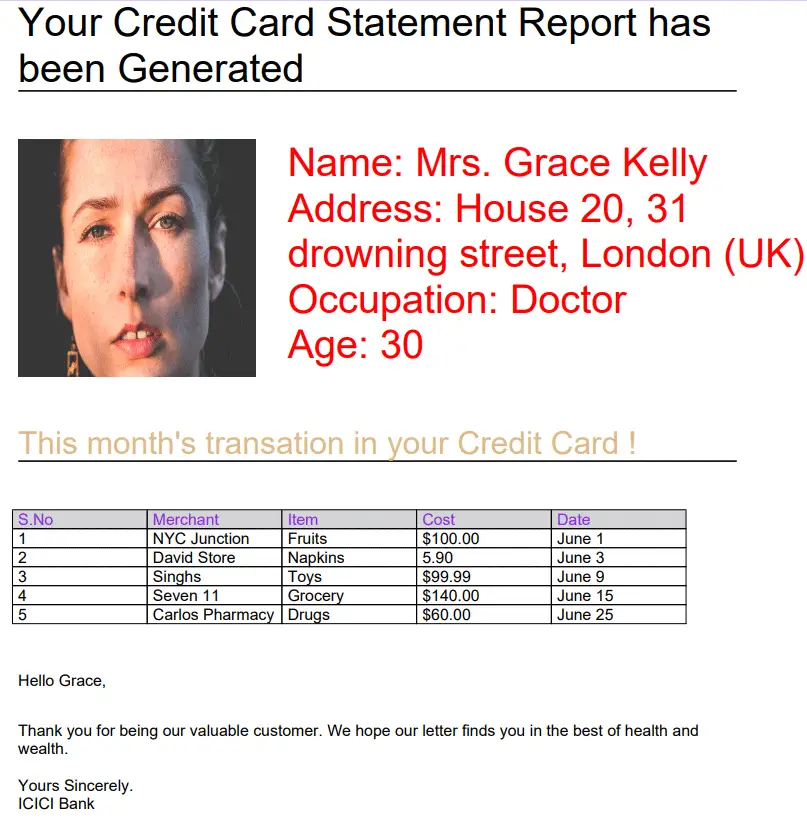
To see how MigraDoc works we will generate a complete credit card statement of a bank customer in ASP.NET Core version 10.0. Once completed the PDF file will look as shown in the below image.
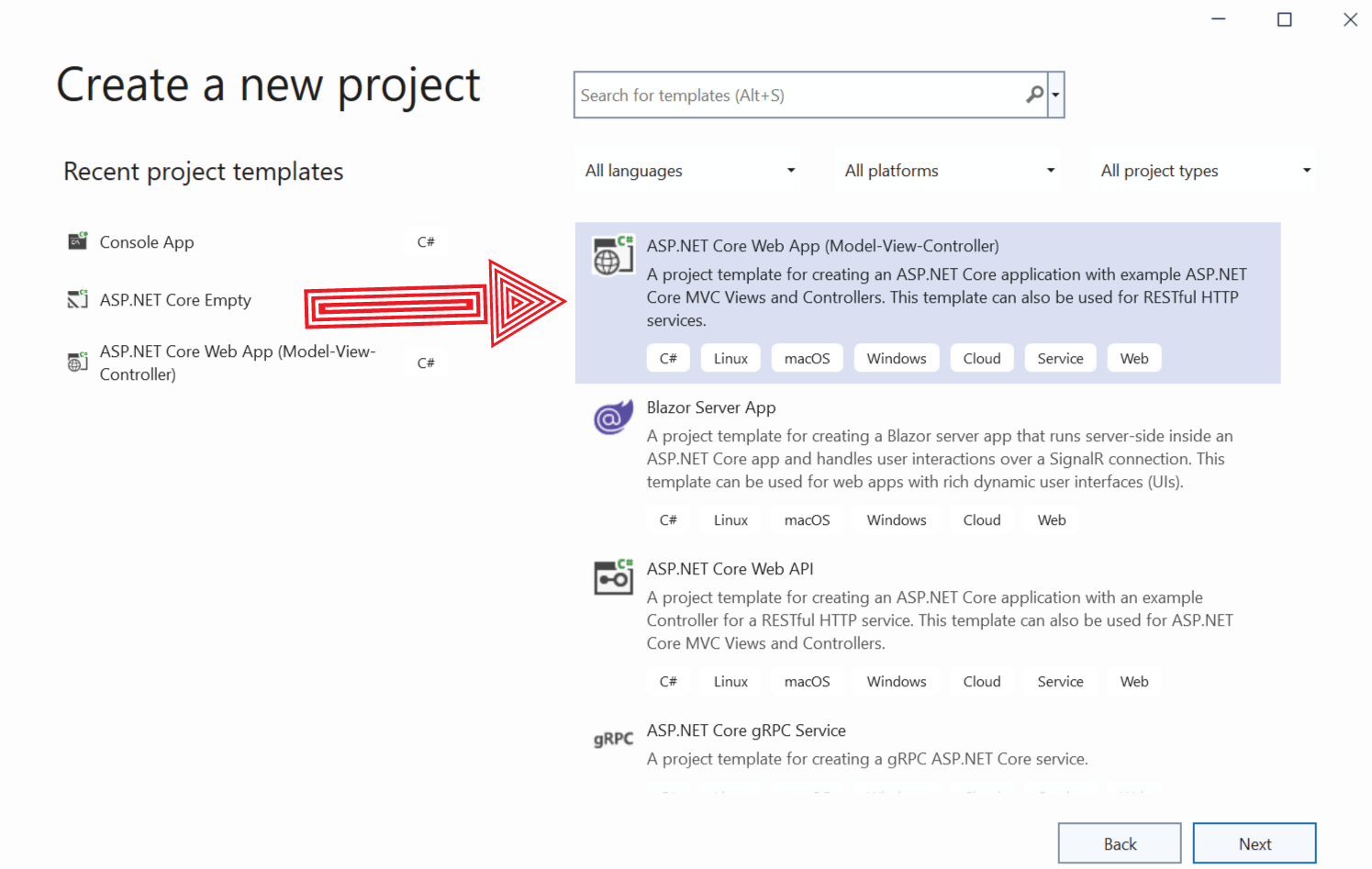
In Visual Studio create a new project and select the template called ASP.NET Core Web App (Model-View-Controller).
First, we need to install the package called PDFsharp-MigraDoc from NuGet.
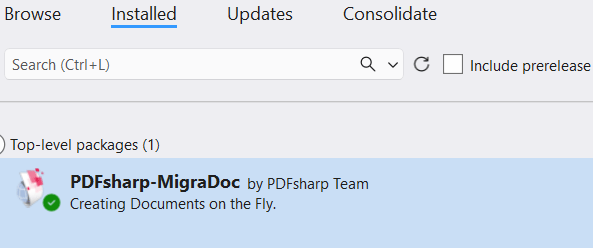
Next, import the necessary namespaces on the controller.
using MigraDoc.Rendering;
using MigraDocTutorial.Models;
using PdfSharp.Fonts;
using MigraDoc.DocumentObjectModel;
Now, open the HomeController file and in Index action we add MigraDoc codes as shown below.
public class HomeController : Controller
{
    private IWebHostEnvironment hostingEnvironment;

    public HomeController(IWebHostEnvironment environment)
    {
        hostingEnvironment = environment;
    }

    public IActionResult Index()
    {
        string imagePath = Path.Combine(hostingEnvironment.WebRootPath, "Images");

        var document = new Document();
        var section = document.AddSection();

        GlobalFontSettings.UseWindowsFontsUnderWindows = true;

        var heading = section.AddParagraph("Your Credit Card Statement Report has been Generated");

        heading.Format.OutlineLevel = OutlineLevel.Level1;
        heading.Format.Font.Size = 25;

        // Add line below the heading
        heading.Format.Borders.Bottom.Width = 1;
        heading.Format.SpaceAfter = "30pt";

        // Add table.
        var table = section.AddTable();

        // Add first column.
        var columnA = table.AddColumn(Unit.FromCentimeter(6));

        // Add second column.
        var columnB = table.AddColumn(Unit.FromCentimeter(12));

        // Add first row.
        var row1 = table.AddRow();

        // Add paragraph to first cell of row1.
        var cellA1 = row1[0];

        document.ImagePath = imagePath;
        var image = cellA1.AddImage("woman.jpg");
        image.Width = Unit.FromPoint(150);
        image.Height = Unit.FromPoint(150);

        // Add paragraph to second cell of row1.
        var cellB1 = row1[1];
        cellB1.AddParagraph("Name: Mrs. Grace Kelly");
        cellB1.AddParagraph("Address: House 20, 31 drowning street, London (UK)");
        cellB1.AddParagraph("Occupation: Doctor");
        cellB1.AddParagraph("Age: 30");
        cellB1.Format.Font.Size = 25;
        cellB1.Format.Font.Color = Colors.Red;

        var heading1 = section.AddParagraph("This month's transation in your Credit Card !");
        heading1.Format.Font.Size = 20;
        heading1.Format.Font.Color = Colors.BurlyWood;

        // Add line below the heading
        heading1.Format.Borders.Bottom.Width = 1;
        heading1.Format.SpaceBefore = "30pt";
        heading1.Format.SpaceAfter = "30pt";

        var table2 = section.AddTable();
        table2.Borders.Visible = true;

        table2.AddColumn("3cm");
        table2.AddColumn("3cm");
        table2.AddColumn("3cm");
        table2.AddColumn("3cm");
        table2.AddColumn("3cm");

        var row1Table2 = table2.AddRow();
        row1Table2.HeadingFormat = true;
        row1Table2.Format.Font.Color = Colors.BlueViolet;
        row1Table2.Shading.Color = Colors.LightGray;

        row1Table2[0].AddParagraph("S.No");
        row1Table2[1].AddParagraph("Merchant");
        row1Table2[2].AddParagraph("Item");
        row1Table2[3].AddParagraph("Cost");
        row1Table2[4].AddParagraph("Date");

        var row2Table2 = table2.AddRow();
        row2Table2[0].AddParagraph("1");
        row2Table2[1].AddParagraph("NYC Junction");
        row2Table2[2].AddParagraph("Fruits");
        row2Table2[3].AddParagraph("$100.00");
        row2Table2[4].AddParagraph("June 1");

        var row3Table2 = table2.AddRow();
        row3Table2[0].AddParagraph("2");
        row3Table2[1].AddParagraph("David Store");
        row3Table2[2].AddParagraph("Napkins");
        row3Table2[3].AddParagraph("5.90");
        row3Table2[4].AddParagraph("June 3");

        var row4Table2 = table2.AddRow();
        row4Table2[0].AddParagraph("3");
        row4Table2[1].AddParagraph("Singhs");
        row4Table2[2].AddParagraph("Toys");
        row4Table2[3].AddParagraph("$99.99");
        row4Table2[4].AddParagraph("June 9");

        var row5Table2 = table2.AddRow();
        row5Table2[0].AddParagraph("4");
        row5Table2[1].AddParagraph("Seven 11");
        row5Table2[2].AddParagraph("Grocery");
        row5Table2[3].AddParagraph("$140.00");
        row5Table2[4].AddParagraph("June 15");

        var row6Table2 = table2.AddRow();
        row6Table2[0].AddParagraph("5");
        row6Table2[1].AddParagraph("Carlos Pharmacy");
        row6Table2[2].AddParagraph("Drugs");
        row6Table2[3].AddParagraph("$60.00");
        row6Table2[4].AddParagraph("June 25");

        var custName = section.AddParagraph("Hello Grace,");
        custName.Format.SpaceBefore = "30pt";
        custName.Format.SpaceAfter = "20pt";
        section.AddParagraph("Thank you for being our valuable customer. We hope our letter finds you in the best of health and wealth.\n\nYours Sincerely.\nICICI Bank");

        // Create a PDF renderer for the MigraDoc document.
        var pdfRenderer = new PdfDocumentRenderer();

        // Associate the MigraDoc document with a renderer.
        pdfRenderer.Document = document;

        // Layout and render document to PDF.
        pdfRenderer.RenderDocument();
        // Save the document.
        pdfRenderer.Save("SimpleDocument.pdf");

        return View();
    }
}
The above code is a complete code which will generate the Credit Card statement PDF file. Lets understand the code part by part.
Document and Section
In the above code we defined the Document and added a section to it. The code which does this work is given below.
var document = new Document();
var section = document.AddSection();
We then specified MigraDoc to use windows fonts by the below code:
GlobalFontSettings.UseWindowsFontsUnderWindows = true;Since we will add the image of the customer on the PDF file so we need to inject IWebHostEnvironment on the constructor of the controller, in order to get the images from the wwwroot/Images folder. See the below code.
public HomeController(IWebHostEnvironment environment)
{
    hostingEnvironment = environment;
}

string imagePath = Path.Combine(hostingEnvironment.WebRootPath, "Images");
Heading
From the AddParagraph method we added the text – “Your Credit Card Statement Report has been Generated”. To make it big size we gave it OutlineLevel and font size 25. We also added a border of width 1pt below it and gave spacing of 30pt after it. See the below code.
var heading = section.AddParagraph("Your Credit Card Statement Report has been Generated");

heading.Format.OutlineLevel = OutlineLevel.Level1;
heading.Format.Font.Size = 25;

// Add line below the heading
heading.Format.Borders.Bottom.Width = 1;
heading.Format.SpaceAfter = "30pt";
The above code will generate the following as shown by the below image.

MigraDoc Table
Next, we defined a table which will contain 2 columns. The left column will contain the customer image and the right column will contain the customer name, address and other details. The below image shown the details.

The code which does this thing is given below.
// Add table.
var table = section.AddTable();

// Add first column.
var columnA = table.AddColumn(Unit.FromCentimeter(6));

// Add second column.
var columnB = table.AddColumn(Unit.FromCentimeter(12));

// Add first row.
var row1 = table.AddRow();

// Add paragraph to first cell of row1.
var cellA1 = row1[0];

document.ImagePath = imagePath;
var image = cellA1.AddImage("woman.jpg");
image.Width = Unit.FromPoint(150);
image.Height = Unit.FromPoint(150);

// Add paragraph to second cell of row1.
var cellB1 = row1[1];
cellB1.AddParagraph("Name: Mrs. Grace Kelly");
cellB1.AddParagraph("Address: House 20, 31 drowning street, London (UK)");
cellB1.AddParagraph("Occupation: Doctor");
cellB1.AddParagraph("Age: 30");
cellB1.Format.Font.Size = 25;
cellB1.Format.Font.Color = Colors.Red;

var heading1 = section.AddParagraph("This month's transation in your Credit Card !");
heading1.Format.Font.Size = 20;
heading1.Format.Font.Color = Colors.BurlyWood;

// Add line below the heading
heading1.Format.Borders.Bottom.Width = 1;
heading1.Format.SpaceBefore = "30pt";
heading1.Format.SpaceAfter = "30pt";
If we explain the above code, it starts by adding the table to the section. Then adding the 2 columns of width 6cms and 12cms to the table.
var table = section.AddTable();
var columnA = table.AddColumn(Unit.FromCentimeter(6));
var columnB = table.AddColumn(Unit.FromCentimeter(12));
After that we added a row and the first cell to the row. Note that the first cell has index 0 and second one has index 1.
var row1 = table.AddRow();
var cellA1 = row1[0];
The first cell will contain the image of the customer so we have to provide the image path i.e. wwwroot/Images. See below code.
document.ImagePath = imagePath;Next, we add the image of the customer with dimension 150pt * 150pt.
var image = cellA1.AddImage("woman.jpg");
image.Width = Unit.FromPoint(150);
image.Height = Unit.FromPoint(150);
The second cell is also added in the same way where we have shown the customer details. See the below code.
var cellB1 = row1[1];
cellB1.AddParagraph("Name: Mrs. Grace Kelly");
cellB1.AddParagraph("Address: House 20, 31 drowning street, London (UK)");
cellB1.AddParagraph("Occupation: Doctor");
cellB1.AddParagraph("Age: 30");
cellB1.Format.Font.Size = 25;
cellB1.Format.Font.Color = Colors.Red;
After this we added another table which contains 5 columns to show the credit card transaction details of the customer. The below image shows this.
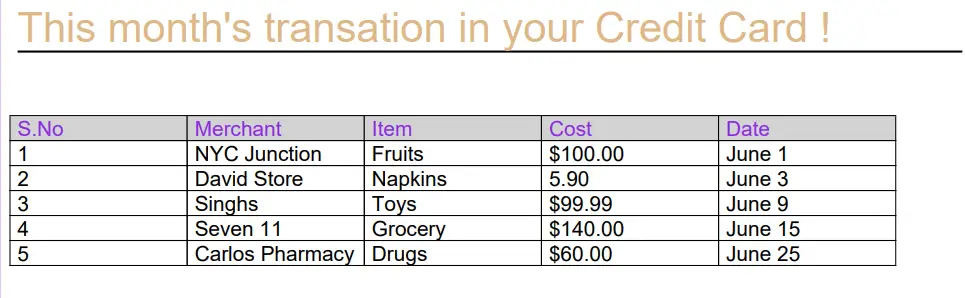
There is nothing new to this code and it is self explanatory.
The next part of the pdf contains the final message to the customer. The code which does this thing is given below.
var custName = section.AddParagraph("Hello Grace,");
custName.Format.SpaceBefore = "30pt";
custName.Format.SpaceAfter = "20pt";
section.AddParagraph("Thank you for being our valuable customer. We hope our letter finds you in the best of health and wealth.\n\nYours Sincerely.\nICICI Bank");
The below image shown this portion of the pdf.

MigraDoc PDF Rendering
We have added all the details to the pdf. We now have to save the pdf file. For this we use the PdfDocumentRenderer object to render the pdf. The pdf file will be named as “SimpleDocument.pdf” and will be saved on the root of the app.
Well that’s it we just completed the full pdf generation with MigraDoc. You can create any type of pdf with this library free of charge. Download the source codes from our GitHub repo (link at the top) and start using this library.
SHARE THIS ARTICLE


Related Tutorials:




ABOUT THE AUTHOR
I hope you enjoyed reading this tutorial. If it helped you then consider buying a cup of coffee for me. This will help me in writing more such good tutorials for the readers. Thank you.

HELLO EVERYONE
 Welcome to YogiHosting - A Programming Tutorial Website. It is used by millions of people around the world to learn and explore about ASP.NET Core, Blazor, jQuery, JavaScript, Docker, Kubernetes and other topics.
SUBSCRIBE TO NEWSLETTER
Enter your email address to subscribe to this blog and receive notifications of new posts by email.
Join 90K other subscribers