


jQuery DataTables in ASP.NET Core with Server Side Processing
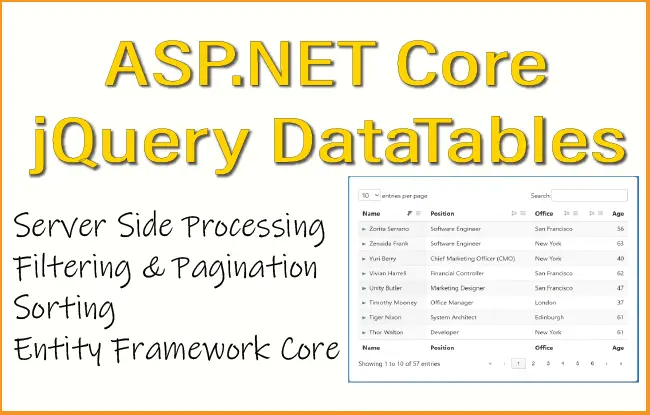
jQuery DataTables is a jquery plugin that turns a normal HTML table into an interactive table with features like search, sorting, pagination, and searching (filter records). It’s widely used in web development to display large datasets in a clean, user-friendly way. In this tutorial we will use jQuery DataTables in ASP.NET Core with Server Side Processing. We will fetch data from SQL Server database with Entity Framework Core and then display this data in jQuery Datatables. In DataTables we can also use features like search, sorting, pagination, and filtering.
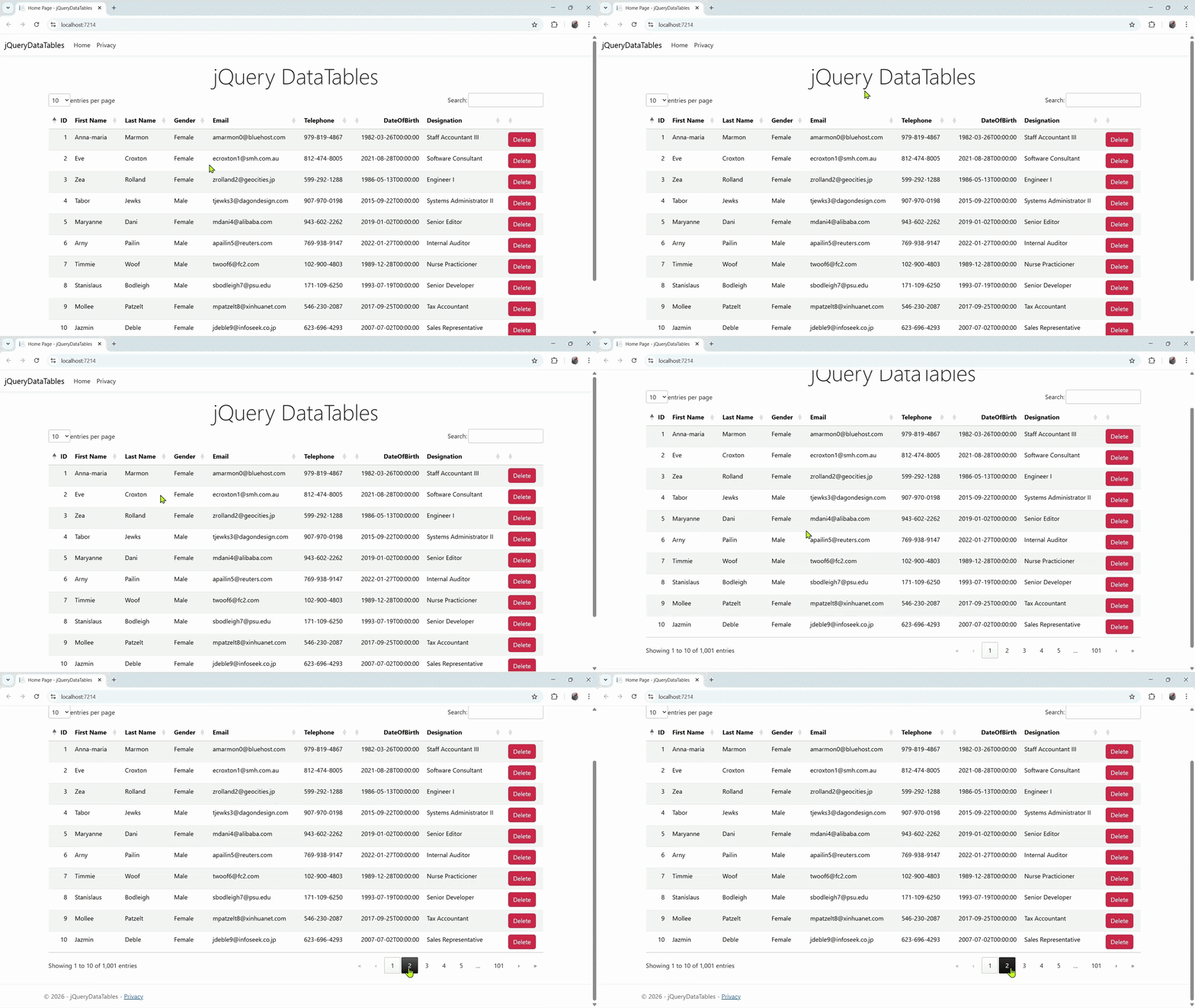
In this tutorial we will be building a simple real-world implementation to help understand jQuery DataTables to it’s fullest. The whole working is given by the below gif image. It will have paginations, to searching, to sorting and deleting.
Key Features of jQuery DataTables:
- Pagination – Automatically splits large tables into number based pages.
- Search / Filtering – Users can quickly search inside the table.
- Column Sorting – Click column headers to sort them in ascending/descending way.
- Responsive Tables – Works on mobile and desktop, responsiveness through Bootstrap.
- AJAX Data Loading – Load data dynamically from APIs or servers.
- Export Options – Export to CSV, Excel, PDF, etc.
- Custom Styling – Works with frameworks like Bootstrap.
Client-side Pagination vs Server-side Pagination
Pagination in a grid means splitting a large set of data into smaller pages so the user only sees a limited number of rows at a time instead of the entire dataset. Suppose a grid contains 1,000 records then instead of showing all 1,000 rows at once, pagination shows something like:
- Page 1: rows 1–10
- Page 2: rows 11–20
- Page 3: rows 21–30
- … and so on.
Advantage of Pagination are:
- Better performance – Loading fewer records at once makes the page faster.
- Better user experience – Easier to read smaller sets of data.
- Reduced server load – Especially when data comes from a database.
- Cleaner UI – Avoids very long scrolling tables.
Client-side Processing means all the records are loaded into the browser first, and the pagination (page switching) is handled using jQuery on the client (browser), instead of requesting new data from the server each time.
Server-side Processing means the server sends only a small portion of records (i.e. records for a particular page number) to the browser instead of sending the entire records at once. When the user moves to another page, the browser requests the records for that page from the server.
jQuery DataTables offers both Client and Server Side Processing. Client Side Processing works best when there are less than 1000 records to show on jQuery DataTables. If you have more than 1000 records then it is important to use Server Side Processing where only the records for the particular page are fetched from the server. With Server Side Processing you are drastically improving the load time (as the JQuery Datatable is loading just the records of the particular page and not each and every record), reducing the CPU and bandwidth usage.
ASP.NET Core Database driven app
In our ASP.NET Core app, we will read Employee records from the database using Entity Framework Core. Then these records are display in jQuery DataTables. First, add Employee.cs in the Models folder.
public class Employee
{
    public int Id { get; set; }
    public string FirstName { get; set; }
    public string LastName { get; set; }
    public string Gender { get; set; }
    public string Email { get; set; }
    public string Telephone { get; set; }
    public DateTime DateOfBirth { get; set; }
    public string Designation { get; set; }
}
We add the following packages to set up Entity Framework Core.
Install-Package Microsoft.EntityFrameworkCore
Install-Package Microsoft.EntityFrameworkCore.Tools
Install-Package Microsoft.EntityFrameworkCore.SqlServer
Install-Package Microsoft.EntityFrameworkCore.Design
Next, we add DbContext file called CompanyContext.cs inside the Models folder.
public class CompanyContext : DbContext
{
    public CompanyContext(DbContextOptions<CompanyContext> options) : base(options)
    {
    }

    public DbSet<Employee> Employee { get; set; }
}
After this add the connection string in the appsettings.json as given below.
"ConnectionStrings": {
  "DefaultConnection": "Data Source=(localdb)\\MSSQLLocalDB;Initial Catalog=Company;Integrated Security=True;Connect Timeout=30;Encrypt=False;TrustServerCertificate=true;ApplicationIntent=ReadWrite;MultiSubnetFailover=False"
}
With everything set, we perform the Migrations. Open up your package manager console and use the following commands.
add-migration Migration1
update-database
With the database ready, we add 1000 dummy records to the database. There are many free tools available to generate dummy data like – generatedata, mockaroo, etc. We generated 1000 records for Employee table in SQL Insert script and executed the script directly in the database.
Good news! We will be providing 1000 dummy records SQL Insert script for you to use. Check the GitHub repository.
Create HTML Table for Employee Records
In order to implement JQuery Datatable, lets define the structure of our HTML Table in a Razor View File. In the Views Folder, edit up the Index.cshtml to include the HTML table as shown below:
@{
    ViewData["Title"] = "Home Page";
}

<link href="//cdn.datatables.net/2.3.7/css/dataTables.dataTables.min.css" rel="stylesheet" />

<div class="text-center">
    <h1 class="display-4">Welcome</h1>
    <p>Learn about <a href="https://learn.microsoft.com/aspnet/core">building Web apps with ASP.NET Core</a>.</p>
</div>

<div class="container">
    <table id="employeeDataTable" class="table table-striped table-bordere">
        <thead>
            <tr>
                <th>ID</th>
                <th>First Name</th>
                <th>Last Name</th>
                <th>Gender</th>
                <th>Email</th>
                <th>Telephone</th>
                <th>DateOfBirth</th>
                <th>Designation</th>
            </tr>
        </thead>
    </table>
</div>

@section Scripts
{
    <script src="//cdn.datatables.net/2.3.7/js/dataTables.min.js"></script>

    <script>
        $(document).ready(function () {
            $('#employeeDataTable').dataTable({

            });
        });
    </script>
}
This will render jQuery DataTables as shown by the image below.
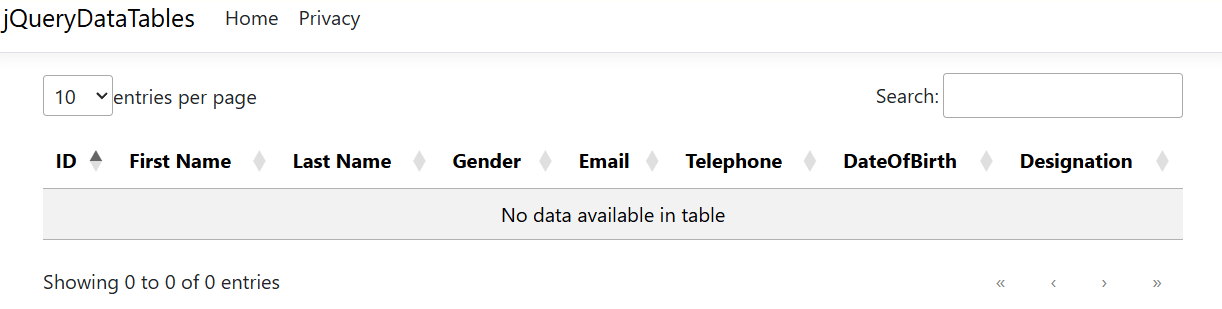
Although, we get the message “No data available in table” which is obvious since we have not applied the data to the DataTables till now. This we will do in just a moment.
Let’s understand the above code.
- We created an HTML table to display Employee records.
- On the top we provide the link to jQuery DataTables css.
- On the bottom inside the script tag we provided the like of jQuery DataTables JavaScript file.
- Both the CSS and JavaScript will be downloaded from CDN.
- We invoke the DataTable() method by using the ID of the employee table which is employeeDataTable. This is how to initialize the datatable.
The below line initialize the jQuery DataTables.
<script>
    $(document).ready(function () {
        $('#employeeDataTable').dataTable({

        });
    });
</script>
How to use jQuery DataTables
Lets understand how to use DataTables by configuring it. Update the jQuery DataTables as shown below.
<script>
    $(document).ready(function () {
        $('#employeeDataTable').dataTable({
            processing: true,
            serverSide: true,
            "filter": true,
            "ajax": {
                "url": "/api/Employee/GetEmployees",
                "type": "POST",
                "datatype": "json"
            },
            "columns": [
                { "data": "id" },
                { "data": "firstName" },
                { "data": "lastName" },
                { "data": "gender" },
                { "data": "email" },
                { "data": "telephone" },
                { "data": "dateOfBirth"},
                { "data": "designation" }
            ]
        });
    });
</script>
In the above code we applied parameters to configure our jQuery DataTables. These parameters are:
- processing – A boolean property that is used to control the visibility of the “processing” indicator message.
- serverSide – This property enables server-side processing.
- filter – enables/disables the search bar.
- ajax – used to fetch the data from external sources using JavaScript AJAX. We will create Web API though which this data will be fetched.
- columns – columns declared in the DataTables.
See the “columns” options given as data: columnname. Let understand it deeper. When naming variables, it’s important to follow camelCase conventions. For example, firstName is correct, while FirstName is not. It might seem a bit unusual, but that’s how JavaScript works—so be sure to stick to camelCase when writing your scripts.
Also, keep in mind that the API returns a list of records under the key ‘data’. That’s why we reference fields as data.id, data.firstName, and so on when defining column values.
The ajax url is given as “url”: “/api/Employee/GetEmployees”. It is the url of the Web API that will return the employee records. Let’s create the Web API.
Web API to return data for jQuery DataTables
Add a new API Controller to the Controllers folder and name it EmployeeController.cs. We also need to install the package required for data sorting. So run the below install command on NuGet.
Install-Package System.Linq.Dynamic.CoreAfter installing the package, you can proceed with adding the necessary code to the EmployeeController.cs.
using jQueryDataTables.Models;
using Microsoft.AspNetCore.Mvc;
using System.Linq.Dynamic.Core;
using System.Text.Json;

namespace jQueryDataTables.Controllers
{
    [ApiController]
    [Route("api/[controller]")]
    public class EmployeeController : ControllerBase
    {
        private CompanyContext context;
        public EmployeeController(CompanyContext cc)
        {
            context = cc;
        }

        [HttpPost("GetEmployees")]
        public IActionResult GetEmployees()
        {
            var draw = Request.Form["draw"].FirstOrDefault();
            var start = Request.Form["start"].FirstOrDefault();
            var length = Request.Form["length"].FirstOrDefault();

            var colIndex = Request.Form["order[0][column]"];
            string sortColumn = Request.Form["columns[" + colIndex + "][data]"].FirstOrDefault();

            var sortColumnDirection = Request.Form["order[0][dir]"].FirstOrDefault();
            var searchValue = Request.Form["search[value]"].FirstOrDefault();
            int pageSize = length != null ? Convert.ToInt32(length) : 0;
            int skip = start != null ? Convert.ToInt32(start) : 0;
            int recordsTotal = 0;
            var employeeData = (from t in context.Employee select t);

            if (!(string.IsNullOrEmpty(sortColumn) && string.IsNullOrEmpty(sortColumnDirection)))
            {
                employeeData = employeeData.OrderBy($"{sortColumn} {sortColumnDirection}");
            }
            if (!string.IsNullOrEmpty(searchValue))
            {
                employeeData = employeeData.Where(m => m.FirstName.Contains(searchValue)
                                            || m.LastName.Contains(searchValue)
                                            || m.Email.Contains(searchValue));
            }
            recordsTotal = employeeData.Count();
            var data = employeeData.Skip(skip).Take(pageSize).ToList();
            var jsonData = new { draw = draw, recordsFiltered = recordsTotal, recordsTotal = recordsTotal, data = data };

            string jsonString = JsonSerializer.Serialize(jsonData);

            return Ok(jsonData);
        }
    }
}
The work of the APIController is to fetch the employee records from the database in page by page manner. It uses Entity Framework Core to do this task.
First, we get the values of draw, start & length and order[0][column] from Request.Form. These are used for create pagination in DataTables. We can see page size in the Dropdown of DataTables that says, ‘Showing n entries’ where n being the page size.
var draw = Request.Form["draw"].FirstOrDefault();
var start = Request.Form["start"].FirstOrDefault();
var length = Request.Form["length"].FirstOrDefault();
The 3 variables colIndex, sortColumn, sortColumnDirection get the values of necessary columns for performing sorting in DataTables. These are using Request.Form method to get these values from the html of the page.
var colIndex = Request.Form["order[0][column]"];
string sortColumn = Request.Form["columns[" + colIndex + "][data]"].FirstOrDefault();
var sortColumnDirection = Request.Form["order[0][dir]"].FirstOrDefault();
The searchValue variable contains the value to search in the DataTables.
var searchValue = Request.Form[“search[value]”].FirstOrDefault();Next, we added the code for fetching and showing the records of the current page.
int pageSize = length != null ? Convert.ToInt32(length) : 0;
int skip = start != null ? Convert.ToInt32(start) : 0;
int recordsTotal = 0;
With LINQ Skip and Take method we get these records and convert them to json. This json is send to jQuery DataTables where the records are displayed.
recordsTotal = employeeData.Count();
var data = employeeData.Skip(skip).Take(pageSize).ToList();
var jsonData = new { draw = draw, recordsFiltered = recordsTotal, recordsTotal = recordsTotal, data = data };

string jsonString = JsonSerializer.Serialize(jsonData);
Also check the codes that performs the sorting and searching (filtering) of records. Note that searching is performed on FirstName, LastName and Email fields.
if (!(string.IsNullOrEmpty(sortColumn) && string.IsNullOrEmpty(sortColumnDirection)))
{
    employeeData = employeeData.OrderBy($"{sortColumn} {sortColumnDirection}");
}

if (!string.IsNullOrEmpty(searchValue))
{
    employeeData = employeeData.Where(m => m.FirstName.Contains(searchValue)
                                || m.LastName.Contains(searchValue)
                                || m.Email.Contains(searchValue));
}
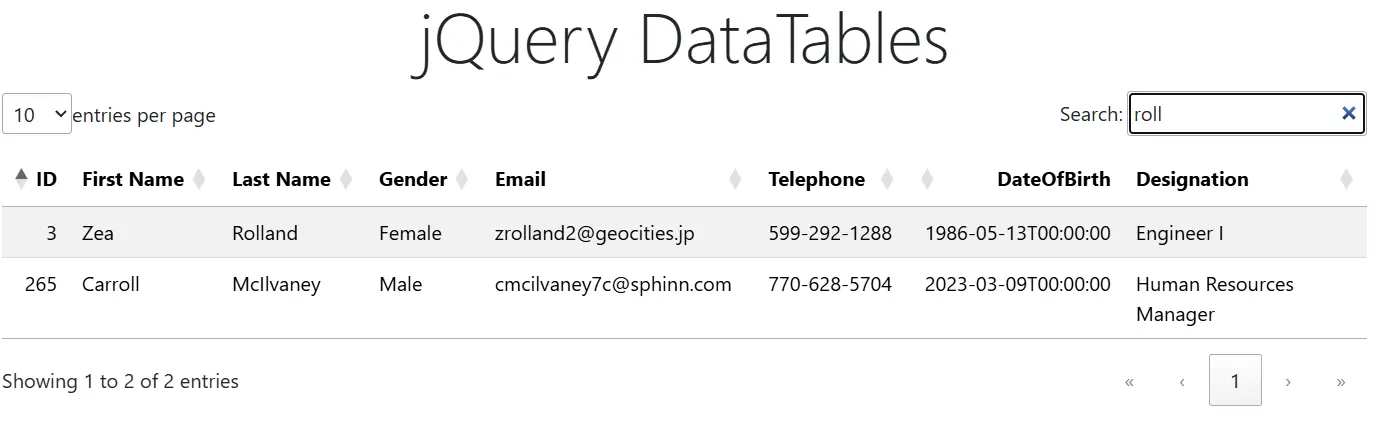
Well it’s time to see the working. Run the app and you can see the records displayed by the jQuery DataTables. You can see the page size dropdown on the top left, search box on the top right. At the bottom there are the page numbers for navigating between the records. Also see that clicking the column names will sort the records in ascending and descending manner.
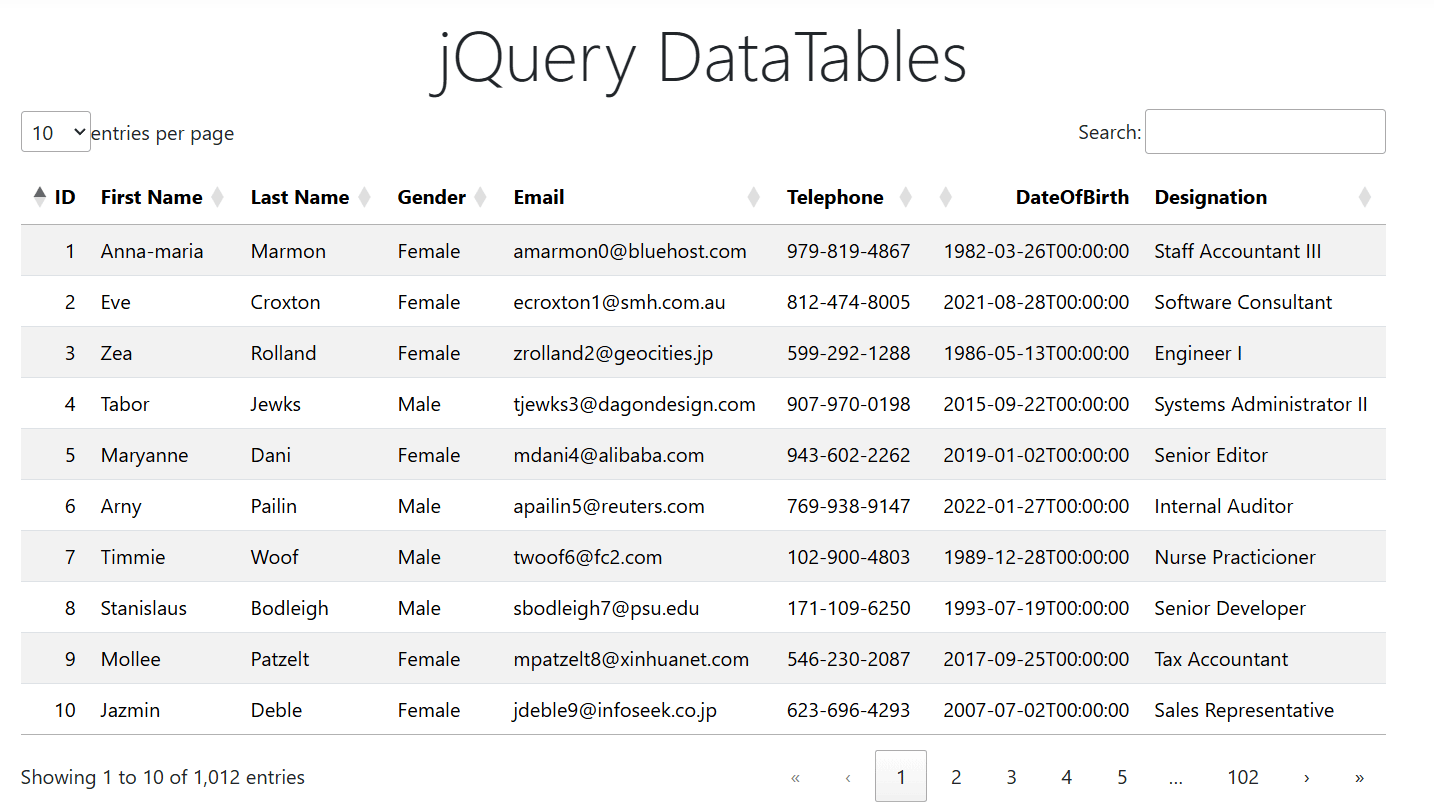
In the below image we are showing the search/filtering feature in jQuery DataTables.
Delete a row from jQuery DataTables
Lets understand how to add delete record feature on jQuery DataTables. Once this feature is complete we get a delete button against every row of records, click on a delete button will delete the corresponding row of data. See the below image.
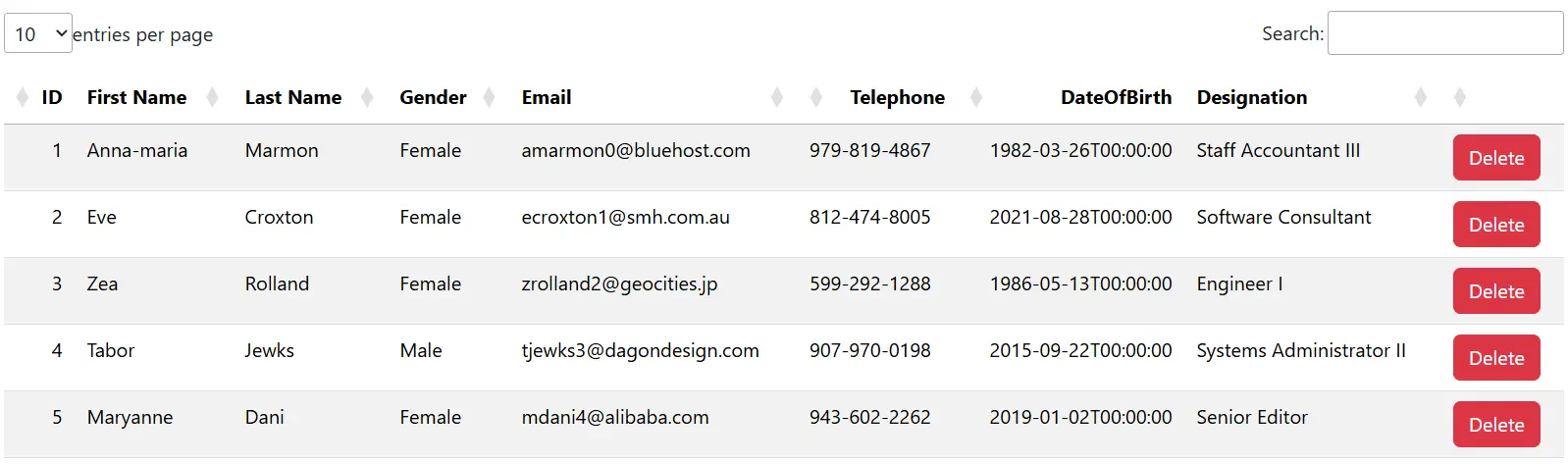
For this we need to add a new column for the “Delete” button that will show against each row of records. We will use columns.render option in the table initialization. This option accepts a function or a built-in renderer to transform the cell’s underlying data.
See the below code where we gave a delete button against the rows using render option.
"columns": [
    { "data": "id" },
    { "data": "firstName" },
    { "data": "lastName" },
    { "data": "gender" },
    { "data": "email" },
    { "data": "telephone" },
    { "data": "dateOfBirth"},
    { "data": "designation" },
    {
      "render": function (data, type, full, meta) {
        // 'full' contains the data for the entire row
        return '<button class="btn btn-danger" data-id="' + full.id + '">Delete</button>'; }
    }
]
<p>Next, we add click event to this button using the below JS. The JS calls a method named "deleteRecord".</p>$('#employeeDataTable tbody').on('click', '.btn-danger', function () {
// Get the record ID from the button's data attribute
var recordId = $(this).data('id');
// Get the specific table row (tr) that was clicked
var row = $(this).closest('tr');
// Confirm the deletion with the user (optional)
if (confirm('Are you sure you want to delete this record?')) {
deleteRecord(recordId, row);
}
});
});We next add the function called “deleteRecord”. This function make use of the jQuery AJAX method to call another method of our Web API which will actually be deleting the records from the database. Check the below code.
function deleteRecord(id, row) {
    $.ajax({
        url: "/api/Employee/" + id,
        type: "DELETE",
        dataType: "json",
        success: function (response) {
            if (response) {
                var dt = new DataTable('#employeeDataTable');
                // Remove the row from the DataTables instance
                // row().remove() deletes the data and node from the browser memory
                // draw(false) updates the display without resetting the pagination
                dt.row(row).remove().draw(false);
                alert('Record deleted successfully!');
            }
            else {
                alert('Error deleting record on the server.');
            }
        },
            error: function (xhr, status, error) {
            alert('An error occurred during the AJAX request: ' + error);
        }
    });
}
In the above code we are providing the row id in the url as url: “/api/Employee/” + id. Also note the DataTables method – row().remove() is used to deletes the data and node from the browser memory and draw(false) updates the display without resetting the pagination.
Finally we add the delete method to our Web Api which does the record deletion and returns a bool value of true (in json) once the deletion is successful.
[HttpDelete("{id}")]
public IActionResult Delete(int id)
{
    bool status = false;
    var entityToDelete = context.Employee.Where(e => e.Id == id).FirstOrDefault();
    if (entityToDelete != null)
    {
        context.Employee.Remove(entityToDelete);
        context.SaveChanges();
        status = true;
    }
    return new JsonResult(status);
}
Let’s test the deletion of record. We click the delete button against any row which we want to delete. We will get a successful alert message once the deletion is completed.
In this article, we explored everything you need to know about working with jQuery DataTables in ASP.NET Core using server-side processing. We covered the syntax, required files, and overall integration, and built a clean data table featuring paging, sorting, searching, and efficient server-side handling. You can find the complete source code for this implementation in GitHub repository (link given at the top).
I hope this article helped you gain a solid understanding of jQuery DataTables in ASP.NET Core. If you have any feedback or suggestions, feel free to share them in the comments section below. Don’t forget to share this article with your developer community. Thanks, and happy coding!
SHARE THIS ARTICLE


Related Tutorials:




ABOUT THE AUTHOR
I hope you enjoyed reading this tutorial. If it helped you then consider buying a cup of coffee for me. This will help me in writing more such good tutorials for the readers. Thank you.

HELLO EVERYONE
 Welcome to YogiHosting - A Programming Tutorial Website. It is used by millions of people around the world to learn and explore about ASP.NET Core, Blazor, jQuery, JavaScript, Docker, Kubernetes and other topics.
SUBSCRIBE TO NEWSLETTER
Enter your email address to subscribe to this blog and receive notifications of new posts by email.
Join 90K other subscribers