


The Entity Framework Extensions: Performance-Focused (Need for Speed) when working with large Datasets
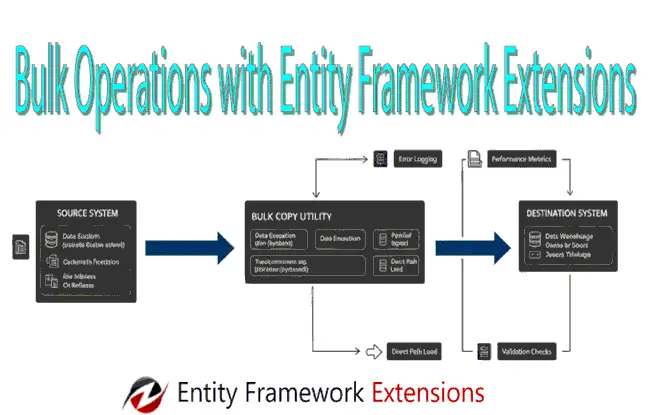
Working with large datasets over the standard Entity Framework Core SaveChanges() method can quickly become a performance bottleneck. The reason is due to the SaveChanges() method’s “one-by-one” processing nature and heavy change-tracking overhead. Entity Framework Extensions library eliminates these constraints through some of the popular features on bulk operations. These are inserts, updates, deletes, and merges (upserts) on thousands or millions of records in a fraction of the time.
Whether you are handling batch data imports, real-time telemetry, or large-scale synchronization, Entity Framework Extensions library bridges the gap between the productivity of an ORM and the raw speed of specialized data loading tools. Thus offers a “need for speed” approach, that can reduce execution times by up to 95%, all while maintaining seamless integration with your existing DbContext and entity configurations.
In this tutorial we will be implementing Entity Framework Extensions library features in our ASP.NET Core app to create popular features on bulk operations.
Integration of Entity Framework Extensions
In the ASP.NET Core app, open NuGet package manager and install the package Z.EntityFramework.Extensions.EFCore. Since Entity Framework Extensions works with EF Core therefore the app should also have Microsoft.EntityFrameworkCore.SqlServer package installed.
Below I have shown the screenshot of this library from NuGet Package Manager.

Bulk Inserting a large CSV file on SQL Server Database with Entity Framework Extensions
Lets build the bulk Inserting of records to a SQL Server Database with Entity Framework Extensions library. I will use a CSV file, containing 50,000 + records of the World Bank economic survey, for this bulk inserting work. You can find this CSV file on the GitHub repository along with the app.
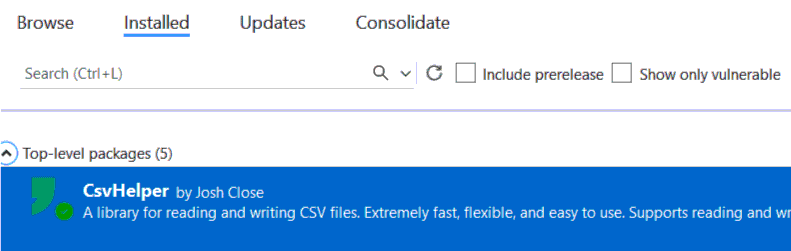
Note that for working with CSV files, I will be using CsvHelper library, that can be installed from NuGet.
On the ASP.NET Core app, add the entity class called Survey.cs. This class maps the survey records on the CSV file.
public class Survey
{
    public string Year { get; set; }
    public string Industry_aggregation_NZSIOC { get; set; }
    public string Industry_code_NZSIOC { get; set; }
    public string Industry_name_NZSIOC { get; set; }
    public string Units { get; set; }
    public string Variable_code { get; set; }
    public string Value { get; set; }
    public string Variable_name { get; set; }
    public string Variable_category { get; set; }
    public string Industry_code_ANZSIC06 { get; set; }
}
Next, I add the razor view file called ImportCsv.cshtml file which contains a file upload control for uploading the csv file.
@{
    ViewData["Title"] = "Upload CSV";
}

<h1 class="bg-info text-white">Upload CSV</h1>

<h2>@ViewData["Message"]</h2>

<form method="post" enctype="multipart/form-data">
    <div class="form-group">
        <label for="Poster"></label>
        <input type="file" id="csvfile" name="csvfile" class="form-control" />
    </div>
    <button type="submit" class="btn btn-primary">Create</button>
</form>
The Controller code which performs the bulk data inserts in the database is given below.
public class AdminController : Controller
{
    private BulkContext context;
    private IWebHostEnvironment hostingEnvironment;
    public AdminController(BulkContext c, IWebHostEnvironment environment)
    {
        context = c;
        hostingEnvironment = environment;
    }

    public IActionResult ImportCsv()
    {
        return View();
    }

    [HttpPost]
    [ActionName("ImportCsv")]
    public async Task<IActionResult> ImportCsv_Post(IFormFile csvfile)
    {
        // By CsvReader Package
        string path = Path.Combine(hostingEnvironment.WebRootPath, "CSV/" + csvfile.FileName);
        using (var stream = new FileStream(path, FileMode.Create))
        {
            await csvfile.CopyToAsync(stream);
        }

        var config = new CsvConfiguration(CultureInfo.InvariantCulture)
        {
            PrepareHeaderForMatch = args => args.Header.ToLower(),
            Delimiter = ",",
            MissingFieldFound = null,
            BadDataFound=null
        };
        using (var reader = new StreamReader(path))
        {
            using (var csv = new CsvReader(reader, config))
            {
                var records = csv.GetRecords<Survey>();
                context.BulkInsert(records, options => options.InsertKeepIdentity = true);

            }
        }
        ViewData["Message"] = "Import Successful";
        return View();
    }

}
Explanation – Here CsvReader library is used to read the csv file which the user uploads. After preforming some initial configurations, the csv records are read in a Survey class object by the below code:
var records = csv.GetRecords<Survey>();Next, all the records are bulk insert with Entity Framework Extensions. Just a single line of code to do this job.
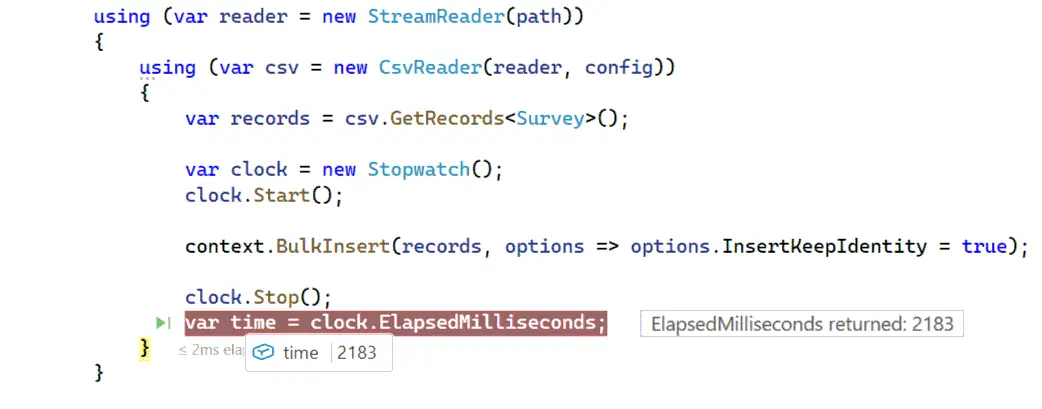
context.BulkInsert(records, options => options.InsertKeepIdentity = true);I have used Stopwatch class to measure the time it takes to complete this operation. Note that there are massive 50,000 + records to be inserted. Entity Framework Extensions completed this in 2183 milliseconds. This is indeed quite impressive. Check the below screenshot.
Need More Speed ? Use BulkInsertOptimized method. It is 25% more fast. See below code line.
context.BulkInsertOptimized(records, options => options.InsertKeepIdentity = true);The Key difference between them are:
- BulkInsert: AutoMapOutputDirection = true by default. It returns values like identity keys but can generate slightly less optimized SQL.
- BulkInsertOptimized: AutoMapOutputDirection = false by default. It skips return values for maximum speed, unless you explicitly ask for them.
By the way this whole code is there on my GitHub repository which you can copy and use it freely.
Reading CSV files by old OleDbConnection manner
We can also read CSV files by old OleDbConnection class without using CsvHelper. The below code does this work.
Note that you have to install the package System.Data.OleDb from NuGet.
[HttpPost]
public async Task<IActionResult> ImportCsv_Old(IFormFile csvfile)
{
    // By old OleDbConnection way

    string path = Path.Combine(hostingEnvironment.WebRootPath, "CSV/" + csvfile.FileName);
    using (var stream = new FileStream(path, FileMode.Create))
    {
        await csvfile.CopyToAsync(stream);
    }

    string folderPath = Path.Combine(hostingEnvironment.WebRootPath, "CSV"); // The Data Source is the folder, not the file
    string connectionString = $@"Provider=Microsoft.ACE.OLEDB.12.0;Data Source={folderPath};Extended Properties=""text;HDR=YES;FMT=Delimited;IMEX=1;MaxScanRows=0""";

    using (var conn = new OleDbConnection(connectionString))
    {
        conn.Open();
        var query = $"SELECT * FROM [{csvfile.FileName}]"; // The file name is used in the query
        using (var adapter = new OleDbDataAdapter(query, conn))
        {
            var dataTable = new DataTable();
            adapter.Fill(dataTable);

            List<Survey> records = dataTable.AsEnumerable().Select(row => new Survey
            {
                Year = row.Field<string>("year"),// Use .Field<T>() for type safety and null handling
                Industry_aggregation_NZSIOC = row.Field<string>("vote_average"),
                Industry_code_NZSIOC = row.Field<string>("industry_code_NZSIOC"),
                // other fiels add heere
            }).ToList();

            context.BulkInsert(records, options => options.InsertKeepIdentity = true);
        }
    }

    return View();
}
Copying large DB data from one Table to another Table with Entity Framework Extensions
Entity Framework Extensions high speed is useful in making backups of the database tables. This can come handy in situations like copying a large DB table to another table.
Here I have a massive database containing 200k + movies records in my dabase table called BulkMovies. I will copy all its records to a new table called BulkMoviesCopy.
To do this I will have to add 2 classes for the movie object as shown below. Since we are making a copy therefore these classes fields are all same.
public class BulkMovies
{
    public int? Id { get; set; }
    public string Title { get; set; }
    public double? Vote_Average { get; set; }
    public int? Vote_Count { get; set; }
    public string Status { get; set; }
    public DateTime? Release_Date { get; set; }
    public long? Revenue { get; set; }
    public int? Runtime { get; set; }
    public string Adult { get; set; }
    public int? Budget { get; set; }
    public string Homepage { get; set; }
    public string Overview { get; set; }
    public string Tagline { get; set; }
    public string Genres { get; set; }
    public string Production_Companies { get; set; }
    public string Production_Countries { get; set; }
    public string Spoken_Languages { get; set; }
    public string Keywords { get; set; }
}

public class BulkMoviesCopy
{
    public int? Id { get; set; }
    public string Title { get; set; }
    public double? Vote_Average { get; set; }
    public int? Vote_Count { get; set; }
    public string Status { get; set; }
    public DateTime? Release_Date { get; set; }
    public long? Revenue { get; set; }
    public int? Runtime { get; set; }
    public string Adult { get; set; }
    public int? Budget { get; set; }
    public string Homepage { get; set; }
    public string Overview { get; set; }
    public string Tagline { get; set; }
    public string Genres { get; set; }
    public string Production_Companies { get; set; }
    public string Production_Countries { get; set; }
    public string Spoken_Languages { get; set; }
    public string Keywords { get; set; }
}
Next, on a post action method, which is shown below, I have used BulkInsert method to perform the copying task.
[HttpPost]
[ActionName("BulkCopy")]
public IActionResult BulkCopy_Post()
{
    List<BulkMovies> bm = context.BulkMovies.AsQueryable().ToList();

    List<BulkMoviesCopy> bmc = bm.Select(t => new BulkMoviesCopy
    {
        Id = t.Id,
        Title = t.Title,
        Vote_Average = t.Vote_Average,
        Vote_Count = t.Vote_Count,
        Status = t.Status,
        Release_Date = t.Release_Date,
        Revenue = t.Revenue,
        Runtime = t.Runtime,
        Adult = t.Adult,
        Budget = t.Budget,
        Homepage = t.Homepage,
        Overview = t.Overview,
        Tagline = t.Tagline,
        Genres = t.Genres,
        Production_Companies = t.Production_Companies,
        Spoken_Languages = t.Spoken_Languages,
        Keywords = t.Keywords
    }).ToList();

    var clock = new Stopwatch();
    clock.Start();

    context.BulkInsert(bmc, options => options.InsertKeepIdentity = true);

    clock.Stop();
    var time = clock.ElapsedMilliseconds;

    return View();
}
It should be noted the BulkMoviesCopy object is mapped to the movies data contained by BulkMovies object called “bm” using the LINQ Select method as shown below.
List<BulkMovies> bm = context.BulkMovies.AsQueryable().ToList();
List<BulkMoviesCopy> bmc = bm.Select(t => new BulkMoviesCopy
{
    Id = t.Id,
    Title = t.Title,
    // include the fields that need to be copied
}).ToList();
Then with the BulkInsert method the full data is copied to the BulkMoviesCopy table by the below code line.
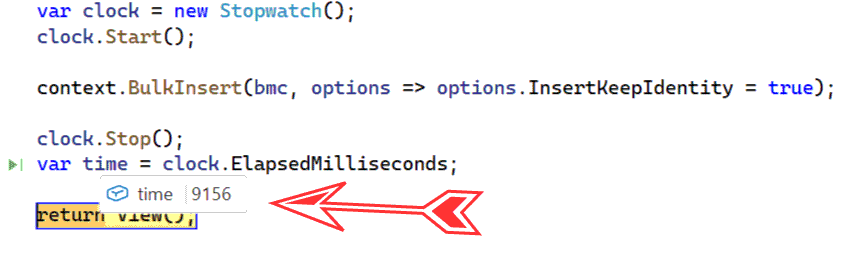
context.BulkInsert(bmc, options => options.InsertKeepIdentity = true);Below is the result. It took just 9156 milliseconds to perform this job. Considering the records are massive and this little time to complete the job is indeed impressive.
Bulk Updates and Deletion
In Entity Framework Core we have Add and Update method to perform records Inserts and Updates. In Entity Framework Extensions there is a BulkMerge method which does both the work of records addition and records modification.
It matches the primary key or the composite key of the entity and then automatically decides which record needs to be inserted and which needs to be updated. This decision is made based on:
- If the DB table already has the row matching the record key (primary or composite) then this row is updated.
- If the DB table does not have any row matching the record’s key then this row is inserted to the table.
This certainly reduces the number of code lines if we have to perform multiple tasks like Inserts and Updates on the same method.
Now we are going to implement BulkMerge method in order to perform bulk update of the records.
Add Employee.cs class to the app which is given below:
public class Employee
{
    public int Id { get; set; }
    public string Name { get; set; }
    public string Designation { get; set; }
    public string Address { get; set; }
    public int Salary { get; set; }
}
Next, add an action method of HTTP POST type since we will be calling the codes on the button click. This action method is given below.
[HttpPost]
public async Task<IActionResult> BulkMerge_Post()
{
    List<Employee> emp = context.Employee.AsQueryable().ToList();

    List<Employee> updateEmployee = emp.Select(t => new Employee
    {
        Id = t.Id,
        Name = t.Name,
        Designation = t.Designation,
        Address = t.Address,
        Salary = t.Salary + 1000,
    }).ToList();

    context.BulkMerge(updateEmployee);

    return View();
}
The code above is increasing the salary of every employee by $1000. It is adding the 1000 to the current salary by – Salary = t.Salary + 1000 and then calling the BulkMerge method to perform this update.
In the same way we can perform the bulk inserts by modified code which is given below. This code inserts the Employees since their Id field is not provided.
List<Employee> insertEmployee = new List<Employee> {
    new Employee{Name="N1", Designation="D1", Address="A1", Salary=1000},
    new Employee{Name="N2", Designation="D2", Address="A2", Salary=2000},
    new Employee{Name="N3", Designation="D3", Address="A3", Salary=3000}
};

context.BulkMerge(insertEmployee);
Mostly in real work scenario you will come acrosss a situation where an excel / CSV file containing the updated data is provided to you. And you as a developer will have to update the database table with this new data on the file. In this situation make sure the key value (which here is Id) given on the excel / csv should match for the records which have to be updated while the key should be empty for the records that needs to be inserted.
See the below code which does exactly this thing.
[HttpPost]
public async Task<IActionResult> BulkMerge_Post()
{
    // read the excel/csv file code omitted for brevity

    List<BulkMoviesCopy> bmc = dataTable.AsEnumerable().Select(row => new    BulkMoviesCopy
{
    Id = row.Field<int>("id"), // Use .Field<T>() for type safety and null handling
    Name = row.Field<string>("name"),
    Designation = row.Field<string>("Designation"),
    Address = row.Field<string>("Address"),
    Salary = row.Field<int>("Salary"),
}).ToList();

    context.BulkMerge(updateEmployee);

    return View();
}
The excel file can contain tens of thousands of records and Entity Frameowork Extensions will complete this in a matter of seconds.
The bulk delete feature is provided through BulkDelete method which deletes large number of records in a fraction of seconds. Here also you can read the records that needs to be deleted from an excel or csv file and call this method as shown below.
context.BulkDelete(deleteEmployee);The benefits of BulkDelete method:
- Many ways to delete: custom keys, delete related entities and apply any conditions.
- Super fast.
- No need to load entities. No change tracking.
To wrap things up, Entity Framework Extensions serve as the “turbocharger” for the standard EF Core engine. While Microsoft has made great strides in optimizing EF Core, developers often hit a performance wall when dealing with large datasets or complex batch operations.
Here is a summary of why they remain a staple in the .NET ecosystem:
The Performance Edge:
The core value proposition is speed. By bypassing the traditional “one-at-a-row” processing model and utilizing efficient database-level commands, extensions can turn operations that take minutes into tasks that take seconds.
Key Takeaways:
Scalability: They are essential for enterprise-level applications where data growth is inevitable.
Developer Productivity: You get to keep the clean, LINQ-based syntax you love while gaining the performance of raw SQL.
Resource Efficiency: By reducing the number of round-trips to the database, you lower CPU and memory overhead on both the application server and the database.
Final Verdict:
Entity Framework Extensions are not a replacement for EF Core, but rather a necessary evolution for performance-critical applications. If your project involves data migrations, nightly syncs, or massive user-generated content, the investment in this library usually pays for itself in saved execution time and reduced infrastructure costs.
SHARE THIS ARTICLE


Related Tutorials:




ABOUT THE AUTHOR
I hope you enjoyed reading this tutorial. If it helped you then consider buying a cup of coffee for me. This will help me in writing more such good tutorials for the readers. Thank you.

HELLO EVERYONE
 Welcome to YogiHosting - A Programming Tutorial Website. It is used by millions of people around the world to learn and explore about ASP.NET Core, Blazor, jQuery, JavaScript, Docker, Kubernetes and other topics.
SUBSCRIBE TO NEWSLETTER
Enter your email address to subscribe to this blog and receive notifications of new posts by email.
Join 90K other subscribers