


Configuring Nginx as Reverse Proxy and Load Balancer for Dockerized ASP.NET Core apps
Nginx is a high-performance, open-source web server that can also be used as a reverse proxy, load balancer, HTTP cache, and mail proxy. It is highly efficient with many simultaneous connections due to its event-driven architecture. Nginx is a core component in modern web infrastructure due to it’s reliability, speed, and scalability. Nginx is available for all operating systems – Windows, Linux, macOS included.
Page Contents
Installing Nginx in Windows
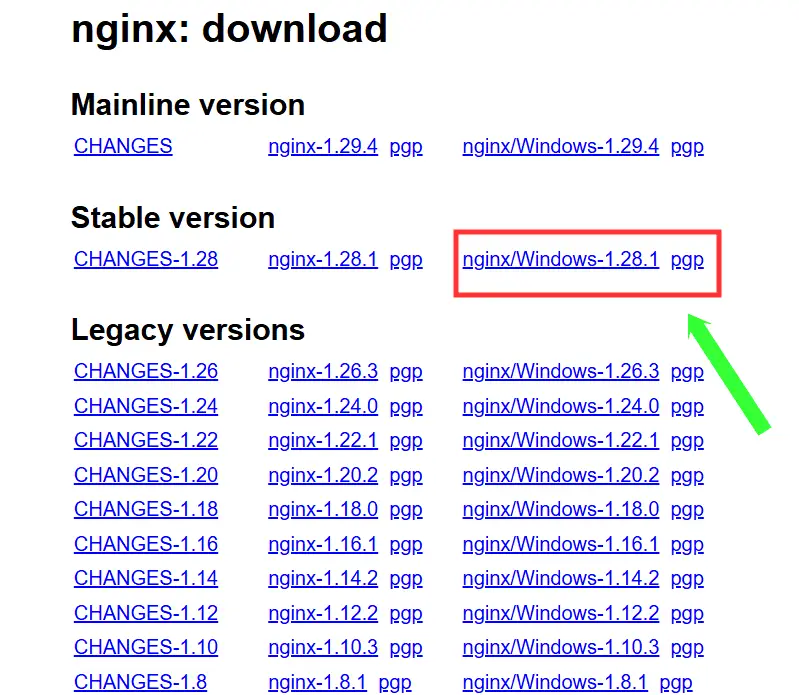
I will be installing Nginx on my Windows 11 OS. Go to Nginx download page, to download a stable version for Windows. The zip file will get downloaded to your pc.
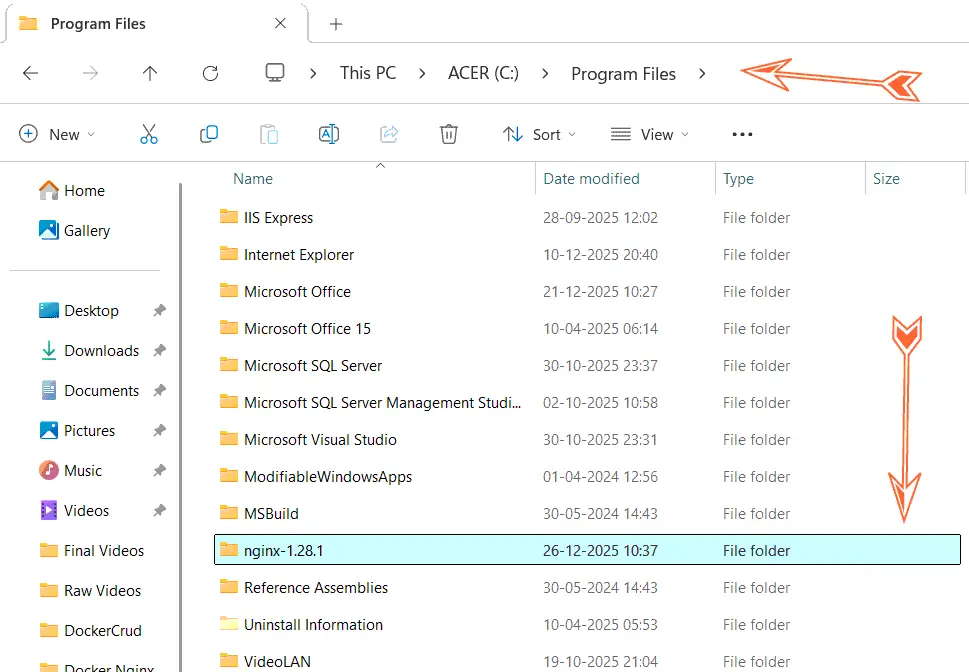
Extract the zip file to your C:/Program Files location.

This tutorial is a part of ASP.NET Core apps on Docker series.
- 1. Create first ASP.NET Core App in a Docker Container
- 2. Deploy a Docker based ASP.NET Core app to Azure
- 3. ASP.NET Core APP with HTTPS in Docker
- 4. Multi-Container ASP.NET Core App with Docker Compose
- 5. CRUD Operations in ASP.NET Core and SQL Server with Docker
- 6. Docker Volumes on ASP.NET Core App
- 7. Configuring Nginx as Reverse Proxy and Load Balancer for Dockerized ASP.NET Core apps
- 8. Deploy ASP.NET Core Dockerized app to Azure with GitHub Actions CI / CD
Next, go to the directory of Nginx with Command Prompt, the code is:
cd C:\Program Files\nginx-1.28.1Then start the Nginx with:
start nginx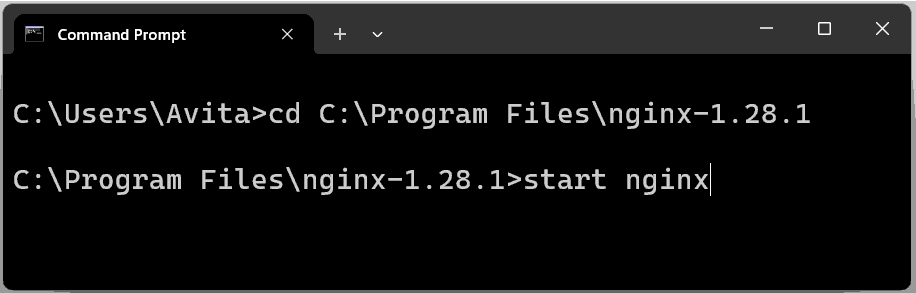
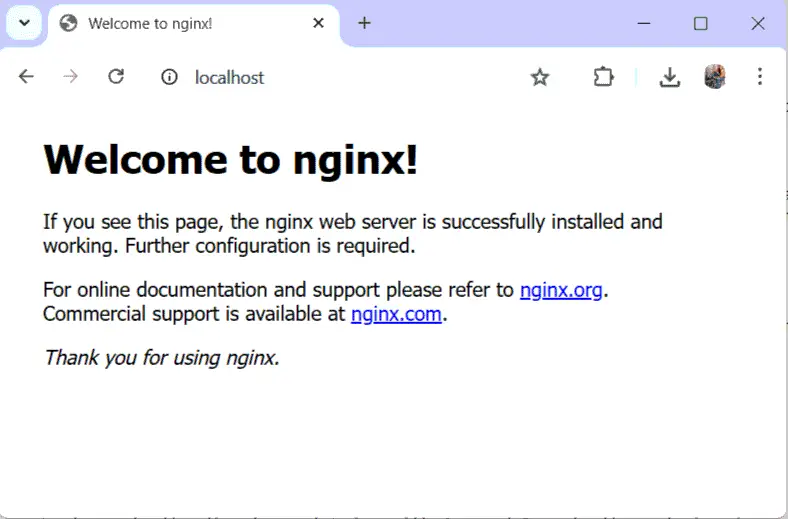
Now, open http://localhost on your browser to see Nginx default page.
Solution to Nginx starting problem in Windows
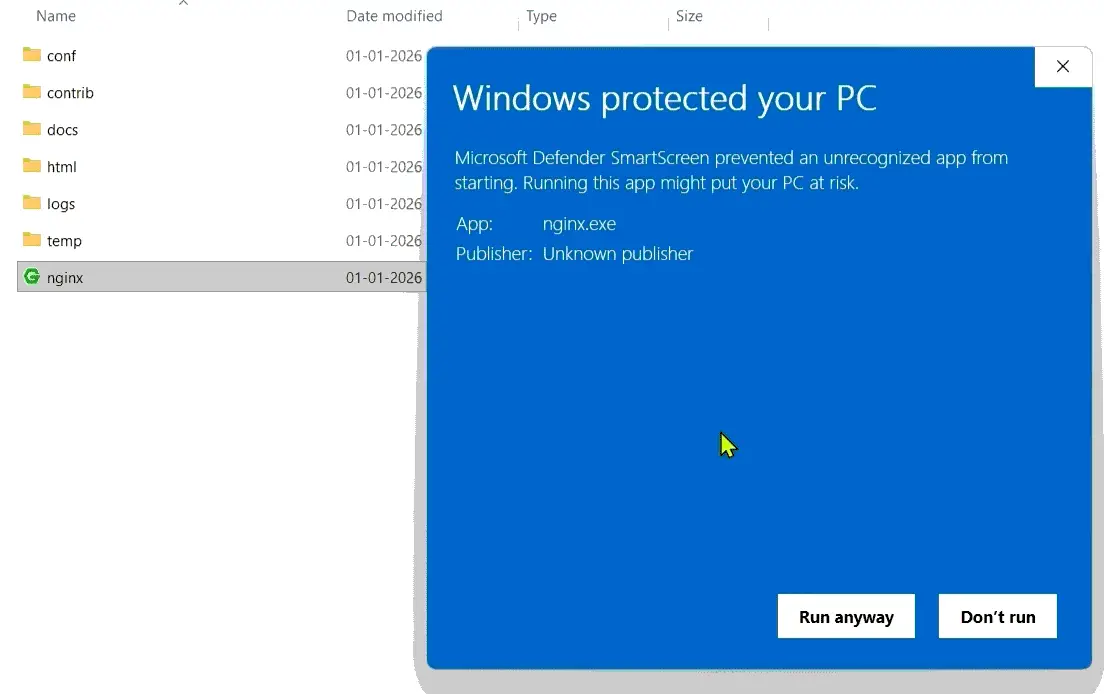
Firewalls and Antivirus sometimes block Nginx from starting, so you need to unblock it and put an exception for Nginx on firewall rules. To do this click the “nginx.exe” file on the directory and select “Run Anyway”.
You should also free port 80 on your machine. Open Command Prompt on Administrator privileges and run the following command:
net stop http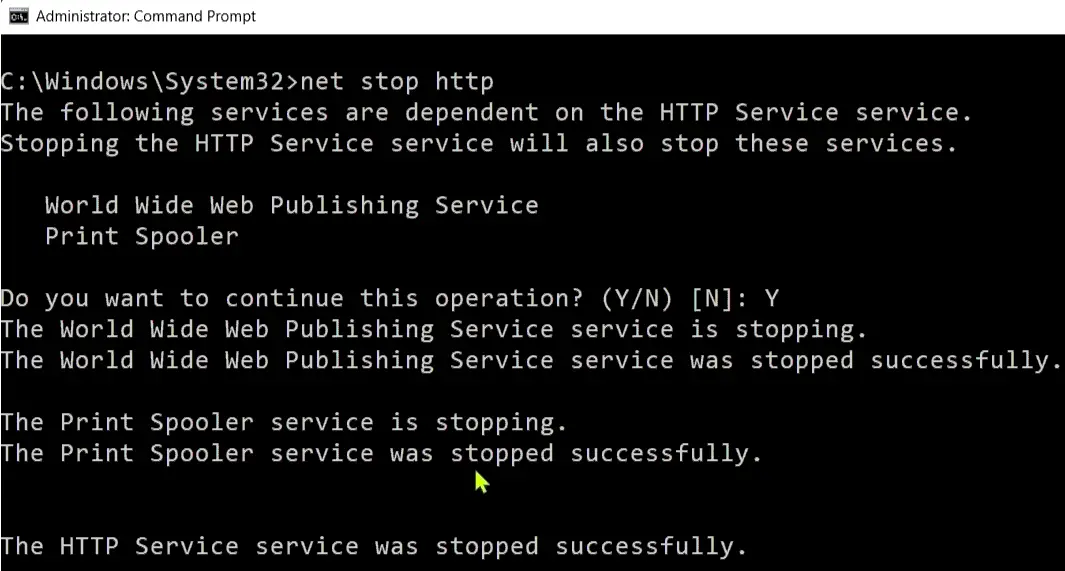
You can also try to use a different port for Nginx. Open “nginx.conf” file inside the “conf” folder and update the server portion where port 80 is given to another port like 9999 – listen 9999. See below:
server {
    listen       9999;
    server_name  localhost;
    ....
 }
Again run the start nginx command then open “http://localhost:9999” and this time you will be able to see Nginx default page.
Some Nginx command you should know are:
start nginx // starts nginx
nginx -s stop	// stops nginx
nginx -s quit	// exit nginx
nginx -s reload  // reload nginx
nginx -V         // check nginx version
nginx -t         // check configuration

taskkill /f /IM nginx.exe  // checks nginx tasks in windows

tasklist /fi "imagename eq nginx.exe"  // kills nginx processes in windows
Nginx as Reverse Proxy in Dockerized ASP.NET Core app
ASP.NET Core apps are hosted by Kestrel which is Microsoft’s open-source, cross-platform, high-performance web server for ASP.NET Core. Kestrel handles HTTP requests and passes them to the apps middleware pipeline. Here Nginx sits in-front of Kestrel Web Server and intercepting client requests and forwards them the Kestrel web server which is hosting the app. In the same way the response from Kestrel first goes to Nginx and then Nginx sends it to the client. This is known as Reverse Proxy setup of Nginx.
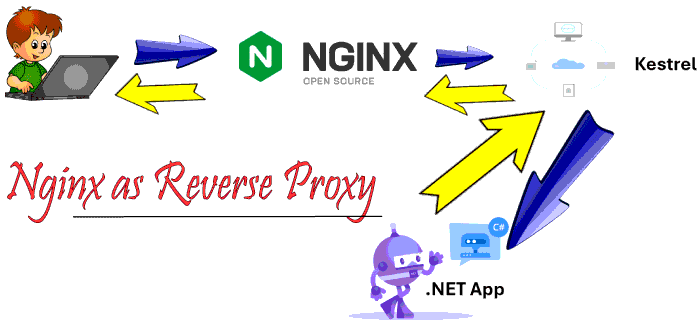
Let us implement Nginx reverse proxy on a Dockerized ASP.NET Core app. So create a new ASP.NET Core MVC app then to it add Container Compose Support.
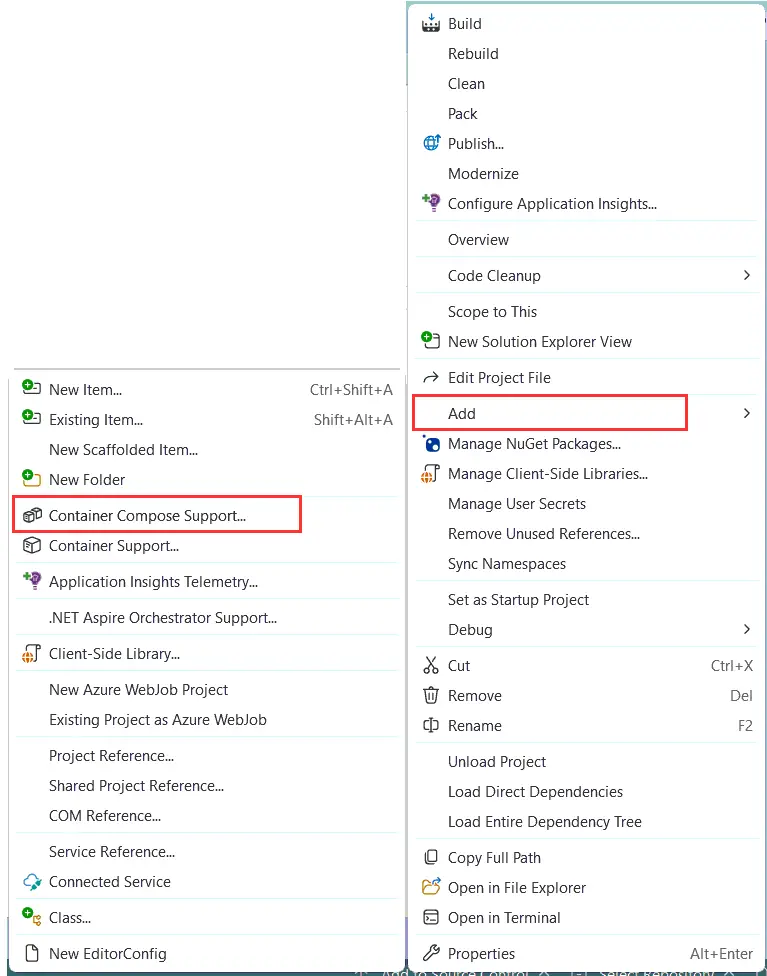
It’s docker-compose.yml file initial code is.
services:
  nginxaspnetcore:
    image: ${DOCKER_REGISTRY-}nginxaspnetcore
    build:
      context: .
      dockerfile: NginxASPNETCore/Dockerfile
And docker-compose.override.yml file initial code is.
services:
  nginxaspnetcore:
    environment:
      - ASPNETCORE_ENVIRONMENT=Development
      - ASPNETCORE_HTTP_PORTS=8080
      - ASPNETCORE_HTTPS_PORTS=8081
    ports:
      - "8080"
      - "8081"
    volumes:
      - ${APPDATA}/Microsoft/UserSecrets:/home/app/.microsoft/usersecrets:ro
      - ${APPDATA}/Microsoft/UserSecrets:/root/.microsoft/usersecrets:ro
      - ${APPDATA}/ASP.NET/Https:/home/app/.aspnet/https:ro
      - ${APPDATA}/ASP.NET/Https:/root/.aspnet/https:ro
We now add the ports and environment variables to the docker-compose.yml file as shown below.
services:
  nginxaspnetcore:
    image: ${DOCKER_REGISTRY-}nginxaspnetcore
    build:
      context: .
      dockerfile: NginxASPNETCore/Dockerfile
    ports:
        - "4001:8080"
    environment:
      - ASPNETCORE_ENVIRONMENT=Development
      - ASPNETCORE_URLS=http://+:8080
Build this app from docker-compose build then run the container with docker-compose up commands.
The above configuration will enable us to access the app from http://localhost:4001 on the browser. See the below image of this app.
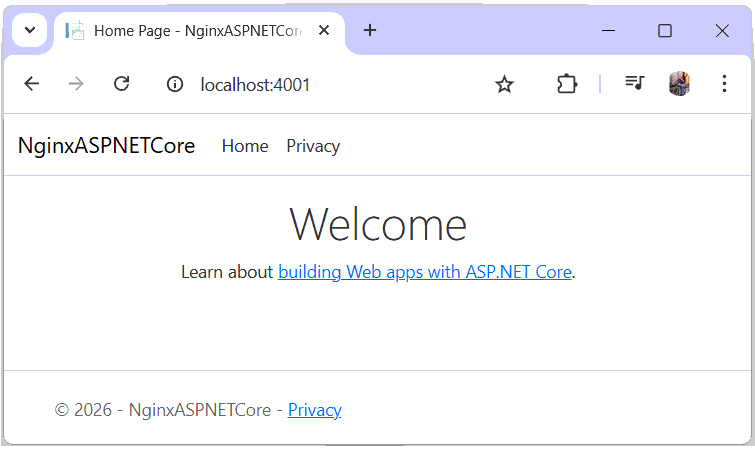
The app is hosted on docker compose over kestrel web server. It’s time we configure Nginx as a revers proxy. Edit the nginx.conf file located inside the “conf” folder to include the following code.
worker_processes  1;

events {
    worker_connections  1024;
}

http {
    include       mime.types;
    default_type  application/octet-stream;

    sendfile        on;
    keepalive_timeout  65;

    server {
        listen       localhost:80;
        server_name  localhost;

        location / {
            proxy pass http://127.0.0.1:4001/;
            proxy_set_header Host $host;
            proxy_set_header X-Real-IP $remote_addr;
        }

        error_page   500 502 503 504  /50x.html;
        location = /50x.html {
            root   html;
        }
    }
}
The main changes done to the nginx.conf file is that it now listen to localhost:80 and server_name is defined localhost.
listen       localhost:80;
server_name  localhost;
Then inside the location directive we provided the route of our Dockerized .NET app which is http://127.0.0.1:4001/.
proxy pass http://127.0.0.1:4001/;Then we configured Nginx to tell backend application which hostname was originally requested. This is done by:
proxy_set_header Host $host;After that with proxy_set_header Nginx is directed to modify or add HTTP headers sent to the Kestrel server, allowing us to pass crucial information like the original client’s IP (X-Real-IP, X-Forwarded-For).
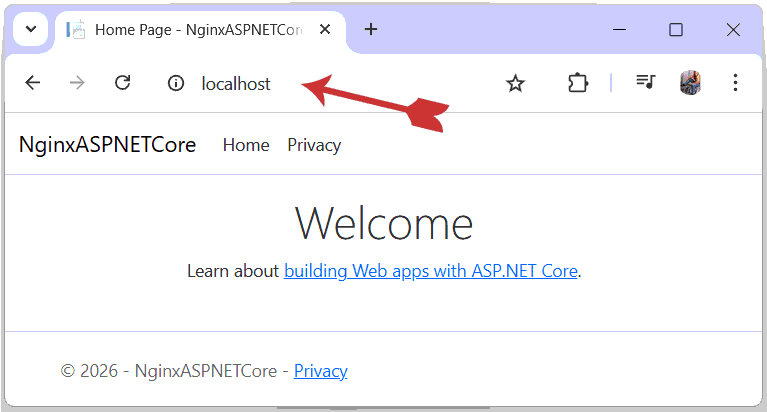
proxy_set_header X-Real-IP $remote_addr; Reload Nginx with nginx -s reload and then open http://localhost on the browser which will open the ASP.NET Core app. See the below image.
Configuring Nginx as Load Balancer in Dockerized .NET app
We now Configuring Nginx as Load Balancer in Dockerized .NET app. Nginx will distribute incoming network traffic across multiple backend servers to ensure high availability, optimal performance, and scalability of the web app.
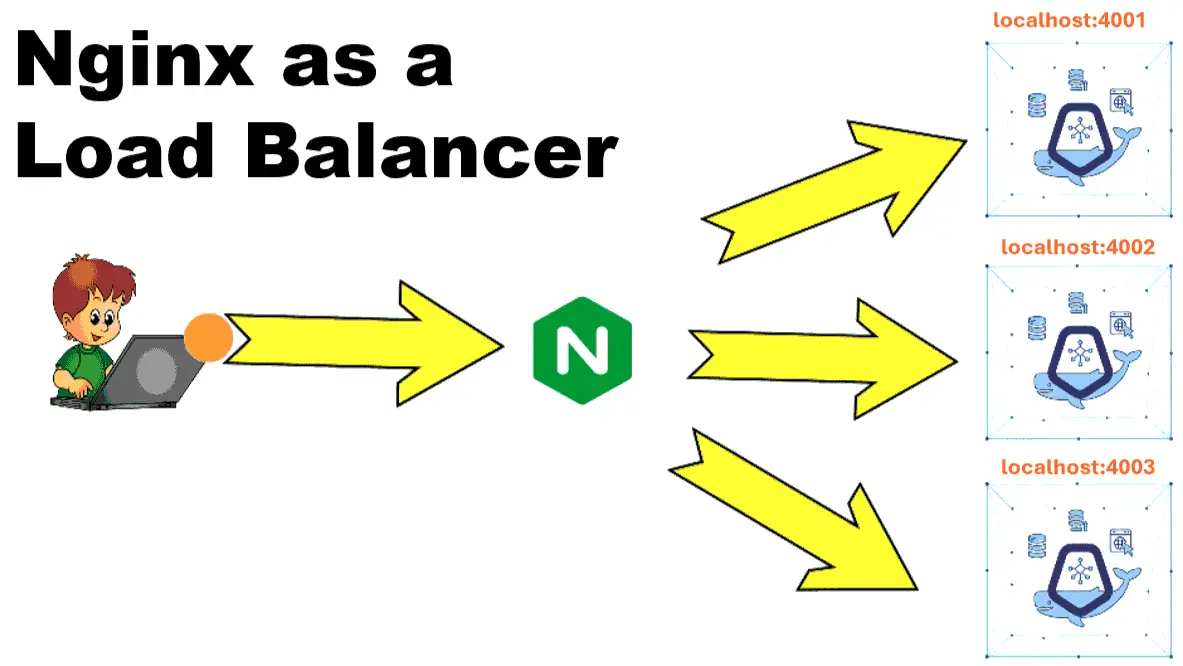
We will first host our app from multiple docker containers which will replicate the scenario of hosting an app from multi servers.
Change the apps docker-compose.yml file as shown below.
services:
  nginxaspnetcore1:
    image: ${DOCKER_REGISTRY-}nginxaspnetcore
    build:
      context: .
      dockerfile: NginxASPNETCore/Dockerfile
    ports:
        - "4001:8080"
    environment:
      - appname=First
      - ASPNETCORE_ENVIRONMENT=Development
      - ASPNETCORE_URLS=http://+:8080

  nginxaspnetcore2:
    image: ${DOCKER_REGISTRY-}nginxaspnetcore
    build:
      context: .
      dockerfile: NginxASPNETCore/Dockerfile
    ports:
        - "4002:8080"
    environment:
      - appname=Second
      - ASPNETCORE_ENVIRONMENT=Development
      - ASPNETCORE_URLS=http://+:8080

  nginxaspnetcore3:
    image: ${DOCKER_REGISTRY-}nginxaspnetcore
    build:
      context: .
      dockerfile: NginxASPNETCore/Dockerfile
    ports:
        - "4003:8080"
    environment:
      - appname=Third
      - ASPNETCORE_ENVIRONMENT=Development
      - ASPNETCORE_URLS=http://+:8080
Here we added 3 services – nginxaspnetcore1, nginxaspnetcore2, nginxaspnetcore3 for the 3 docker containers that will host the app. On the ports section we exposed the ports – 4001, 4002 and 4003. We also added an environment variable “appname” to find out which container served which request. You will see this thing later on.
We also have to add the 3 services on docker-compose.override.yml file as shown below.
services:
  nginxaspnetcore1:
    environment:
      - ASPNETCORE_ENVIRONMENT=Development
      - ASPNETCORE_HTTP_PORTS=8080
      - ASPNETCORE_HTTPS_PORTS=8081
    ports:
      - "8080"
      - "8081"
    volumes:
      - ${APPDATA}/Microsoft/UserSecrets:/home/app/.microsoft/usersecrets:ro
      - ${APPDATA}/Microsoft/UserSecrets:/root/.microsoft/usersecrets:ro
      - ${APPDATA}/ASP.NET/Https:/home/app/.aspnet/https:ro
      - ${APPDATA}/ASP.NET/Https:/root/.aspnet/https:ro

  nginxaspnetcore2:
    environment:
      - ASPNETCORE_ENVIRONMENT=Development
      - ASPNETCORE_HTTP_PORTS=8080
      - ASPNETCORE_HTTPS_PORTS=8081
    ports:
      - "8080"
      - "8081"
    volumes:
      - ${APPDATA}/Microsoft/UserSecrets:/home/app/.microsoft/usersecrets:ro
      - ${APPDATA}/Microsoft/UserSecrets:/root/.microsoft/usersecrets:ro
      - ${APPDATA}/ASP.NET/Https:/home/app/.aspnet/https:ro
      - ${APPDATA}/ASP.NET/Https:/root/.aspnet/https:ro

  nginxaspnetcore3:
    environment:
      - ASPNETCORE_ENVIRONMENT=Development
      - ASPNETCORE_HTTP_PORTS=8080
      - ASPNETCORE_HTTPS_PORTS=8081
    ports:
      - "8080"
      - "8081"
    volumes:
      - ${APPDATA}/Microsoft/UserSecrets:/home/app/.microsoft/usersecrets:ro
      - ${APPDATA}/Microsoft/UserSecrets:/root/.microsoft/usersecrets:ro
      - ${APPDATA}/ASP.NET/Https:/home/app/.aspnet/https:ro
      - ${APPDATA}/ASP.NET/Https:/root/.aspnet/https:ro
On the HomeController.cs file’s Index action method we grab the environment “appname” value and write it to the console.
public IActionResult Index()
{
    string app = Environment.GetEnvironmentVariable("appname");
    Console.WriteLine("Request served to - " + app);
    return View();
}
Build this app from docker-compose build then run the container with docker-compose up commands.
The above configuration will enable us to access the app from 3 urls – http://localhost:4001, http://localhost:4002, http://localhost:4003 on the browser. See the below image of this app.
Next, we will configure Nginx as a Load Balancer. This will make any client request to be directed to any of the 3 Urls given above. In the nginx.conf file we add upstream directive and added add the 3 url of the app to which NGINX, acting as a load balancer, forwards client requests. The least_conn directive in NGINX specifies a dynamic load balancing method that directs new incoming requests to the upstream server which currently has the least number of active connections. By default requests to the application servers are distributed in a round-robin fashion.
upstream mycluster {
    least_conn;
    server 127.0.0.1:4001;
    server 127.0.0.1:4002;
    server 127.0.0.1:4003;
}
Call this upstream from proxy_pass as proxy_pass http://mycluster;. The updated code is given below.
worker_processes  1;

events {
    worker_connections  1024;
}

http {
    include       mime.types;
    default_type  application/octet-stream;

    sendfile        on;
    keepalive_timeout  65;

    upstream mycluster {
        least_conn;
        server 127.0.0.1:4001;
        server 127.0.0.1:4002;
        server 127.0.0.1:4003;
    }

    server {
        listen       localhost:80;
        server_name  localhost;

        location / {
            proxy_pass http://mycluster;
            proxy_set_header Host $host;
            proxy_set_header X-Real-IP $remote_addr;
        }

        error_page   500 502 503 504  /50x.html;
        location = /50x.html {
            root   html;
        }
    }
}
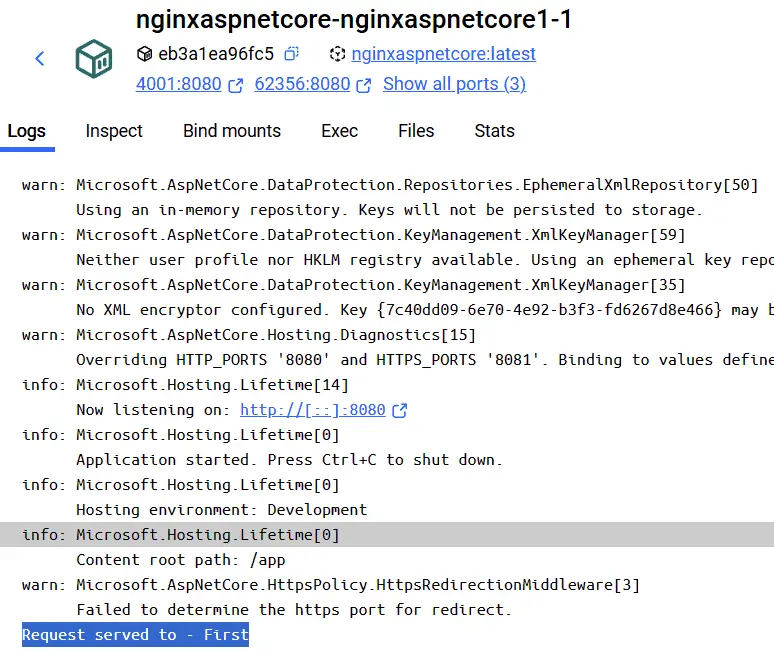
Reload Nginx with nginx -s reload and then open http://localhost on the browser which will open the ASP.NET Core app from any of the 3 containers which is idle (having least connection). Open the logs of the container to find out which one served the request. You will see the environment variable value – Request served to – First. See the below image.
Adding SSL certificate to Nginx
We will now add SSL certificate to Nginx. To create SSL we will uses OpenSSL. The best way to install OpenSSL in windows is by insalling Git. Git will install OpenSSL automatically on your PC.
In windows Start Menu search for Git Bash which opens a terminal window. Here we write OpenSSL commands.
Create a new folder called “SSL” on the project directory. On Git Bash Navigate to this SSL folder with the CD command as shown below. Note that the folder location will be different in your case.
cd D:/Yogesh/SEO/Yogihosting/new/'Docker Nginx'/NginxASPNETCore/NginxASPNETCore/SSLNext run the following command which will generate the SSL.
openssl req -x509 -nodes -days 365 -newkey rsa:2048 -keyout nginx-selfsigned.key -out nginx-selfsigned.crtYou will be asked to enter some details like your country, city, email, etc. I have shown this in the below image.
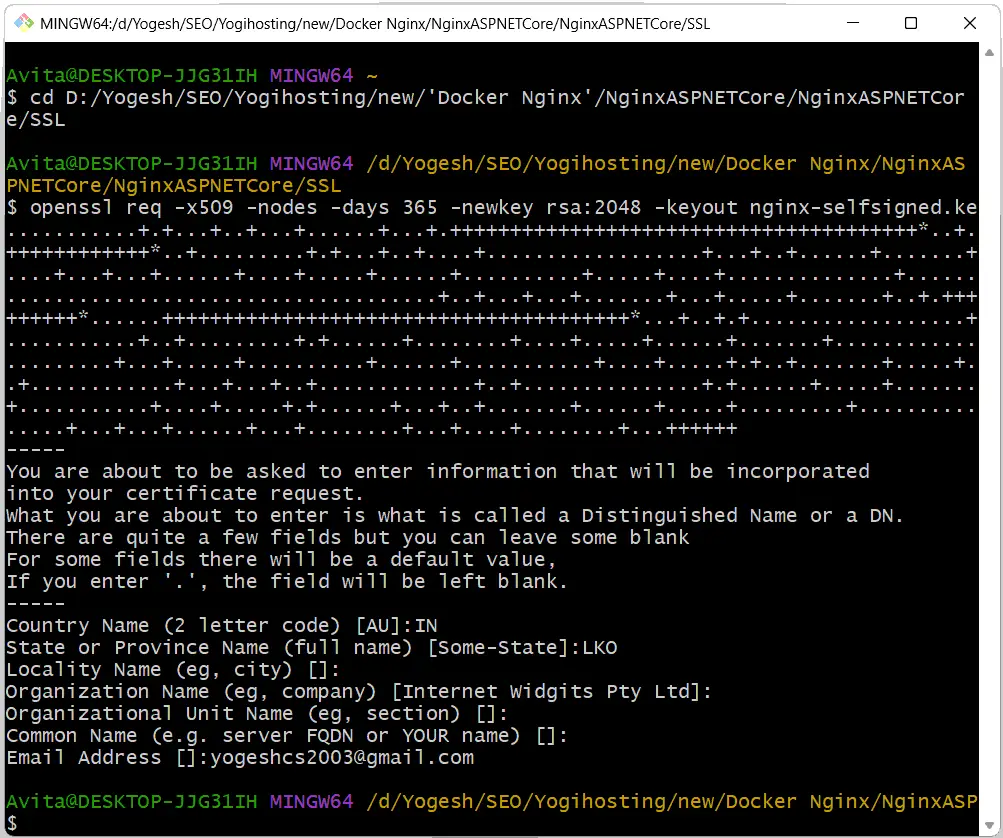
Two files will be created one is the SSL itself name “nginx-selfsigned.crt” and the other is it’s private key named “nginx-selfsigned.key”. We now have to add it to nginx.conf file.
Update the nginx.conf file to include the SSL as shown below.
worker_processes  1;

events {
    worker_connections  1024;
}

http {
    include       mime.types;
    default_type  application/octet-stream;

    sendfile        on;
    keepalive_timeout  65;

    upstream mycluster {
        least_conn;
        server 127.0.0.1:4001;
        server 127.0.0.1:4002;
        server 127.0.0.1:4003;
    }

    server {
        listen localhost:80;
        server_name localhost;

         location / {
            return 301 https://$host$request_uri;
        }
    }

    server {
        listen       443 ssl;
        server_name  localhost;

        ssl_certificate "D:/Yogesh/SEO/Yogihosting/new/Docker Nginx/NginxASPNETCore/NginxASPNETCore/SSL/nginx-selfsigned.crt";
        ssl_certificate_key "D:/Yogesh/SEO/Yogihosting/new/Docker Nginx/NginxASPNETCore/NginxASPNETCore/SSL/nginx-selfsigned.key";

        location / {
            proxy_pass http://mycluster;
            proxy_set_header Host $host;
            proxy_set_header X-Real-IP $remote_addr;
        }

        error_page   500 502 503 504  /50x.html;
        location = /50x.html {
            root   html;
        }
    }
}
In the above configuration we added a new server block which listens on 443 port and then provided ssl file and path with ssl_certificate & ssl_certificate_key. The server block for 80 port is now trimmed, it only redirects to the 443 port.
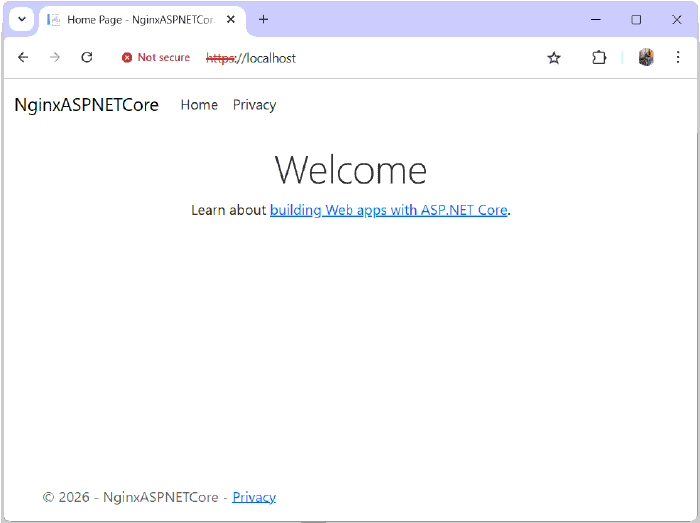
Open the website http://locahost which will redirect you to https://locahost. You will be seeing the warning message since it is Self Signed. Check the below image.
You can now download the source codes of this tutorial:
In this tutorial we leaned to configure Nginx as both reverse proxy and load balancer for .NET Dockerized apps. We also generated self signed certificates with openssl on windows and configured nginx to use this ssl. Check the below links for more such tutorials.
SHARE THIS ARTICLE


Related Tutorials:




ABOUT THE AUTHOR
I hope you enjoyed reading this tutorial. If it helped you then consider buying a cup of coffee for me. This will help me in writing more such good tutorials for the readers. Thank you.

HELLO EVERYONE
 Welcome to YogiHosting - A Programming Tutorial Website. It is used by millions of people around the world to learn and explore about ASP.NET Core, Blazor, jQuery, JavaScript, Docker, Kubernetes and other topics.
SUBSCRIBE TO NEWSLETTER
Enter your email address to subscribe to this blog and receive notifications of new posts by email.
Join 90K other subscribers