


Docker Volumes on ASP.NET Core App
Docker Volumes are persistent data stores for containers created and managed by Docker. Volumes are stored within a directory on the host machine and not inside the container. When we mount the volume into a container, then this directory is what’s mounted on the container. If an app is storing some data on files inside the container then in case of a container crash the data is bound to be lost. Volumes comes into this scenario since here we can save these files on the volumes, in case of container crash the volume is unaffected (since it is outside the container), so the files are not lost.
Page Contents

This tutorial is a part of ASP.NET Core apps on Docker series.
- 1. Create first ASP.NET Core App in a Docker Container
- 2. Deploy a Docker based ASP.NET Core app to Azure
- 3. ASP.NET Core APP with HTTPS in Docker
- 4. Multi-Container ASP.NET Core App with Docker Compose
- 5. CRUD Operations in ASP.NET Core and SQL Server with Docker
- 6. Docker Volumes on ASP.NET Core App
- 7. Configuring Nginx as Reverse Proxy and Load Balancer for Dockerized ASP.NET Core apps
- 8. Deploy ASP.NET Core Dockerized app to Azure with GitHub Actions CI / CD
In the below image we can understand the working of the volume. The app is hosted from a container with a volume mounted on it. The data of the app is stored on the volume and data persists in case of container crash.
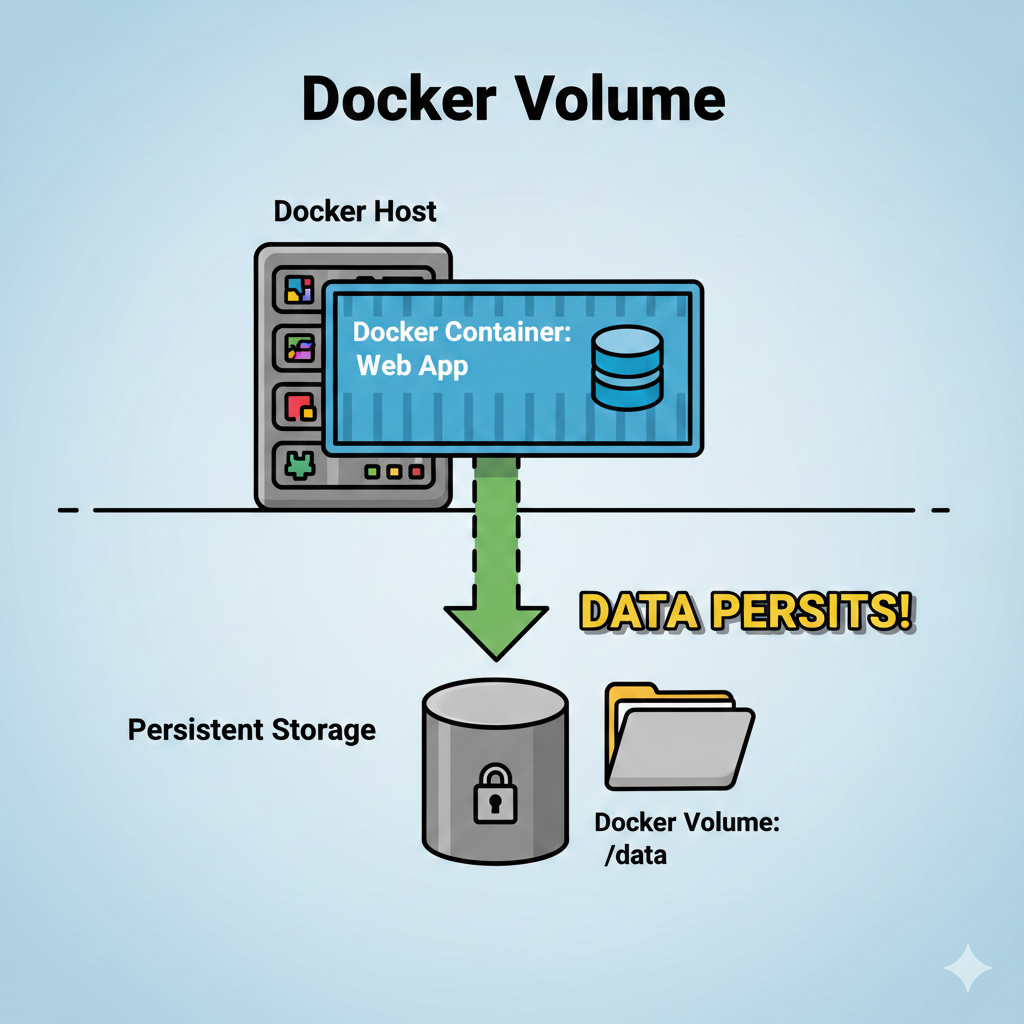
ASP.NET Core MVC APP with Docker Volume
To understand the concept of docker volume we will create an ASP.NET Core app that displays a form to the users telling them – “Congrats, You are the lucky chosen one and has won iPhone. Fill your details to grab it”. When users fill their details then it get saved in a text file. The form is shown below.
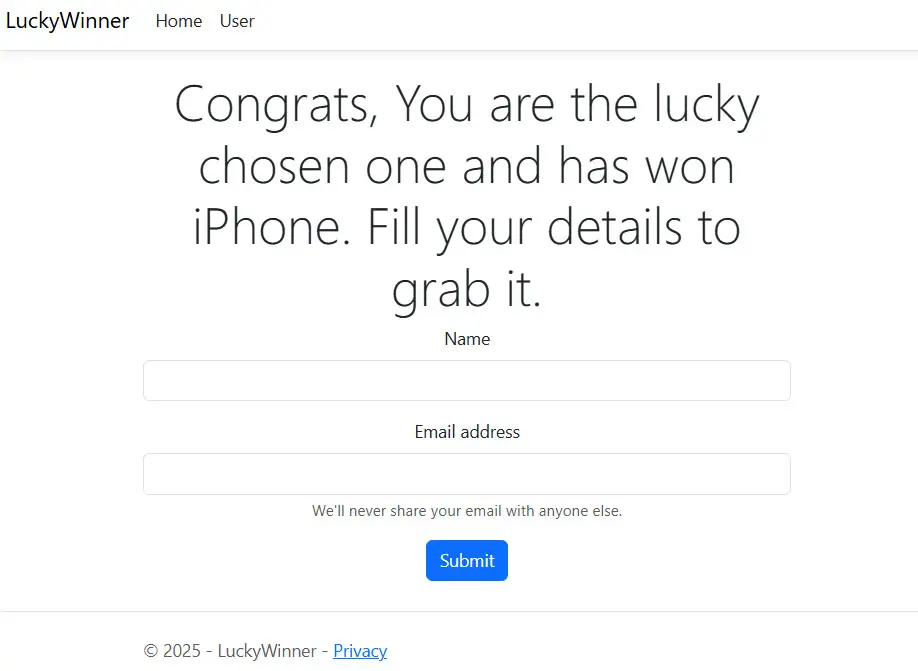
The goal is to make this text file persistent in nature i.e. it should not be deleted in case of a container crash.
The Index.cshtml razor view code where the form is created is:
@{
    ViewData["Title"] = "Home Page";
}
@{
    if (ViewBag.Submitted == "Yes")
    {
        <h1 class="display-4">We will contact you shortly and will send iPhone to your address</h1>
    }
    else
    {
        string displayValue = ViewBag.Header == "Yes" ? "none" : "block";
        <div class="text-center" style="display:@displayValue">
            <h1 class="display-4">Congrats, You are the lucky chosen one and has won iPhone. Fill your details to grab it.</h1>
            <form method="post">
                <div class="mb-3">
                    <label class="form-label">Name</label>
                    <input class="form-control" name="name">
                </div>

                <div class="mb-3">
                    <label class="form-label">Email address</label>
                    <input class="form-control" name="email">
                    <div id="emailHelp" class="form-text">We'll never share your email with anyone else.</div>
                </div>
                <button type="submit" class="btn btn-primary">Submit</button>
            </form>
        </div>
    }
}The controllers action which saves the details in a text file is given below.
[HttpPost]
public IActionResult Index(string name, string email)
{
    string docPath = "Emails";

    if (!Directory.Exists(docPath))
        Directory.CreateDirectory(docPath);

    using (StreamWriter outputFile = new StreamWriter(Path.Combine(docPath, "userdata.txt"), true))
    {
        outputFile.WriteLine(name + ", " + email);
    }
    ViewBag.Submitted = "Yes";

    return View();
}
We used StreamWriter class to store the user details (Name and Email) in comma separated manner in “Emails/userdata.txt” file.
Brock Lesner, brock.lesner@yahoo.com
Sachin Tendulkar, srt.cricket@gmail.com
The User.cshtml razor view will display all the users who submitted their data in a html table. It’s code is given below.
@{
    ViewData["Title"] = "Email";
}
<h1>Submitted Users</h1>
<div class="text-center">
    <div class="table-responsive">
        <table class="table table-striped table-bordered">
            <thead>
                <tr class="table-primary">
                    <th>Name</th>
                    <th>Email</th>
                </tr>
            </thead>
            <tbody>
                @Html.Raw(ViewBag.Users)
            </tbody>
        </table>
    </div>
</div>
The respective action method code is:
public IActionResult User()
{
    string docPath = "Emails";
    string allData = string.Empty;
    try
    {
        using (StreamReader reader = new StreamReader(Path.Combine(docPath, "userdata.txt")))
        {
            while (reader.Peek() >= 0)
            {
                string line = reader.ReadLine();
                allData += "<tr><td>" + line.Split(',')[0] + "</td><td>" + line.Split(',')[1] + "</td></tr>";
            }
        }
    }
    catch
    {
    }

    ViewBag.Users = allData;

    return View();
}
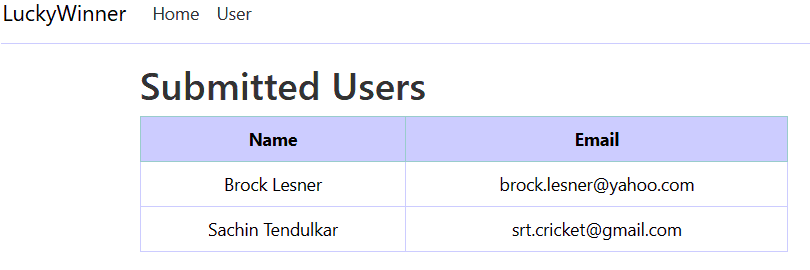
This is how the user data is displayed on the browser.
Hosing the ASP.NET Core MVC app from Docker Container
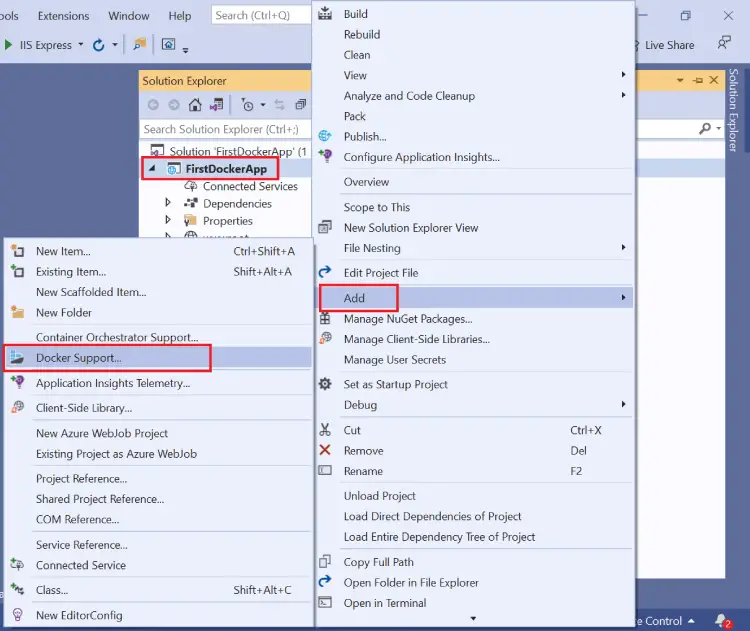
Right click the app name in the solution explorer then select Add ➤ Container Support option.
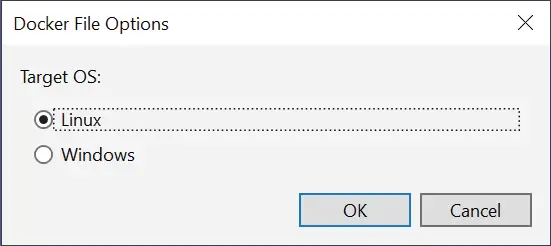
On the Container Scaffolding Options dialog keep all the settings as it is and click OK button.
In the command prompt, go to the directory of Dockerfile and run the docker build command which will build the image by the name of luckyapp:v1.
docker build -t luckyapp:v1 -f Dockerfile .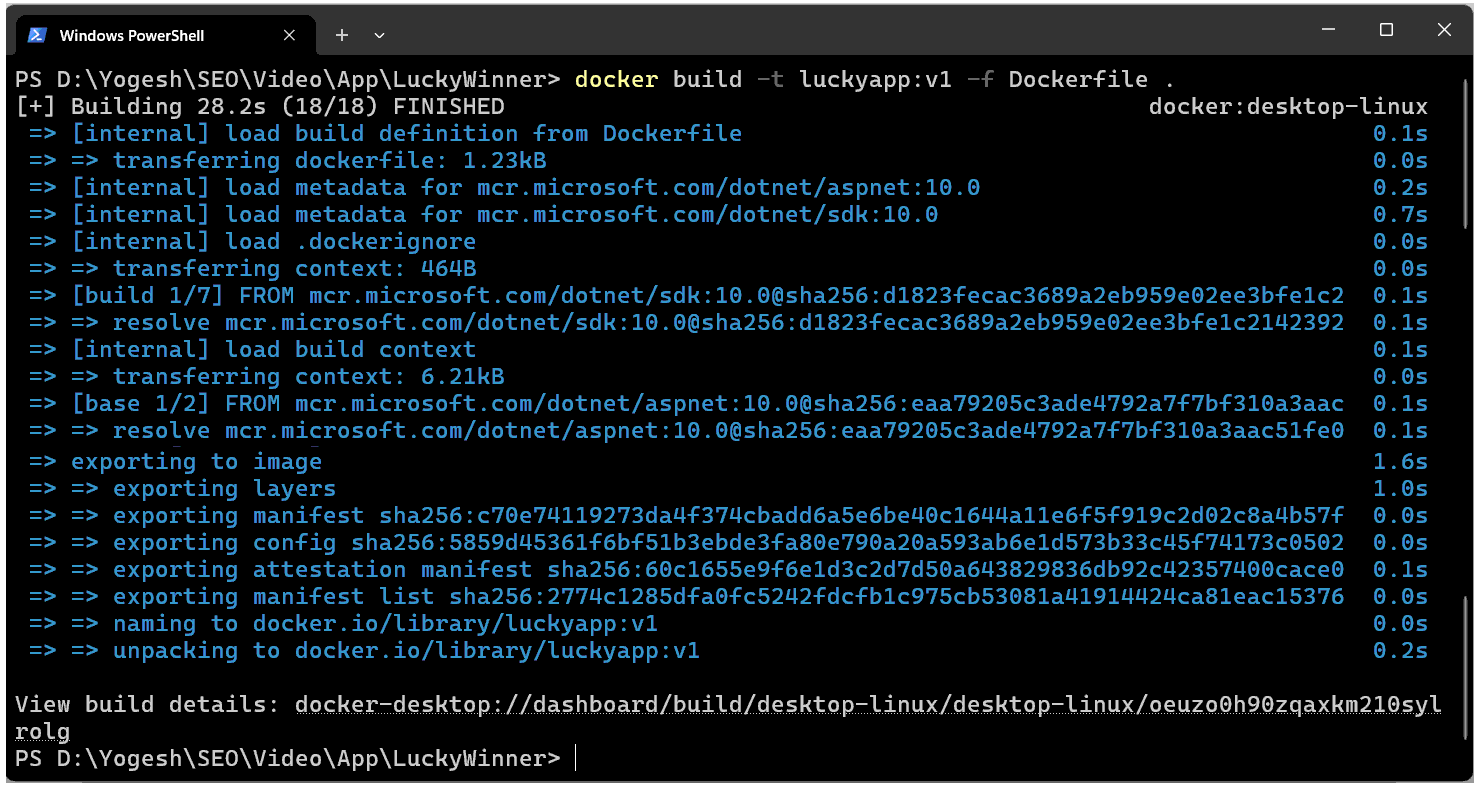
Next, run a docker container for this image. We named the container “Lucky” and exposed the port no 5002 of the host mapping to 8080 port of the container.
docker run --name Lucky -p 5002:8080 luckyapp:v1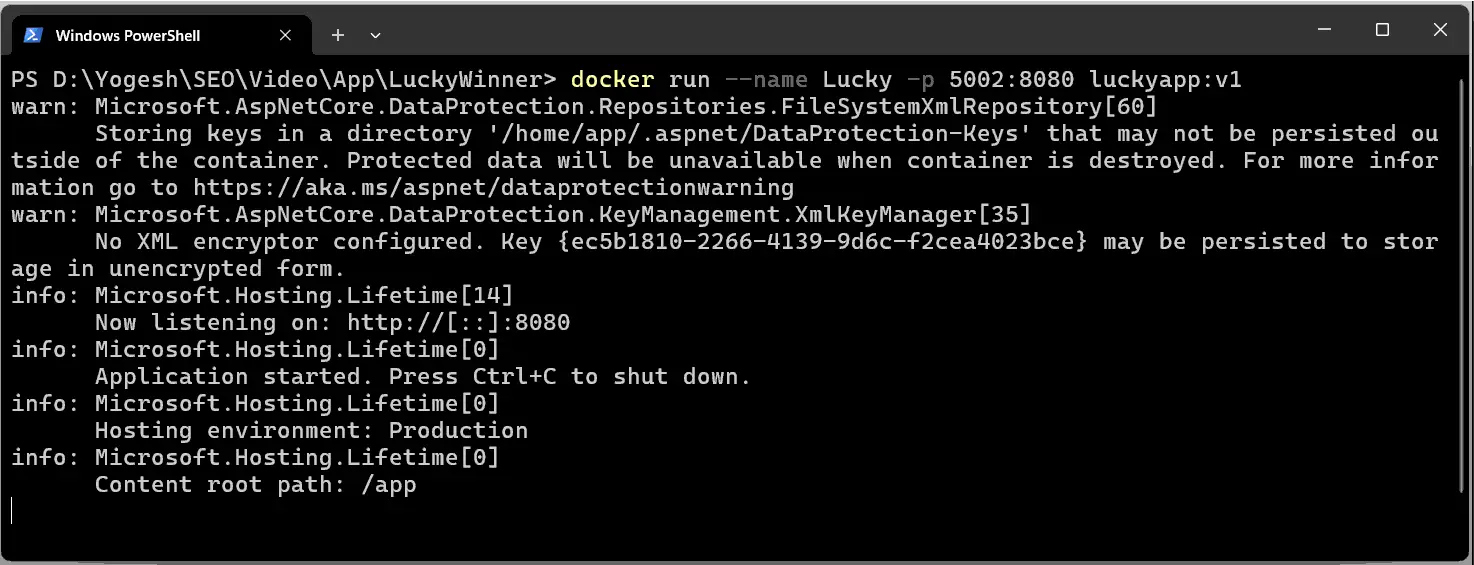
Open the apps url – http://localhost:5002 on the browser. The app is opening from a docker container. Submit some user data on the form.
Lets open a bash session in the container with the following command. Note that “2106d72da5e2” is the container id.
docker exec -it -u root 2106d72da5e2 bashInside the bash session we check what’s saved in the text file. Run the following commands one by one.
ls

cd Emails

ls

cat userdata.txt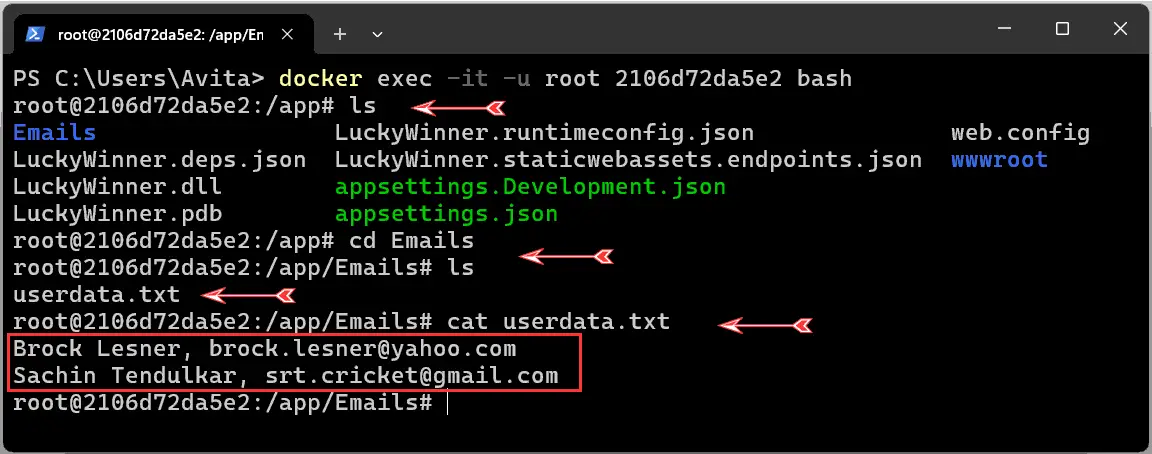
We used cat command to view the files content which is shown as:
Brock Lesner, brock.lesner@yahoo.com
Sachin Tendulkar, srt.cricket@gmail.com
Everything is working properly, but problems do not come knocking on the door. Say there is some server problem which leads to a container crash. To depict this scenario, We run the following commands one by one to stop the container, remove it from the machine then run a new container.
docker stop Lucky
docker rm Lucky
docker run --name Lucky -p 5002:8080 luckyapp:v1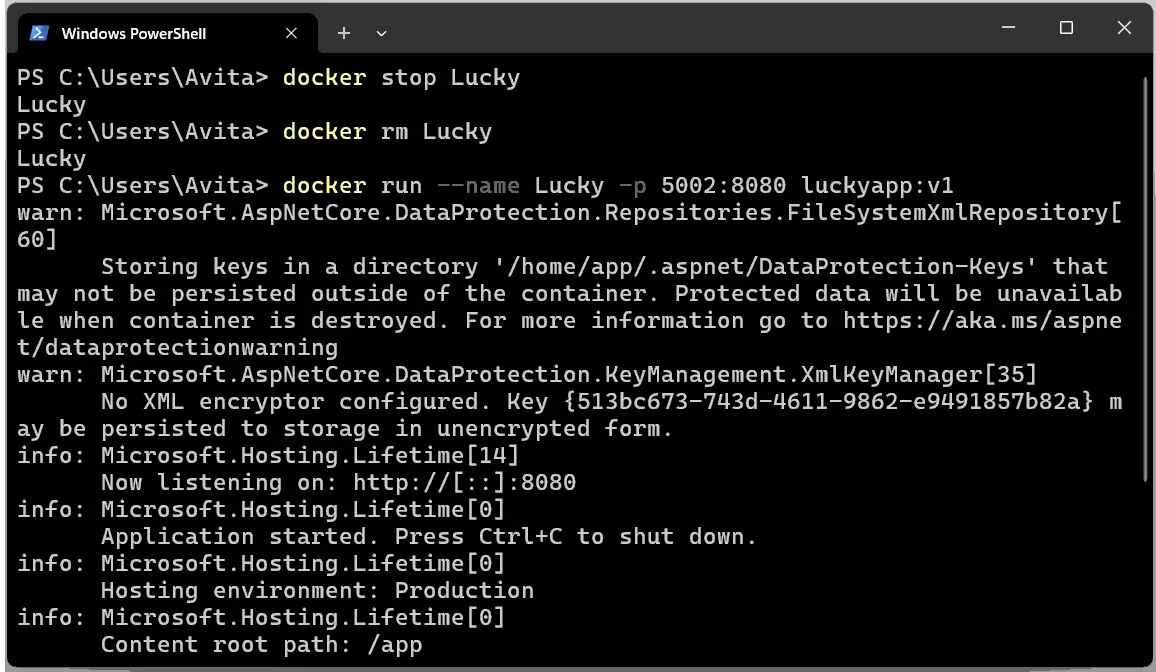
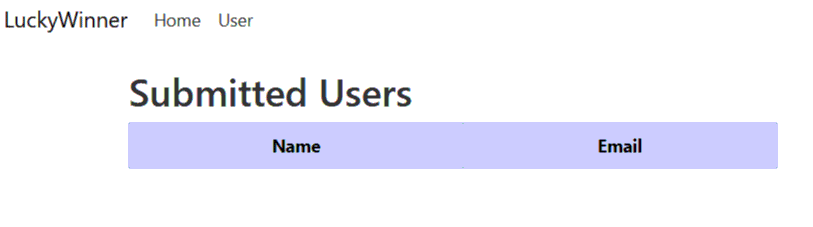
Let’s check the users page their is no data. The reason being the container crash also deletes the Emails folder and hence data is lost.
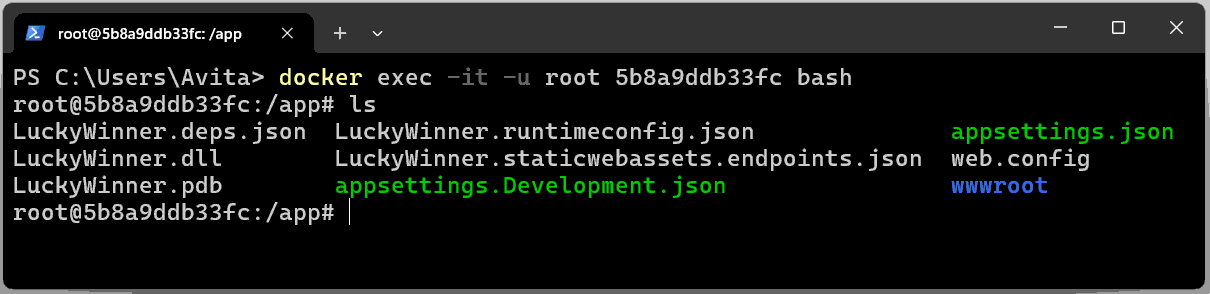
Lets check inside the container to confirm this thing. Do the same thing by opening the bash session (change the container id) and then ls to see all the files. You will not find any “Emails” folder. This confirms the folder is lost.
Adding Docker Volumes in ASP.NET Core app
The solution of the problem is Docker Volumes. We mount a folder on the host machine to the container through docker volumes and so even if the container crashes the folder will be safe since it is outside the container. We remove the previous container by the below commands.
docker stop Lucky
docker rm Lucky
Next, we spin a new container with docker volumes added by the -v flag. After the -v flag, we first give the path of the folder on the host machine then “:” followed by the path inside the container. We will use this – -v D:/Emails:/app/Emails. So in our case the folder “Emails” on the “D” drive is the host path and “/app/Emails” is the path inside the container.
Recall the app was storing the data inside “Emails” folder located on the root folder. The “app” is the root folder containing the app’s dll so we gave the path – “/app/Emails”.
The docker run command with volumes flag is given below.docker run --name Lucky -p 5002:8080 -v D:/Emails:/app/Emails luckyapp:v1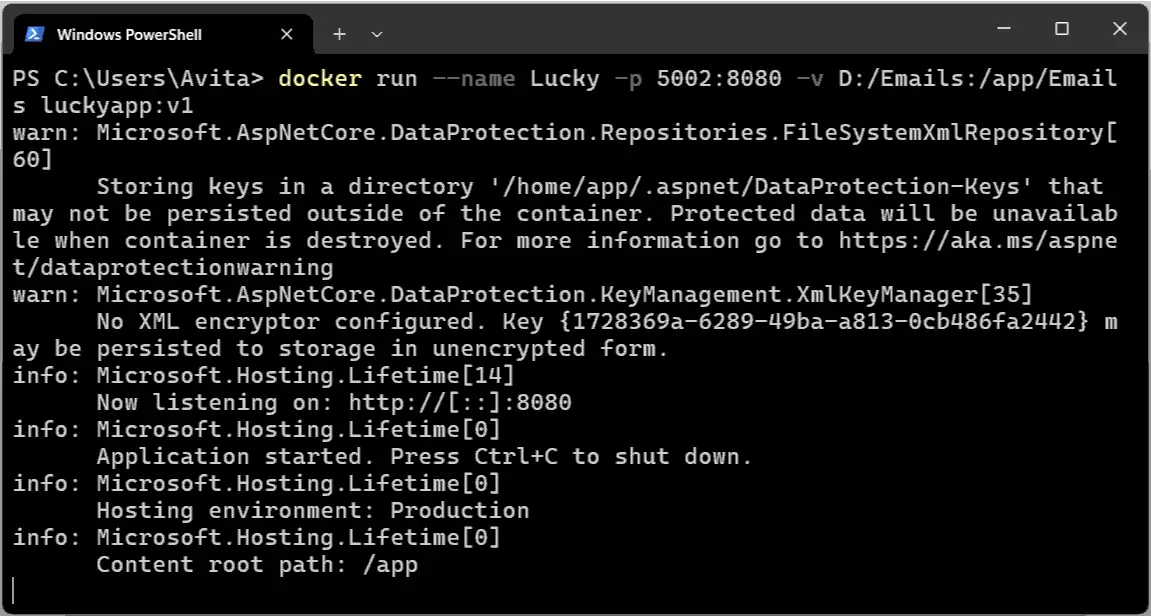
Add some user data on the website. Next open the D:/Emails folder to find the userdata.txt file. Open this file to find all the records saved.
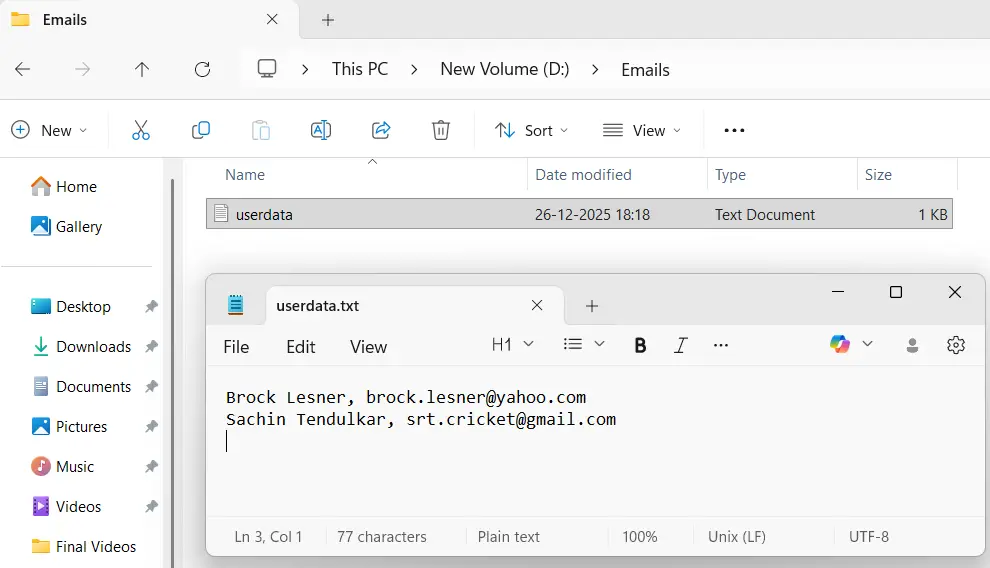
Note that this time the records will be saved outside the container in this folder. This folder is what’s mounted inside the container. Open a bash session to see this folder present inside the container.
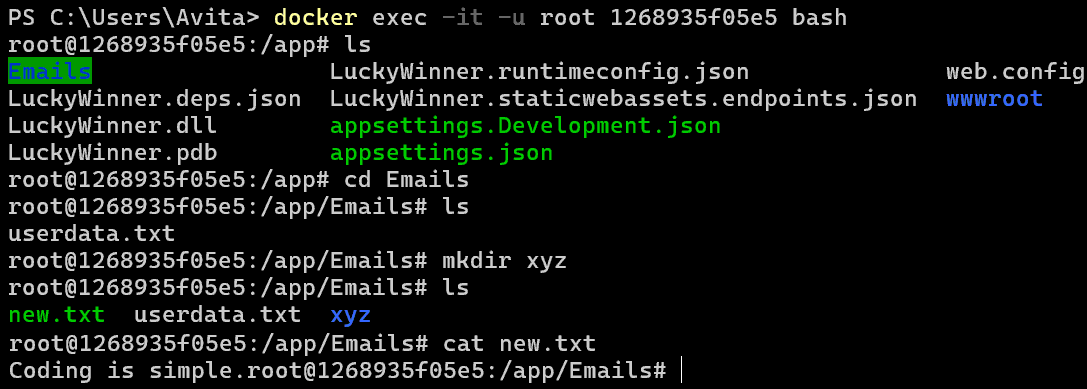
Lets make a directory called “xyz” inside the “Emails” folder on the container. We use mkdir command.
mkdir xyz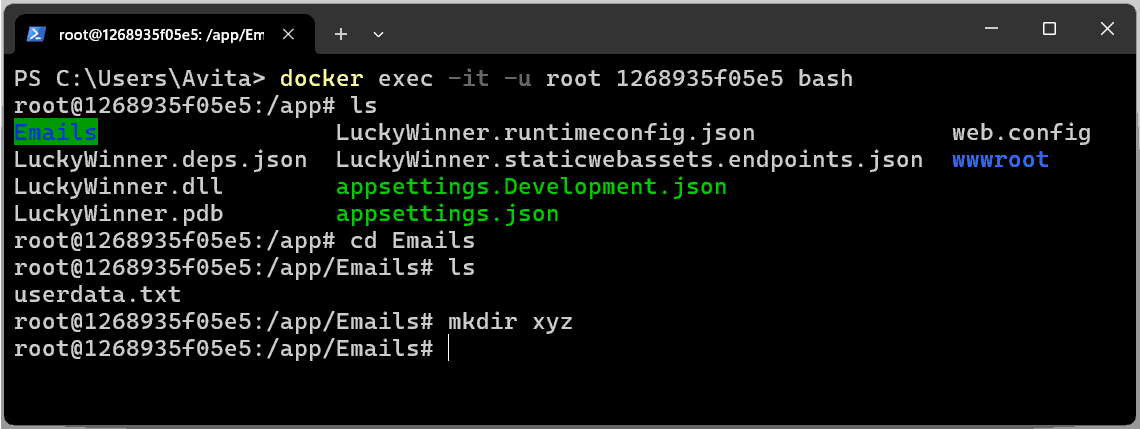 .
.
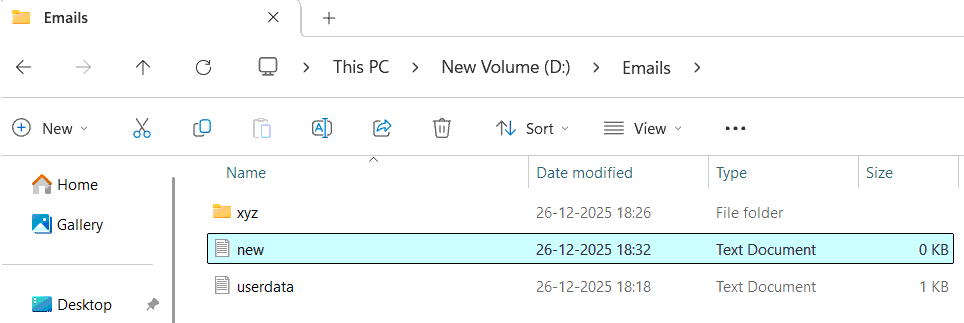
Check this directory inside the D:/Emails folder. You will find it there. This is because the directory is actually creating on the volumes and not inside the container. What you are seeing inside the container is just a reflection of the folder serving as volumes on the host machine.
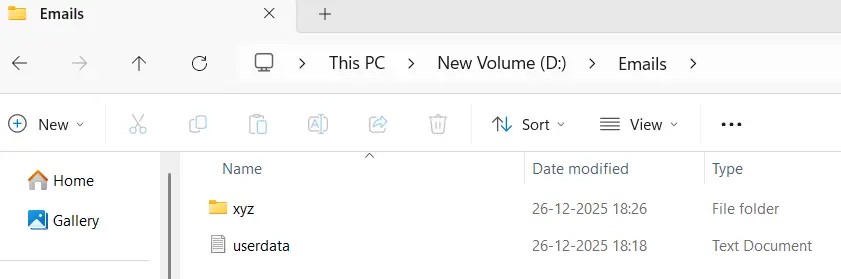 .
.
Create a new text file called “new.txt” inside the D:/Emails folder and add a text – “Coding is simple”. Then save it.
 .
.
On the bash session type “ls” command. You will find this file. Open this file with cat new.txt command. You will see the content – “Coding is simple”. Check the below screenshot where I have shown this thing.
You can now download the source codes of this tutorial:
With this we have come to the end of this docker volumes tutorial. I made my honest efforts to make you understand how volumes work in .NET apps. I hope you like it and understood everything about volumes. Do check my other docker tutorials made specifically for .NET developers.
We have launched Docker for .NET Developers – Complete Knowledge in Udemy, check it now – 
SHARE THIS ARTICLE


Related Tutorials:




ABOUT THE AUTHOR
I hope you enjoyed reading this tutorial. If it helped you then consider buying a cup of coffee for me. This will help me in writing more such good tutorials for the readers. Thank you.

HELLO EVERYONE
 Welcome to YogiHosting - A Programming Tutorial Website. It is used by millions of people around the world to learn and explore about ASP.NET Core, Blazor, jQuery, JavaScript, Docker, Kubernetes and other topics.
SUBSCRIBE TO NEWSLETTER
Enter your email address to subscribe to this blog and receive notifications of new posts by email.
Join 90K other subscribers